Compose the shot before the model renders it: a hands-on guide to ArtCraft
Most AI video is a dice roll: you type a prompt and the model decides where everything sits, whether your actor keeps their face between shots, and which way the camera points. ArtCraft starts from the opposite end. The open-source studio (dual MIT/Apache-2.0, past 28,600 GitHub stars) from the storytold team calls itself “the IDE for artists”: you compose the shot first — in a 2D canvas or a staged 3D scene — then pick which of 62 built-in models renders it. This tutorial installs the app, generates raw material, composes a shot, stages it in 3D, and animates it — then maps where the craft ends and the dice roll back in.
Most AI video is a dice roll: you type a prompt and the model decides where everything sits, whether your actor keeps their face between shots, and which way the camera points. ArtCraft starts from the opposite end. The open-source studio (dual MIT/Apache-2.0, past 28,600 GitHub stars) from the storytold team calls itself “the IDE for artists”: you compose the shot first — in a 2D canvas or a staged 3D scene — then pick which of 62 built-in models renders it. This tutorial installs the app, generates raw material, composes a shot, stages it in 3D, and animates it — then maps where the craft ends and the dice roll back in.
What you’ll need
- A Windows or macOS machine — v0.41.0 (published 2026-09-26) ships a Windows x64 installer and a macOS universal build. On Linux, you build from source (
_docs/dev_setup.mdin the repo). Or skip the install: app.getartcraft.com runs the studio in your browser. - About 30 minutes.
- Nothing to pay to start — the site says free to start, no subscription. Generations run through cloud models, so check each model’s terms before you go big.
Step 1: Install the studio
Grab the desktop build from getartcraft.com or the GitHub releases page: ArtCraft_0.41.0_x64-setup.exe (or the .msi) on Windows, ArtCraft_0.41.0_universal.dmg on macOS. Open it and you land in the Create hub — Image, Video, Audio, 3D Object, 3D World, Edit 3D, Background Change, plus beta tools like Edit Video and Moodboard, and a Frame Extractor. The same hub is what app.getartcraft.com gives you with zero install. Pick either; the workflow below is the same.
Step 2: Generate your raw material
Start the way you always have — with prompts — but treat the outputs as ingredients, not finals. The ArtCraft provider catalog holds 16 image models: Nano Banana, Nano Banana 2, Nano Banana Pro; GPT Image 1.5, 2, 2.5 Flare, 2.5 Sunburst; FLUX.1 [dev], [schnell], 1.1 [pro], 1.1 [pro] ultra; Seedream 4, 4.5, 5 Lite, 5.0 Pro, 5.0 Pro Ultra. Generate three things: an actor or portrait, a backdrop, and a prop. Different models for each is fine — consistency gets enforced in the next two steps, which is the whole point.
Step 3: Compose the shot in 2D
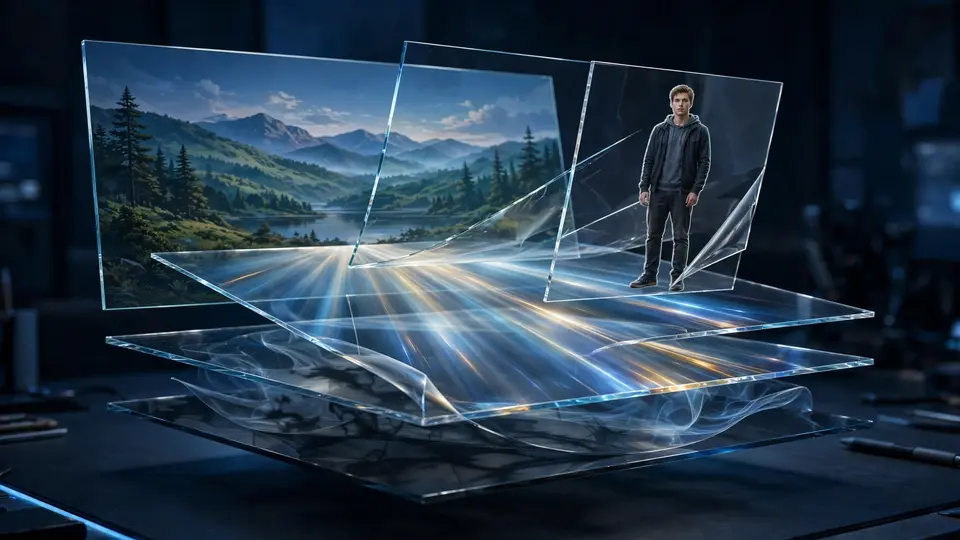
This is the IDE part. 2D Image Compositing gives you layers, background removal, and drawing tools to assemble the frame exactly as imagined. Prompted Image Editing lets you describe changes in words (the docs name Nano Banana Pro and GPT Image here) for quick passes, and Canvas Image Editing hands you masks and inpainting to control precisely where the image changes. No more hoping the model centers the subject — you put it there, and it stays there.
Step 4: Stage it in 3D
Now give the composition depth. 3D Image Compositing layers backdrops, foregrounds, and props as real geometry. Image to 3D Mesh turns an image into an object you can position, rotate, and frame precisely. Character Posing lets you pose the character and set the camera before generating the final shot; Character Identity Transfer uses a posed mannequin to guide placement and pose so the identity survives. Want multiple shots in one space? Image to Location places your virtual actors in a single environment and lets you plan several shots in the same room — the location-consistency trick that prompt-only video can’t promise.
Step 5: Animate it
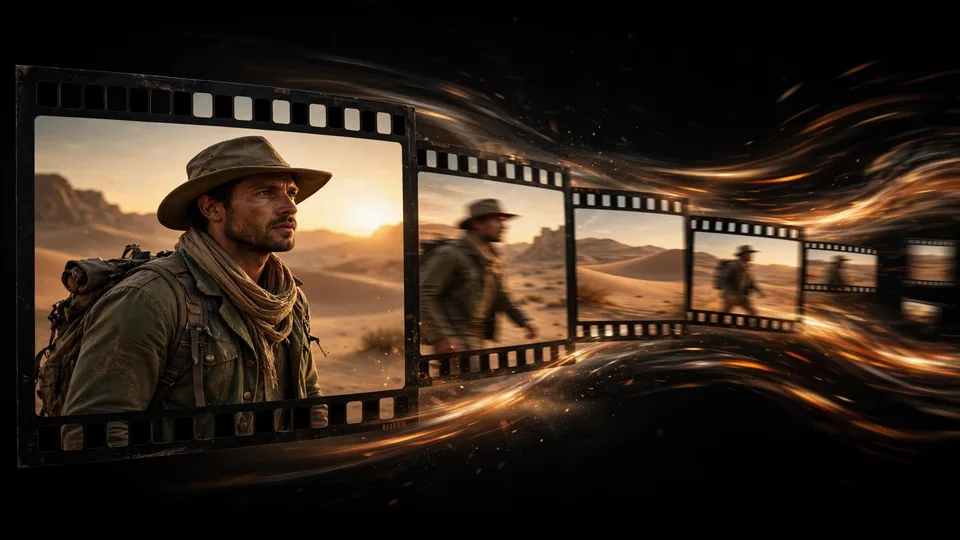
Image to Video takes your composed, staged frame and animates it with the video model you choose, with generation controls in reach. The catalog holds 25 video models: Seedance 1.5 Pro and 2.0; Kling 1.6 Pro, 2.5 Turbo Pro, 2.6 Pro; Veo 3 Fast, 3.1, 3.1 Fast, 3.1 Lite; Sora 2 Pro; Vidu Q3 and Q3 Turbo; MiniMax H3; Flux 3 and 3 Draft. Need sound for the scene? Five audio models ship too (Suno Music, Remix, Sounds, Sample; Seed Audio 1.0). Prefer geometry over pixels: 11 3D-mesh models (Hunyuan 3D 2.0 through 3.1, Tripo3D H3.1, Meshy 6, Rodin 2.5 Fast) and five world/splat models (Marble 1.0–1.1 Plus, TripoSplat). Your composed frame is the first frame of the clip — the model adds motion to your shot, not its own guess.
What you built
A shot built the way directors build shots: generated ingredients, a composed 2D frame, a 3D-blocked scene with posed actors and a set camera, then animation from a video model you chose — with music or 3D assets if the scene needed them. Every creative decision before generation was yours; the model executed.
Honest limitations
- The 62-model catalog is ArtCraft’s provider catalog, and not every entry is live. Some models are marked currently disabled (†) and some restricted or unavailable in the desktop app (‡) — check the model picker before planning a workflow around one specific model.
- Bring your own access for third-party providers. Grok (Imagine/Video), Midjourney, Sora 1/2, and World Labs Marble are separate services with their own terms. Kling, Google, Runway, Luma, OpenArt, and Freepik integrations are still on the roadmap.
- It’s a studio, not a pipeline. There is no CLI or API for scripting batch renders — if you need a thousand variants overnight, this isn’t the tool.
- Free to start, no subscription — but generations consume model usage somewhere. Check what your chosen model bills before rendering a feature film on it.
- Control isn’t determinism. Staging the scene narrows the model’s choices; it doesn’t eliminate them. Iteration is part of the craft — some shots will still need two or three takes.