
Chatbots answer and forget. What most of us actually want is the opposite: coworkers who keep working while you’re away, keep their files and browser history, and check with you before doing anything consequential. OpenDots — an MIT-licensed, open-source template from the CopilotKit team that picked up roughly 4,800 GitHub stars in its first two weeks — is a starter kit for exactly that. You clone it, run it on your own machine, and get persistent AI agents you reach from the web, a phone, or Slack. Today we’ll build the working skeleton: the app running, one Dot defined, its tools connected, and its own computer started.
OPENAI_API_KEY plus OPENAI_MODEL in .env (an OpenAI-compatible base URL works too).OpenDots is a template, not a hosted product: you run it, you configure it, and the docs label it alpha. Nothing below pretends otherwise.
From the docs’ local-development section:
git clone https://github.com/CopilotKit/OpenDots.git
cd OpenDots
npm ci
cp .env.example .env
npm run dev
Open http://127.0.0.1:5173 — the API runs on port 4310. One honest detail up front: without service credentials the app shows its setup state; it does not generate simulated replies. The empty shell is correct; the conversation wiring comes next.
OpenDots needs CopilotKit Intelligence to hold conversations. The quickest honest path is the hosted option. In the OpenDots folder, after copying .env:
npx copilotkit@latest login
npx copilotkit@latest project select
login opens the browser to sign in or create an account. project select writes a project-scoped key to .env as CPK_INTELLIGENCE_API_KEY. Then add your model credentials to the same .env and restart npm run dev:
OPENAI_API_KEY=your-key
OPENAI_MODEL=gpt-4o-mini
If you’d rather keep everything local, the docs offer a local evaluation preview instead: npx copilotkit@latest local setup, then npx copilotkit@latest local connect, then npx copilotkit@latest local connect --approve-connection. That runs Intelligence in Docker on your Mac (the preview wants at least 4 CPUs and 12 GiB of RAM) and writes the local API URL, gateway WebSocket URL, and project key into .env for you. Do not run copilotkit onboard in this folder — the docs call this out explicitly, because OpenDots already has its CopilotKit integration.
A Dot is one specialist: a name, a role, instructions, and permitted tools. In the web app, create a Dot and give it a tight job description — say, a researcher that reads papers and summarizes, or a writer that turns findings into drafts. Each Dot gets a default destination for saved pages and can be granted access to multiple Spaces, which are the homes for working documents: a searchable library of pages you can open in a visual editor, with formatting, slash commands, undo/redo, and a Markdown source mode. Pages live in the local SQLite workspace database.
Keep the first Dot’s instructions narrow. A Dot that does everything badly is the documented failure mode of every general agent; a Dot that researches and nothing else is the thing you can actually trust.
A Dot without tools is a pen pal. Open the Dot’s settings (“Edit specialist”), and under Connections give it tools from any MCP server — email, calendar, GitHub, or your own services. Per the Connections doc: enter a name, the server’s Streamable HTTP endpoint (for example https://example.com/mcp), and an optional Bearer
This is where OpenDots earns the “coworker” framing. Every tool starts enabled, but a tool the server marks read-only runs on its own while everything else starts with Ask first switched on. When the Dot calls an Ask-first tool, the server stores the exact connection, tool and arguments, and the Dot shows you an approval card in chat — Approve & run or nothing happens. The route that runs the stored request is owner-only, runs exactly the stored arguments (never whatever arrived with the approval click), expires after an hour, and runs at most once. Turn Ask-first off only for tools you’d trust with your inbox at 3 a.m.
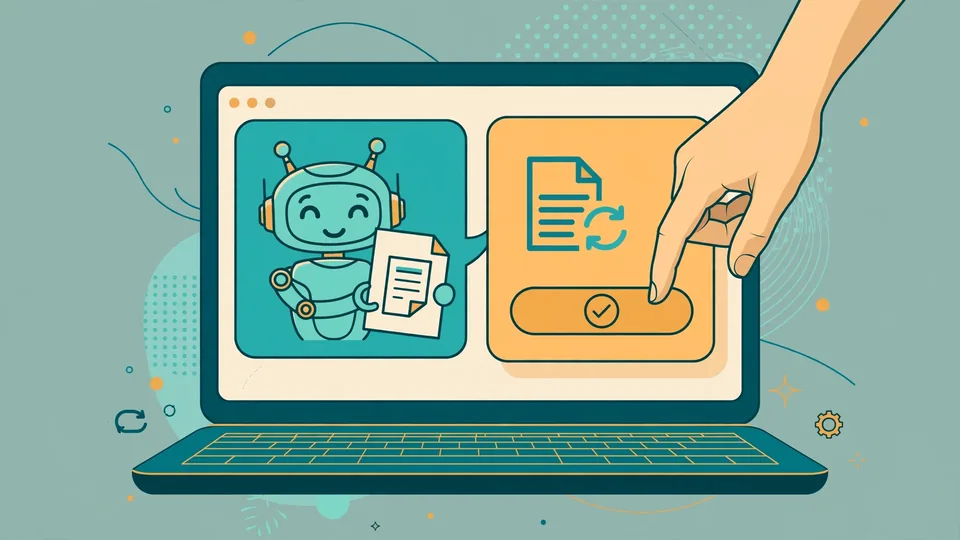
Ask a Dot to show a draft before saving it. A human-in-the-loop card pauses the conversation for Approve & save or Decline. Approval creates the page in an authorized Space and hands you a link; decline and it keeps working. The demo the team films is exactly this loop: ask, browse, approve, save — the live computer view and review card appear right in chat, and the approved draft becomes an editable Space page.
This is the single habit that makes a persistent agent safe to keep running: drafts are never silent writes. Internalize it before Step 6 gives the agent hands.
Here’s the part other agent dashboards don’t have. Each Dot can get its own computer through OpenBot’s container supervisor: a persistent container with its own browser profile and workspace files that survive stop/start, separate from your Spaces pages and conversation history. You’ll need a working Docker engine with Compose v2 and BuildKit support.
Add two different random secrets of at least 24 characters to .env and set:
COMPUTER_SUPERVISOR_URL=http://127.0.0.1:4312
COMPUTER_SUPERVISOR_TOKEN=<random-secret-1>
COMPUTER_TOKEN=<a-different-random-secret>
COMPUTER_NAMESPACE=opendots
Do not use placeholder values — the docs are explicit. Then build the images and start the supervisor:
docker compose -f compose.computers.yml build computer-image computer-supervisor
docker compose -f compose.computers.yml up -d computer-supervisor
npm run dev
Open the Dot’s Computer panel, enable computer access and the capabilities you want, then choose Start. Browser, file, and shell permissions start disabled per Dot — grant them one at a time, and only grant shell when that Dot genuinely needs to run commands. The computer exposes the live browser (with takeover, where you can click and type while the agent pauses), the Dot’s files (paths stay inside its workspace), a bounded terminal, and an activity feed that records action names and success/failure while deliberately excluding typed values and full commands.
Verify it the way the docs suggest: create two Dots, write a file in the first computer, confirm the second can’t list it; stop and start the first and confirm the file persists. Then navigate to a page in the Dot’s browser, stop the computer, start it again, and confirm the browser profile — cookies and logins — survived.
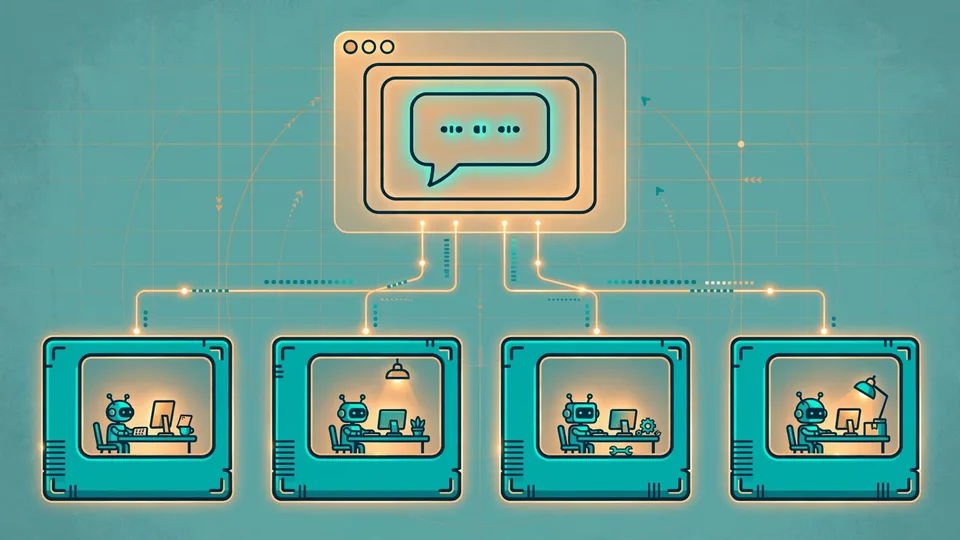
A working persistent-agent skeleton: OpenDots running on your machine, conversations persisted through CopilotKit Intelligence, one specialist Dot with a narrow role, MCP tools behind human approval, drafts saved to a Space only after you sign them, and a Dot with its own Docker computer whose files and browser profile survive restarts. The same Dot agent is reachable from web chat, Slack, scheduled work, and voice — approvals still land in the web app.
COMPUTER_RUNTIME=runsc gVisor option but doesn’t install it or claim stronger isolation by default. Run this on infrastructure appropriate for that trust level.The bet OpenDots makes is unfashionable in the best way: the scarce resource isn’t model intelligence, it’s trustworthy persistence. Roughly 4,800 developers starred a template whose loudest feature is a card that says “approve or nothing happens.” That’s worth building.