From messy PDFs to structured Markdown your retriever can cite: a hands-on guide to Docling
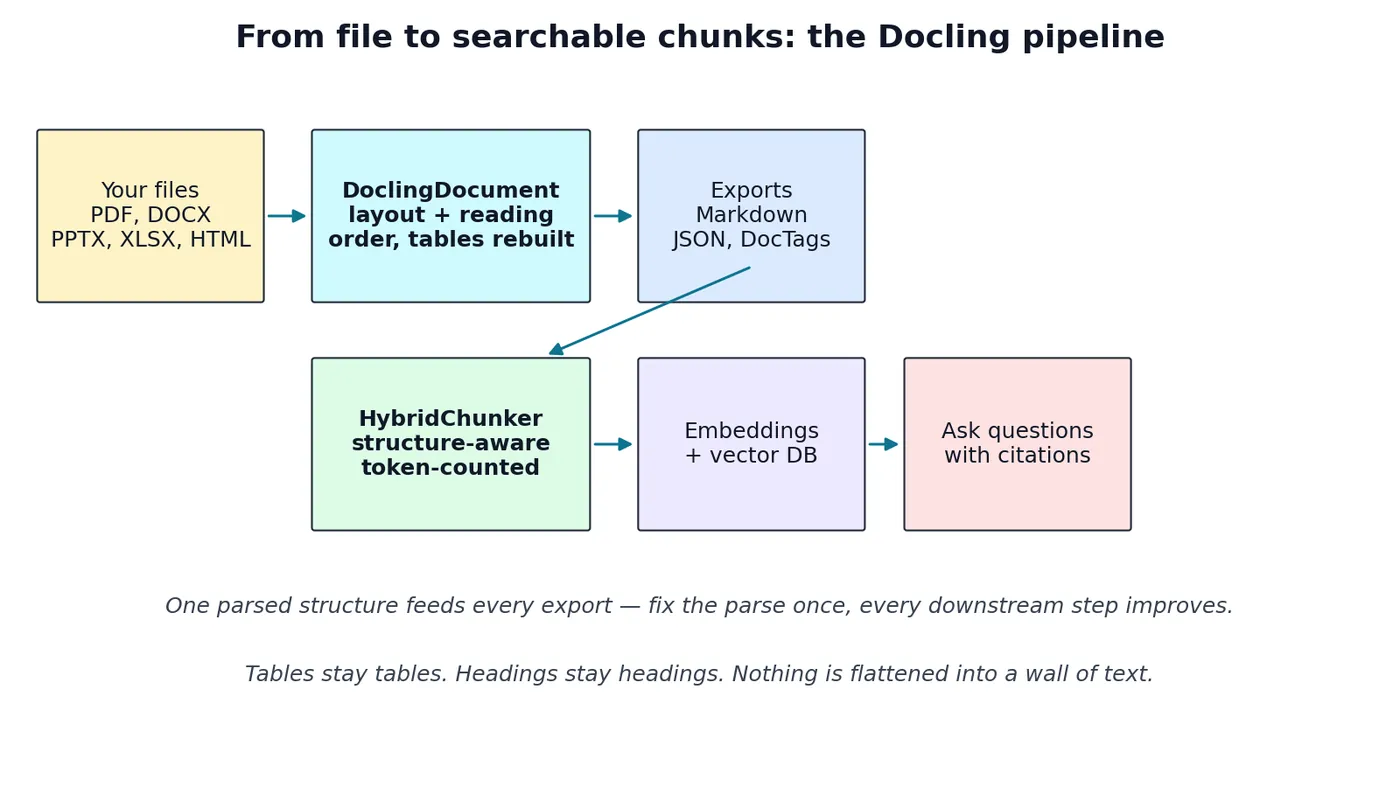
Most RAG pipelines fail before the model ever runs: the parser flattens tables, scrambles reading order, and drops the headings a chunker needs. Docling fixes the input. This guide proves it on Docling 2.143.1 — a real Word report and its PDF, converted, inspected, tuned, and chunked for retrieval, with the two install traps (the slim package, the old CLI form) documented from the runs that hit them.
- Who: Docling (docling-project/docling), from IBM Research Zurich, now hosted by the LF AI & Data Foundation.
- What: an open-source document converter that recovers layout, reading order and table structure from PDF, Word, slides, spreadsheets, HTML and more, and exports Markdown, HTML, lossless JSON, DocTags — plus structure-aware chunks for RAG.
- When: version 2.143.1, verified in this guide (Docling Core 2.105.0, IBM Models 4.0.4, Parse 7.24.0).
- Requirements: Python 3.10 or newer; about 2 GB of free disk (package plus roughly 500 MB of layout and table models); no account, no API key, no GPU.
- Licence: MIT.
- Verified: 2.143.1 installed and version-checked; a Word report and its PDF converted with
docling convert(Word in 0.05 s, PDF in 18.61 s cold and 9.97 s cached); the 4-row by 3-column table preserved as a pipe table in both; document inspected in Python (1 table, 4 rows, 3 columns); CLI chunking produced 2 chunks (46 and 63 tokens) with heading, page and source-item metadata. Two install traps documented from failed runs: the slim package refuses local conversion, and the old baredocling <file>form does not work in 2.x.

Your RAG pipeline is only as good as the documents you feed it, and most documents are hostile to machines. A PDF that looks perfect on screen can hand your retriever a table with its columns shuffled, a two-column article read straight across the fold, and a heading floating three paragraphs from the section it belongs to. The model then answers confidently from garbage, and no amount of prompt engineering fixes input that was mangled before the model ever saw it.
Docling is the tool that fixes the input. It is an open-source document conversion library from IBM Research Zurich, now hosted by the LF AI & Data Foundation under the MIT licence, and it treats a document as a structure to understand, not a bag of characters to dump. It recovers page layout and reading order, rebuilds tables with their headers, recognises formulas and code, and hands you one uniform document object whether the input was a PDF, a Word file, a slide deck, a spreadsheet, or an HTML page. From that object you can export Markdown, HTML, lossless JSON, or DocTags — and, crucially for RAG, structure-aware chunks whose headings travel with them.
Why now: Docling is moving fast — the 2.x line shipped through 2026 with a rewritten PDF backend, a native PDF pipeline, MHTML and email support, and VLM-based conversion options — and it sits at the exact point where most RAG projects fail: ingestion. This guide installs the current release, converts a real Word document and a real PDF, inspects what the parser actually recovered, tunes the pipeline, and ends with chunks that are ready to embed. Every command below was run on Linux in a fresh virtual environment, and every output quoted is output the run actually produced.
What you'll need
- Python 3.10 or newer. This guide uses Python 3.12 on Linux x86-64; macOS and Windows work the same way.
- About 2 GB of free disk: the full package with its dependencies is roughly 1.5 GB installed, and the first PDF run downloads about 500 MB of models (the layout model plus the TableFormer table models). Install the full
doclingpackage, notdocling-slim: the slim package's CLI refuses local conversion and tells you to install the full package instead. That check was run, not assumed. - No account, no API key, and no GPU. Everything here runs on CPU.
- Two test documents, which you will build in Step 2: a Word report with a table, and the PDF exported from it. Using your own files works too — the commands are identical.
Step 1: Install Docling in a clean environment
Never install a document pipeline into your system Python. Make a virtual environment first, then install the package:
python3 -m venv docling-env
source docling-env/bin/activate
pip install docling
Confirm the install and see the version this guide verified:
docling --versionExpected output:
Docling version: 2.143.1
Docling Core version: 2.105.0
Docling IBM Models version: 4.0.4
Docling Parse version: 7.24.0
Python: cpython-312 (3.12.3)
Platform: Linux-7.0.0-39-generic-x86_64-with-glibc2.39
The first PDF conversion downloads the layout and table-structure models into your Hugging Face cache — about 500 MB in this run (the layout model plus the TableFormer table models). That download happens once; later runs reuse the cache and start immediately. On this run the first PDF conversion took 18.61 seconds with cold models and 9.97 seconds once cached, and the Word conversion took 0.05 seconds. If you are on a metered connection, run your first PDF conversion now and let it finish before you start timing anything.
Step 2: Build two test documents you can judge honestly
A tutorial that converts only its author's perfect files teaches nothing. Build a small, awkward document instead: headings, a paragraph that refers to a table, a three-column table, and a note that must stay attached to that table rather than floating away as body text. In Python, with python-docx:
from docx import Document

doc = Document()
doc.add_heading("Quarterly Support Report", 1)
doc.add_paragraph("This report summarises support volume for Q3 2026. "
    "The table below is the part most parsers mangle: if its columns "
    "or rows come back shuffled, every number in it becomes a guess.")
doc.add_heading("Ticket volume by channel", 2)
table = doc.add_table(rows=1, cols=3)
table.style = "Table Grid"
for cell, header in zip(table.rows[0].cells,
                        ["Channel", "Tickets", "Share"]):
    cell.text = header
for row in [("Email", "1,284", "41%"),
            ("Live chat", "1,102", "35%"),
            ("Phone", "742", "24%")]:
    for cell, value in zip(table.add_row().cells, row):
        cell.text = value
doc.add_paragraph("Note: phone volume fell after the callback "
                  "option launched in August.")
doc.save("support-report.docx")
Export the same document to PDF with LibreOffice (or Word, or Google Docs — the point is a real PDF with a real table, not a hand-crafted one):
soffice --headless --convert-to pdf support-report.docx --outdir .You now have the same content in two hostile formats. The rest of the guide converts both and compares them against the source you just wrote, so you can check every claim yourself.
Step 3: Convert both files with the CLI
The CLI takes a file, a URL, or a directory, and writes one output file per input. Convert the Word document first — it needs no downloaded models, so it is the fastest possible proof that your install works:
docling convert support-report.docx --to md --output ./outNote the verb: in Docling 2.x the CLI is a command group, and local conversion is docling convert. The bare docling <file> form from older guides does not work in 2.143.1. Then the PDF:
docling convert support-report.pdf --to md --output ./outOpen out/support-report.md. The Word conversion returns this Markdown:
## Quarterly Support Report

This report summarises support volume for Q3 2026. The table below is the part most parsers mangle: if its columns or rows come back shuffled, every number in it becomes a guess.

### Ticket volume by channel

| Channel   |   Tickets | Share   |
|-----------|-----------|---------|
| Email     |     1,284 | 41%     |
| Live chat |     1,102 | 35%     |
| Phone     |       742 | 24%     |

Note: phone volume fell after the callback option launched in August.
The PDF conversion returns the same content — same table, same note attached after the table — with one honest difference in heading levels. The Word conversion renders the title as ## and the section as ###; the PDF conversion renders both as ##:
## Quarterly Support Report

This report summarises support volume for Q3 2026. The table below is the part most parsers mangle: if its columns or rows come back shuffled, every number in it becomes a guess.

## Ticket volume by channel

| Channel   |   Tickets | Share   |
|-----------|-----------|---------|
| Email     |     1,284 | 41%     |
| Live chat |     1,102 | 35%     |
| Phone     |       742 | 24%     |

Note: phone volume fell after the callback option launched in August.
That difference is worth knowing, not worrying about: the PDF pipeline recovers headings and their order, but it does not always recover their relative depth. If your chunker splits on heading levels, test it against your PDFs specifically. What matters most survived identically in both: the table came back as a table, the note stayed with its table, and nothing was reordered. A plain text extractor would have given you the table's cells in reading order and left you to guess which number belonged to which channel.
Three checks to run on any conversion, before you trust it in a pipeline:
- Headings are headings. Search the Markdown for
#and##. If your section titles came back as bold paragraphs, your chunker will never see the document's structure, because Markdown chunkers split on headings. - Tables are tables. Look for the pipe characters and the header separator row. If the table collapsed into lines of numbers, retrieval on any question about that table is lost.
- Reading order is right. Read the output top to bottom and ask whether a human reading the original would meet the ideas in this order. Two-column layouts and sidebars are where naive extractors fail silently.
Step 4: Use the Python API and inspect the structure
The CLI is for one-off conversions. A pipeline uses the API, because the API gives you the document object itself — every text item, every table, with its page number, label, and position. Convert the PDF in Python:
from docling.document_converter import DocumentConverter

converter = DocumentConverter()
result = converter.convert("support-report.pdf")
doc = result.document

print(doc.export_to_markdown())
Now stop exporting strings and inspect the structure. This is the habit that separates a working RAG pipeline from a hopeful one:
for item in doc.texts:
    print(item.label, "|", item.text[:80])
print("tables:", len(doc.tables))
for table in doc.tables:
    print("table rows:", table.data.num_rows,
          "cols:", table.data.num_cols)
    print(table.export_to_markdown(doc))
Expected output on the test PDF:
section_header | Quarterly Support Report
text | This report summarises support volume for Q3 2026. The table below is the part m
section_header | Ticket volume by channel
text | Note: phone volume fell after the callback option launched in August.
tables: 1
table rows: 4 cols: 3
| Channel   |   Tickets | Share   |
|-----------|-----------|---------|
| Email     |     1,284 | 41%     |
| Live chat |     1,102 | 35%     |
| Phone     |       742 | 24%     |
Two things in that output matter. First, doc.texts labels each item — here both headings come back as section_header and the rest as text — so downstream code can treat a heading differently from body text instead of guessing from font size. Second, doc.tables gives you the table as data (rows, columns, cells), not as a string you must re-parse. If you ever need to answer "what was the phone share?" from a table, you want the data form, and this is where you get it.
The same object exports to the other formats without re-parsing anything:
html = doc.export_to_html()
data = doc.export_to_dict()   # lossless JSON-able dict
doc.save_as_json("support-report.json")
Rule for your own pipeline: parse once, export many times. Every export you add later — a search index, a preview page, a dataset — reads the same parsed object, so a parse fix improves all of them at once.
Step 5: Tune the pipeline for the document in front of you
Defaults are good for born-digital PDFs. Real corpora are not all born-digital, so Docling exposes the pipeline options you will actually reach for. The two that matter most:
- Table structure (
do_table_structure): on by default. Turn it off only for documents you know contain no tables, where it buys you speed; turning it off on a document with tables is how you lose the exact data this guide exists to preserve. - OCR (
do_ocr): Docling runs OCR only where a page has no usable text layer — that is, on scans and photographs of pages. For a born-digital PDF it costs you nothing; for a scanned archive it is the difference between an empty result and a result. The OCR engine is selectable (RapidOCR, EasyOCR, Tesseract, and others), and the engine choice is a speed-versus-language trade-off, not a quality mystery: RapidOCR is the fast default, EasyOCR covers more languages.
Set them explicitly so your pipeline's behaviour is a decision, not an accident:
from docling.datamodel.base_models import InputFormat
from docling.datamodel.pipeline_options import PdfPipelineOptions
from docling.document_converter import DocumentConverter, PdfFormatOption

pipeline_options = PdfPipelineOptions(
    do_table_structure=True,
    do_ocr=True,
)
converter = DocumentConverter(
    format_options={
        InputFormat.PDF: PdfFormatOption(
            pipeline_options=pipeline_options
        )
    }
)
result = converter.convert("support-report.pdf")
For scanned documents, also consider the VLM pipeline (--pipeline vlm; the default VLM preset is GraniteDocling): instead of the classic layout-plus-table models, a vision-language model reads the page as an image. It is slower and heavier, and it is the right call for pages where layout models struggle — dense forms, unusual tables, heavy handwriting-adjacent layouts. Start with the standard pipeline, measure on your worst ten pages, and switch only the pages that fail. The pipeline option exists so you can make that call per document, not per library.
Step 6: Chunk for RAG — by structure, not by character count
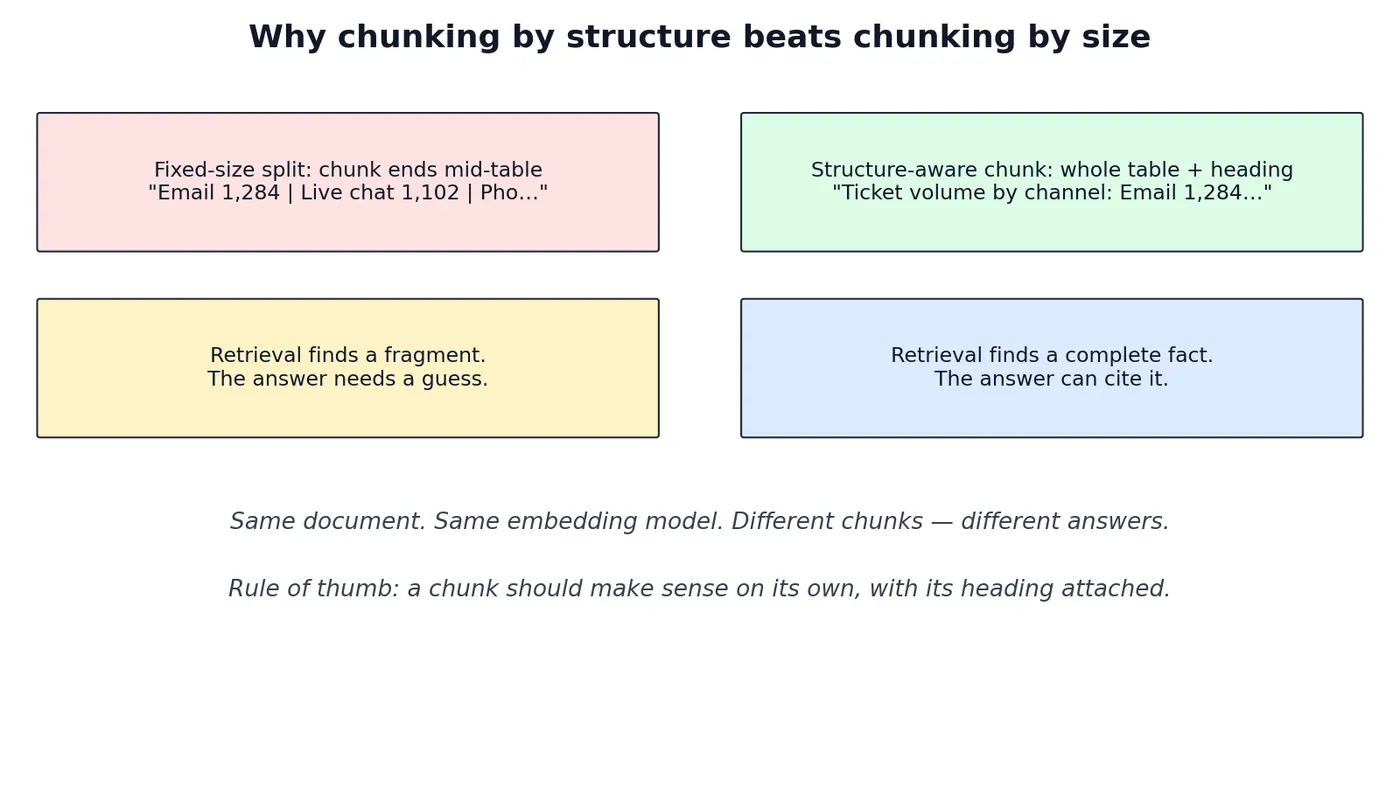
This is where most RAG pipelines quietly break. A fixed-size splitter cuts every 1,000 characters wherever the count lands, which is often in the middle of a table row. The retrieved chunk then contains half a table and no heading, and the model must guess what the numbers mean. Docling's HybridChunker instead cuts along the document's own structure — paragraphs, sections, tables — and counts tokens against your embedding model's tokenizer, so a chunk fits the model and still makes sense on its own.
Chunking ships with the full package — there is no separate docling-chunking package to install in 2.x, and asking for one fails resolution. The CLI can chunk directly, with the hybrid chunker as the default and the sentence-transformers/all-MiniLM-L6-v2 tokenizer as the default:
docling convert support-report.pdf --to chunks --output ./out-chunksThe same chunker is available in Python for the document you already parsed:
from docling.chunking import HybridChunker

chunker = HybridChunker(
    tokenizer="sentence-transformers/all-MiniLM-L6-v2"
)
chunks = list(chunker.chunk(doc))
print("chunks:", len(chunks))
for chunk in chunks:
    print("---- chunk ----")
    print(chunk.text[:400])
Expected output on the test PDF:
chunks: 2
--- chunk 0 ---
This report summarises support volume for Q3 2026. The table below is the part most parsers mangle: if its columns or rows come back shuffled, every number in it becomes a guess.
--- chunk 1 ---
Email, Tickets = 1,284. Email, Share = 41%. Live chat, Tickets = 1,102. Live chat, Share = 35%. Phone, Tickets = 742. Phone, Share = 24%
Note: phone volume fell after the callback option launched in August.
Two details in that output are worth pausing on. First, the table did not survive as a pipe table: the chunker verbalised it into sentences — "Email, Tickets = 1,284. Email, Share = 41%." — which is exactly what an embedding model wants, since it reads sentences, not grid layouts. Second, the CLI's chunk file is JSONL with one object per chunk, carrying num_tokens, the headings the chunk belongs to, its page_numbers, and the doc_items it came from — the provenance your answers will cite. The Python chunker produced the same two chunks for this document — the table-sentences chunk is identical, and the first chunk carries the same intro text without the CLI's heading line — and its options include repeat_table_header and merge_peers for tables that span chunk boundaries.
Read the chunks and check three properties, because these are the contract your retriever depends on:
- Every chunk carries its heading context. A chunk about phone volume should say which report and which section it came from, or retrieval will return correct numbers with no provenance.
- No chunk ends mid-table. This table fit in one chunk; on your largest real table, check what happens at the boundary — the chunker's
repeat_table_headeroption exists for exactly that case. Check this on your largest real table, not on the toy one here. - Chunk sizes are token counts, not character counts. The tokenizer argument is your embedding model's tokenizer. If you change embedding models, re-chunk: a chunk sized for one model's token budget is mis-sized for another's.
From here, the rest of the RAG pipeline is standard and deliberately not re-taught here: embed each chunk's text, store the embedding with the chunk's text and metadata (source file, page, heading path), and retrieve by similarity. The point of this guide is that the text and metadata going into that store are now trustworthy — the embedding step cannot rescue text that was already broken.
Step 7: Batch a folder and keep the failures visible
One document proves the tool; a folder proves the pipeline. The CLI converts a directory in one command:
docling convert ./inbox --to md --to json --output ./outOne trap to avoid, found by running exactly this: if your folder mixes a .docx and a .pdf with the same stem, both conversions write the same output filename and the second overwrites the first. Keep one input format per batch folder, or convert formats in separate runs with separate output directories.
For a production batch, add two disciplines that cost nothing now and save a post-mortem later. First, write one JSON sidecar per document (the --to json above) even if you only need Markdown today: the JSON is the lossless record of what the parser saw, and it is what you will debug from when a user reports a wrong answer six months later. Second, log failures per file and keep going — a batch job that dies on file 400 of 10,000 because one PDF is corrupt has failed at its job, which is to convert 9,999 files and tell you about the one it could not. In Python, that is a try/except around each convert() call that records the filename and the error and moves on; in a shell loop, it is checking the exit code per file instead of stopping at the first non-zero one.
Which approach should you use?
Docling is the right default for RAG ingestion, but it is not the only tool, and the honest comparison is short:
- Use Docling when tables, reading order, or chunk quality matter — which is to say, for almost any RAG pipeline over real documents — and when you want one tool for PDF, Word, slides, and spreadsheets.
- Use MarkItDown (Microsoft's converter) when you need the lightest possible Markdown conversion of Office and web documents and you do not need table structure or layout analysis. It is faster and simpler; it is not trying to understand the page.
- Use a hosted parser (such as LlamaParse) when you cannot run models locally, or when you need a managed service with support. You pay per page and your documents leave your machine — for sensitive corpora, that trade is usually the wrong one, and it is exactly the trade Docling's local execution avoids.
- Use pdfplumber or PyMuPDF directly when you need surgical control over one known PDF layout — a fixed form, a fixed report — and you are willing to write the layout logic yourself. That is precision work, not a pipeline.
The honest limits
- CPU speed. Layout analysis and table-structure recognition are neural models. On CPU, a long PDF takes seconds per page, not milliseconds. Budget for it, batch overnight for large corpora, and use a GPU if latency matters.
- Multi-page tables. A table that runs across pages can come back as one table per page, with later pages missing the header row. Check your longest tables by hand; if they matter, stitch them before chunking, and repeat the header in each chunk.
- Scans. OCR quality is bounded by scan quality. A skewed, low-contrast photocopy will OCR badly no matter which engine you pick — fix the scan before blaming the parser.
- First-run downloads. The model download on first PDF use surprises people in CI and containers. Pre-warm the cache in your image build, or your first production run pays the download cost at the worst possible moment.
- VLM cost. The vision-language pipeline is the most capable option and the most expensive one. Reserve it for pages the standard pipeline fails on, not as the default for everything.
The takeaway
Ingestion is not plumbing. It is the step that decides whether your retriever sees a table or a pile of numbers, a section or a fragment, a citable fact or a guess. Docling earns its place in a RAG pipeline by preserving the structure that makes answers checkable: headings that stay headings, tables that stay tables, and chunks that carry their context with them. Install it, convert your worst ten documents first, run the three checks from Step 3 on each, and only then build the index. If the parse is right, everything downstream gets easier; if it is wrong, nothing downstream can save it.
Questions readers ask
Do I need a GPU or an API key?
No to both, for everything in this guide. Docling runs locally on CPU with no account. A GPU speeds up PDF layout and table models; an API key is only relevant if you choose a hosted VLM backend, which this guide does not use.
Does Docling work on scanned PDFs?
Yes, via OCR on pages without a text layer. Expect good results on clean scans and degraded results on poor ones, and always check a sample of OCR output before indexing a scanned archive.
Can I use Docling with LangChain or LlamaIndex?
Yes — both ecosystems have Docling integrations (a LangChain loader that can take a chunker, and LlamaIndex readers), and the chunk JSONL you produce in Step 6 drops into any vector store without them. Start with plain chunks and add a framework only when you need what it adds.
How is this different from converting with Pandoc or MarkItDown?
Pandoc and MarkItDown convert formats; Docling understands pages. The difference shows up exactly where RAG breaks: tables, reading order, and structure-aware chunking. For a single clean conversion, the lighter tools are fine; for an index you will answer questions from, use the parser that preserves structure.
Sources
- Docling documentation — docling-project.github.io/docling (features, formats, and the current 2.x pipeline surface).
- Docling project on GitHub — github.com/docling-project/docling (source, licence MIT, LF AI & Data Foundation hosting).
- IBM, "From first document to production scale: What's new in Docling for IBM watsonx" — the 2.x backend rewrite, native PDF pipeline, and MCP support.
- Docling chunking behaviour — verified against the installed 2.143.1 package: the HybridChunker's fields (
tokenizer,repeat_table_header,merge_peers) and the CLI's--to chunksoutput format.