Run your office from the terminal: hands-on with GenOffice, the open-source AI office suite
Word, Excel and PowerPoint files are the formats offices actually use, and almost no AI tool can write them properly. GenOffice closes that gap with a command line that builds, edits, converts and audits real Office files on your own machine — and this guide proves it, command by command, on version 0.12.115.
- Who: GenOffice (genspark-ai/genoffice on GitHub), from Genspark.
- What: a free, open-source office suite — Docs, Sheets, Slides, PDF, Markdown and HTML — with a command line that creates, reads, edits, converts and audits real .docx, .xlsx and .pptx files locally, plus an agent skill and MCP server.
- When: version 0.12.115, released 26 October 2026, is the version verified in this guide.
- Requirements: Linux, macOS or Windows; about 200 MB of download. No API key, no account, and no model downloads for anything in this guide.
- Licence: Apache-2.0.
- Verified: v0.12.115 installed and version-checked; a .docx created from Markdown and edited with a tracked redline; an .xlsx built with a live SUM formula (cached 295,000); a 3-placeholder mail merge; a 3-slide deck built, audited clean and rendered; PDF export and text-layer read-back; MCP stdio server probed; bundled skill v2.67.3 installed byte-identical. Two first attempts failed and their errors are quoted: a wrong op name rejected atomically, and a wrong JSON shape for the workbook.
There is a file format that every office worker in the world can open, and almost no AI tool can write properly. Ask a chatbot for a report and you get Markdown. Ask it for a spreadsheet and you get a CSV with dead numbers where the formulas should be. Ask it for a deck and you get an outline, not a .pptx you can present. The gap between what agents produce and what offices actually use is the whole problem GenOffice is built to close: a free, open-source office suite — Docs, Sheets, Slides, PDF, Markdown and HTML editors — that ships a command line capable of creating, reading, converting and editing real .docx, .xlsx and .pptx files on your own machine, with the same engines the graphical app uses.
Why now: GenOffice is on this week's trending roundups of AI repositories, with 11,080 stars and 1,522 forks on GitHub at the time of writing, an Apache-2.0 licence, and a release cadence measured in days — version 0.12.115 shipped on 26 October 2026, the day before this guide, and the repository was pushed again the same morning. It comes from Genspark, and its pitch is specific: the AI does the thinking, the CLI does the building and the checking, and no model call happens inside the CLI itself. That is a testable claim, so this guide tests it. Every command below was run against v0.12.115 on Linux, and every output quoted is output the run actually produced — including the two commands that failed first, because the error messages are part of the tool.
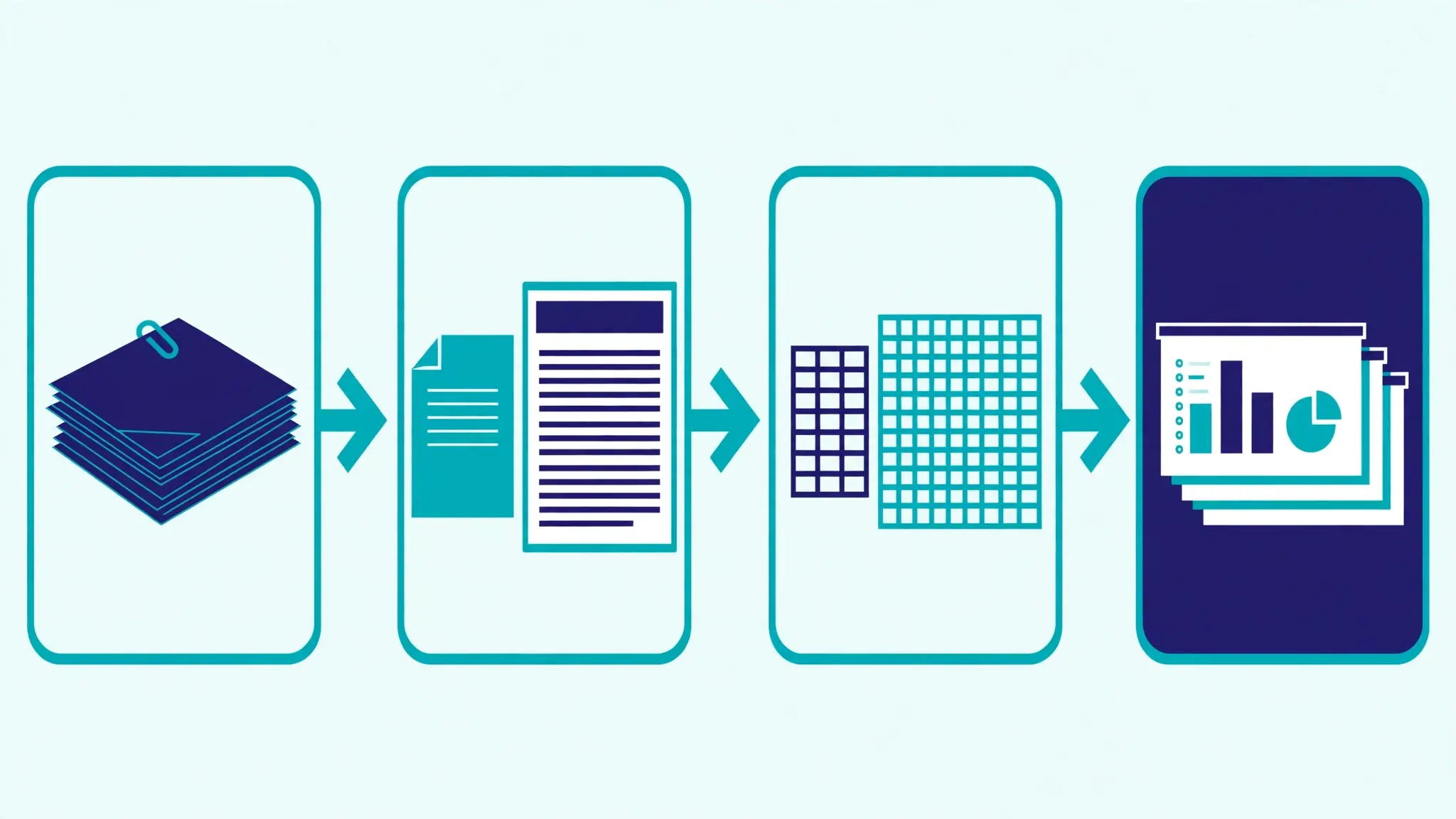
What you'll need
- A Linux, macOS or Windows machine. This guide runs on Linux x86-64; the release page carries builds for all three systems, including Apple Silicon and Windows on Arm.
- About 200 MB of download for the Linux package (the
.debis roughly 154 MB) plus room for the documents you make. No model weights are downloaded anywhere in this guide. - No API key and no account for anything in this guide. The AI features inside the app — Ask AI, image generation, web search — need a provider key you bring yourself, and they are not run here; the capabilities check in Step 8 shows them unconfigured, which is the honest starting state.
- A terminal. On a headless server, PDF export and page rendering start a hidden GenOffice process and need a virtual display (
xvfb-run); Step 7 covers that. Everything else runs headless with no display at all. - About 30 minutes the first time, most of it the download. The working session itself takes under five minutes once installed.
Step 1: Install GenOffice and find the CLI
Download the package for your system from the project's Releases page. On Debian or Ubuntu, install it with apt, which pulls in the dependencies:
curl -fsSL -o genoffice_0.12.115_amd64.deb \
  https://github.com/genspark-ai/genoffice/releases/download/v0.12.115/genoffice_0.12.115_amd64.deb
sudo apt install ./genoffice_0.12.115_amd64.deb
Fedora, RHEL and openSUSE take the .rpm instead (sudo dnf install ./genoffice-0.12.115.x86_64.rpm), other Linux distributions take the .AppImage (which needs FUSE 2), and macOS and Windows take their installers from the same Releases page. The install puts the app in /opt/GenOffice on Linux, and the CLI lives inside it at /opt/GenOffice/resources/cli/genoffice — on macOS it is /Applications/GenOffice.app/Contents/Resources/cli/genoffice. If genoffice is not on your PATH, the app itself writes the launcher directory to ~/.genoffice/launcher on every start, or you can link it in with the CLI's own installer:
genoffice install-cli
genoffice --version
The version check is the first thing to run, and it is what this guide verified:
genoffice 0.12.115Run genoffice help and you get the full command surface: info, convert, create, slides, sheet, docs, merge, pdf, render, guide, search, image, media, open, selection, capabilities, install-cli, mcp and skill. Every command prints a one-line summary, or a single JSON object with --json. Exit codes are documented and stable: 0 for ok, 1 for usage or rejected operations, 2 for file problems, 3 for conversion failure, 4 when the app is not available. That contract matters, because the rest of this guide leans on it.
Step 2: Your first document — Markdown in, Word out
Start with the simplest possible input, a Markdown note, and turn it into a real Word file:
# Quarterly Report

## Overview
Revenue grew in Q3. The team shipped three features.

## Highlights
- Faster onboarding
- Lower churn
- New enterprise tier
genoffice create --type docx --from notes.md --out notes.docxcreated notes.docx
output: /home/user/demo/notes.docx
source: markdownThe result is a 3,653-byte .docx, not a renamed text file. Ask the CLI what it contains:
genoffice info notes.docx --json{"status":"ok","command":"info","summary":"docx · 9 blocks, 3 headings, 0 tables",
"detail":{"format":"docx","size_bytes":3653,
"block_types":{"heading":3,"paragraph":2,"listItem":3,"passthrough":1},
"headings":[{"level":1,"text":"Quarterly Report"},
{"level":2,"text":"Overview"},
{"level":2,"text":"Highlights"}]}}Then read the blocks back. One quirk to learn early: info counts 9 blocks including a trailing passthrough block, but docs read numbers the addressable body blocks 0 to 7. Asking for 0-9 fails, and the error tells you the valid range — use what it says:
genoffice docs read notes.docx --range 0-9 --json
# {"status":"error","code":1,"error":"out_of_range",
#  "message":"--range out of bounds (0-7)",
#  "suggestion":"use block indexes between 0 and 7"}

genoffice docs read notes.docx --range 0-7 --json
{"status":"ok","command":"docs","summary":"notes.docx: 8 blocks",
"detail":{"blocks":8,"range":"0-7",
"items":[{"index":0,"type":"heading","level":1,"text":"Quarterly Report"},
{"index":1,"type":"heading","level":2,"text":"Overview"},
{"index":2,"type":"paragraph","text":"Revenue grew in Q3. The team shipped three features."},
{"index":3,"type":"heading","level":2,"text":"Highlights"},
{"index":4,"type":"listitem","text":"Faster onboarding"},
{"index":5,"type":"listitem","text":"Lower churn"},
{"index":6,"type":"listitem","text":"New enterprise tier"},
{"index":7,"type":"paragraph","text":""}]}}Block indexes are the addressing system for everything that follows. Edits target blocks, slides target element ids, sheets target A1 addresses. Learn the read command for a format before you try to write to it.
Step 3: Edit with checked operations — and watch one fail safely
Edits go through named operations, not free text. The operation vocabulary lives in genoffice guide docs, and the first edit to try is the obvious one: replace a sentence. Write the operation to a file:
[{"op": "findReplace", "find": "Revenue grew in Q3.", "replace": "Revenue grew 18% in Q3."}]Before running it, it is worth seeing what happens when you get an operation name wrong, because this is the safety property the whole CLI is built on. An earlier attempt in this guide used "op": "replace", which does not exist:
genoffice docs apply notes.docx --ops edits.json --dry-run
# genoffice: op 0 (replace) rejected: op #0: unknown op "replace".
#   Supported ops: [setFont, setMatchedFont, setParagraphFormat, setHeadingLevel,
#   findReplace, deleteBlocks, moveBlocks, setList, clearList, ...]
# Nothing was applied (atomic): fix the op(s) and resend the whole batch.
#   batch: 0 of 1 ops applied, 1 failed, 0 skipped
Nothing was written. Batches are atomic by default: a rejected operation leaves the file untouched and comes back with a guided error naming the index and the reason. That is the difference between this tool and a script that half-edits a document and then dies. With the correct operation name, the edit applies:
genoffice docs apply notes.docx --ops edits.jsonapplied 1 of 1 ops to notes.docx
results: [{"index":0,"op":"findReplace",
"output":"Replaced 1 occurrence(s) across 1 block(s)"}]
batch: 1 of 1 ops applied, 0 failed, 0 skippedConfirm the edit landed, then produce a tracked-changes redline against the original — the review artifact offices actually pass around:
genoffice docs compare notes-orig.docx notes.docx --out redline.docx
genoffice docs read redline.docx --revisions --json
notes-orig.docx vs notes.docx: 0 inserted, 0 deleted, 1 changed paragraph(s) in redline.docx
# revisions: [{"id":"r1","type":"insertion","kind":"ins","author":"GenOffice",
# "blockIndex":2,"text":"18%"}]The redline records exactly one insertion, the characters 18%, on block 2, authored by GenOffice. Open redline.docx in Word and it shows as a tracked change, not as silently rewritten text. That is the standard to hold an AI document tool to: every change attributable, every batch all-or-nothing.
Step 4: A workbook whose formulas stay live
The most common way AI-generated spreadsheets fail is also the quietest: the numbers look right, but they are pasted values, so nothing recalculates when an input changes. GenOffice's workbook path keeps formulas as formulas, with cached values alongside them. The input format is strict, and this guide hit its edge on the first try. A JSON object with headers and rows keys is rejected:
genoffice create --type xlsx --from table.json --out sales.xlsx
# genoffice: expected a 2-D array or { "sheets": [{ "name", "rows" }] }
The accepted shape is a 2-D array, or an object with a sheets array whose entries carry name and rows. Strings starting with = are formulas:
{"sheets": [{"name": "Q3", "rows": [
  ["Region", "Q3 Revenue"],
  ["North", 120000],
  ["South", 95000],
  ["East", 80000],
  ["Total", "=SUM(B2:B4)"]]}]}
genoffice create --type xlsx --from table.json --out sales.xlsxcreated sales.xlsx (1 sheets)
sheets: 1
cells: 10
formulas: 1
cached_values: trueRead it back and both halves of the promise are visible — the computed value and the formula that produced it:
genoffice sheet read sales.xlsx --range A1:B5 --json{"status":"ok","command":"sheet","summary":"sales.xlsx · Q3!A1:B5: 5 non-empty rows",
"detail":{"rows":[["Region","Q3 Revenue"],["North",120000],["South",95000],
["East",80000],["Total",295000]],
"formulas":{"B5":"=SUM(B2:B4)"}}}The total is 295,000, and B5 still holds =SUM(B2:B4). Open the file in Excel and change B2, and the total moves. A CSV with a pasted 295,000 cannot say that. The --where formula flag isolates formula cells for auditing a workbook you did not write, and sheet apply with --dry-run validates a batch of cell writes before committing them, the same atomicity guarantee as the document path.
Step 5: Mail merge without a word processor
Templates are the other half of office work that usually needs the GUI. Write a letter with {{placeholders}}, build it, then fill it from JSON:
Dear {{name}},

Welcome to {{company}}. Your start date is {{date}}.
genoffice create --type docx --from letter.md --out letter-tpl.docx
genoffice merge letter-tpl.docx --data values.json --out letter.docx3 placeholders filled, 0 unresolved
output: letter.docx
filled: 3
used_keys: ["name","company","date"]
unresolved_placeholders: []Two details worth noting. First, the flag is --data, not --values — the CLI corrects you if you guess wrong, with a hint to run genoffice help merge. Second, the merge reports unresolved placeholders instead of silently leaving {{date}} in a letter you send. The same command fills .pptx and .xlsx templates.

Step 6: Build a slide deck the checked way
Decks are where unchecked AI output fails most visibly: text overflowing its box, overlapping shapes, slides that ignore the outline they were planned from. GenOffice's deck workflow is staged on purpose — outline, one page spec per slide, check each page, then build — and the checks refuse to build until every page matches its outline entry. Start with the outline:
{
  "topic": "Q3 results",
  "core_hook": "Revenue grew 18% while churn fell.",
  "pages": [
    {"title": "Q3 Results", "type": "cover", "layout": "cover_typography_hero",
     "brief": "Title, quarter label and presenter line on a dark background.", "image_queries": []},
    {"title": "What drove growth", "type": "content", "layout": "three_column_cards",
     "brief": "Three cards: faster onboarding, lower churn, new enterprise tier.", "image_queries": []},
    {"title": "Next quarter", "type": "closing", "layout": "cover_dark_minimal",
     "brief": "Closing line and next steps.", "image_queries": []}
  ]
}
Each page is a JSON spec on a 1280 × 720 canvas, origin top-left, integer pixel coordinates, elements painted in array order. A cover page looks like this:
{"title": "Q3 Results", "type": "cover", "layout": "cover_typography_hero", "background": "#0E1A2B",
 "elements": [
  {"type": "text", "x": 80, "y": 220, "w": 1120, "h": 120,
   "paragraphs": [{"align": "left",
     "runs": [{"text": "Q3 Results", "sizePt": 60, "color": "#FFFFFF", "bold": true}]}]},
  {"type": "text", "x": 80, "y": 360, "w": 1120, "h": 60,
   "paragraphs": [{"align": "left",
     "runs": [{"text": "Revenue grew 18% while churn fell.", "sizePt": 24, "color": "#C7D2E0"}]}]}
 ]}
Check the page before building anything. The check builds the page alone, audits its geometry, and compares it against the outline entry:
genoffice slides check deck/pages/01.json --jsoncheck01: ok 01.json: page builds clean
# findings: outline findings [], audit [], warnings []
# notes: no style.md beside the page files — write the style sheet first
# in a real project; the check still passes without oneThen build all three pages at once, audit the finished deck, and render it to images you can actually look at:
genoffice create --type pptx --spec deck/pages --outline deck/outline.json --out deck/q3.pptx --json
genoffice slides audit deck/q3.pptx --json
genoffice slides render deck/q3.pptx --out deck/shots --json
created q3.pptx (3 slides)
# audit: q3.pptx: 3 slide(s), no layout issues
# render: rendered 3 slide(s) to deck/shots
# files: q3-01.png, q3-02.png, q3-03.png (960x540 each)Open the renders and check them with your eyes, not just the audit. The three-card slide in this guide renders exactly as specced — three rounded cards, centered labels, no overlap — and the audit's geometry figures are heuristic glyph widths, which the tool says plainly. A single slide can be rebuilt from its spec afterwards with slides replace deck/q3.pptx --slide 2 --spec deck/pages/02.json, so fixing one slide never means rebuilding the deck. If a page disagrees with its outline entry, or a page file is missing, the build refuses — that refusal is the feature.
Step 7: Convert, export to PDF, and render pages
Conversion covers the formats offices actually trade in: Markdown and HTML to Word, Word to HTML and Markdown, spreadsheets to CSV, PDF to Word, Excel and PowerPoint, and ODF files to OOXML. The two conversions to verify first are the ones every report pipeline needs — Markdown to PDF, and the edited Word file to PDF:
genoffice convert notes.md --to pdf
genoffice convert notes.docx --to pdf --force
converted notes.md → notes.pdf
via: genoffice --headless-export
converted notes.docx → notes.pdf
via: genoffice --headless-exportRead the PDF's text layer back to prove the edited text survived the round trip — the version converted from the edited .docx carries the 18% figure, while the one converted from the original Markdown does not, which is exactly the distinction a pipeline needs to be able to check:
genoffice pdf read notes.pdf --json{"status":"ok","command":"pdf","summary":"notes.pdf: 1 pages, read 1-1",
"detail":{"pages":1,"encrypted":false,"title":"notes","creator":"Chromium",
"producer":"Skia/PDF m150","pages_read":[{"page":1,"width_pt":595.92,
"height_pt":842.88,
"text":"Quarterly Report
Overview
Revenue grew 18% in Q3. ..."}]}}Render any document to one PNG per page for visual inspection, the same way the deck renders were checked:
genoffice render notes.docx --out shots/rendered 1 page(s) of notes.docx to shots
files: [{"page":1,"path":"shots/notes-01.png","width":596,"height":842}]Two headless notes, both learned the hard way in this guide's sandbox. PDF export and rendering start a hidden GenOffice process, so on a server without a display, prefix the command with xvfb-run. And if you run as root, Electron refuses to start without its sandbox — the export fails with a SIGTRAP and a Chromium error about running as root. The fix in that environment is ELECTRON_DISABLE_SANDBOX=1 xvfb-run -a genoffice convert …. On an ordinary desktop install, neither workaround is needed; the app is already running with a display and a normal user.
Step 8: Hand the CLI to your coding agent
The CLI alone is a document tool. Paired with the bundled agent skill, it becomes the document worker for Claude Code, Codex, Cursor, Gemini CLI, GitHub Copilot, OpenCode or Windsurf: the skill teaches the agent when to reach for genoffice, how to read a file before editing it, and how to check its own work. The product's own installer writes the skill without cloning anything:
genoffice skill list
genoffice skill install all --dir ./skills
3 agent(s) detected, 0 with skill 2.67.3: claude-code -, codex -, opencode -
# bundled_version: 2.67.3
installed skill 2.67.3 for ./skills
# status: installed, installed_version: 2.67.3, up_to_date: trueThe installed SKILL.md is 75,325 bytes and byte-identical to the copy bundled in the app. The alternative install path, npx skills add genspark-ai/genoffice, clones the whole repository — and in this guide's sandbox it failed twice, first because the shared /tmp was full and then because the home disk quota tripped on the large clone. Those are sandbox limits, not product defects, but they are a reason to prefer the bundled installer: it needs no clone and no network beyond the app you already installed.
Agents that cannot run a terminal get the same commands as an MCP server instead:
claude mcp add --transport stdio genoffice -- genoffice mcpA raw protocol probe — initialize, then list tools — confirms the server answers with the genoffice tool set, including info, convert, create_docx, create_xlsx, create_pptx, the docs_*, sheet_* and slides_* families, and the staged deck flow deck_start → deck_page → deck_build → deck_replace. The HTTP variant, genoffice mcp --http 3093, serves other machines with file upload over PUT and a token option, and confines tools to its own file store unless you set GENOFFICE_ALLOWED_ROOTS. Finally, check what the cloud side of the product can actually do on your machine before promising it anything:
genoffice capabilities --json{"status":"ok","command":"capabilities","summary":"configured: app",
"detail":{"search":{"available":false,"via":null},
"image_search":{"available":false,"via":null},
"image_generation":{"available":false,"via":null},
"media_analysis":{"available":false,"via":null},
"app":{"available":true}}}Everything local is available; every cloud feature reports unconfigured, because no provider is set up. That is the correct output for a fresh install, and the output to check before you ask an agent to search the web or generate an image through this tool.
When to use this vs alternatives
Use GenOffice when an agent — yours or a teammate's — has to produce files an office can open, and the result has to be checked before it is sent: reports, workbooks with live formulas, decks built from an outline, mail merges, redlines. The checked-operations model and the deck audit are the differentiators; nothing else in this space refuses to build a deck whose slides disagree with its plan.
Use LibreOffice or ONLYOFFICE when a person is doing the editing by hand and never needs a terminal. Both are mature, free, and better pure GUI editors; GenOffice's GUI is a capable editor, but its reason to exist is the CLI and the agent skill, not displacing a word processor you already like.
Use Univer when the job is specifically an agent-driven spreadsheet harness with a facade API — it is a closer cousin to the workbook half of GenOffice, and the blog covered it separately. Use GenOffice when the same workflow has to span documents, workbooks and decks with one tool.
Use Pandoc or python-docx when you need a one-off conversion or a small script and nothing else. They are lighter and scriptable, but they do not give you the checked edit operations, the deck audit, the redline comparison, or the agent skill, and a Pandoc pipeline will not tell you that your slide text overflows its box.
Do not use GenOffice as a chatbot. No model call happens inside the CLI. If you want the app to draft prose or generate images, that is the in-app AI panel with your own provider key — a different surface from everything verified in this guide, and one this guide deliberately did not run.
The honest limits
- The in-app AI was not run. Ask AI, document rewriting, image generation and web search all need a provider you configure. Every claim in this guide about those features is the project's documented behavior, not a verified run. The capabilities output above is the evidence for that boundary.
- Deck photos need sources. Page specs can carry image queries, but with no provider configured, this guide built photo-free pages — typography, color blocks and shapes. If your deck needs photographs, configure a provider first or supply local image files; do not let an agent invent photo URLs.
- Geometry figures are approximate. The audit and render checks use heuristic glyph widths. They catch overflow and overlap reliably, but they are not a substitute for opening the render and looking, which Step 6 does.
- PDF and rendering need a display process. Both start a hidden GenOffice process. Headless servers need
xvfb-run, and root environments need the sandbox workaround in Step 7. Budget a few seconds per export for the process to start. - The Linux AppImage needs FUSE 2. If your distribution lacks it, take the
.debor.rpminstead. - ODF is import-only. OpenDocument files open as editable OOXML copies; saving writes OOXML, never ODF. If your workflow must round-trip ODF, this is the wrong tool.
The takeaway
GenOffice earns its place on a machine that already runs a coding agent. The install is one package, the CLI is one binary with a documented exit-code contract, and the operations it offers — create, read, checked edit, compare, merge, convert, render, audit — are the ones office work actually consists of. The verification in this guide is deliberately boring: a document created and read back, a formula that stayed a formula, an edit that was refused before it could do damage, a redline that recorded exactly one insertion, a deck that refused nothing because its pages matched its plan, and a PDF whose text layer proved the edit survived. Boring is the point. A document tool should be the most predictable program on your machine, and for the first time, the tool that writes your office files can be run, checked and scripted like any other command.
Questions readers ask
Do I need a GenOffice account or an API key?
No, for everything in this guide. Installing, creating, editing, converting and rendering all run locally with no account. An account or a provider key is only needed for the in-app AI features — Ask AI, image generation, web search — which this guide did not run.
Can the CLI run on a headless server?
Yes, with one exception: PDF export and page rendering start a hidden GenOffice process and need a virtual display, so prefix those commands with xvfb-run. Create, read, edit, merge, audit and the MCP server run with no display at all.
Will files made here open correctly in Word, Excel and PowerPoint?
That is the design goal: the CLI writes through the same engines as the graphical app, and only what you edit is rewritten, so untouched parts of a file survive byte-for-byte. The files in this guide round-tripped through the CLI's own read, audit and render checks; opening them in Microsoft's apps is the expected next step, and the redline file is specifically built for Word's tracked-changes view.
How is this different from converting Markdown with Pandoc?
Pandoc converts; GenOffice edits, checks and audits. The differences that matter here are the atomic operation batches with guided errors, the deck build that refuses pages disagreeing with the outline, the tracked-changes comparison, and the agent skill and MCP server that let a coding agent drive all of it. For a single conversion, Pandoc is lighter. For a pipeline that has to be right, the checks are the product.
Sources
- GenOffice repository (genspark-ai/genoffice on GitHub) — project description, CLI and agent skill documentation, download table, and the command reference quoted in this guide.
- GenOffice v0.12.115 release (26 October 2026) — the Linux
.deb,.rpmand.AppImageassets, version number and release date verified in this guide. - The
genofficecommand line's own--help,guide docs,guide slides specandguide slides designoutput — every command, flag, option name and error message quoted in this guide. - The verification run for this guide: GenOffice v0.12.115 on Linux — document, workbook, merge, deck, conversion, render, MCP and skill-install outputs quoted verbatim, including the two first-attempt failures and their error messages.