Run open models on your own machine: the complete Ollama hands-on guide
Every hosted AI call sends your prompt to someone else's computer, bills you per token, and stops working when the network does. Ollama flips that around: one binary turns your own machine into a private model server, and this guide proves the whole loop — install, chat, customize, and API — on a real model running on CPU alone.
- Who: Ollama (ollama/ollama on GitHub).
- What: a local model server: download open models, chat with them, and call them from your apps over HTTP, with no account and no per-token bill.
- When: version 0.40.11, released 24 October 2026, is the version verified in this guide.
- Requirements: Linux, macOS, or Windows; curl and a shell on Linux. No API key, no account, and no GPU for the small model used here.
- Licence: MIT.
- Verified: Ollama v0.40.11 installed with its checksum checked; qwen3:0.6b (522 MB) pulled and run on CPU; a Modelfile-derived briefbot created with temperature 0.3; REST, OpenAI-compatible, and structured-JSON calls all executed; structured output's first run returned a wild value (2 quadrillion minutes) and its second the correct 20 — shape guaranteed, values not.

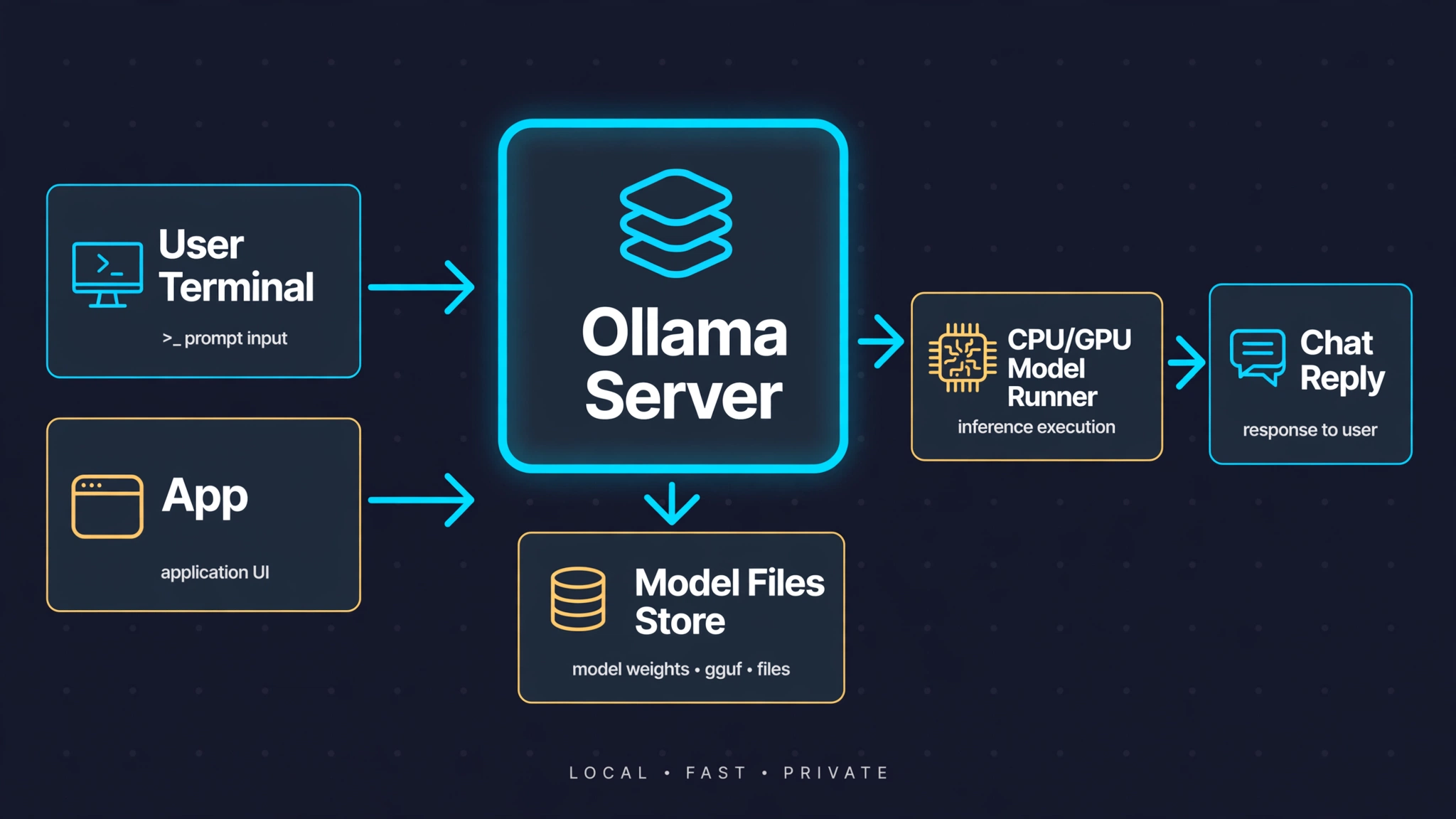
There is a specific moment when a hosted model stops being the right tool: the prompt contains something you would rather not send anywhere — a client's data, an unreleased draft, a private codebase — or the task is so small that paying per token and waiting on a network round trip feels absurd. That is the moment local models earn their keep. The catch has always been friction: downloading weights, finding a runner, wiring a server, and then discovering that the chat template is wrong. Ollama exists to remove that friction in one stroke. It is a single binary that downloads models, runs them, and serves them behind a local API, and it has become the default answer to "how do I run a model on my own machine?"
Why now: the open-model ecosystem has never been easier to enter, and Ollama tracks it closely — version 0.40.11 shipped on 24 October 2026, three days before this guide was written. But ease of entry is a claim, and claims are cheap. This guide tests it the only way that counts: every command below was run against v0.40.11 on an ordinary CPU-only Linux machine with 2 cores and under 8 GB of RAM, and every output quoted is output the run actually produced. If a step behaved differently than the documentation suggested, the article says so.
What you'll need
- A Linux, macOS, or Windows machine. This guide runs on Linux x86-64; the release page carries builds for all three systems, including arm64.
curl, a shell, andtarwith zstd support (or theunzstdtool) for the Linux archive used below. macOS and Windows users should take the app installers from the same release page instead.- No API key, no account, and no GPU. The model in this guide is small enough to run on CPU, and everything happens on
127.0.0.1. - About 30 minutes the first time, most of it downloads: the Linux archive is about 1.5 GB because it bundles GPU libraries, and the first model is a few hundred megabytes more. After that, starting a chat takes seconds.
- About 2 GB of free disk for the binary and the first model, plus whatever room you want for more models later.
Step 1: Install Ollama
Download the release archive for your system from the project's GitHub releases page, along with the release's checksum file, and check the archive before you run anything from it. The hand-verified path used here, for Linux x86-64, is:
curl -fsSL -o ollama-linux-amd64.tar.zst https://github.com/ollama/ollama/releases/download/v0.40.11/ollama-linux-amd64.tar.zst
curl -fsSL -o sha256sum.txt https://github.com/ollama/ollama/releases/download/v0.40.11/sha256sum.txt
sha256sum -c <(grep "ollama-linux-amd64.tar.zst" sha256sum.txt)
Expected output:
./ollama-linux-amd64.tar.zst: OKThe published checksum for this archive is 7bedab90dd122661be78798e9f0edf37fccf0cccf2699d2c58ea1a3afdc04b6d. If the check does not say OK, stop: you have a different file than the release, and nothing downstream is trustworthy until that is resolved. Extract it. The archive unpacks to a bin/ directory holding the ollama binary and a lib/ directory holding its runtime libraries, so keep the two together:
mkdir -p ~/ollama && tar -I zstd -xf ollama-linux-amd64.tar.zst -C ~/ollamaIf your tar does not know -I zstd, install the zstd package for your distribution and retry; the flag is the only part of this step that depends on your system. Put the binary somewhere on your PATH or use its full path in the commands below — the rest of this guide calls it ollama. If you would rather use the project's one-line installer, it is curl -fsSL https://ollama.com/install.sh | sh, which installs the same release system-wide; this guide uses the direct download because the archive can be checked before anything runs.
Step 2: Start the server — and know where it listens
Start the server before anything else, because every command after this one talks to a running server; they do not start one for you:
ollama serve > ~/ollama.log 2>&1 &
sleep 3
curl -s http://127.0.0.1:11434/
ollama --version
Expected output:
Ollama is running
ollama version is 0.40.11
Two things in that output deserve a pause. First, the server binds 127.0.0.1:11434 by default, which means it answers only on your own machine — nothing on your network can reach it unless you deliberately set OLLAMA_HOST to a wider address. That default is the whole privacy story in one line: prompts stay local because the listener is local. Second, before the server is running, ollama --version answers with a warning instead of a version ("could not connect to a running Ollama instance" plus the client version); that warning is normal, not an error, and it disappears once the server is up, as above. The JSON API lives under /api/, which you will use in Step 6. Keep the server running in this terminal for the rest of the guide; the ollama commands below connect to it.
Step 3: Pull and run your first model
Pick a small model first. This guide uses qwen3:0.6b — a 0.6-billion-parameter instruct model from the Qwen3 family, small enough to run comfortably on CPU and smart enough to hold a real conversation. Download it:
ollama pull qwen3:0.6bThe pull downloads one 522 MB layer plus a small manifest, verifies the layer's checksum, and ends with success. The whole download runs at whatever speed your connection allows; on this machine it took a few minutes at roughly 2.5 MB/s. Confirm what you now hold:
ollama listExpected output:
NAME          ID              SIZE      MODIFIED
qwen3:0.6b    7df6b6e09427    522 MB    19 seconds ago
Now talk to it. Passing the prompt on the command line runs it once and exits, which is the form you want for scripts; leaving the prompt off opens an interactive chat that you end with /bye:
ollama run qwen3:0.6b "In one sentence, why is the sky blue?"Expected output:
Thinking...
...done thinking.

The sky is blue because blue light is scattered by the Earth's atmosphere.
Two things to notice. First, qwen3 thinks aloud: the CLI prints a Thinking... trace before the answer, and the API returns that trace in a separate thinking field. The trace is the model's working, not its answer — read the final sentence, not the deliberation. Second, a 0.6B model is inconsistent on facts: the same question, asked over the API in Step 6, came back blaming water-vapor refraction, while this CLI run gave scattering. Treat every factual answer from a small model as a draft to check, not a source to cite. That first run also loads the model into memory, which is why it takes a few seconds longer than later ones, and generation speed on CPU is modest — a few tokens per second on this 2-core machine, fine for short answers and a reason to keep prompts short while you learn.
Step 4: Manage models — list, inspect, copy, remove
Four commands cover everyday model housekeeping. You have already used list. show prints a model's metadata — its parameters, its template, and its licence:
ollama show qwen3:0.6bExpected output (excerpt):
  Model
    architecture        qwen3
    parameters          751.63M
    context length      40960
    embedding length    1024
    quantization        Q4_K_M

  Parameters
    temperature       0.6
    top_k             20
    top_p             0.95
ps shows what is currently loaded in memory, which matters when you are deciding whether a second model will fit:
ollama psExpected output:
NAME          ID              SIZE      PROCESSOR    CONTEXT    RUNNER      UNTIL
qwen3:0.6b    7df6b6e09427    1.0 GB    100% CPU     4096       llamacpp    4 minutes from now
Note the two sizes: the model is 522 MB on disk but 1.0 GB once loaded, and the running context here is 4096 tokens, not the model's 40960 maximum — the server sizes the running context to the machine unless you ask for more.
Models stay loaded for five minutes after their last use by default (OLLAMA_KEEP_ALIVE controls this), then unload on their own; ollama stop qwen3:0.6b unloads one immediately. Copying and removing are just as direct, and this guide verified both:
ollama cp qwen3:0.6b demo-copy
ollama list
ollama rm demo-copy
ollama list
The copy step answers with copied 'qwen3:0.6b' to 'demo-copy' and success; the first list shows demo-copy alongside qwen3:0.6b; the second shows it gone. Copying is cheap — it creates a new name for the same weights, not a second 522 MB download — which makes it a handy way to snapshot a model before you customise it.
Step 5: Customize with a Modelfile
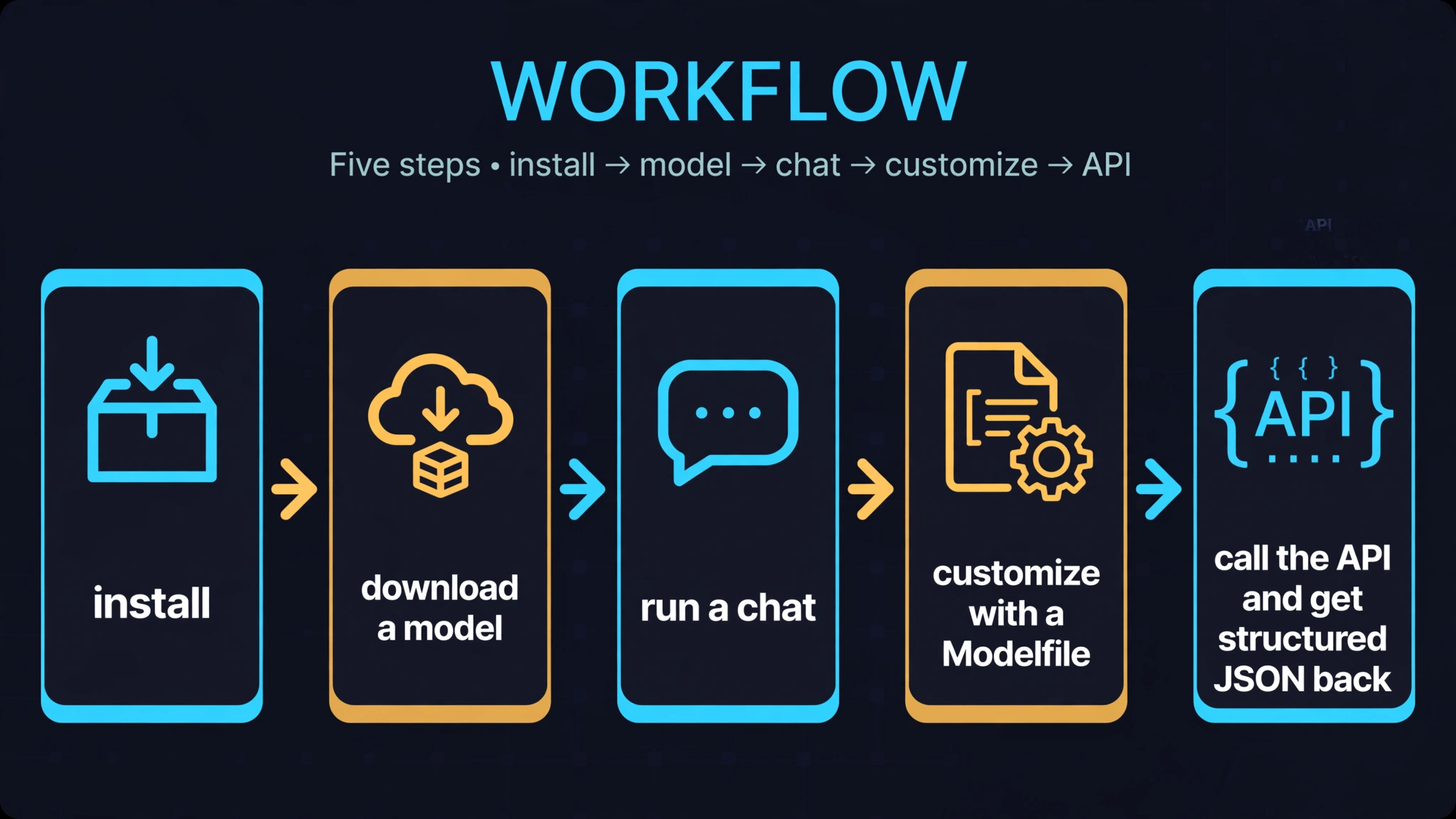
A chat session's system prompt dies with the session. A Modelfile fixes that: it derives a new, named model from an existing one, baking in a system prompt and default parameters so every later call inherits them. Create a file called Modelfile:
FROM qwen3:0.6b
SYSTEM """You are BriefBot. Answer every question in exactly one short sentence."""
PARAMETER temperature 0.3
Three lines, three ideas. FROM names the base model. SYSTEM sets the persona every reply must follow. PARAMETER sets a generation default — here a low temperature, which makes the model more predictable. Build the model and run it:
ollama create briefbot -f Modelfile
ollama run briefbot "Why is the sky blue?"
Expected output (the create step reuses the base model's layers and ends with success):
using existing layer sha256:7f4030143c1c477224c5434f8272c662a8b042079a0a584f0a27a1684fe2e1fa
creating new layer sha256:bb73f9c9afc42f3db6b31682d24c1d6a9cab1cec328a6de9a8ac1d11960dd442
success

The sky appears blue because sunlight is refracted by the water vapor in the air, causing the light to bend and create the blue color.
The reply obeys the persona: exactly one short sentence, where the base model gave a longer one. And it also proves the limit of the technique in the same breath: the physics is wrong again — refraction by water vapor is not why the sky is blue. A Modelfile controls format, not truth. Confirm the persona actually stuck with ollama show briefbot, which reports temperature 0.3 and the SYSTEM line you wrote. Two warnings belong here. First, a Modelfile does not retrain anything: it cannot make a 0.6B model smarter, only more consistent. Second, keep the persona testable. "Answer in exactly one short sentence" can be checked at a glance; a vague persona like "be helpful" cannot, and you will never know whether it worked.
Step 6: Call the REST API
The CLI is for exploring; the API is for building. Two endpoints cover most apps. /api/generate takes a single prompt and returns one completion:
curl -s http://127.0.0.1:11434/api/generate -d '{"model":"qwen3:0.6b","prompt":"In one sentence, why is the sky blue?","stream":false}'Expected output (trimmed to the fields that matter; the full object also carries a thinking field and a token context array):
{"model": "qwen3:0.6b", "response": "The sky is blue because atmospheric water vapor refracts blue light, causing the scattered colors we perceive as the sky.", "done": true, "done_reason": "stop"}Note "stream": false. Without it, the endpoint streams one JSON object per token, which is what you want for a chat UI that shows words as they arrive, and the wrong thing for a script that wants one object back. Note also that this answer disagrees with Step 3's: same question, different sampling run, different physics — and this one is the wrong one. The API mechanics are what this step verifies; the model's facts are not part of the guarantee. /api/chat is the conversational version: it takes a list of messages with roles, so the model can use what was said earlier in the exchange:
curl -s http://127.0.0.1:11434/api/chat -d '{"model":"qwen3:0.6b","messages":[{"role":"user","content":"Remember this number: 7429."},{"role":"assistant","content":"Got it, 7429."},{"role":"user","content":"What number did I ask you to remember? Reply with just the number."}],"stream":false}'Expected output (message field):
7429The model carried the number across the turn, which is the behaviour a multi-turn app depends on. /api/tags lists the models on disk as JSON — the API equivalent of ollama list — and it is the fastest health check for a script: if it answers, the server is up.
Step 7: Use the OpenAI-compatible endpoint
If you already have code written against a hosted API, you do not need to rewrite it. Ollama serves an OpenAI-compatible endpoint at /v1/chat/completions on the same server, so the only changes are the base URL and the model name:
curl -s http://127.0.0.1:11434/v1/chat/completions -H 'Content-Type: application/json' -d '{"model":"qwen3:0.6b","messages":[{"role":"user","content":"In one sentence, why is the sky blue?"}]}'Expected output (message field):
The sky appears blue because sunlight is scattered by the Earth's atmosphere, with water vapor and other particles scattering shorter wavelengths of light (blue) more than longer ones (red/green).The response shape is the hosted one — choices[0].message.content — so an existing client needs only a new base URL (http://127.0.0.1:11434/v1) and a local model name. The same idea works from Python with the official client. Install it and chat:
pip install ollamaimport ollama
response = ollama.chat(
model="qwen3:0.6b",
messages=[{"role": "user", "content": "In one sentence, why is the sky blue?"}],
)
print(response.message.content)Expected output:
The sky appears blue because the Earth's atmosphere causes light to scatter predominantly in the blue spectrum, making the sky appear blue.One caution from Step 6 applies here too: the compatible endpoint speaks the hosted dialect, so Ollama-native options with no hosted equivalent do not come through it. For new code, prefer the native API; for ported code, the compatible endpoint is the shortcut. And one troubleshooting note: if the Python client fails at import with an InvalidURL error about a port, clear your session's proxy variables first — the client talks to localhost and needs no proxy, but its HTTP library parses those variables at startup and can trip over unusual ones.
Step 8: Get structured JSON back
Free-form text is a poor contract between a model and a program. Ollama's structured-output feature accepts a JSON schema in the format field and constrains the reply to match it. Ask for an outage report as structured data:
curl -s http://127.0.0.1:11434/api/chat -d '{"model":"qwen3:0.6b","messages":[{"role":"user","content":"Summarise this outage report as structured data: The checkout page returned 500 errors for all EU users for 20 minutes."}],"stream":false,"format":{"type":"object","properties":{"title":{"type":"string"},"severity":{"type":"string"},"duration_minutes":{"type":"integer"}},"required":["title","severity","duration_minutes"]}}'Expected output (message content) — first run:
{ "title": "Outage Report", "severity": "Critical", "duration_minutes": 2000000000000000 }Expected output (message content) — second run, same prompt:
{ "title": "Outage Report", "severity": "critical", "duration_minutes": 20 }Both runs parse as JSON and both match the schema — every required field present, every type correct. Only one of them is true. The first run's duration is two quadrillion minutes, which is not a rounding error but a confabulation wearing a valid shape. That is the whole lesson of structured output with a small model: the schema guarantees the shape, never the value. Two habits follow. First, describe the schema in the prompt as well as in format: the schema constrains the shape, but the prompt still has to tell the model what each field means. Second, validate on your side before you trust it — parse the JSON, check the required fields, and sanity-check the values against what you know, exactly as you would with any untrusted input.
Which approach should you use?
Ollama gives you three ways to reach the same model, and the right one depends on what you are building. They are not rivals; most real setups use all three at different stages.
- Use the CLI (
ollama run) when you are exploring. It is the fastest way to judge a model: pull it, chat, and decide in minutes whether it is smart enough for your task. It is also the right tool for one-off jobs — summarise this file, draft that reply — where starting an app would be overkill. Its weakness is that it is not programmable: you cannot put a chat session inside a script without shelling out. - Use the REST API (
/api/generate,/api/chat) when you are building. It is the native interface, it exposes everything Ollama can do — including parameters, streaming, and structured output — and it needs no extra dependency beyond an HTTP client. If your app is a script, a service, or a prototype, start here. - Use the OpenAI-compatible endpoint (
/v1/chat/completions) when you are porting. It exists so code written against a hosted API can run locally with two lines changed: the base URL and the model name. The trade-off is coverage: it speaks the OpenAI dialect, so Ollama-native options that have no OpenAI equivalent do not come through it. For a new project, prefer the native API; for an existing one, the compatible endpoint is the shortcut that lets you test local models without a rewrite. - Use a Modelfile when a behaviour must be repeatable. A system prompt typed into one chat session dies with that session. A Modelfile bakes the persona and the parameters into a named model that every later call inherits, which is what you want for a support bot, a code reviewer, or any assistant whose tone is part of the product.
And a word on size. The honest rule for a CPU-only machine is to start small and measure: a 0.6B model answers instantly and teaches you the whole loop, a 3B model is noticeably smarter and still comfortable, and an 8B model on CPU is usable for short answers but slow enough to change how you design prompts. The model is not the bottleneck in this guide — the loop is. Prove the loop on a small model, then spend disk and RAM on a bigger one with evidence about what it buys you.
What this guide did not verify
Four boundaries keep this guide honest. First, everything ran on CPU: this machine has no GPU, so no speed claim about GPU acceleration is measured here — GPU numbers in this article are the project's, not this guide's, and the article says so wherever they appear. Second, only qwen3:0.6b was actually run. Larger models are discussed from their library sizes and hardware guidance, not from executions, and a bigger model may behave differently on prompts where the small one was merely adequate. Third, the Ollama cloud service was not tested: every call in this guide hit 127.0.0.1, and nothing here speaks to the hosted offering. Fourth, multimodal and tool-calling features were not exercised: this guide covers text chat and structured JSON, which is the core loop, and leaves vision models and function calling for a follow-up.
The takeaway
The durable idea in Ollama is not the binary; it is the address. Once a model answers at http://127.0.0.1:11434, everything downstream becomes ordinary software: a script can call it, an app can build on it, and a prompt can stay on the machine that produced it. Install one binary, pull one small model, prove the loop end to end, and then decide — with evidence from your own machine — whether a bigger model, a custom Modelfile, or a hosted API earns its place. That is the whole adoption story, and it fits in one afternoon.
Sources
- Ollama v0.40.11 release assets (ollama/ollama on GitHub) — the Linux archive, its size, and the release date quoted in this guide.
- The Ollama binary's own
--helpoutput and the server's responses on127.0.0.1:11434— every command, flag, endpoint, and output quoted in this guide. - Ollama model library entry for qwen3:0.6b — the model size and default tag used in this guide.
- Ollama documentation on Modelfiles and the API — the FROM, SYSTEM, and PARAMETER directives and the /api/generate, /api/chat, and /v1/chat/completions endpoints used in this guide.