Your agent should brief you first: run OpenDuet, the self-hosted proactive agent
OpenDuet is CopilotKit's open-source template for a proactive agent: it triages Gmail and calendar, delivers a morning brief, and keeps working on a computer of its own, asking before it sends, pays, signs, or deletes. This guide runs it locally with Docker and Bun, tries it safely with the built-in fake Google account, and shows how to make it your own — 1,633 stars in its first nine days, MIT-licensed, and still early development.
- Who: CopilotKit's OpenDuet, built on its open-source, self-hosted OpenBot platform. MIT-licensed.
- What: a proactive agent template: a morning brief, mail and calendar triage, scheduled routines, and an agent computer with its own browser, files, and shell, behind an approvals gateway.
- When: created October 21, 2026; 1,633 stars and 204 forks as checked October 30, 2026. Labelled early development.
- Needs: Docker, Bun 1.3 or newer, Node for npx, a model key, and a CopilotKit Intelligence project (required; the free Developer plan is enough). Runs at http://localhost:3010.
- Default model: OpenAI's gpt-5.6-terra, set in openbot/examples/openduet/model.yaml; the Anthropic option defaults to claude-sonnet-4-5.
- Safe trial: the built-in fake Google serves an invented inbox and calendar on port 4900 and consents as [email protected], with no real mail involved.

Why a proactive agent is a different job
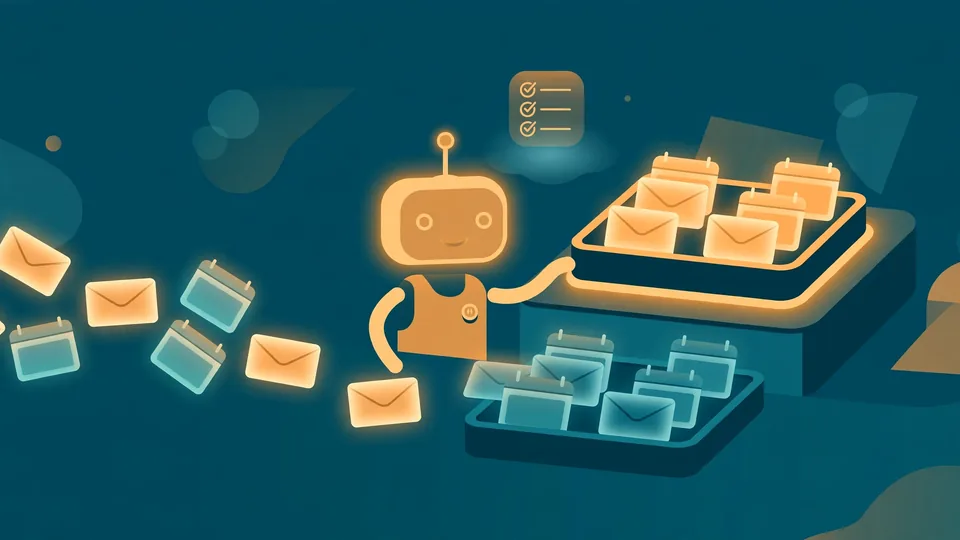
Most AI agents wait to be asked. OpenDuet is built to do the opposite: it starts your day with a short brief, sorts what needs you from what can wait, and keeps working on a computer of its own while you step away, coming back only when something needs a decision. Before it sends, pays, signs, or deletes anything, it shows you exactly what it is about to do and waits for your answer.
OpenDuet is CopilotKit's open-source take on the proactive-agent category. It was created on October 21, 2026, is built on CopilotKit's self-hosted OpenBot platform, and had 1,633 stars and 204 forks when checked on October 30, 2026 — nine days later. It is MIT-licensed and labelled early development: the README is explicit that things will move. You get a working morning brief, triage, and approval boundary today, in a template meant to be copied and reshaped, not a finished product.
The difference from a chatbot is structural. OpenDuet adds triage and a morning brief in front of the agent, gives the agent its own computer — a real browser, its own files, and a shell — and routes every action through a gateway that checks policy, writes an audit record, and only then acts. Actions that matter pause for Refuse, Allow once, or Always allow. A message to other people always asks first, showing who it goes to and what it says.
What you'll need
- Docker, Bun 1.3 or newer, and Node (for
npx, which runs the CopilotKit CLI). - A model key: OpenAI by default, or Anthropic. Your provider bills the model calls.
- A CopilotKit Intelligence project. This is required — the server will not start without its key. The free Developer plan is enough, according to the README.
- A Google account only if you want real Gmail and Calendar. For the safe trial in step 6, the fake Google account built into the repo is enough.
- Port 3010 free for the app, and port 5432 free for Postgres — or set
POSTGRES_PORTas shown in step 5.
Step 1: Check the prerequisites
Confirm the three runtimes before you clone anything. If any of these fails, fix that install first; every later step assumes they work.
docker --version
bun --version
node --version
Bun must be 1.3 or newer. Node is needed only for npx, which fetches the CopilotKit CLI on demand.
Step 2: Clone it and install
Run every command in this guide from the repository root. The install is one copy of the environment file and one Bun install:
git clone https://github.com/CopilotKit/OpenDuet.git
cd OpenDuet
cp .env.example .env
bun install
Everything that makes OpenDuet distinct from OpenBot lives in one folder, openbot/examples/openduet. You will come back to it in step 8.
Step 3: Sign in and select an Intelligence project
Intelligence keeps OpenDuet's threads and memory, which is why the server refuses to start without it. Sign in, pick a project, then run the learning setup from the repository root — it reads .env and .copilotkit/ from the directory it runs in, so do not run it from inside openbot/:
npx --yes copilotkit@latest login
npx --yes copilotkit@latest project select
bun openbot/scripts/setup-learning.ts
project select writes the project's key to .env as CPK_INTELLIGENCE_API_KEY, its telemetry ID as CPK_TELEMETRY_ID, and your choice to .copilotkit/project.json. The server reads INTELLIGENCE_API_KEY, not the CPK_ name, so the last command finishes the job: it makes sure the project has an openbot Learning container, creating one if needed, then copies the key to INTELLIGENCE_API_KEY and sets CPK_INTELLIGENCE_LEARNING_CONTAINER_ID=openbot.
Step 4: Add your model key
Put your model key in .env. The OpenDuet Bot runs OpenAI's gpt-5.6-terra by default, set in openbot/examples/openduet/model.yaml, so by default that means:
OPENAI_API_KEY=<your-key>To use another provider or model, edit the configuration rather than guessing at variable names. For Anthropic:
BOT_PROVIDER=anthropic
ANTHROPIC_API_KEY=<your-key>
# BOT_MODEL=claude-sonnet-5-5
With Anthropic, the model is BOT_MODEL if you set one, and claude-sonnet-4-5 if you do not. Two traps to avoid: changing default_model in model.yaml is the way to pick another OpenAI model — BOT_MODEL does not change an OpenAI model on its own — and BOT_MODEL only takes effect with OPENAI_BASE_URL set to an OpenAI-compatible endpoint, naming the model that endpoint serves. Set the keys before you start the app; Settings → Setup in the app reports whether the model key works.
Step 5: Start it and read the setup checklist
Start everything with the provided script, then open the app:
bash scripts/start.shOpen http://localhost:3010. The script starts Postgres and each Bot's computer in Docker, applies the database migrations, and starts the API server, the routine worker, and the app, checking that each one answers before printing the next steps.
Onboarding ends on a checklist of what OpenDuet depends on: Intelligence, the model key, Google, your Gmail and Calendar, notifications, and the optional extras. Each item reads Ready, Not checked, or Needs setup, from the real answer, with how to fix it. Check again re-asks Intelligence and the model provider.
If port 5432 is already taken, set POSTGRES_PORT in .env to a free port and change the port in DATABASE_URL to match. Stop with bash scripts/stop.sh: it stops the app, worker, API server, and Docker services and removes this install's Bot computers. The database, each Bot's files, and its browser profile are Docker volumes, so they survive. Add --keep-computers to leave the Bot computers running.
Step 6: Try it safely with the fake Google account
Do not connect your real inbox first. OpenDuet ships a fake Google for tests and demos that serves an invented inbox and calendar, so you can watch triage and the morning brief work before any real mail is involved. Start the fake Google, point OpenDuet at it, and restart, because the API reads .env only when it starts:
bun openbot/scripts/fake-google/server.ts --port 4900OPENDUET_FAKE_GOOGLE_URL=http://127.0.0.1:4900Then open /admin/plugins/google-workspace: turn on Enable for this deployment, open OAuth client and paste any client ID and secret — the fake accepts anything — and press Refresh tools. Grant the connector's tools to the OpenDuet Bot at /admin/plugins/google-workspace/bots/openduet. Open /connections/google-workspace and press Connect: the fake consents at once, as [email protected], and sends you straight back. Anything OpenDuet sends is visible without a real mailbox:
curl http://127.0.0.1:4900/__fake/sentOPENBOT_PUBLIC_URL has to match the API's port, because the fake sends you back through it. To switch to real Google later, remove the fake-Google variable, restart, and connect again: the stored sign-in belongs to the fake. Real Gmail and Calendar need a Google OAuth client, registered once by an administrator; each person then connects their own account under Connections. The Google Cloud steps are in openbot/docs/plugins/google-workspace.md, and Settings → Setup links to each page.
Step 7: Give it a real job and set the approval rules
With the fake account connected, try the parts the README says work today. Ask the OpenDuet Bot to do something in its own browser and watch it work on its computer. Ask for the morning brief: the first time you open Chat each day after your first, it is already there — what needs you and why, what can wait, today's calendar, and anything it could not check, posted once a day however many tabs or devices you open.
Before you hand it anything consequential, choose what it must ask you about first in /settings/approvals. Every action goes through the gateway: it checks the action against your policy, writes an audit record, and only then acts. Actions set to ask pause and show you the exact action and the rule that asked, with Allow once, Always allow, and Refuse. The defaults ask before anything that sends, pays, signs, or deletes. Ask it to do something on a schedule and you will find it in /routines.
For public-web research, the OpenDuet Bot ships a research skill, usable at /research-public-web with a request such as “Compare three public project-management tools for a small team, check their current pricing, and make a brief with source links.” An administrator must first enable a research provider and grant its search and fetch tools; the catalogue includes Parallel, Exa, and Firecrawl. Research finds sources and reads pages without using the Bot's browser.
Step 8: Make it your own
OpenDuet is meant to be copied. Copy the tenant-package folder, change it, and point TENANT_PACKAGE_DIR in .env at your copy, relative to openbot/server. OpenBot's code underneath stays as it is in openbot/, so OpenBot's fixes can still be brought in:
cp -r openbot/examples/openduet openbot/examples/my-agent| File | What it decides |
|---|---|
brand.yaml | The product's name, everywhere in the app. |
agents.yaml | The Bots, their instructions, and which skills each one holds. |
channels.yaml | The conversations people see, and which Bots answer in each. |
model.yaml | The model provider and default model. |
skills.yaml | Instructions anyone can call with /, and the tools each one needs. |
Skills are reusable instructions you write once and call with /. Connected apps are governed MCP connectors, including Google Drive and Notion, and a connector is granted to an agent before it can be used.
What you built
A self-hosted proactive agent with a real boundary around it. The server — OpenBot's Hono and CopilotKit runtime — adds triage and the morning brief in front of the agent, both built on routines that give an agent scheduled turns running as you. The agent itself can be any endpoint that speaks AG-UI, whether built with LangGraph, Mastra, CrewAI, Pydantic AI, Google ADK, or written by hand, so OpenDuet is not tied to one framework or one model. Each agent gets a container of its own, with Chromium, a /workspace volume, a browser profile, and a shell.
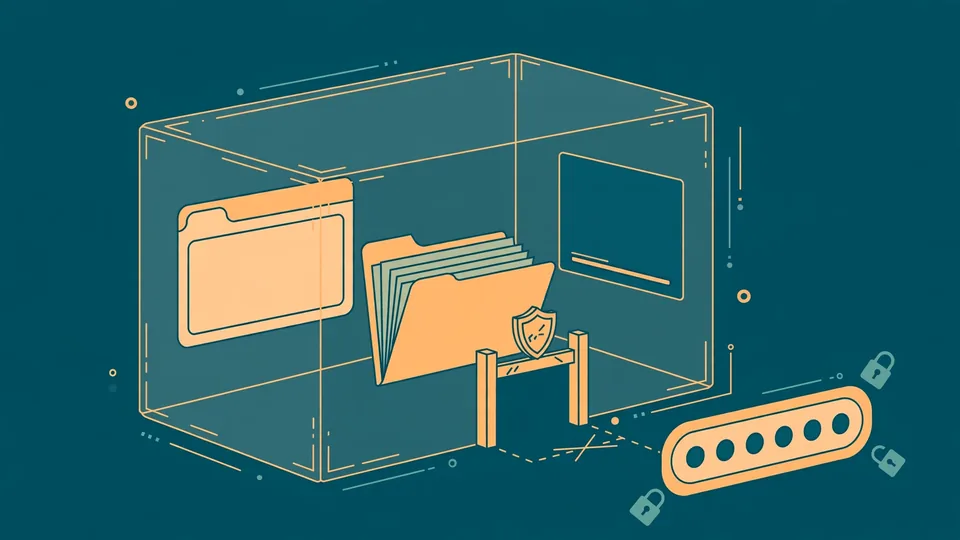
State splits three ways, and that split is worth knowing before you trust the system. Policy, approvals, audit, and encrypted credentials live in PostgreSQL with pgvector. Threads and memory live in CopilotKit Intelligence, so conversations survive restarts and what the agent has learned about you carries over. Credentials you store are encrypted at rest, write-only, and never returned by an API. When a site needs a login, the agent asks through a masked secret box: the password reaches the site, never the conversation the agent reads. OpenBot treats any tool it cannot positively classify as a read as a write, and every outgoing message is checked for sensitive information before it leaves.
Honest limitations
- Early development. OpenDuet carries an early-development badge and the README says to expect things to move. A hosted or deploy guide is not published yet, and neither is an OpenDuet image, so the local quick start in this guide is the supported way to run it today. The Docker and Helm guides in
openbot/docsdeploy plain OpenBot from OpenBot's own image, not OpenDuet. - Intelligence is not optional. Threads and memory run through CopilotKit Intelligence, a hosted service with a free Developer plan. The server, database, and Bot computers are yours; the memory layer is not purely local.
- Model costs are yours. The default model is OpenAI's
gpt-5.6-terra, and provider billing applies. The free Developer plan covers Intelligence, not model calls. - Real mail needs real setup. The fake Google account is invented data. Real Gmail and Calendar need an administrator-registered Google OAuth client, and each person connects their own account.
- Approvals reduce risk; they do not remove it. The agent works in a real browser with the tools you grant. Keep the defaults that ask before sending, paying, signing, or deleting, review connector grants, and never paste a password anywhere except the masked box.
- Telemetry is on by default. The CopilotKit runtime sends usage telemetry to CopilotKit, tagged OpenDuet. Set
COPILOTKIT_TELEMETRY_DISABLED=trueorDO_NOT_TRACK=1to turn it off. - Verified against the docs, not executed here. The commands in this guide are transcribed from the project's README as checked on October 30, 2026; the full stack was not executed end-to-end for this article. If a command differs on your machine, the README at the source link below is the authority.
Sources
- CopilotKit/OpenDuet on GitHub — README: quick start, fake Google, tenant package, architecture, and limitations. Checked October 30, 2026.
- CopilotKit documentation — Intelligence projects, threads, and memory.
- CopilotKit — OpenBot and the AG-UI protocol behind OpenDuet.
Frequently asked questions
Do I need a CopilotKit Intelligence account to run OpenDuet?
Yes. Intelligence keeps OpenDuet's threads and memory, and the server will not start without its key. The free Developer plan is enough, and the setup-learning script copies the project key into .env as INTELLIGENCE_API_KEY.
Can I try it without connecting my real Gmail and calendar?
Yes. Start the built-in fake Google server on port 4900, set OPENDUET_FAKE_GOOGLE_URL in .env, restart, and connect in the app. It serves an invented inbox and calendar and consents as [email protected]; remove the variable and restart to switch to real Google.
Will OpenDuet send messages or pay for things without asking me?
Not with the defaults. Every action passes a gateway that checks policy and writes an audit record, and actions that send, pay, sign, or delete pause for Refuse, Allow once, or Always allow. A message to other people always asks once, showing who it goes to and what it says, and passwords go through a masked box the agent never sees.