JetBrains' ThinkRail, hands-on: the agentic IDE that keeps every agent off your checkout
ThinkRail, JetBrains' open-source agentic IDE, wraps the pi coding agent in a real editor and gives every task its own git-worktree workspace — so parallel agents never touch your checkout. This guide installs it, starts the host, proves the isolation on disk, and shows how living specs keep the agent's memory.
- Who: JetBrains/thinkrail (Apache-2.0) — 6,201 stars, 337 forks, 609 commits at check on October 30, 2026; first on GitHub daily trending October 28, 2026 (+1,075 stars that day, per contemporary coverage); a JetBrains incubator project created July 8, 2026.
- What: an agentic IDE built around the pi coding agent: isolated git-worktree workspaces, a Monaco editor workbench, concurrent pi chats with token and cost readouts, a living SPEC.md graph, portable Agent Skills, and MCP servers.
- When: verified October 30, 2026: ThinkRail 0.3.0 stable (Linux x64 binary, ~235 MB, SHA-256 verified), host on port 24242, project registration in ~/.thinkrail/projects.json.
- Requirement: a terminal, git, and about 250 MB of download. No GPU, no ThinkRail account; a model provider (JetBrains AI or pi auth) only for agent chats.
Why this IDE is blowing up now
Every coding agent eventually does the same damage: it edits the one checkout you are standing in. You ask for a small change, it rewrites three files, and now your uncommitted work, its half-finished change, and the next idea you wanted to try are all tangled in the same directory. The usual fixes are discipline (commit constantly), or fear (never let the agent touch anything important). Neither scales when you want several agents working at once.
ThinkRail, JetBrains' open-source agentic IDE, removes the tangle instead of managing it. It wraps the pi coding agent in a real editor, and it cuts every task its own isolated workspace: a git worktree with its own branch and working directory. Agents work in parallel without touching your checkout. You merge the branch that turned out well and delete the rest. That single decision — isolation by worktree, not by prompt — is the reason the project is suddenly everywhere: it topped GitHub's daily trending list on October 28, 2026, adding 1,075 stars that day according to contemporary coverage, and the repository page showed 6,201 stars, 337 forks, and 609 commits when checked on October 30, 2026. It is Apache-2.0 licensed, created on July 8, 2026, and carries a JetBrains incubator badge, which means it is early and still moving fast.
This guide installs the real thing, starts its host, opens a real repository as a project, and proves the isolation claim on disk. One boundary is stated up front, because it shapes what is verified and what is not: chatting with the agent needs a model provider — sign in with JetBrains AI or connect a provider through pi's own auth — and this sandbox has no provider account. Everything up to that gate (install, host, project registration, worktree isolation, spec files) was run for this article and produced the exact output shown below. The provider-gated chat steps are documented from the project's own README, not run here, and are labelled as such.
What you'll need
- A Linux, macOS, or Windows machine with git on your PATH. The steps below were run on a 2-core Linux virtual machine. ThinkRail needs git; it does not need a GPU.
- A model provider, for the chat steps only. ThinkRail has no accounts of its own: sign in with JetBrains AI from the app, or use any provider
pi's auth supports. Your model costs are your provider's, not ThinkRail's. - About 250 MB of download for the Linux CLI binary, plus a few minutes. No multi-gigabyte model download is involved anywhere in this guide.
- A git repository to open. Any small repo works; the examples below use a one-file demo repo. If you have none, Step 3 shows how ThinkRail creates an empty one for you.
- About 30 minutes, most of it reading, not waiting.
Step 1: Install the CLI
ThinkRail ships two ways: a native desktop app, and a self-contained thinkrail CLI that opens the same app in your browser. This guide uses the CLI, because it is the fastest path and the one you can verify in a terminal. The installer downloads the right binary for your platform, verifies its SHA-256 checksum, and puts thinkrail on your PATH. On macOS or Linux (or Windows under Git Bash):
curl -fsSL https://raw.githubusercontent.com/JetBrains/thinkrail/main/install.sh | bashOn Windows from cmd or PowerShell, the README gives the equivalent:
powershell -c "irm https://raw.githubusercontent.com/JetBrains/thinkrail/main/install.ps1 | iex"As with any install script piped into a shell, you can download it first and read it before running it — this guide did exactly that. The run here resolved the latest stable release, downloaded the Linux x64 binary, verified its checksum (ok), and reported:
ThinkRail 0.3.0 (stable) installed.Confirm the install:
thinkrail --version
thinkrail --help
The first command printed 0.3.0. The help output is worth reading in full, because it lists the only flags you need for the rest of this guide: an optional project-dir argument (a git repo to open on launch), --port (default 24242, falling back to a free port if taken), --host (default localhost), --no-open (do not open the browser — the headless and remote-host option), --no-analytics, and --verbose. Two subcommands complete the set: thinkrail update re-runs the installer for your channel, and thinkrail uninstall removes the executable, the PATH entry, and the install metadata, asking whether to delete your ~/.thinkrail app state (kept by default; --remove-data deletes it).
If you prefer a pinned version, the installer takes --channel stable|nightly and --version after bash -s --, for example bash -s -- --channel nightly. Do not pin an old version from another article: install the latest stable and let thinkrail --version tell you what you got. Desktop builds, if you want a native window instead, are thinkrail-desktop-* assets on the releases page: DMGs for macOS 14+ (Apple Silicon or Intel), a setup ZIP for Windows x64, and setup tarballs for Linux x64 and ARM64. Linux desktop builds need glibc 2.38 or newer with GTK 3, WebKitGTK 4.1, Ayatana AppIndicator 3, and librsvg 2 — in practice Ubuntu 24.04 or newer — and the README gives the apt install line for those libraries.
Step 2: Start the host and open a project
Running thinkrail boots an engine host in-process and opens the browser to the app. On a headless machine or a remote host, add --no-open and open the URL yourself. From a terminal, with a demo repo prepared:
git init -b main demo-repo
cd demo-repo
printf 'print("hello, thinkrail")\n' > hello.py
git add . && git -c [email protected] -c user.name=you commit -m "initial"
cd ..
thinkrail --no-open --no-analytics --port 24242 demo-repo
The host log for this guide's run printed exactly two lines that matter:
[host] listening on port 24242
thinkrail → http://localhost:24242
Open that URL and you get the ThinkRail app. A plain HTTP check confirms the host is serving the real client, not a stub:
curl -s -o /dev/null -w "%{http_code}\n" http://localhost:24242/
# 200
The served page is titled ThinkRail and loads the bundled web client (its fonts are self-hosted, so the app keeps working offline). More importantly, launching with a repo registers it as a project. ThinkRail keeps app state under ~/.thinkrail, and after this run its projects.json contained one entry: name demo-repo, path pointing at the repo, slug demo-repo. That is the project's record; everything ThinkRail does next hangs off it.
If you have no repo ready, the first launch walks you through connecting a provider and picking a project, and Start a new project creates an empty git repository (under ~/thinkrail by default). Add project → Clone repository… clones a Git URL into a new folder and opens it as a project, using your existing Git credentials and SSH keys, and never overwriting an existing destination folder.
Step 3: Cut an isolated workspace — and prove it is isolated
Here is the core mechanic. In ThinkRail, you open a git repo as a project and cut workspaces from it. Each workspace is a git worktree with its own branch and working directory. Agents work in parallel without touching your checkout; you merge the good branch and delete the rest. Working directly in the project folder itself — the Default workspace — is an explicit choice in ThinkRail, never the default, except for the setup chat of a project it just created empty, which has nothing to isolate yet.
In the app, that means: open your project, create a workspace for the task, give it a branch, and work in it. The topbar shows where the active branch stands against origin and its pull request, with the next step one click away. Finished and dormant workspaces settle onto a per-project shelf on their own — when their pull request merges or closes, or after a quiet week — and come back the moment you work in them again.
You do not have to take the isolation claim on faith, because a worktree is plain git, and plain git is checkable. The exact mechanism ThinkRail uses was reproduced here with git itself on the demo repo, and the output is the proof a reader can repeat in thirty seconds:
git worktree add ../demo-feature -b feature/demo
printf 'print("edited in worktree")\n' > ../demo-feature/hello.py
cat hello.py            # main checkout: unchanged
cat ../demo-feature/hello.py   # worktree: edited
git worktree list
main checkout:
print("hello, thinkrail")
worktree:
print("edited in worktree")
/tmp/tr-demo/demo-repo 0785c49 [main]
/tmp/tr-demo/demo-feature 0785c49 [feature/demo]The main checkout never saw the edit; the worktree shows it as a modification on its own branch. That is the whole safety property, and it holds whether the edit came from your hands or from an agent: a runaway agent can only dirty its own worktree. When a workspace's work is good, merge its branch into your main line with your normal git workflow; when it is not, delete the worktree and the branch and nothing else is touched.
Step 4: Give the agent a spec it cannot forget
The second idea is durability. Decisions made in a chat normally end with the session; the next session re-derives or contradicts them. ThinkRail's answer is a connected graph of SPEC.md files that lives beside the code. The agent reads, searches, and maintains it through dedicated spec_* tools, so intent survives the session, and the read-only Specs tool renders the graph as a tree in the workbench.
ThinkRail itself is built this way, and its own spec files show the format. A spec carries frontmatter — id, type, status, title, covers, tags — and links to other specs with wiki-links such as [[architecture]]. Write yours the same way. A minimal spec for the demo repo looks like this:
---
id: hello-script
type: module
status: active
title: Hello script
covers: [greeting]
tags: [demo]
---

## Goal

Print a greeting and exit cleanly. No arguments, no network, no side
effects beyond stdout.

## Non-goals

No configuration file, no logging framework, no packaging. If the
script grows a second job, that job gets its own spec first.
Put the file beside the code it describes — in the demo, demo-repo/SPEC.md or a specs folder your project already uses — and commit it on the workspace branch like any other file. Then, in a chat, ask the agent to read the spec before changing the code, and to update the spec in the same change when a boundary, contract, or decision moves. That last rule is ThinkRail's own development rule (a change that moves a boundary updates the spec in the same change), and it is the habit that keeps the graph true: a spec the agent is allowed to update, and required to update, instead of a design doc that rots in a wiki.
Two cautions from the project's own honesty. First, spec drift under agent edits is a real risk the README does not pretend away: the graph is only as good as the update discipline, so review spec changes in the Changed view like code changes. Second, specs describe intent, not correctness — a spec saying "no network" does not enforce it. The enforcement is still you, reading the diff before merging the branch.
Step 5: Connect a provider and start a chat (documented, not run)
This is the provider-gated step, documented here from the README because this sandbox holds no provider account. Sign in with JetBrains AI from the app, or connect any provider through pi's own auth; ThinkRail has no accounts of its own. ThinkRail reads your existing pi configuration (~/.pi/agent); to use another one, or to pass extra environment variables to the agent, terminals, and MCP servers, set them in Settings → Environment — they apply on the next start, and a variable set when launching (PI_CODING_AGENT_DIR=… thinkrail) still wins.
Once a provider is connected, a workspace can run several concurrent pi sessions, each with its own model and a live token and cost readout. You can steer a running turn or queue a follow-up, delegate to subagents, and work a shared plan the agent updates and you edit — each completed step can be committed and reviewed on its own. That per-step commit is the workflow to adopt: small, reviewable commits on the workspace branch, so a bad step is one revert, not a lost afternoon.
The agent also gets tools beyond the shell. Web research, structured multiple-choice questions the agent asks you in the chat instead of guessing, and inline diagrams, option comparisons, and file previews rendered right in the chat — when the agent proposes a UI change it shows a before/after mockup you can comment on like a diff. The questions and visualize tools are also published as plain pi packages, so a vanilla pi in the terminal gets the same tools:
pi install npm:@thinkrail/pi-ask-user-question
pi install npm:@thinkrail/pi-visualize
Portable Agent Skills you already keep for other coding agents are read in place, and bundled workflows guide project setup, design brainstorming, and shipping a pull request — pushing the workspace branch and opening or updating its GitHub PR through your own gh. MCP servers come from your pi mcp.json (or from Settings, which offers presets): ThinkRail asks in the chat before calls the server does not mark read-only, keeps servers a repository defines off until you approve them, signs you into OAuth servers from Settings, and shows each chat's servers next to its background commands and subagents. Settings → Extensions lists the ThinkRail extensions the agent gets and lets you switch each one off.
Step 6: Review, then ship or discard
Review is where the worktree model pays off. The workbench gives you a splittable set of Monaco editor tabs, a Files tree with live git change marks and a Changed view, terminals, and documents — all scoped to the active workspace. Leave anchored review comments on files and diffs and send them to a chat as structured context, or open the worktree in your installed IDE if you prefer reviewing there.
When the branch is ready, the topbar carries you the rest of the way: publish, push, or open a PR described from the plan, the commits, your PR template, or an agent-written draft. Once a GitHub PR is open it shows the CI checks and review decision, and lets you mark it ready, hand failing checks or a diverged branch to the agent, merge it with the repository's last-used method, reopen it, or delete the remote branch. When the PR merges or closes, the workspace settles onto the shelf by itself. A branch that did not work out gets deleted with its worktree — the main checkout was never involved, so there is nothing to clean up.
What is actually running
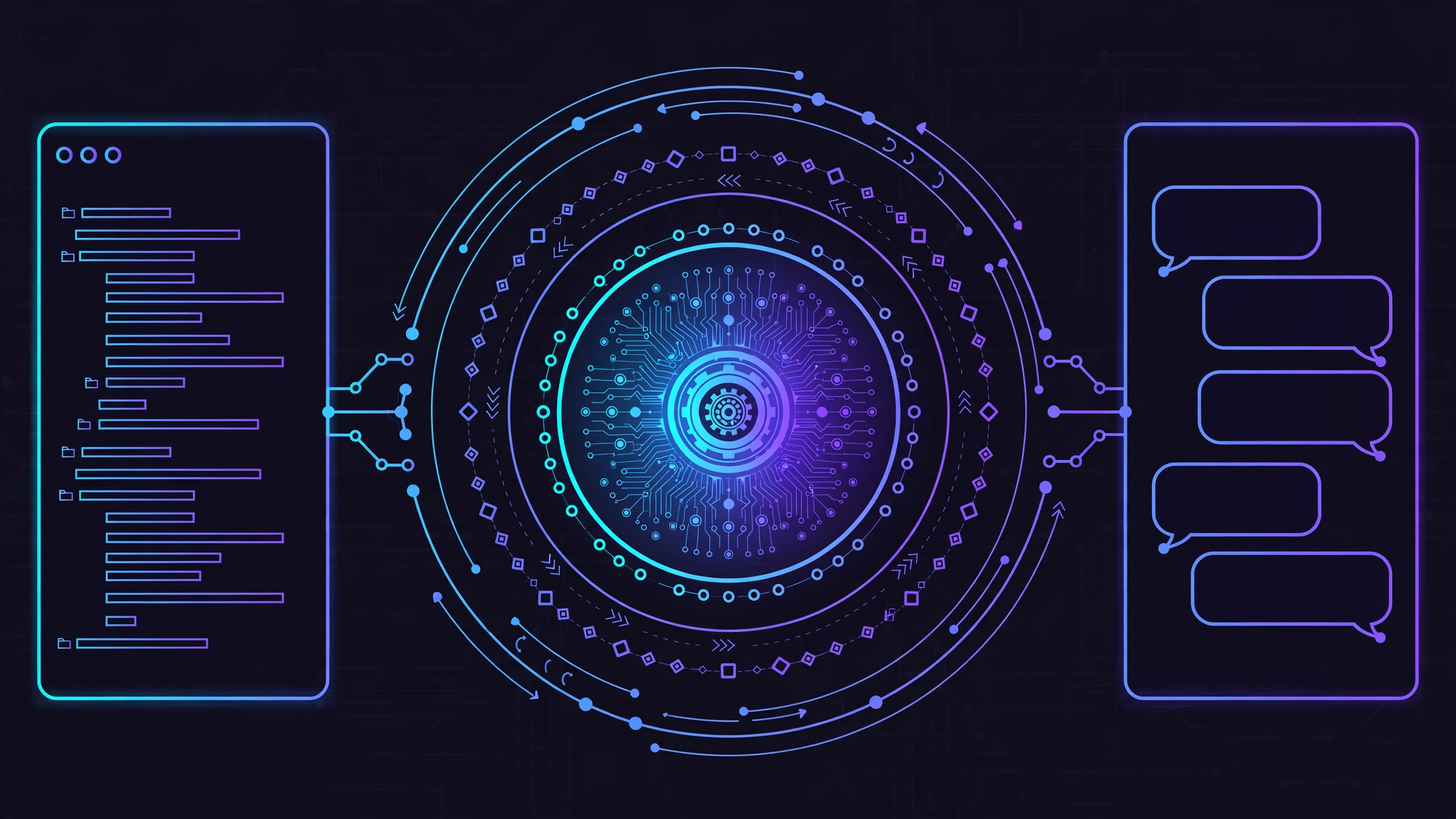
ThinkRail is a thin host, not a second agent. It runs pi in-process and bridges it to a rich web UI; pi owns models, skills, compaction, cost, and session state, and the app owns the workspace, the editor, and the wire — it never assembles prompts behind your back. The architecture has three rings: the engine host (packages/server), a Bun.serve HTTP and WebSocket host with one in-process pi session per chat; the wire (packages/contracts), the typed, versioned protocol between host and UI; and the UI client (apps/web), React 19 with Zustand and Tailwind v4, shipped independently and dialling the host over the wire. The host bundles pi extensions (pi-spec-graph, pi-thinkrail-workflow, pi-todos) and the ThinkRail extensions (visualize, ask-user-question, web-access) into every session.
That split explains two practical facts. First, the CLI and the desktop app are the same engine host with different shells, and app state lives in one place (~/.thinkrail), so switching between them loses nothing. Second, because the UI is a web client dialling a host, the CLI's browser mode is not a compromise: it is the same app, and the --host and --port flags are the remote-workflow story, not an afterthought.
When to use this vs alternatives
| Approach | Use it when | ThinkRail instead when |
|---|---|---|
A terminal agent (pi alone) | You live in the terminal, work one task at a time, and review diffs in git. | You want several agents in parallel, visual diff review, anchored comments back into chat, and a spec graph — without giving up pi. |
| An editor with an agent sidebar | Your agent work is small, single-threaded, and reviewed in the same checkout you edit in. | Agent edits must never land in your checkout unreviewed, or two agents must not collide in one tree. |
| ThinkRail | Parallel agent tasks on a real repo, with review-before-merge as the rule and specs as the shared memory. | — |
| ThinkRail's Default workspace | Only for the setup chat of a freshly created empty project, where there is nothing to isolate yet. | Any real task on an existing repo: cut a workspace instead. |
ThinkRail is the wrong tool when you have no git repo (its whole model is worktrees and branches), when you will not review branches before merging (isolation without review just delays the mess), or when you need a mature, years-old IDE: this is a 0.x incubator project, and its wire protocol, extension story, and desktop builds are all still moving.
Limits and honest catches
- It is early. Stable is 0.3.0, the project carries a JetBrains incubator badge, and releases are frequent (124 releases at last check). Expect rough edges and read the changelog before updating a working setup.
- You bring the model. There is no free built-in model. JetBrains AI sign-in or your own provider credentials are required for chats, and token costs are your provider's bill.
- Analytics are on by default in a limited form. The apps collect basic usage events (launches, chat creation, message sends, provider connections) tied to a random installation ID; the README states usage analytics never include prompts, code, files, credentials, or account identity, and error reports never include error messages, file paths, names, or URLs. Additional sharing is off unless you switch it on in Settings → Privacy, and
thinkrail --no-analytics(orTHINKRAIL_NO_ANALYTICS=1) turns additional sharing off for that run. This guide ran with--no-analytics. - Signing varies by platform. The macOS CLI is signed but not yet notarized, Linux artifacts are unsigned, and older desktop packages may be blocked by Gatekeeper. Prefer the checksum-verified CLI install.
- Linux desktop needs modern libraries. glibc 2.38+, GTK 3, WebKitGTK 4.1, Ayatana AppIndicator 3, librsvg 2 — Ubuntu 24.04 or newer in practice. The CLI host has no such requirement and is the safer first install on Linux.
- Specs need discipline. The graph only helps if spec updates travel with the code change. Treat a stale spec as a bug, and review spec diffs like code diffs.
The takeaway
ThinkRail's bet is that the hard part of agentic coding is not the model, it is the workspace: where the agent works, what it remembers, and how you review what it did. Worktrees answer the first, living specs answer the second, and a real editor with a Changed view answers the third — all wrapped around pi, which stays the only engine. Install it with one command, open a repo, cut a workspace per task, write the spec before the code, and merge only the branches you would sign your name to. The rest — the parallel agents, the shelf of finished work, the PR flow in the topbar — follows from those four habits. That is a small discipline for a large safety gain, and it is why a July incubator project topped GitHub trending in October.
When you are done experimenting, thinkrail uninstall removes the tool and asks about its state; your repositories are untouched either way, because they were never where the agent worked.