One Python call drives your browser, desktop, or phone: hands-on with AutoCua
AutoCua (ComputerUseAgent/AutoCua, MIT) drives a browser, a desktop, or a phone from one run_agent call, with 48 model names across nine providers. This guide installs it, runs a read-only web task, branches on the result, and switches surfaces — without letting the agent near your real accounts.
run_agent call into an agent that clicks numbered elements in your browser, on your desktop, or on a phone — the model never sees a screen coordinate. Install it with pip, put one provider key in .env, and start with a read-only web task before you let it near anything that can spend money or send mail.- Who: AutoCua, by ComputerUseAgent (ComputerUseAgent/AutoCua on GitHub) — 946 stars and 38 forks at the time of writing; the repository was created on 8 October 2026.
- What: one
run_agent(mode, provider, model, task)call drives a browser, a desktop app, a terminal, or a phone; the model picks numbered elements from the accessibility tree plus OCR instead of guessing pixel coordinates. - Models and licence: 48 model names listed in
model_list.txtacross nine providers (Anthropic, AWS Bedrock, Cerebras, Google, Groq, OpenAI, OpenRouter, Perplexity, Together AI); free software under the MIT licence; Python 3.10 or newer. - Surfaces: “web use” through your own Chrome and the AutoCua extension, “computer use” on macOS, Windows 10/11, or Linux with GNOME, and “mobile use” on an iOS Simulator or Android emulator — or a real phone over a cable from a script.
- Safety built in: vault credentials are typed by the runtime and never shown to the model, an element id the model was never shown is refused before anything moves, and elevation on Windows never happens on its own.
- The catch: the
shelltool is a real shell, not a sandbox, with no approval prompt before a command runs — AutoCua drives your real machine, browser profile, and logins, so read-only tasks come first.
Why this matters now
Most computer-use agents ask you to learn their harness: a new CLI, a new server, a new way of describing a click. AutoCua inverts that. The whole API is one Python call, run_agent, and one string — the mode — decides whether the agent drives your browser, your desktop, a terminal, or a phone. Everything else, including which model answers, stays the same.
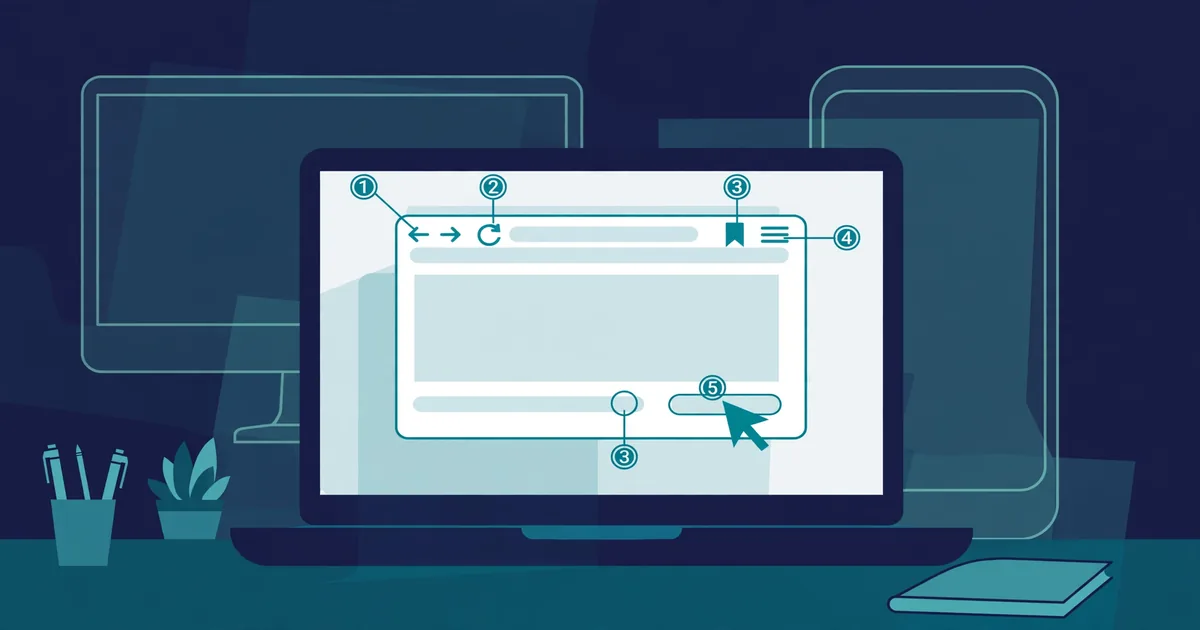
That simplicity is only usable because of how the agent sees a screen. It never gets a coordinate to click. Each step it receives an element tree and a matching annotated image, picks a numbered element from a view that fuses the operating system’s accessibility tree with OCR, and an id it was never shown is rejected before anything moves. A fully hidden element is refused with “scroll first” instead of being clicked blind. It is a small design decision, and it is the difference between an agent that usually clicks the right thing and one that usually clicks near it.
The same design is why the first run matters so much. AutoCua drives your real software, with your real browser profile and logins. This guide keeps the first three runs read-only, on public pages, so you learn what the agent does before you give it anything that can spend, send, or delete.
What you’ll need
- Python 3.10 or newer. On Ubuntu/Debian, create the virtualenv with your distro’s own
python3(3.10 to 3.14), or the system PyGObject bindings will not load inside it. - Google Chrome, for the web runs. If it is missing, AutoCua offers to download it on the first web run.
- An API key from one of the nine supported providers — Anthropic, AWS Bedrock, Cerebras, Google, Groq, OpenAI, OpenRouter, Perplexity, or Together AI. One is enough.
- macOS (Apple Silicon or Intel), Windows 10 or 11, or Linux with a GNOME desktop (tested on Ubuntu with Wayland) for the desktop runs. The web runs work on any host with Chrome.
- A task you do not care about: the Wikipedia run in Step 3. Do not start with your inbox, your bank, or a checkout.
Step 1: Install AutoCua in a virtualenv
Install from PyPI into a virtualenv, in the folder that will hold your main.py and .env, so the agent finds that .env:
python3 -m venv .venv
source .venv/bin/activate
pip install AutoCua
On Linux, install the distro packages first: the agent reads and drives the desktop through AT-SPI, GTK, and the XDG RemoteDesktop portal, which pip cannot install. The README gives one apt line for Debian/Ubuntu (swap xdg-desktop-portal-gnome for the KDE portal on KDE), and setup_linux.sh in the repository lists the equivalents for Fedora, Arch, and openSUSE. If you would rather use the setup scripts, the repository ships setup_mac.sh, setup_windows.bat, and setup_linux.sh; from a checkout they install uv, a virtualenv, and a Rust toolchain and precompile the browser agent, so "web use" works on the first run.
Expect the first runs to ask before downloading anything: adb, WebDriverAgent, Chrome, the OCR models, the iOS Simulator platform, and the Android emulator and its images are each fetched from their maker’s own server only after you answer yes on the terminal. Nothing is downloaded without your yes, except that Electron — the desktop app’s window — asks in its own way. If there is no terminal to ask on, the run stops and says what to run.
Step 2: Put one provider key in .env
Copy the example file and fill in a key for at least one provider. The example lists one variable per provider, plus a Bedrock API key and optional Vertex settings:
cp .env.example .env # Windows: copy .env.example .env# .env — fill in ONE line, leave the rest blank
OPENROUTER_API_KEY=your-key-here.env is gitignored, so the key stays on your machine. A key entered in the desktop app’s Settings takes priority over the same key in .env, and keys resolve from the runtime setting first, then the environment or .env. Never commit the file, and never paste a key into a chat or a task description. Model names come from model_list.txt and are case sensitive: a name that is not on the list is forwarded verbatim and comes back as a 404, so copy the names exactly.
Step 3: Run your first web task, with the browser visible
Put the four lines from the README’s “Pick a surface” section in main.py. This is the README’s own example task, with save_conversation=True added so you can audit what happened:
from AutoCua.agent_launcher import run_agent

run_agent(mode="web use", provider="openrouter", model="gemini-3.8-flash",
          save_conversation=True,
          task="Open wikipedia.org and summarise today's featured article.")
python main.pyRun it visible first — no headless=True yet — so you can watch what it does. Your own Chrome opens through the AutoCua extension, which Chrome loads at launch with no store install; Chrome shows its own “AutoCua started debugging this browser” bar while the agent works, and its Cancel button hands the browser back to you. While Chrome runs with the extension’s launch flags, your other extensions are off until Chrome is started again without them, and a run that finds your Chrome open without the extension quits it gracefully and starts it again with the flags and your tabs restored.
Step 4: Read the result, and branch on it
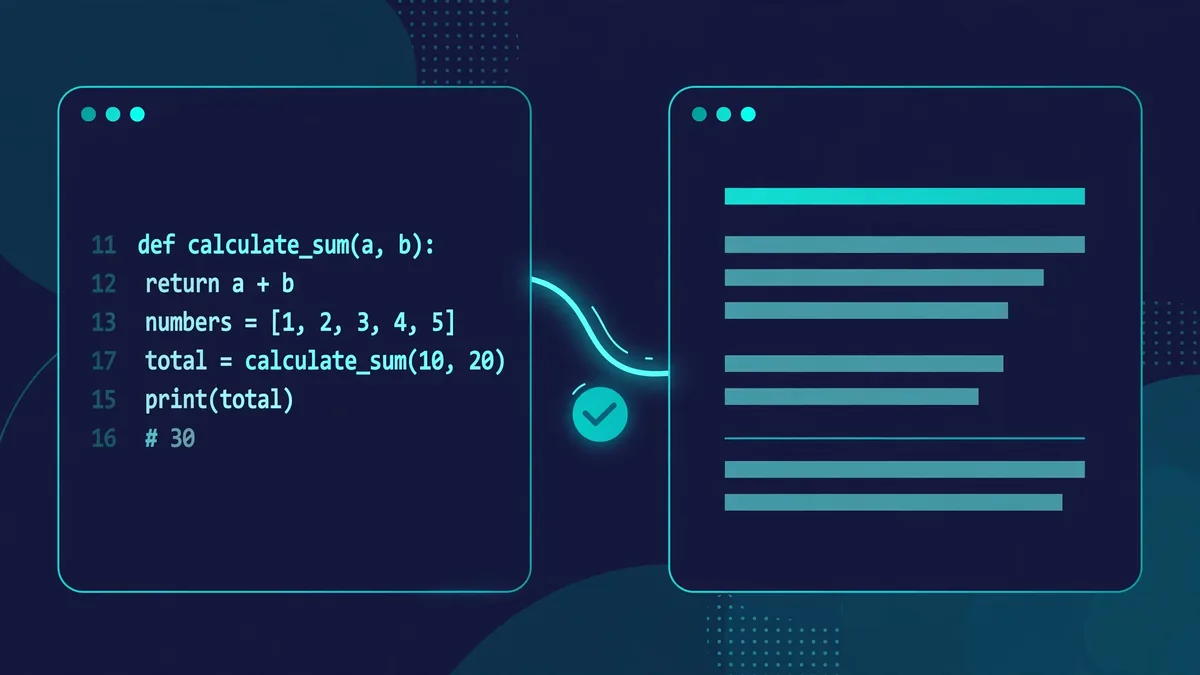
run_agent returns a status dict. Capture it, and make the script fail loudly instead of pretending the task worked:
from AutoCua.agent_launcher import run_agent

result = run_agent(
    mode="web use", provider="openrouter", model="gemini-3.8-flash",
    save_conversation=True,
    task="Open wikipedia.org and summarise today's featured article.",
)

assert result["status"] == "success", result["message"]
print(result["message"])
The status is success when the agent called done, error when the loop died, and incomplete when it was stopped or ran out of steps. That dict is the hook you branch on — in a test harness, a cron job, or the next step of a workflow. With save_conversation=True, conversation/ holds the exact payload sent to the model at every step and raw_reasoning/ holds its raw reply, so a failed run is readable rather than guessed at. Copy out anything you need to keep before running with the flag again: a run with it clears those folders when it starts.
Step 5: Change one string to change surfaces
Swap the model by editing two strings, and swap the surface by editing one. This is the checkout’s main.py example, pointed at the desktop instead of the browser:
run_agent(
    mode="computer use",
    provider="anthropic",
    model="claude-sonnet-5",           # names come from model_list.txt
    task="check the version of macOS.",
)
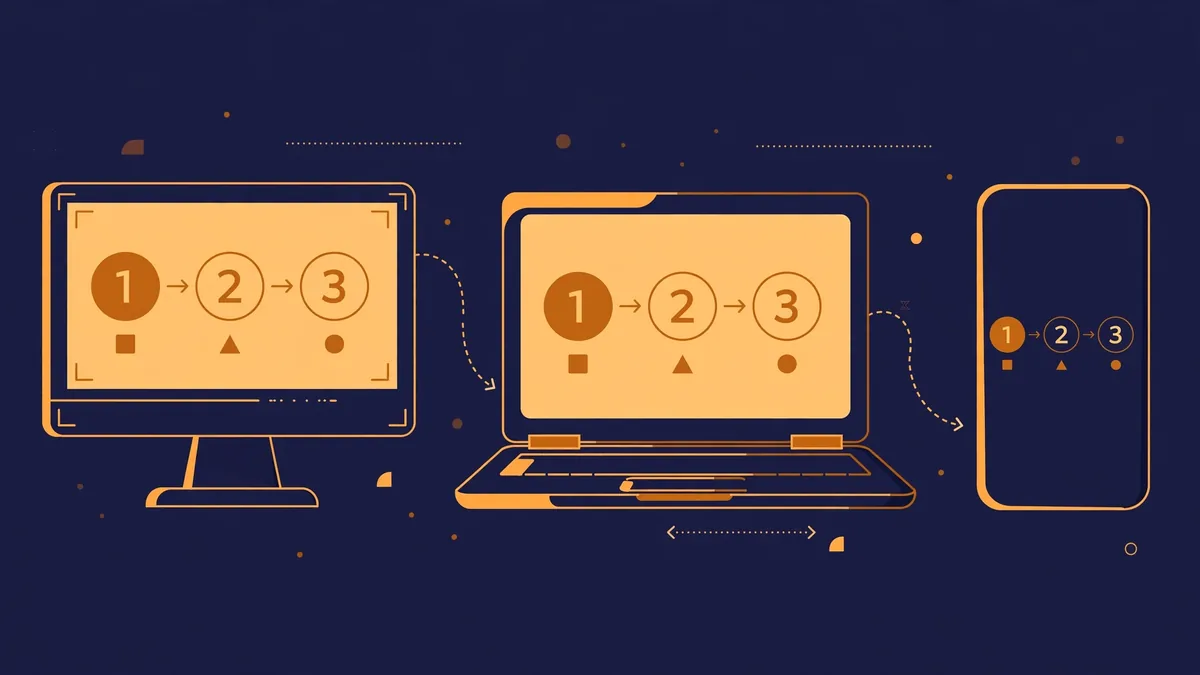
The modes are "computer use" (the desktop: clicks, typing, hotkeys, apps, AppleScript), "shell use" (a coding agent in a real terminal), "web use" (your own Chrome through the extension), "mobile use, ios" (an iOS Simulator by default, or your paired iPhone or iPad over the cable), and "mobile use, android" (an Android emulator by default, or your Android phone over the cable). From a script a phone always goes over the cable; Wi-Fi is the desktop app’s, and only after you pick Wireless there. All nine providers work on every surface.
Before you try "computer use" on anything real, read the safety section below and keep the task read-only — the macOS-version check above is the right shape. Desktop, iOS, and Android emulator runs still need a logged-in graphical session even when Chrome runs headless, and on macOS you should grant Full Disk Access to your terminal or Python binary so the coder agents can read Desktop, Documents, and Downloads without permission popups.
Step 6: Run three checks at once, or open the desktop app
Pass extra_tasks and every task, including the first, runs at the same time in its own child process. Adapt the README’s parallel example to three public, read-only checks:
run_agent(
    mode="web use", provider="openrouter", model="gemini-3.8-flash", headless=True,
    task="Open wikipedia.org and summarise today's featured article.",
    extra_tasks=[
        "Summarise today's top Hacker News thread.",
        "Open https://example.com and report its heading and first paragraph.",
    ],
)
Each task gets its own tab, its own agent, and its own working directory under ./parallel/task_N/, with a result.json holding its status and message. One Ctrl+C stops all of them. Copy out anything you want to keep first: ./parallel/ is deleted and recreated on every parallel run. On iOS every simulator the run booted is shut down at the end, whether it succeeded, errored, or you pressed Ctrl+C, and on Android every emulator copy.
If you prefer a window to a terminal, add ui=True to open the desktop app instead of running the task in the terminal. It is a 1140 by 700 native window on a Flask server at AutoCua’s own port (27321, or a free one when another program holds it), showing the live screenshot, the tool-response chain, and the agent’s todo list. The first launch asks whether to download Electron for its Chromium window — 120 to 160 MB, once; without it the same app opens in pywebview. The desktop app runs one agent at a time; parallel mode is for run_agent.
What you built
A one-call harness that drives real software and reports back in a dict you can branch on. The same main.py shape runs a read-only web summary, a desktop check, and three parallel smoke checks, swaps models by editing two strings, and leaves an audit trail — conversation/ and raw_reasoning/ — for every run you flag. The next step is your own smoke test, on your own staging site, stopping at the payment step: the README’s example does exactly that, with the instruction “Do not submit a payment” written into the task itself. Write the guardrails into the task text, because the agent follows the task, not your intentions.
Honest limitations
- The shell tool is a shell, not a sandbox. It runs in a working directory, its only path guard is a substring block on system paths, and there is no human-in-the-loop approval prompt before a command runs. Run only tasks you would be comfortable running yourself, and treat minions as read-only by description, not by enforcement.
- It drives your real machine. Your real browser profile, your real logins, your real files. The vault keeps credential values out of the model’s context on the web, iOS, and Android, but the agent still acts as you. Start with test accounts and a separate browser profile for anything with an account.
- Runs vary. Two runs of the same task can take different routes. AutoCua is a strong fit for exploratory testing, smoke flows, and repetitive back-office work; it is not a replacement for a deterministic test suite, and it has no assertion framework of its own. The repository has no automated test suite.
- Names are exact, and failures are quiet in the wrong places. A mistyped model name comes back as a 404. A site that looks for the browser agent’s overlay can detect it. And on macOS, the consent-dialog watcher can click Allow on a permission prompt while a shell command or AppleScript runs, so a first-time permission grant can happen without you being asked.
- First runs cost downloads and setup. The Android emulator is about 2.5 GB on the first emulator run, after you accept Google’s SDK terms. iOS needs full Xcode, not just the Command Line Tools. On Windows, answering UAC prompts needs the Interception kernel driver, installed by a separate manual step; without it every mode still works, and a task that hits an elevation prompt stops there.
Sources: the AutoCua README, model_list.txt, and .env.example in the ComputerUseAgent/AutoCua repository, and the repository page (star and fork counts, licence, creation date), read 31 October 2026. Star counts move daily; the figures quoted are from the day of writing. The commands and model names above were checked against those files; no live agent session was run for this article, so run the Wikipedia task in Step 3 yourself first and watch it before trusting any later run.
Frequently asked questions
Do I need Chrome, or a particular operating system?
For web runs you need Google Chrome, offered for download on the first web run if it is missing. Desktop runs need macOS, Windows 10 or 11, or Linux with a GNOME desktop, and Python 3.10 or newer; web runs work on any host with Chrome.
What happens if I mistype a model name?
The name is forwarded verbatim and comes back as a 404. Model names in model_list.txt are case sensitive, so copy them exactly — gemini-3.8-flash and claude-sonnet-5 are two of the 48 listed names.
Is it safe to let AutoCua use my real browser and logins?
Only with care: it drives your real machine, browser profile, and logins, and its shell tool has no approval prompt before a command runs. Start with read-only tasks on public pages, use test accounts and a separate browser profile, and keep credentials in the vault, which types them without showing the value to the model.