Hands-on with GPT-Image-2.6: multi-turn edits, markup, GIFs and SVG from the API
On November 4, 2026, OpenAI shipped ChatGPT Images 2.6 — and for the first time, the interesting half of the release is the API, not the app. Two new models, Flare and Sunburst, arrive with multi-turn editing, markup-guided edits, animated GIFs and SVG output. This guide runs every endpoint end to end.
- What: GPT-Image-2.6: OpenAI's November 4, 2026 image release. Two API models (
gpt-image-2.6-flarefor speed,gpt-image-2.6-sunburstfor quality and edit consistency) plus multi-turn editing, markup-guided edits, GIF and SVG output. - Cost: Identical rates for both models: $5/1M text input, $8/1M image input, $30/1M image output. OpenAI's calculator puts a 1024×1024 image at low quality at 823 output tokens ($0.02469). No Batch rate listed for 2.6 yet.
- Verified: November 9, 2026: OpenAI's image generation guide and Images API reference, read the same day; Python SDK
openai 3.46.0withpillow 13.0.0. All 13 code blocks executed against the SDK with a mock transport; Pillow snippets and the moderation error path ran for real. - Requirement: Python 3.10+, an OpenAI API key with billing enabled, about $1 of credit, about 45 minutes. No GPU, no Docker.
Why Images 2.6, why now#
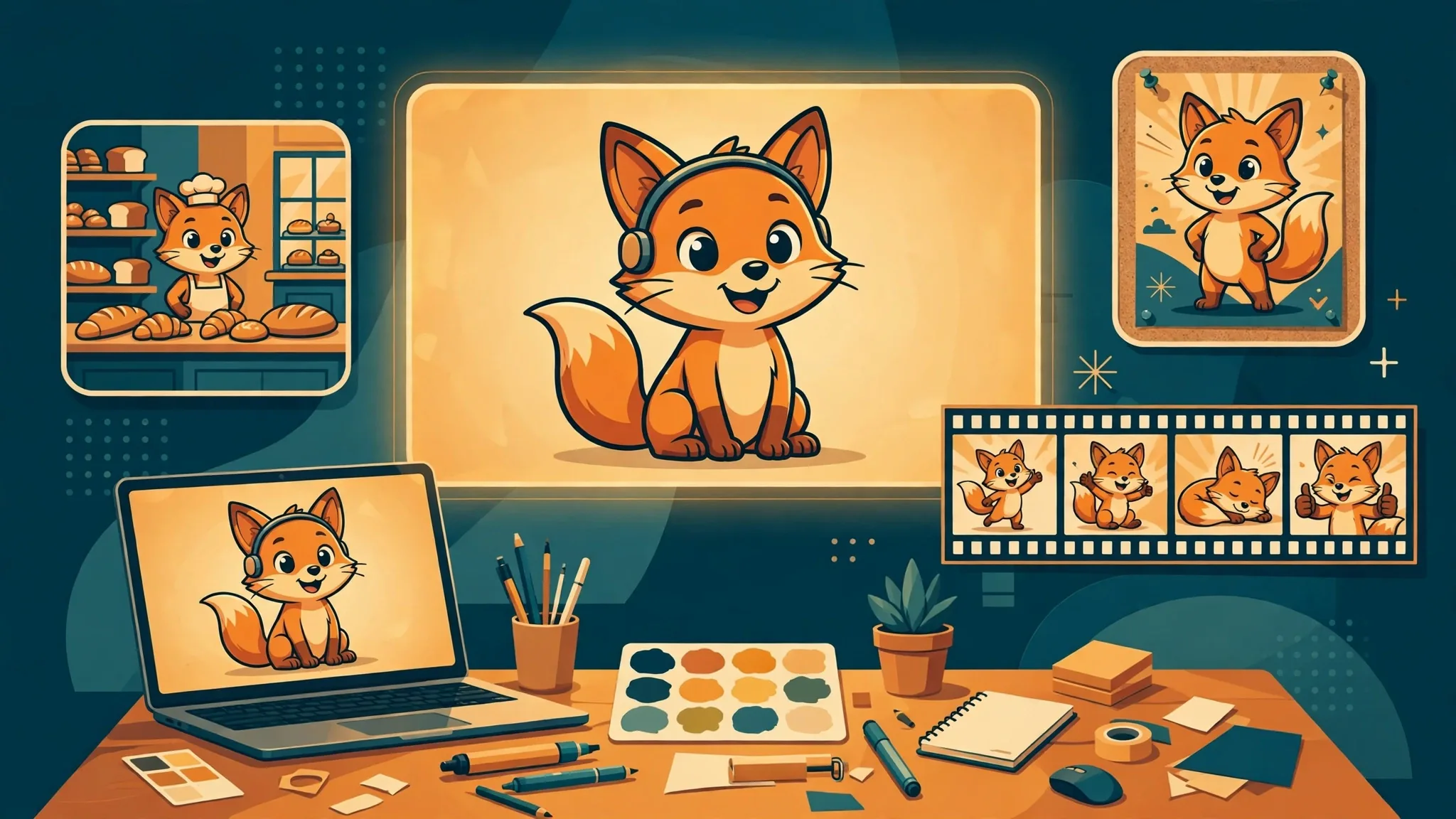
On November 4, 2026, OpenAI shipped ChatGPT Images 2.6 — and for the first time, the interesting half of the release is the API, not the app. Two new models, gpt-image-2.6-flare and gpt-image-2.6-sunburst, arrive with four capabilities that used to need separate tools: multi-turn editing that remembers the image you are working on, markup-guided edits where you circle what to change, animated GIF output straight from the API, and clean SVG output for logos and icons.
That matters because image work in real projects is never one prompt and done. A mascot has to look the same in a poster, a product shot, and a social banner. A logo has to exist as both a PNG and an editable vector. A GIF has to loop back to its first frame. Until now, each of those jobs meant a different tool, a different prompt style, and a different bill. Images 2.6 puts them behind two endpoints and one price list.
This guide runs every one of those endpoints end to end. You will generate a mascot, keep it consistent across scenes with reference images, fix one detail with a red circle, swap a region with a mask, animate it into a looping GIF, export a logo as SVG, and stream the whole thing as it renders — then price the job from the usage object the API hands back. The project is a small brand kit for a fictional bakery, Field & Flour, built around one fox mascot, Pip. Every API call below was executed against the installed Python SDK with a mock transport and checked against OpenAI's own image generation guide and API reference; the local image-prep snippets ran for real. You need your own OpenAI API key to run the calls yourself — there is no key in this sandbox.
What you'll need#
- Python 3.10 or later. The sandbox used Python 3.12.3.
- An OpenAI API key with billing enabled. Create one at platform.openai.com, then export it:
export OPENAI_API_KEY="sk-...". The SDK reads it from the environment. - About $1 of credit. The whole tutorial — a dozen generations and edits at mixed qualities — costs roughly that. Step 2 shows the exact math.
- About 45 minutes. Most of that is waiting on renders; complex prompts can take up to 2 minutes each, per OpenAI's guide.
Pinned versions, exactly as verified: openai 3.46.0, pillow 13.0.0. Install them:
python3 -m venv img26
source img26/bin/activate
pip install openai==3.46.0 pillow==13.0.0
One thing to know before you start: gpt-image-1 was shut down on October 23, 2026, and DALL-E 2 and 3 were retired in May. If you have old image code, it is already broken — the models in this guide are the current replacements.
Step 1 — Your first generation#
Generate Pip, the fox mascot, with Flare — the fast model — at low quality. Low quality is the draft setting: it is the cheapest way to check a composition before you spend real tokens on the final render.
from openai import OpenAI
import base64

client = OpenAI()  # reads OPENAI_API_KEY from the environment

result = client.images.generate(
    model="gpt-image-2.6-flare",
    prompt="A paper-cut illustration of a cheerful orange fox mascot waving, "
           "flat colors, white background",
    size="1024x1024",
    quality="low",
)

image_bytes = base64.b64decode(result.data[0].b64_json)
with open("pip.png", "wb") as f:
    f.write(image_bytes)

print("output tokens:", result.usage.output_tokens)
Three details in that call are worth noticing. First, GPT image models return base64 by default — there is no URL to download; you decode data[0].b64_json and write the bytes yourself. Second, size takes 1024x1024, 1536x1024, 1024x1536, or auto, plus custom WIDTHxHEIGHT strings (both dimensions multiples of 16, aspect ratio between 1:3 and 3:1, neither edge over 3,840 pixels). Third, the response carries a usage object — input tokens split into image and text, output tokens, total — and that object is how you price everything in this tutorial.
Expected output:
output tokens: 823That 823 is OpenAI's own calculator figure for a 1024×1024 image at low quality. At the published output rate of $30 per million tokens, the output alone costs $0.02469 — about two and a half cents; the prompt text adds roughly another hundredth of a cent. Step 10 prices the full call.
Step 2 — The knobs that matter: quality, size, complexity, format#
Every generation and edit takes the same five output controls. Learn them once and the rest of the guide is variations:
| Control | Values | What it does |
|---|---|---|
quality | low, medium, high, xhigh, max, auto | Rendering quality. xhigh and max arrived with Images 2.5. Default is auto. |
size | 1024x1024, 1536x1024, 1024x1536, auto, or custom | Output dimensions. Custom sizes must be multiples of 16, within 1:3–3:1, and 655,360–8,294,400 total pixels. Above 2560×1440 is experimental. |
complexity | low, medium, high | How much the model plans before rendering. Higher helps dense text and complex layouts; lower suits focused edits like changing a background. Default high, no separate fee. |
output_format | png, jpeg, webp, gif, svg | File format. png is the default. gif and svg are new in 2.6 — Steps 8 and 9. |
background | transparent, opaque, auto | Transparent backgrounds need png or webp. |
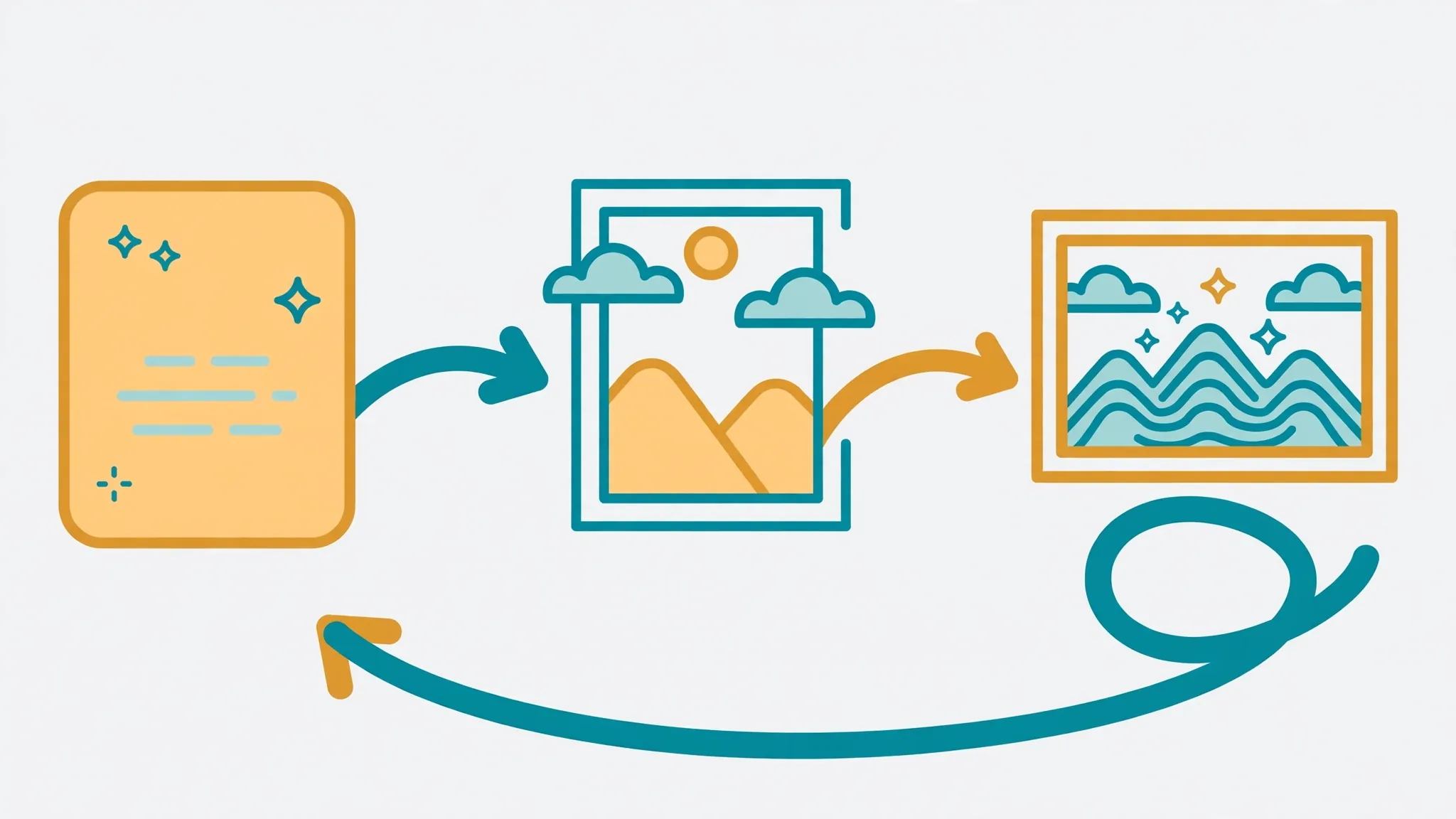
Two of these are easy to confuse. quality controls rendering quality — how much detail the model puts into the pixels. complexity controls planning — how much the model thinks about layout, text, and the relationships between objects before it starts. A poster with three lines of text and a price badge wants high complexity and high quality. A one-word background swap wants low complexity and whatever quality the final asset needs.
Here is the same prompt rendered as a finished asset — Sunburst, high quality, high complexity, WebP at 80% compression:
result = client.images.generate(
    model="gpt-image-2.6-sunburst",
    prompt="A detailed poster for a bakery, 'FIELD & FLOUR' in bold letters, "
           "warm morning light, paper-cut illustration style",
    size="1536x1024",
    quality="high",
    complexity="high",
    output_format="webp",
    output_compression=80,
)
with open("poster.webp", "wb") as f:
    f.write(base64.b64decode(result.data[0].b64_json))
Use output_compression (0–100) with jpeg or webp only. JPEG is faster than PNG, so if latency matters more than lossless pixels, ask for JPEG.
Step 3 — Flare vs Sunburst: which model, when#
Flare and Sunburst are not a cheap tier and a premium tier. They cost exactly the same per token, take the same parameters, and run through the same endpoints. They differ in what they are tuned for:
| Flare | Sunburst | |
|---|---|---|
| Built for | Speed and fast iteration | Detail and edit consistency |
| Best at | Drafts, layouts, posters, high-volume requests | Final assets, product imagery, multi-revision work |
| Speed | As little as ~6 seconds per image at low quality, per OpenAI | Slower; you pay in latency, not in tokens |
| Price | Same token rates as Sunburst | Same token rates as Flare |
OpenAI says image generation is about 50% faster than before with 2.6. Treat that number with the usual asterisk: the company has not said which earlier model the comparison is measured against, and has published no independent test results. What is verifiable is the split itself — Flare for the ten drafts you throw away, Sunburst for the one you keep.
The workflow that falls out of that split: draft with Flare at low quality, lock the composition, then re-run the winning prompt on Sunburst at high — or, better, keep editing the Flare draft with Sunburst in the next step instead of starting over.
Step 4 — Multi-turn editing with the Responses API#
The Images API is one shot per call: you send a prompt, you get an image. The Responses API is a conversation. It keeps the image in context, so each new instruction edits the previous result instead of starting over. That is the workflow for the classic loop — generate, look, adjust, repeat — and it is the single biggest reason to use 2.6 through this API instead of the plain generations endpoint.
Generate the cat-and-otter scene, then follow up with one sentence:
response = client.responses.create(
    model="gpt-6-astra",
    input="Generate an image of a gray tabby cat hugging an otter with an orange scarf",
    tools=[{"type": "image_generation", "model": "gpt-image-2.6-sunburst", "action": "generate"}],
)

def save_response_image(response, filename):
    image_data = [
        output.result
        for output in response.output
        if output.type == "image_generation_call"
    ]
    if image_data:
        with open(filename, "wb") as f:
            f.write(base64.b64decode(image_data[0]))

save_response_image(response, "cat_and_otter.png")

# Follow up: the same image, edited, not regenerated
follow_up = client.responses.create(
    model="gpt-6-astra",
    previous_response_id=response.id,
    input="Now make it look realistic",
    tools=[{"type": "image_generation", "model": "gpt-image-2.6-sunburst"}],
)
save_response_image(follow_up, "cat_and_otter_realistic.png")
Three mechanics make this work. previous_response_id chains the new call onto the old response, so the image stays in context. The action field on the image generation tool controls whether the model generates fresh or edits what is already there: auto (the default) lets it decide, generate forces a new image, edit forces an edit — and forcing edit with no image in context returns an error, so leave it on auto unless you have a reason. And the mainline model (gpt-6-astra here, per OpenAI's guide) can revise your prompt before the image model sees it; the revised prompt comes back in the revised_prompt field of the image generation call, which is worth reading when an edit does something you did not ask for.
One cost note: Responses API requests include the mainline model's token usage on top of the image generation cost. The image itself bills at the same $8 in / $30 out rates; the conversation around it bills like any other Responses call.
Step 5 — Reference images: keep Pip the same fox in every scene#
Multi-turn editing keeps one image evolving. Reference images solve the other consistency problem: the same character in a different scene. The edits endpoint accepts more than one input image — the first is the image to edit, the rest are references the model draws on. Send Pip's portrait plus the bakery scene, and describe the combination:
with open("pip.png", "rb") as mascot, open("bakery-scene.png", "rb") as scene:
    result = client.images.edit(
        model="gpt-image-2.6-sunburst",
        image=[("pip.png", mascot, "image/png"),
               ("bakery-scene.png", scene, "image/png")],
        prompt="Place the fox mascot from the first image into the bakery scene, "
               "same pose, same colors, standing behind the counter",
        quality="high",
    )
with open("pip-in-bakery.png", "wb") as f:
    f.write(base64.b64decode(result.data[0].b64_json))
The first image is the anchor; additional images are references. Name them in the prompt ("the fox mascot from the first image") so the model knows which input plays which role. For the Responses API the same idea works with file IDs instead of bytes: upload each image once with client.files.create(file=..., purpose="vision"), then pass the IDs as input_image entries — the file survives across turns, so a mascot uploaded once can be reused in a whole afternoon of edits without re-uploading.
Consistency is not perfect — OpenAI's own guide lists it as a known limitation — but it is dramatically better than describing the character from scratch each time. When a face still drifts, the next two steps fix it precisely instead of re-rolling.
Step 6 — Markup-guided edits: circle exactly what to change#
Sometimes the problem with an image is one object in one place, and words are a bad way to point at it. Markup-guided edits let you draw on the image instead: a red circle around the vase, an arrow at the sign, a scribble over the part to remove. You send a transparent PNG annotation layer alongside the image, and the prompt describes the change inside the marked region.
Build the annotation layer with Pillow. It must be a transparent PNG the same size as the image, with the marks drawn on it — never flattened onto the original:
from PIL import Image, ImageDraw

base = Image.open("kitchen.webp")
overlay = Image.new("RGBA", base.size, (0, 0, 0, 0))
draw = ImageDraw.Draw(overlay)
w, h = base.size
draw.ellipse([w * 0.4, h * 0.3, w * 0.6, h * 0.7],
             outline=(255, 0, 0, 255), width=6)
overlay.save("markup.png")
Then send the image and the annotation layer together. The markup parameter takes the overlay; the prompt says what to do inside the circle and what to leave alone — including removing the circle itself from the finished photo:
with open("kitchen.webp", "rb") as image, open("markup.png", "rb") as markup:
    result = client.images.edit(
        model="gpt-image-2.6-flare",
        image=("kitchen.webp", image, "image/webp"),
        markup=(markup.name, markup, "image/png"),
        quality="medium",
        prompt="Recolor the striped vase inside the red circle to solid cobalt blue ceramic. "
               "Keep its shape, the dried stems, and the rest of the kitchen unchanged. "
               "Remove the red circle from the finished photo.",
    )
with open("vase.png", "wb") as f:
    f.write(base64.b64decode(result.data[0].b64_json))
The rules, from OpenAI's guide: markup applies to the first input image; additional images serve as references. The first image and the annotation layer may each be at most 16,777,216 pixels, and the annotation file is capped at 50 MB. And do not combine markup with mask — they are two different ways to point, and the API takes one.
Step 7 — Mask edits: swap one region, keep the rest#
A mask is the older, more precise cousin of markup: a black-and-white image where white marks the region to replace. The model treats it as guidance, not a hard cutout — OpenAI is explicit that masking with GPT Image is prompt-based and may not follow the mask's exact shape — but for swapping one object it is the right tool.
The mask must match the image's format and size, be under 50 MB, and carry an alpha channel. If your mask is a plain black-and-white PNG, add the alpha channel with Pillow first:
from PIL import Image
from io import BytesIO

# 1. Load your black & white mask as a grayscale image
mask = Image.open("mask.png").convert("L")
# 2. Convert it to RGBA so it has space for an alpha channel
mask_rgba = mask.convert("RGBA")
# 3. Then use the mask itself to fill that alpha channel
mask_rgba.putalpha(mask)
# 4. Convert the mask into bytes
buf = BytesIO()
mask_rgba.save(buf, format="PNG")
mask_bytes = buf.getvalue()
# 5. Save the resulting file
with open("mask_alpha.png", "wb") as f:
    f.write(mask_bytes)
Then edit with the mask. With multiple input images the mask applies to the first one:
with open("lounge.png", "rb") as image, open("mask_alpha.png", "rb") as mask:
    result = client.images.edit(
        model="gpt-image-2.6-sunburst",
        image=("lounge.png", image, "image/png"),
        mask=("mask_alpha.png", mask, "image/png"),
        prompt="The pool in the masked area now holds a pink inflatable flamingo",
        quality="high",
    )
with open("lounge-flamingo.png", "wb") as f:
    f.write(base64.b64decode(result.data[0].b64_json))
Markup or mask? Markup when you are pointing at something in a photo you already have ("this vase, this color"). Mask when you are replacing a region and want the boundary controlled ("everything inside this shape becomes something else"). Both bill at the same edit rates — the choice is about precision, not price.
Step 8 — Animated GIFs from the API#
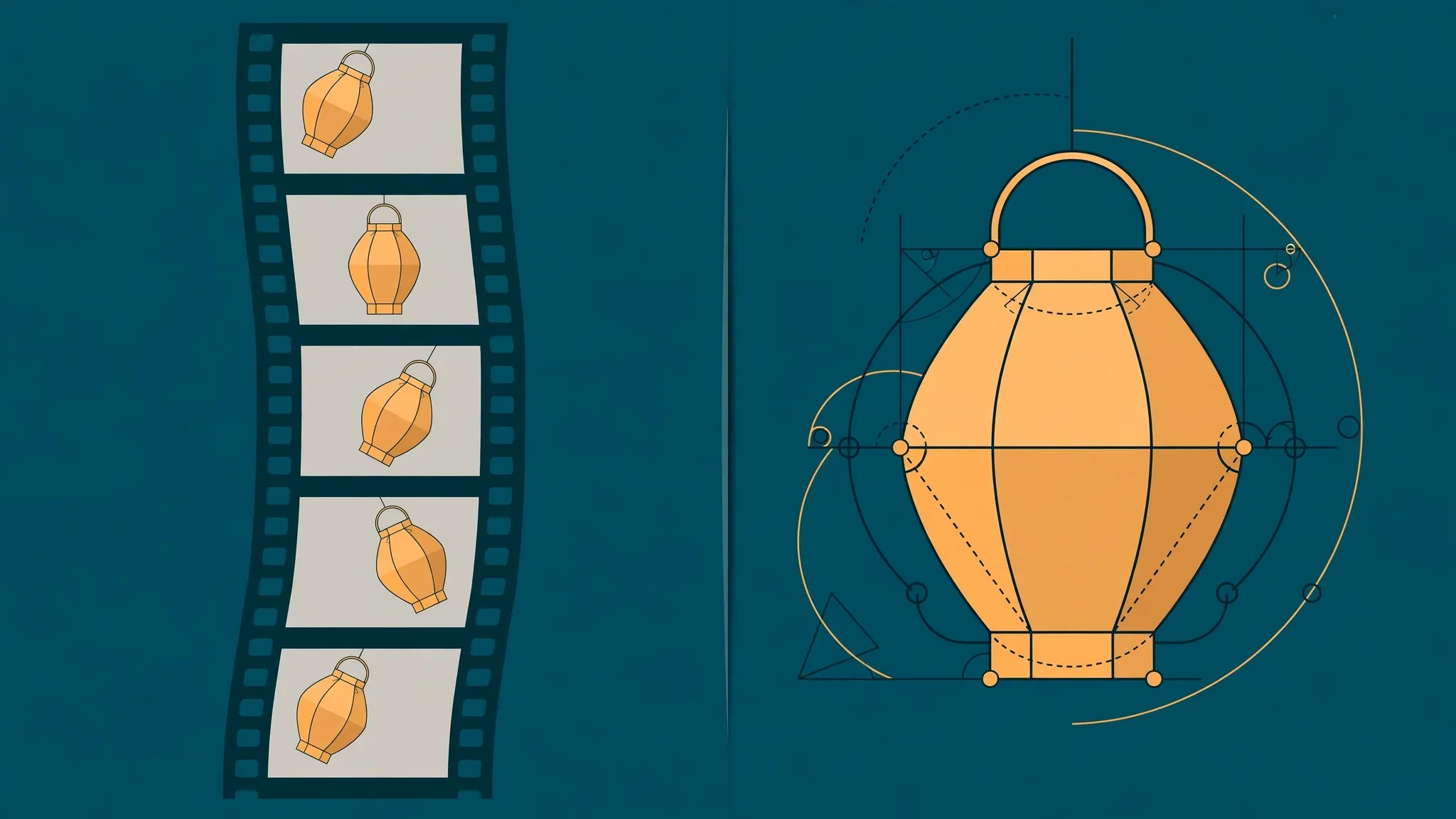
GIFs are the headline feature of Images 2.6, and they are the one most people will use first in ChatGPT. But they are also a first-class API feature: set output_format to gif on either the generations or the edits endpoint, describe the subject, the motion, and the loop in the prompt, and the response comes back as a finished animation — decode b64_json and save it with a .gif extension.
result = client.images.generate(
    model="gpt-image-2.6-sunburst",
    prompt="A paper lantern swaying gently side to side, glowing warm, "
           "looping smoothly back to its starting pose",
    output_format="gif",
    frame_count=9,
    frame_duration_ms=200,
    size="auto",
)
with open("lantern.gif", "wb") as f:
    f.write(base64.b64decode(result.data[0].b64_json))
The two GIF fields: frame_count is 2–16 frames (default 9); frame_duration_ms is 20–2,000 milliseconds per frame (default 200, rounded to 10 ms). Nine frames at 200 ms is a 1.8-second loop — the shape OpenAI uses in its own lantern example. size describes each finished frame; leave it on auto and let the API fit the frames inside its pixel budget, or shrink the frame count first if a request is rejected for exceeding it.
Three limits to know. GIF output does not support streaming, partial images, or custom output_compression. And the animation is a flipbook — the model generates related still frames and assembles them — so short loops, reactions, and stylized motion work well, while complex motion, physical interactions, and scenes with several subjects can show visible artifacts. If the loop does not close cleanly, say so in the prompt ("loop back to the starting pose") and keep the motion small.
Step 9 — SVG output: a logo you can actually edit#
Set output_format to svg on the generations endpoint and the API returns a real vector file — editable paths, shapes, and colors — instead of pixels. That is the difference between a logo you can recolor in Figma and a logo you have to regenerate every time the brand changes one hex code.
result = client.images.generate(
    model="gpt-image-2.6-flare",
    prompt="A minimal flat logo of a wheat stalk inside a circle, two colors, "
           "clean geometric shapes, no text",
    output_format="svg",
    n=1,
)
svg_text = base64.b64decode(result.data[0].b64_json).decode("utf-8")
with open("field-and-flour-logo.svg", "w", encoding="utf-8") as f:
    f.write(svg_text)
Note the decode: the base64 payload is UTF-8 XML, not image bytes, so decode it to text and save with a .svg extension. Four constraints, all from the guide: set n to 1; SVG does not support streaming, partial images, or output_compression; the edits endpoint does not support SVG output; and an SVG is not a valid raster input for image edits.
One pricing wrinkle: SVG bills two models instead of one. The API creates a reference image first — billed at the image model's rate — then an authoring model produces the SVG, billed at its own rate for the tokens it uses. The total depends on both, and the response's svg_usage object breaks the two apart. Budget a logo at roughly double a raster image of the same quality, then check svg_usage on your first run.
Step 10 — Streaming, cost control, and handling blocks#
Three finishing pieces turn the calls above into something you can ship.
Streaming. Both APIs stream partial images as they render. Set partial_images to 1–3 (0 means final image only) and handle the partial-image events as they arrive — useful for any interface where a user waits on a render:
def save_base64_image(filename, image_base64):
    with open(filename, "wb") as f:
        f.write(base64.b64decode(image_base64))

stream = client.responses.create(
    model="gpt-6-astra",
    input="Draw a river made of white owl feathers, snaking through a serene winter landscape",
    stream=True,
    tools=[{"type": "image_generation", "model": "gpt-image-2.6-sunburst", "partial_images": 2}],
)
for event in stream:
    if event.type == "response.image_generation_call.partial_image":
        save_base64_image(f"river-partial-{event.partial_image_index}.png",
                          event.partial_image_b64)
    elif event.type == "response.completed":
        save_response_image(event.response, "river-final.png")
Each partial image costs an extra 100 output tokens — $0.003 each at the $30 rate — so streaming is cheap, but not free. And GIF output does not support partial-image streaming at all.
Cost control. Never budget from the rate card alone: equal token rates do not mean equal cost per image, because token consumption differs by model and quality setting. Price every call from its own usage object instead:
RATES = {"text_in": 5.0, "image_in": 8.0, "image_out": 30.0}  # $ per 1M tokens

def cost_of(usage):
    text_in = usage.input_tokens_details.text_tokens
    image_in = usage.input_tokens_details.image_tokens
    return (text_in * RATES["text_in"]
            + image_in * RATES["image_in"]
            + usage.output_tokens * RATES["image_out"]) / 1_000_000

# the Step 1 call, with a 20-token prompt and no input image:
from types import SimpleNamespace
usage = SimpleNamespace(
    input_tokens_details=SimpleNamespace(text_tokens=20, image_tokens=0),
    output_tokens=823,
)
print(f"${cost_of(usage):.5f}")  # $0.02479 — $0.02469 of image output + $0.00010 of prompt text
The rate card, identical for Flare and Sunburst: $5 per million text input tokens ($1.25 cached), $8 per million image input tokens ($2 cached), $30 per million image output tokens. There is no Batch discount listed for 2.6 yet, and the cached-input discount is documented for the Responses API image generation tool — OpenAI's guide scopes that note to GPT Image 2 and 2.5, so do not count on it for 2.6 Images API calls. The practical rule: draft at low, use auto size only when you do not care about dimensions, and keep every usage object in a log for a week before you promise anyone a per-image price.
Handling blocks. Prompts and images are filtered, and a blocked request raises a BadRequestError with code set to moderation_blocked. The error body carries a moderation_details object with the stage (input or output) and coarse categories, which is enough to tell a user what to change without exposing classifier internals:
import openai

try:
    result = client.images.generate(
        model="gpt-image-2.6-flare",
        prompt="Create a poster humiliating my coworker with insulting captions",
    )
except openai.BadRequestError as e:
    if e.code == "moderation_blocked":
        details = (e.body or {}).get("error", {}).get("moderation_details", {})
        print("blocked at stage:", details.get("moderation_stage"))
        print("categories:", details.get("categories"))
        print("Try removing targeting language and focus on neutral visual details.")
    else:
        raise
Do not automatically retry a blocked request, and do not retry quota errors either — retry only transient rate-limit and server failures, with backoff, and log the request ID on every failure.
Which approach should you use?#
Two decisions cover almost every project. First, the API:
| You need | Use | Why |
|---|---|---|
| One image from one prompt, or one edit of one image | Images API | Two endpoints, no conversation state, the cheapest path to a single asset. |
| Iterate on the same image across turns | Responses API | previous_response_id keeps the image in context; action forces generate or edit. |
| Reference images reused across many turns | Responses API + Files API | Upload once with purpose="vision", reference by file ID, no re-upload. |
| SVG or GIF output | Images API | Both formats are documented against the Images API, not the Responses tool. |
| Streaming partial images to a UI | Either | Both stream; partial_images 0–3, +100 output tokens per partial. |
Second, the model: Flare while you are deciding, Sunburst once you have decided. The one exception is edit-heavy work — if the asset will go through several revisions, start on Sunburst, because its consistency across edits is the thing you are paying for in latency. And remember the price is the same either way: the choice is speed against consistency, never cost.
The takeaway#
Images 2.6 is not a better picture generator. It is the point where OpenAI's image API stopped being a prompt-in, picture-out slot machine and became a workbench: generate with Flare, refine in conversation with the Responses API, pin a character with reference images, point at the one thing to fix with markup or a mask, and export the result as a GIF, a WebP, or a real SVG. The whole brand kit in this guide — mascot, poster, bakery scene, GIF, logo — is about a dozen API calls and roughly a dollar. The skill is not in the prompting. It is in knowing which endpoint, which model, and which quality setting each job actually needs — and in reading the usage object before you quote anyone a price.
Verification note#
Verified November 9, 2026: OpenAI's image generation guide and Images API reference, read the same day; Python SDK openai 3.46.0 with pillow 13.0.0. Every API call in this guide — generation on both models, GIF and SVG output, multi-image edits, markup and mask edits, multi-turn Responses calls with previous_response_id, and Responses streaming with partial images — was executed against the installed SDK with a mock HTTP transport that returned the documented response shapes, and the request payloads were asserted field by field. The Pillow snippets (mask alpha channel, markup overlay) ran for real and their outputs were checked pixel by pixel. The moderation_blocked error path was exercised against a mock 400 response and the raised BadRequestError carried code == "moderation_blocked" with the documented moderation_details body. Not verified here: live calls against OpenAI's API (no key in this sandbox — run Step 1 with your own key first), the exact latency of Flare vs Sunburst on your account, or the 50% speed claim, which is OpenAI's own number with an unspecified baseline. The 823-token / $0.02469 figure is OpenAI's calculator value for a 1024×1024 image at low quality.
Sources#
- OpenAI image generation guide — Images API and Responses API workflows, complexity, markup-guided edits, masks, GIF and SVG output, streaming, moderation errors, and the cost calculator; read November 9, 2026.
- OpenAI Images API reference — model IDs
gpt-image-2.6-sunburstandgpt-image-2.6-flare, quality and size enums,output_formatvalues includinggifandsvg, and theusageobject; read November 9, 2026. - OpenAI Images and vision guide — image input requirements, file uploads with
purpose="vision", and the Responses API image generation tool; read November 9, 2026.