Stop guessing which LLM fits your machine: a hands-on guide to llmfit
llmfit scans your CPU, RAM, GPU, and VRAM, then scores hundreds of open models on fit, speed, quality, and context — so you download the model that actually runs well on your hardware. Install it, read the fit table, simulate upgrades, and verify with real benchmarks — every command verified against the project’s README.

The most expensive mistake in local AI is not picking the wrong model — it is picking the right model for the wrong machine. Downloading a 70-billion-parameter quant, waiting an hour for the weights, then watching it wheeze along at one token per second is a rite of passage nobody needs to repeat. The fix is to check the fit before you download, and that is exactly what llmfit does.
llmfit (AlexsJones/llmfit) is a Rust terminal tool with 37,000+ GitHub stars that inspects your CPU, system RAM, GPUs, VRAM, and accelerator setup — NVIDIA CUDA, Apple Silicon, AMD ROCm, Intel OneAPI — then scores hundreds of open models across four dimensions: memory fit, estimated speed, quality, and context. It covers GGUF, AWQ, GPTQ, and EXL2 quantizations, and it notices the runtimes you already have installed: Ollama, llama.cpp, MLX, Docker Model Runner, and LM Studio. In this tutorial you will install it, read its fit table, interrogate a single model, simulate hardware you don't own yet, and replace estimates with real measured numbers from your own machine. Every command below is verified against the project's README.
What you'll need#
- A Mac, Linux box, or Windows PC. llmfit ships for macOS (Apple Silicon and Intel), Linux (x86_64 and ARM64), and Windows (x86_64). No Python required — it is a single Rust binary — though a
uv/pip install exists too. - A terminal and about ten minutes. The first run is read-only: it detects hardware and prints recommendations. Nothing downloads a model unless you tell it to.
- Optional: a local runtime. llmfit detects which runtimes you have — Ollama, llama.cpp, MLX, LM Studio, vLLM, RamaLama — and how many models each holds. Having one installed means you can act on a recommendation immediately.
Step 1 — Install it#
The fastest route is your platform's package manager — one command, no build step:
# macOS / Linux (Homebrew)
brew install AlexsJones/llmfit/llmfit

# Windows (Scoop)
scoop install llmfit

# Anywhere, straight from the release page
curl -fsSL https://llmfit.axjns.dev/install.sh | sh
The quick-install script drops the latest release binary into /usr/local/bin, or ~/.local/bin with no sudo via curl -fsSL https://llmfit.axjns.dev/install.sh | sh -s -- --local. Prefer to run it without installing anything at all? uvx llmfit fetches and runs it in one shot. Running bare llmfit opens the interactive TUI — your hardware at the top, every model scored below.
Step 2 — Let it read your machine#
Two commands tell you everything about your starting position:
llmfit doctor      # hardware detection report: CPU, RAM, GPU/VRAM, backend
llmfit recommend   # hardware telemetry + recommended models, printed to stdout
llmfit doctor exists for bug reports, but use it first as a sanity check: if it claims you have no GPU when you clearly do, stop here and file an issue rather than trusting the scores. llmfit recommend is the one-command answer to this tutorial's title — the short list of models that actually fit your machine, with the detection telemetry attached so you can see what it based the call on.
Step 3 — Read the fit table#
For the full picture, run llmfit with no flags for the interactive browser, or llmfit fit for the classic terminal table: every model in the catalog ranked by fit. Each row carries a Score, estimated tokens per second, quantization, disk size, the share of your memory it would consume (Mem %), context window, and a Fit verdict running from Perfect down to Too Tight. Navigate with ↑/↓ or k/j, filter by name, family, or quantization with /, narrow by provider or use case, and sort by Score. Press b for the community benchmark leaderboard, I for live inference benchmarks, h for the full keybinding list.
The Mem % column is the one that saves you from yourself: a row sitting at 130% or 300% of available memory is llmfit telling you, before you spend an hour downloading weights, that the model will not fit. The Fit verdict folds that together with speed and quality into a single word you can scan.
Step 4 — Interrogate one model before you download#
Found a candidate? Don't pull it yet. llmfit info "<model>" opens a plan view with the full fit analysis: the inputs behind the estimate (context size, quantization, KV-cache precision — all editable), minimum and recommended hardware in VRAM, RAM, and CPU cores, and the run paths that matter — GPU, CPU offload, CPU-only — each with estimated tokens per second and its own fit verdict. It lists KV-cache alternatives and their memory savings, plus upgrade deltas: how much more VRAM would move this model from Marginal to Perfect.
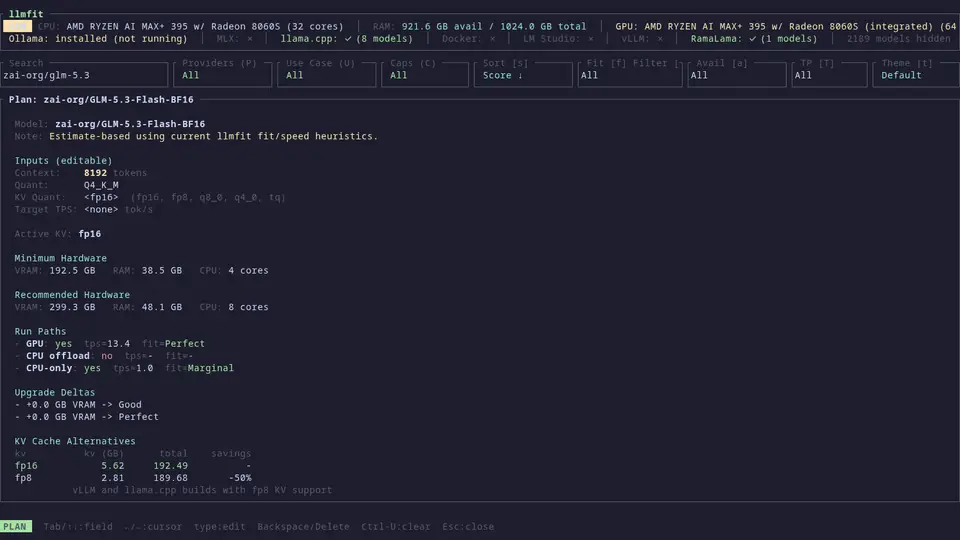
Two habits worth building here. First, read the estimate basis: every speed estimate ships its inputs, and the plan shows exactly what a number assumes plus the commands to verify it on your machine. Speed figures come from a memory-bandwidth model grounded in runtime sampling and real community measurements — principled, but still estimates until you measure (Step 6). Second, treat context as a dial, not a constant: raising it from 8k to 32k tokens changes the memory math, and the plan updates with it.
Step 5 — Simulate the machine you don't own yet#
This is the feature that pays for a hardware decision: hardware simulation. Inside the TUI you can override the detected specs — RAM, VRAM, CPU cores — and watch the entire fit table re-score against the hypothetical machine. Wondering whether 64 GB of unified memory instead of 32 unlocks the model you actually want? Type the number, press Enter, and read the new Fit column. On unified-memory machines like Apple Silicon or AMD's Strix Halo parts, the simulation knows RAM feeds VRAM, so the trade-offs stay honest.
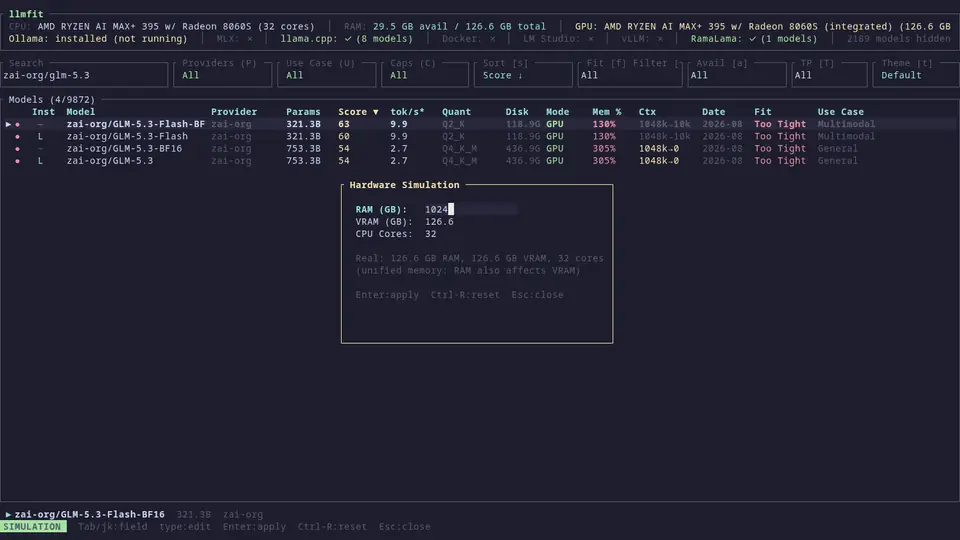
Use this before spending money. A five-minute simulation answers "would a GPU upgrade change anything for my shortlist?" more honestly than any spec sheet, because it re-scores the exact models you care about against the exact machine you're considering.
Step 6 — Measure, don't trust#
Estimates get you to a shortlist; measurement closes the deal. llmfit bench benchmarks against your running provider and reports real tokens per second and time-to-first-token for a model on your hardware. Then, if you're feeling communal:
llmfit bench --shareThat contributes your numbers to the project's community benchmarks. Runs are saved locally first, your own measurements replace estimates in your fit table, and merged submissions ship in the next release — so the next person with your exact hardware sees measured numbers before ever running a benchmark. It is a neat flywheel: every user who measures makes the estimates better for everyone else.
The honest version of this step: if you want ground truth with zero modeling, the project's own README names llm-checker, a Node.js alternative that pulls models through Ollama and benchmarks them for real. Know its trade-off: it treats every model as dense, so memory estimates for MoE models like Mixtral or DeepSeek-V3 reflect total parameters rather than the smaller active subset. llmfit, by contrast, understands MoE architectures — pick the tool that matches the question you're asking.
Step 7 — Drive it from scripts and agents#
llmfit is a TUI first, but it speaks machine too:
# top picks as JSON — agent and script consumption
llmfit recommend --json

# estimate SSD capacity for keeping three runnable models
llmfit storage --keep 3 --selection largest --json

# start the HTTP API + web dashboard
llmfit serve --host 0.0.0.0 --port 8787
The serve mode exposes REST endpoints like /api/v1/system and /api/v1/models for orchestrators and dashboards, and there is a multi-architecture Docker image (ghcr.io/alexsjones/llmfit) where running the container with no flags prints recommend JSON non-interactively — the README's own example pipes it through jq to list model names. This is the shape that matters for agents: a scheduler or harness can ask llmfit which models fit tonight's hardware, in JSON, with no human in the loop.
What you built#
A repeatable hardware-to-model workflow: detect with doctor, shortlist with recommend or fit, interrogate with info, what-if with simulation, confirm with bench. The next time a new 30-billion-parameter release drops, you won't ask the internet whether it runs on your machine — you'll ask your machine.
Honest limitations#
- Estimates are estimates. Speed comes from a memory-bandwidth model plus community data, not from running the model — real tok/s only appears after
llmfit bench. For brand-new releases with unusual architectures, treat the first number as a prior. - The catalog is community-fed. Hundreds of models ship built in and new ones arrive via PRs, but a model released yesterday may not be scored yet. Check the catalog covers your model before trusting a 'no'.
- Community benchmarks are heterogeneous. Contributed runs span different OS versions, drivers, and runtimes; your numbers will rhyme with them, not match them.
- llmfit is a planner, not a runtime. Actual inference still happens in Ollama, llama.cpp, MLX, Docker Model Runner, or LM Studio — llmfit tells you what to pull, not how to run it.
Sources#
- AlexsJones/llmfit — project README: install methods, CLI commands, features, how-it-works (MIT)
- llmfit docs — TUI guide, CLI & automation, benchmarking, platform & GPU support