Turn PDFs and phone photos into Markdown on your own machine: hands-on with MiniCPM-OCR
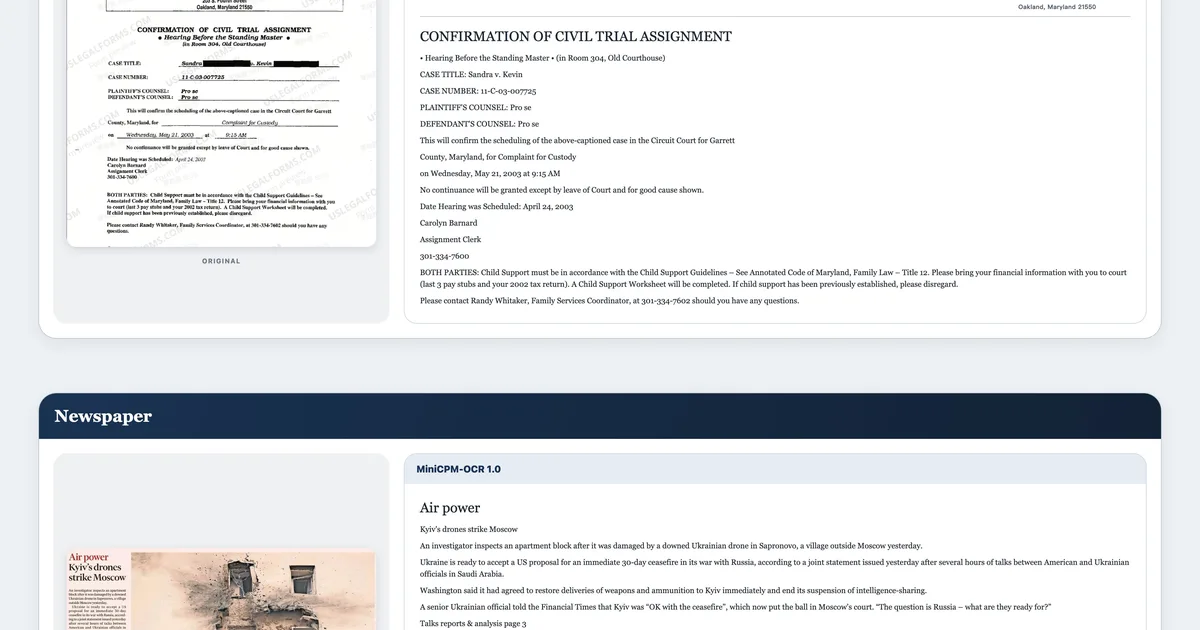
MiniCPM-OCR 1.0 (OpenBMB/MiniCPM-OCR, Apache-2.0, 707 GitHub stars) is a 1.3B model that parses PDFs and images into Markdown — text, tables, formulas, and charts — with a second model, MiniCPM-OCR Jev, that scores each region for correctness. This guide runs it locally through Ollama, parses a first document with the minicpmvocr SDK, and shows the vLLM path for heavier batches.
minicpmvocr SDK, serve the 1.3B model with Ollama on port 18499, parse one document, and use the companion Jev model to decide which regions a human should still check.- Who: OpenBMB. MiniCPM-OCR 1.0 parses documents; MiniCPM-OCR Jev scores each parsed region for correctness.
- What: A 1.3B OCR model (SigLIP vision encoder plus Qwen3.5, built on MiniCPM-V 4.6) and a 2B correctness model, for Chinese and English documents.
- When: Repository created 27 October 2026 and open-sourced 28 October 2026; 707 GitHub stars and 44 forks at research time. Apache-2.0 throughout.
- Reported quality: 93.68 on Real5-OmniDocBench and 54.7 on OCRBench v2 for MiniCPM-OCR 1.0; Jev reaches 93.6 AUROC (x100) on JevOCRBench. OpenBMB's numbers, on its test setups.
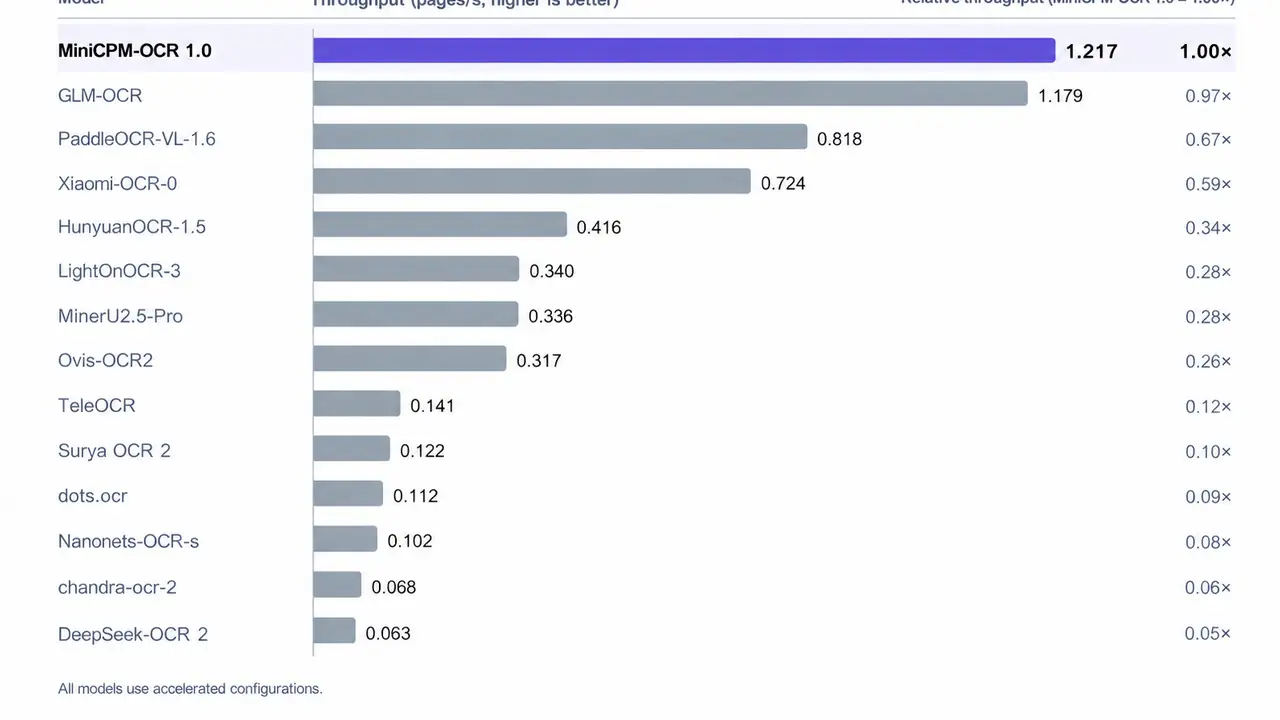
- Reported speed: 1.2 pages per second on an NVIDIA RTX 5090 with the accelerated configuration; DSpark improves end-to-end efficiency by 55%.
- Local run: Ollama 0.40.12 or later, three GGUF files totalling about 2.04 GB, service on port 18499. The vLLM path needs Linux, a driver 580 or newer, and at least 40 GB of disk.
Why this matters now
Most OCR tools hand you text and no reason to doubt it. A misread digit in an invoice total or a dropped minus sign in a formula looks exactly like a correct one, and the error only surfaces downstream, when a human notices or a payment goes wrong. MiniCPM-OCR, open-sourced by OpenBMB on 28 October 2026, treats that doubt as part of the system instead of an afterthought.
The job is split three ways. A layout model, PP-DocLayoutV3, finds the regions on a page. The recognition model, MiniCPM-OCR 1.0, reads each region: plain text, tables, formulas, charts, seals, and structured fields. The minicpmvocr SDK then assembles the regions into Markdown in reading order. A second, separate model, MiniCPM-OCR Jev, scores each region from 0 to 1 for correctness, so the pipeline can auto-accept the reliable parts and route the rest to a person. That second opinion is the reason this release is worth a tutorial rather than a news item.
It is also small enough to run yourself. At 1.3 billion parameters, with quantized GGUF builds and an Ollama deployment guide, it fits a single GPU machine and keeps the documents on that machine: the project's tutorial states that local deployment needs no cloud OCR service and documents do not need to be uploaded anywhere. Every command below is copied from the project's own tutorial and SDK documentation and checked on 31 October 2026. The heavy vLLM path was not executed for this article; where a number comes from the project's own benchmarks, the text says so.
What you’ll need
- A machine with an NVIDIA GPU. The vLLM path in Step 6 requires Linux x86_64 (commands use Ubuntu 22.04), driver 580 or newer, and at least 40 GB of free disk. The Ollama path in Steps 3 to 5 follows Ollama's own GPU and driver requirements.
- Ollama 0.40.12 or later for the main path, or a vLLM build from source for the batch path.
- Python 3.12, downloaded automatically by
uv; no prior Python installation is required for the SDK environment. - About 2 GB of downloads for the three Ollama GGUF files, plus the layout model the SDK fetches on first run, and an internet connection for the first install and model downloads.
- One PDF or image you own or have the right to parse. Start with a single page: a scanned letter, a receipt, or a photographed page.
Step 1: Clone the repo and check the hardware bar
Clone the repository and confirm the GPU the docs assume is actually present. The Ollama commands in Step 3 run from the repository root, and the vLLM install script in Step 6 lives in its scripts/ directory, so the clone is not optional.
git clone https://github.com/OpenBMB/MiniCPM-OCR.git
cd MiniCPM-OCR
nvidia-smi
nvidia-smi prints the driver version at the top of its output. The vLLM tutorial needs 580 or newer for CUDA 13; for older drivers, its FAQ describes a CUDA compatibility library to configure first. If there is no NVIDIA GPU in the machine, stop here: the documented layout-detection commands use cuda:0, and the Ollama guide defers GPU requirements to Ollama's own documentation rather than promising a CPU path.
Step 2: Install the SDK in its own environment
The runtime has two parts that live in separate Python environments: the SDK, which handles layout detection, cropping, and result assembly, and the inference service, which runs the recognition model. Set up the SDK environment first.
pip install uv
uv venv .minicpm-ocr --python 3.12 --seed
source .minicpm-ocr/bin/activate
python -m pip install --upgrade "minicpm-ocr[all]"
python -m pip install "paddlepaddle-gpu==3.3.0" \
  -i https://www.paddlepaddle.org.cn/packages/stable/cu129/
The package on PyPI is minicpm-ocr; the command-line interface it installs is minicpmvocr. The PaddlePaddle GPU package backs the PP-DocLayoutV3 layout detection. Keep this terminal for SDK commands, and use a second terminal for the inference service: the tutorial is explicit that the two parts run in separate terminals.
Step 3: Install Ollama and download the three GGUF files
Ollama is the shortest route to a running service. It needs version 0.40.12 or later, and it loads three matched files together: the Q8_0 main model, the F16 vision projector that makes image input possible, and the Q8_0 DSpark draft model for speculative decoding. All three must come from the same 1.0 release; the model card warns against mixing a draft model with a different main checkpoint.
curl -fsSL https://ollama.com/install.sh | OLLAMA_VERSION=0.40.12 sh
ollama --version
On macOS and Windows, use Ollama's official downloads instead of the install script. Then download the three files into the repository, exactly as the deployment guide lists them:
mkdir -p ./models/MiniCPM-OCR-1.0-gguf

curl -fL --retry 3 \
  -o ./models/MiniCPM-OCR-1.0-gguf/MiniCPM-OCR-1_0-Q8_0.gguf \
  https://huggingface.co/openbmb/MiniCPM-OCR-1.0-gguf/resolve/main/MiniCPM-OCR-1_0-Q8_0.gguf

curl -fL --retry 3 \
  -o ./models/MiniCPM-OCR-1.0-gguf/mmproj-model-f16-4x.gguf \
  https://huggingface.co/openbmb/MiniCPM-OCR-1.0-gguf/resolve/main/mmproj-model-f16-4x.gguf

curl -fL --retry 3 \
  -o ./models/MiniCPM-OCR-1.0-gguf/dspark-MiniCPM-OCR-1_0-Q8_0.gguf \
  https://huggingface.co/openbmb/MiniCPM-OCR-1.0-DSpark-gguf/resolve/main/dspark-MiniCPM-OCR-1_0-Q8_0.gguf
The files are about 0.81 GB for the main model, 0.90 GB for the projector, and 0.33 GB for the draft model. If Hugging Face is unreachable, the same guide lists official ModelScope mirrors for the same three files. Do not substitute a draft file from another release.
Step 4: Start Ollama and register the model
Start the service in its own terminal at the repository root, on port 18499 rather than Ollama's default 11434, so every address in this guide matches. On Linux with an NVIDIA GPU, prefix the serve command with CUDA_VISIBLE_DEVICES=0 to select GPU 0.
export OLLAMA_HOST=127.0.0.1:18499
export OLLAMA_MODELS="$PWD/models/ollama"
export OLLAMA_NUM_PARALLEL=1
export OLLAMA_MAX_LOADED_MODELS=1
ollama serve
Keep that terminal running. In a second terminal at the repository root, write the Modelfile that binds the three files together and register the model under the name minicpm-ocr:
export OLLAMA_HOST=127.0.0.1:18499

cat > ./models/MiniCPM-OCR-1.0-gguf/Modelfile <<'EOF'
FROM ./MiniCPM-OCR-1_0-Q8_0.gguf
FROM ./mmproj-model-f16-4x.gguf
DRAFT ./dspark-MiniCPM-OCR-1_0-Q8_0.gguf
REQUIRES 0.40.12
PARAMETER num_ctx 8192
PARAMETER temperature 0
PARAMETER draft_num_predict 15
EOF

ollama create minicpm-ocr -f ./models/MiniCPM-OCR-1.0-gguf/Modelfile
ollama show minicpm-ocr
ollama show minicpm-ocr --modelfile
curl --noproxy 127.0.0.1 -f http://127.0.0.1:18499/api/version
curl --noproxy 127.0.0.1 -f http://127.0.0.1:18499/api/tags
The two FROM lines load the main model and the vision projector; DRAFT loads the matching DSpark draft model. The checks should agree: ollama show reports the vision capability, the Modelfile view includes the DRAFT line and draft_num_predict 15, /api/version returns 0.40.12 or later, and /api/tags lists minicpm-ocr:latest. On the first inference request, the service log should show the speculative implementation being added; look for draft acceptance afterwards to confirm DSpark took part in decoding. If the version check fails, upgrade Ollama and restart the service before going further.
Step 5: Parse your first document
Back in the SDK terminal, run a one-page smoke test first: without an output file, the SDK prints Markdown to standard output, and --set input.limit=1 limits the run to the first page. Replace doc.pdf with your own file; the SDK also accepts PNG, JPG, JPEG, BMP, WebP, TIF, and TIFF. The --server-url and --model values must be passed explicitly on every invocation, and --backend ollama selects the Ollama backend from the SDK's documented list (vllm, openai, llamacpp, ollama).
source .minicpm-ocr/bin/activate
minicpmvocr parse --device cuda:0 \
  --server-url http://127.0.0.1:18499 \
  --model minicpm-ocr --backend ollama \
  --input doc.pdf --set input.limit=1
On the first run the SDK checks models/PP-DocLayoutV3_infer/ and automatically downloads the layout model from the official Paddle URL if the files are missing or incomplete, so the first parse is slower than the ones after it. If the output looks right, parse the whole document to a file:
minicpmvocr parse doc.pdf -o doc.md --device cuda:0 \
  --server-url http://127.0.0.1:18499 --model minicpm-ocr --backend ollama
Open doc.md and check three things: body text in reading order, tables rendered as HTML, and formulas as LaTeX. That trio is the SDK's documented output contract, and it is what makes the result usable as source material rather than a text dump: a table that survives as a table, and a formula that survives as a formula. Per-page Markdown, structured results, and run records land under runs/<run-tag>/ in the working directory, so a bad page can be inspected without re-running the whole document. Run minicpmvocr parse --help for the full option list, including --workers for concurrent recognition requests; the quickstart default is 32.
Step 6: Parse at volume with vLLM and DSpark
The Ollama path is the way to start. The vLLM path is the way to push volume: it is the configuration behind the project's 1.2-pages-per-second figure, and it needs a second environment built from source. Budget for it. The tutorial reserves at least 40 GB of disk and notes the full installation takes about 40 minutes on a 96-core machine; compilation uses 8 processes by default, or MAX_JOBS=32 with enough CPU and memory.
apt-get update
apt-get install -y software-properties-common
apt-get update
add-apt-repository -y ppa:ubuntu-toolchain-r/test
apt-get install -y gcc-13 g++-13 libdw-dev libelf-dev
bash scripts/install.sh vllm
Then start the service in a new terminal at the repository root, with DSpark enabled through the speculative configuration that pairs the main model with its matching draft model from the same release:
source .venv-vllm/bin/activate
export CC=gcc-13 CXX=g++-13
export CUDA_HOME="$(python -c 'import sysconfig; print(sysconfig.get_path("purelib") + "/nvidia/cu13")')"
export PATH="$CUDA_HOME/bin:$PATH"
vllm serve openbmb/MiniCPM-OCR-1.0   --served-model-name minicpm-ocr   --host 127.0.0.1   --port 18499   --max-model-len 40960   --max-num-batched-tokens 40960   --max-num-seqs 32   --limit-mm-per-prompt '{"image":36,"video":0}'   --attention-backend FLASH_ATTN   --mm-encoder-attn-backend FLASH_ATTN   --mm-processor-kwargs '{"downsample_mode":"4x"}'   --gpu-memory-utilization 0.85   --trust-request-mm-kwargs   --speculative-config '{
    "method": "dspark",
    "model": "openbmb/MiniCPM-OCR-1.0-DSpark",
    "num_speculative_tokens": 15,
    "enable_adaptive_verification": false
  }'   --default-chat-template-kwargs '{"enable_thinking":false}'
To run without the draft model, remove the --speculative-config argument and its entire JSON block for standard decoding. Parse with the same SDK command as Step 5, minus the Ollama backend flag, against the same address and model name:
minicpmvocr parse --device cuda:0 --server-url http://127.0.0.1:18499 --model minicpm-ocr --input doc.pdf --output doc.mdIf the service runs out of GPU memory, the tutorial's first move is to reduce --max-model-len and, if necessary, --gpu-memory-utilization. If SDK requests fail or keep waiting, check /v1/models first, verify the service URL, and confirm --trust-request-mm-kwargs is in the startup command. SGLang, llama.cpp, and FlagOS deployment guides cover the same SDK with different backends; except for FlagOS, they enable DSpark by default.
Score every region with Jev before you trust the output
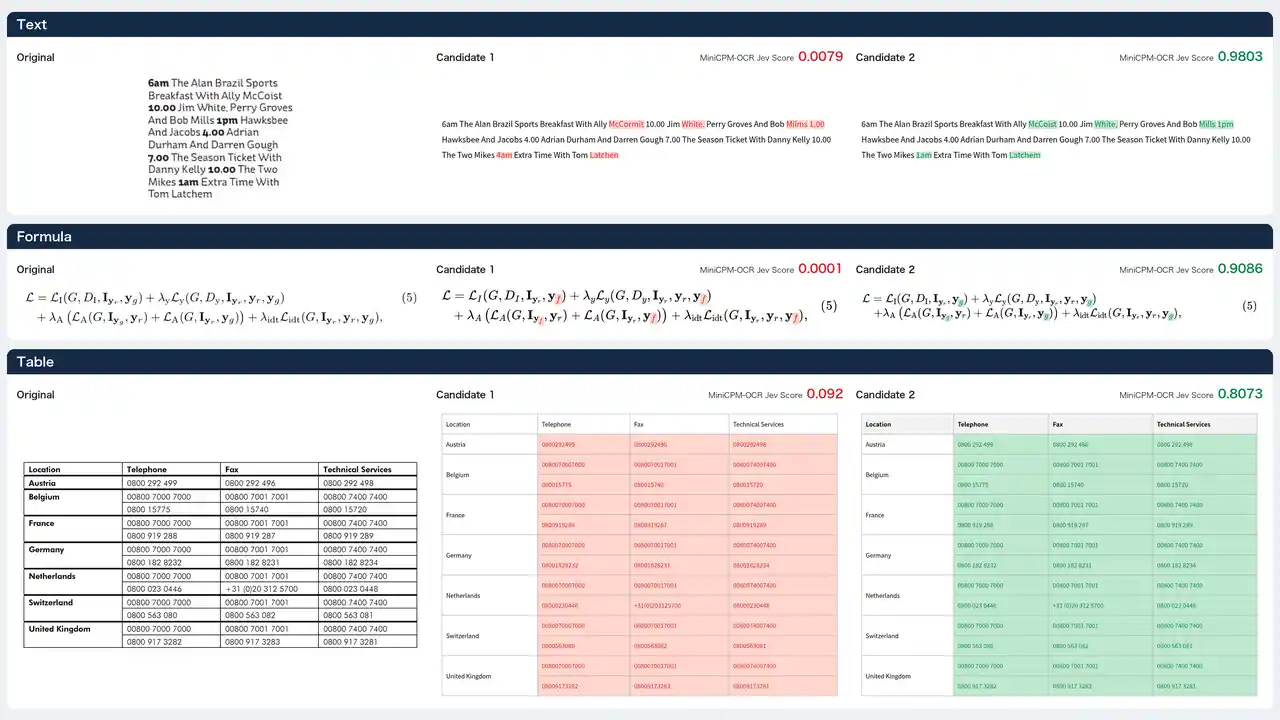
Parsing is only half the system. MiniCPM-OCR Jev is a 2B correctness decision model, trained from Qwen3.5-2B with its language-model head replaced by a binary classification head. Given one region image and one candidate OCR result, it returns a score from 0 to 1: higher means the candidate is more likely correct. It is deliberately small — OpenBMB reports 93.6 AUROC (x100) on its JevOCRBench, above a 35B Jev variant at 90.1 and close to a 397B Qwen model at 93.8 — and it generalises across parsers, scoring 91.9 to 93.4 on results from MiniCPM-OCR 1.0, GLM-OCR, PaddleOCR-VL-1.6, and Xiaomi-OCR-0.
Use it as a router, not a judge. Score each region, choose a threshold from samples of your own documents, auto-accept what clears it, and send the rest to human review. The same scoring can pick the best candidate when several OCR models parse the same region, combining the winners in reading order. Two rules from the project's own docs are non-negotiable: set the threshold only after checking it on a small batch from the real application, and check the verdict field before using a score, since only scored means model scoring actually ran. Jev ships with its own deployment tutorial in the same repository, with Docker, SDK, vLLM, SGLang, llama.cpp, Ollama, and FlagOS guides; deploy it the same way you deployed the parser, and keep the two services' purposes separate in your head. One reads documents. The other checks the reading.
What you built
A local document-parsing pipeline with a built-in sceptic. The SDK detects layout and assembles Markdown; the 1.3B recognition model reads each region; Jev scores the results region by region. Nothing in the parse step needs a cloud OCR service, and the documents stay on the machine that runs the service. Concretely, you now have: a registered minicpm-ocr model on a local Ollama service at port 18499, a repeatable one-command parse that turns a PDF or image into Markdown with HTML tables and LaTeX formulas, per-page run records under runs/ for inspection, and a vLLM configuration — with DSpark speculative decoding — for larger batches. The structured-extraction prompts in the project's recognition guide, including key-information extraction formatted as JSON with ### for missing fields, are the next step once plain parsing is reliable: extract fields from the regions you already trust, rather than asking the model to invent structure from the whole page.
Honest limitations
- The headline numbers are the project's, on the project's hardware. 93.68 on Real5-OmniDocBench, 54.7 on OCRBench v2, and 1.2 pages per second were measured by OpenBMB, the throughput figure on an RTX 5090 with 1,651 images at image-level concurrency 1. Your pages, your GPU, and your concurrency will differ. Treat the numbers as a reason to test, not a promise.
- The vLLM path is demanding. Linux x86_64, an NVIDIA GPU, driver 580 or newer, 40 GB of disk, and a source build measured in tens of minutes. The Ollama path is lighter, but it still assumes a GPU machine and Ollama's own driver requirements.
- Two languages are claimed. Chinese and English are the primary languages. Curved pages, photographs, skewed pages, and recaptured documents are documented for those languages; other languages and document types need validation on your own samples.
- Jev needs calibration. Its score is only useful with a threshold chosen on your documents, and a non-
scoredverdict must never be read as a low score. Uncalibrated, it is decoration. - DSpark is unforgiving about matching. The main and draft models must come from the same release. Mixing them is explicitly warned against, and the failure mode is wrong output, not an error message you can rely on.
- This guide was verified against the docs, not executed on a GPU. The commands, flags, file sizes, and version numbers were checked against the project's tutorial, SDK API guide, Ollama deployment guide, and model cards on 31 October 2026. Run the smoke test in Step 5 on your own machine before parsing anything that matters.
Frequently asked questions
Do I need an NVIDIA GPU, or Linux?
For the vLLM path, yes: the tutorial requires Linux x86_64 and an NVIDIA GPU, with driver 580 or newer, and its commands were verified on an RTX 5090. The Ollama path runs on the platforms Ollama supports, including macOS and Windows through its official downloads, with GPU and driver requirements set by Ollama's own documentation; the SDK layout-detection commands in this guide still use cuda:0.
What does a low Jev score mean — is the text wrong?
A Jev score runs from 0 to 1, and higher means the candidate is more likely correct. A low score is a routing signal, not a verdict: send that region to human review, or let Jev pick the best candidate among several parsers. Before using any score, check that the verdict is “scored” — fixed values returned for precheck, rendering, or forward-pass failures must not be read as low model scores. Pick the accept threshold from samples of your own documents.
Does it handle languages other than Chinese and English?
Chinese and English are the model's primary languages, and this guide only claims what the model card states. The project documents handling of scans, curved pages, photographs, skewed pages, and recaptured documents in those languages. Validate on your own document types before trusting it elsewhere.