Your AI agents as chat contacts: hands-on with OpenMausBot, the open-source Grok Bot alternative
Four closed personal-agent products shipped in seven weeks — Grok Bot, Muse, dots, Cue — and each one keeps the model, the computer and your data on its maker's side of the line. OpenMausBot is the open-source answer: a chat app where every contact is a real agent running on your machine. This guide installs it, starts it, and builds a team, with every command verified.
- Who: OpenMausBot (milind-soni/OpenMausBot, Apache 2.0), an open-source Grok Bot alternative from independent developer Milind Soni, formerly OpenGrokBot. Not affiliated with xAI, Meta, OpenAI or Manus.
- What: A chat app plus a headless server and CLI. Bots run on your local Claude, Codex and Grok CLIs; each bot has its own model, computer, connected apps and approval level. Whole teams install from one file.
- When: Verified November 7, 2026: openmausbot 0.1.146 (released the same day), installed with npm, server listening on 127.0.0.1:8799, team apply and export run in a 2-core sandbox.
- Requirement: macOS, Windows or Ubuntu 24.04; Node.js 24+ for the CLI; one installed agent CLI (Claude Code, Codex or Grok) with a login before any bot can do real work. No GPU, no model downloads, no API key for OpenMausBot itself. Free; model usage is billed by your provider.

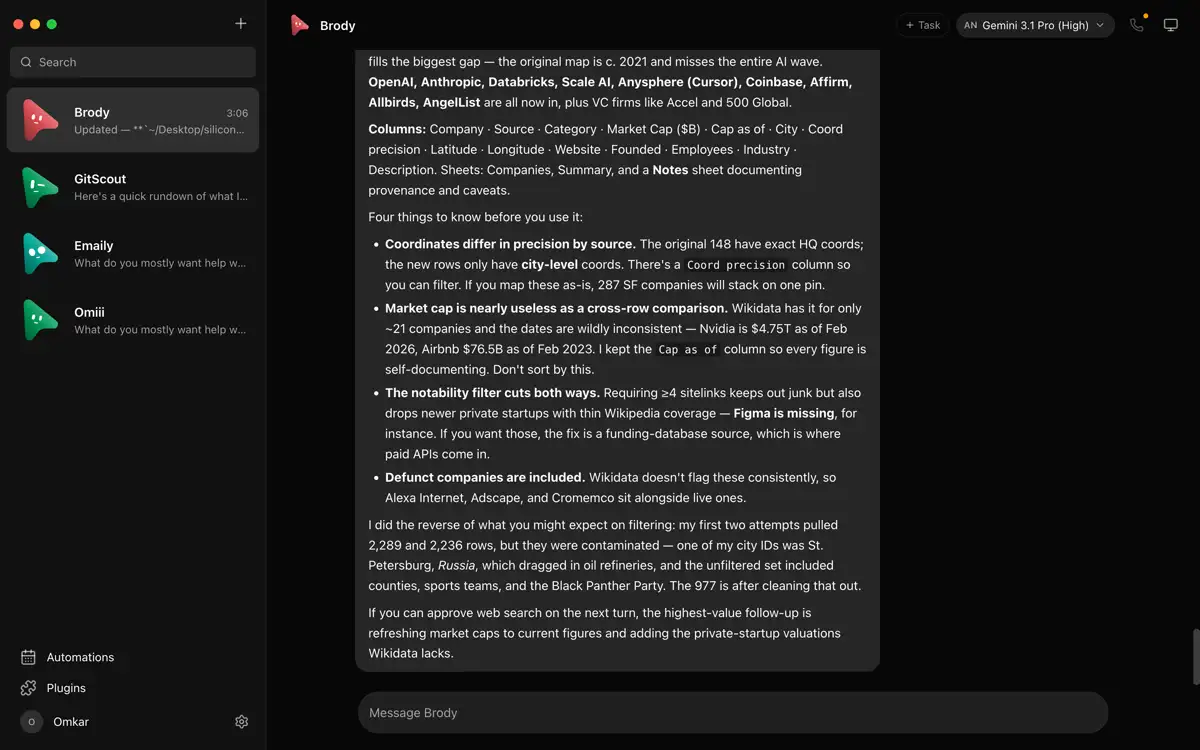
Four closed personal-agent products shipped in seven weeks of 2026 — xAI's Grok Bot, Meta's Muse, OpenAI's dots, Manus's Cue — and each one keeps the model, the computer and your data on its maker's side of the line. OpenMausBot is the open-source answer to that shape: a chat app where every contact is a real agent running on your own machine, on the subscriptions you already pay for. It gained 5,580 stars in the seven days to November 6, the fifth-biggest weekly gain of any AI repository, and sits at 16,139 stars as of November 7, 2026.
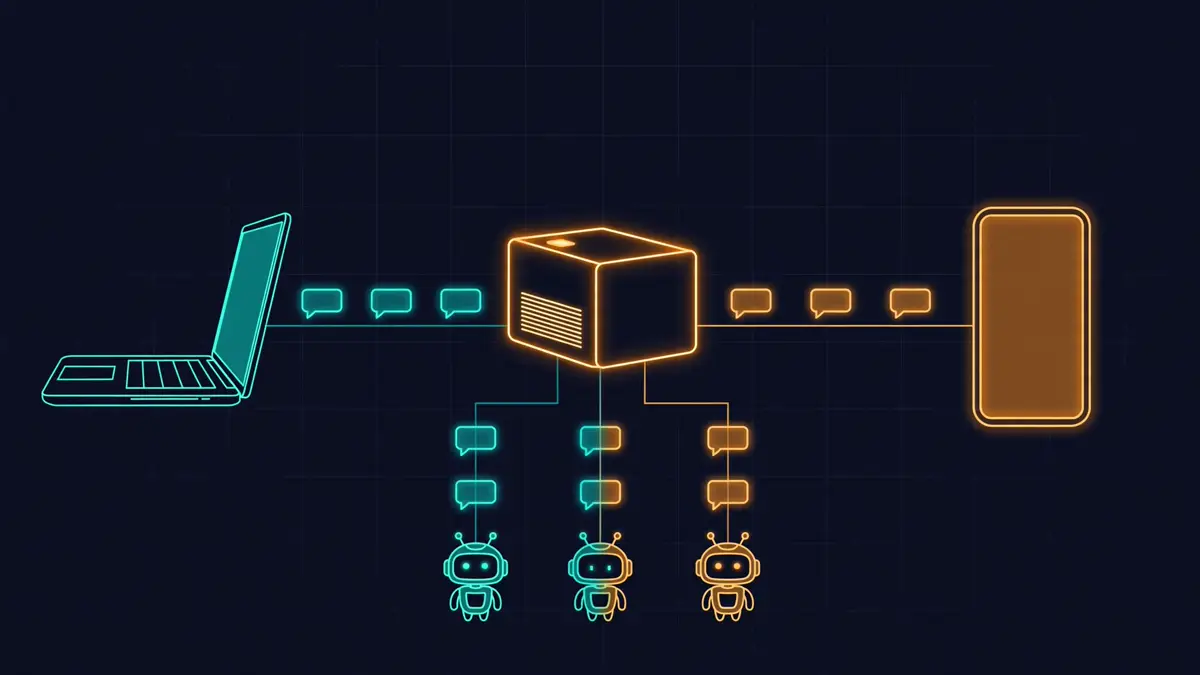
The idea is simple and, once you see it, obvious: one assistant in one box is the wrong shape for agents. OpenMausBot gives you a roster of bots you chat with like contacts — each with its own personality, its own model, its own computer, and its own connected apps. The bots run on the Claude, Codex and Grok CLIs installed on your machine, so there is no new account and no proxy in the middle. It is Apache 2.0 and local-first: transcripts, keys and events live in ~/.openmausbot, not in a cloud. What follows is the full setup, end to end: install the CLI, start the server, connect an engine, build a team from a file, and give it a job. Every command below was run on November 7, 2026, against v0.1.146, and the outputs quoted are the real ones — including the one that fails, because that failure is the most useful thing in this guide.
What you'll need#
- A machine that stays on while your bots work — macOS, Windows, or Ubuntu 24.04. The Linux desktop build is a beta; the CLI server in this guide runs anywhere Node.js 24+ runs.
- Node.js 24 or newer and npm, for the CLI path. The sandbox used Node v24.22.1.
- One agent CLI, installed and logged in, before any bot can do real work: Claude Code, Codex, or Grok Build. The login commands are in Step 3.
- About 15 minutes and roughly 160 MB of disk for the CLI install, measured here. No GPU, no model downloads, no API key for OpenMausBot itself.
- A phone is optional: the desktop app pairs to a phone client, and remote access from outside your network uses a pairing code — no account required on your own network.
Step 1: Install the CLI#
The documented install is one command. It puts the openmausbot command on your machine from npm:
npm install -g openmausbotTo pin an exact release, name it — this guide was verified against the release published the same morning:
npm install -g [email protected]Measured here: 158 MB installed. If you would rather not install globally, npx openmausbot runs it without installing. Either way, Node 24+ is required.
One surprise worth knowing: there is no --version flag. Running it reports the fact plainly:
unknown argument "--version"Use openmausbot --help for the command list instead — it is the reference for everything in this guide — and openmausbot doctor or openmausbot status once a server is running, both of which print the version. The help output lists: setup, start, serve, pair, sessions, status, login, logout, access, service, sentinel, browser, fleet, plus the workspace commands doctor, bots, channels, models, run, send, wait, messages, interrupt, export, events, team apply, engine set, connect, token, new-bot, new-channel, set-model, edit and mcp.
If you want the desktop app instead of (or as well as) the CLI, download it from GitHub Releases: a signed and notarized .dmg for Apple silicon and Intel Macs, a Windows installer, or for Ubuntu 24.04 a .deb (recommended) or a portable AppImage. The .deb embeds the harness server, so no Node, pnpm or terminal is needed at runtime:
sudo apt install ./OpenMausBot-amd64.debThat install path is documented in the project's own Linux desktop guide; the CLI path below is the one verified in the sandbox for this article. Building the desktop app from source is also documented — Node 24+, pnpm 10.33.0 via Corepack, pnpm install --frozen-lockfile, then pnpm package:linux — but it was not run here (see Sources).
Step 2: Start the server and check it#
Two processes do the work. The harness server owns every agent process and normalizes each provider's protocol into one event stream; the app — the chat UI — talks to it over HTTP. Start the server headless with:
openmausbot serve --no-pair --data-dir ./omb-dataAs run here:
OpenMausBot is running on http://127.0.0.1:8799
data: /home/hatch/workspace/_scratch/omb-data
browser engine: unavailable (agent-browser is not installed on this machine yet)
stop with Ctrl+C
--no-pair skips phone setup and the pairing code. Leave out --data-dir and it uses ~/.openmausbot. Port 8799 is the default; --port changes it. Without --no-pair, serve prints a pairing link and a QR code for your phone.
Now check the server answers. openmausbot doctor is the health check:
openmausbot doctorOpenMausBot 0.1.146 ("htch-runtime") at http://127.0.0.1:8799: ready
You are: this computer (the owner)
Engines available: codex, chatgpt
Bots' browser: not available
warning: bots have no built-in browser here: agent-browser is not installed on this machine yet (install it with `openmausbot browser install`)Three more commands map the fresh workspace. openmausbot status names the server and its version:
htch-runtime · OpenMausBot 0.1.146 on linux · id e678544a-12ac-4aa9-a954-40e7bae65773openmausbot bots shows a default bot already exists on a fresh server — MausBot, Chief of Staff, idle. openmausbot channels reports No channels yet. And openmausbot models lists every engine and whether it can run:
codex · available · default gpt-6.1-sol · 8 models
chatgpt · available · 0 models
claude · unavailable · default claude-sonnet-5 · 8 models
grok · unavailable · default grok-4.7 · 3 models
cursor · unavailable · default auto · 5 models
...
The server also serves the chat web app itself on port 8799 — a request to http://127.0.0.1:8799/ returned HTTP 200 with the full app shell. Open that address in a browser and you get the chat UI without installing the desktop app.
Before you put a server on a real machine, run the host pre-flight:
openmausbot doctor --hostAs run here (Ubuntu 24.04.5, kernel 7.0.0-43-generic, x86_64):
ok    Ubuntu 24.04.5 LTS, kernel 7.0.0-43-generic
ok    x86_64
FAIL  Docker is installed, but its daemon is not running
      fix: sudo systemctl enable --now docker
FAIL  Bot sandbox: AppArmor blocks unprivileged user namespaces
      fix: sudo sysctl -w kernel.apparmor_restrict_unprivileged_userns=0   (and put it in /etc/sysctl.d/ to keep it after a reboot)
ok    seccomp is available
ok    cgroup v2
warn  42 GB free for /home/hatch/.openmausbot; a Team server needs 100 GB
      fix: grow the disk before a team moves in
warn  Could not tell whether /home/hatch/.openmausbot is on an encrypted disk
ok    4 CPUs, 8 GB memory (a team of 20 needs 8 CPUs and 16 GB)
ok    OpenMausBot already answers on port 8799
ok    Ports 80 and 443 are free
ok    Clock is within 1 s of network time (signed requests allow 300 s)
2 problems, 2 warnings.
Exit code 7: the machine is missing something the server needs. Read the failures for what they are, though: both are about the bot sandbox — Docker and unprivileged user namespaces — not about running the server or chatting. The server in this guide ran fine with both failing. Fix them with the printed commands if your bots will use the sandboxed computer; a bot with computer: off (Step 4) never touches either.
Step 3: Connect an engine — the gate#
This is the step most people misread, so be precise about what "available" means. In the models output above, codex · available means the Codex CLI binary was found on this machine — /opt/hatch-image/bin/codex, version 0.164.0-alpha.9. It does not mean Codex is logged in. Check:
codex login statusNot logged inThere are two ways to give a bot an engine. The first is the one the project intends: install the provider's CLI on the host and log in with your own subscription. The app detects logged-in CLIs automatically and they appear in the model picker. The commands are the providers' own:
| Provider | Install and authenticate |
|---|---|
| Claude | Install Claude Code, then run claude auth login |
| Codex | Install the Codex CLI, then run codex login |
| Grok Build | Install the Grok Build CLI, then run grok login |
The second way needs no screen: hand the server an API key from the terminal. The key comes from an environment variable or a file, is written once through the same setting the Settings screen uses, and is never printed or read back:
openmausbot engine set claude --key-env ANTHROPIC_API_KEYEngine kinds are claude, openai, openrouter, openai-compatible (needs --base-url), xai, groq, greenference, mistral and cerebras. For Claude, the key runs every Claude bot unless you pass --only-claude-api. An engine that already has a key is left alone unless you pass --rotate, so a script can run this on every start. You can also give the server its key in its own environment before starting it — OMB_ANTHROPIC_API_KEY — which is how the project's CI example does it. Confirm with:
openmausbot engine listUntil one of these two is done, no bot can do real work. Step 5 shows what happens instead — and the error is specific enough to act on, which is the point.
Step 4: Build a team from a file#
A team file says what the workspace should have: teams and their briefs, bots with their standing instructions, models, approval levels and computers, and rooms. Write it in YAML or JSON. This is the file used for this guide — one team, one bot, one room, and the bot's computer explicitly off, so nothing it does can touch the host:
version: 1
teams:
  - name: Launch Room
    brief: |
      We rehearse a product launch before it happens. Visitors use the site the way a
      first-time visitor would. Never sign up with real details, pay, post or email anyone.
bots:
  - name: Room Lead
    team: Launch Room
    title: Launch rehearsal lead
    model: codex/gpt-6.1-sol
    approval: ask
    computer: off
rooms:
  - name: Rehearsal
    team: Launch Room
    members: [Room Lead]
    responder: mentions
The fields that matter: version: 1 is required. A bot's model is written INSTANCE/MODEL — here codex/gpt-6.1-sol, the default model the available codex engine offers. approval is ask, edits, auto or full; a new bot starts at full, so ask is the deliberate choice here. computer is auto, off, browser, local, vm or cloud. A room's responder decides who answers — everyone, mentions, or one bot's name.
Preview the plan before anything changes:
openmausbot team apply launch-room.yaml --dry-runteam "Launch Room": create · brief set (2 lines)
bot "Room Lead": create (team Launch Room · codex/gpt-6.1-sol · Ask · computer off)
room "Rehearsal": create (1 member, team Launch Room)
Plan: 3 to create, 0 to change, 0 unchanged, 0 to delete.Apply it for real:
openmausbot team apply launch-room.yamlteam "Launch Room": create · brief set (2 lines)
bot "Room Lead": create (team Launch Room · codex/gpt-6.1-sol · Ask · computer off)
room "Rehearsal": create (1 member, team Launch Room)
Plan: 3 to create, 0 to change, 0 unchanged, 0 to delete.
Applied: 3 created, 0 changed, 0 deleted.Apply is idempotent — run it again and it compares the file with what the server holds, field by field, and reports No changes. Before it writes anything, apply checks the file against the server: every model must be one its engine offers, every room member a bot that exists or that the file makes. A bad model fails with exit 1 before anything is created. Verify the result:
openmausbot bots
openmausbot channels
Room Lead — Launch rehearsal lead · team Launch Room · idle · id c10d496d-947d-4c6c-a250-9d19427fe1ed
MausBot · no team · Chief of Staff · idle · id 7268085d-888c-4677-9009-f2d0632f0d8fRehearsal · 1 members · idle · id 15fe294e-5900-415d-aa94-85d6a481ee0eThe same file format installs a whole team from one Markdown file — browse outcome-driven teams on BotMRR, or write your own — and team export writes a workspace back out in this format (Step 6). Bots are matched by name, so renaming one in the file renames it on the server; a bot a team no longer lists is deleted only with --prune, and only in a team marked prune: true. Teams are never deleted by apply.
Step 5: Give it a job — and read the error honestly#
Now the moment of truth. Give the bot one job and wait for it, with a short timeout because this sandbox has no login:
openmausbot run "Room Lead" "Reply with the single word HELLO and nothing else." --timeout 1m{"event":"started","threadId":"9f00eddd-7795-4b37-8d4b-08085b821c9d","target":{"type":"bot","id":"c10d496d-947d-4c6c-a250-9d19427fe1ed","name":"Room Lead"},"sendId":"cli-f7j0ErSt8oOoaV8H","messageId":"eeffe4ff-0305-40f6-8576-daea480499d9","since":1794050296495}
{"event":"job","threadId":"9f00eddd-7795-4b37-8d4b-08085b821c9d","state":"running","reason":"Room Lead is working","counts":{"queued":0,"running":1,"waiting":0,"needsInput":0,"completed":0,"failed":0,"cancelled":0}}
{"event":"job","threadId":"9f00eddd-7795-4b37-8d4b-08085b821c9d","state":"failed","reason":"Room Lead's engine stopped unexpectedly","counts":{"queued":0,"running":0,"waiting":0,"needsInput":0,"completed":0,"failed":1,"cancelled":0}}
Did not finish: Room Lead's engine stopped unexpectedly
Thread: 9f00eddd-7795-4b37-8d4b-08085b821c9d (wait again: openmausbot wait --thread 9f00eddd-7795-4b37-8d4b-08085b821c9d --since 1794050296495)Exit code 1. The job started, the bot's turn began, and then the engine stopped — because Codex is not signed in. The transcript says so in plain language:
openmausbot messages "Room Lead" --limit 5you: Reply with the single word HELLO and nothing else.
Room Lead: [error: Codex isn't signed in on this computer. Sign in to Codex in Settings → Model providers → Codex., failed]
Room Lead: [notice: Codex is signed out on this computer. Sign in again in Settings → AI to keep using it.]
Room Lead: [digest]This is the whole story of the gate, and it is worth stating plainly: everything up to this point works — install, server, doctor, team file, room, job, transcript. The only missing piece is the reader's own login. Run codex login (or claude auth login, or set an API key with engine set), and the same run command executes the turn instead of failing it. The docs' own launch example runs a 45-minute rehearsal this way:
openmausbot run "Room Lead" "Rehearse the launch of https://example.com with every visitor, then write report.md." \
  --timeout 45m --export ./rehearsal
--export DIR writes the finished job to a folder — manifest.json, job.json, transcripts/, files/, screens/ — and the folder must be new or empty unless you pass --force. The flags worth knowing for scripts: --wait job (the default) waits for the bot and every teammate it asked; --wait turn only for the bot's own turn; --on-input exit (the default) stops waiting with exit 3 when someone must answer; --on-timeout leave (the default) leaves the work running; --strict fails the run if any teammate's part failed. Exit codes: 0 done, 1 failed, stopped or refused, 2 the command line or a file is wrong, 3 someone must answer, 4 timed out (the work keeps running), 5 cannot reach the server, not allowed, or the server is too old, 6 team apply --check found changes, 7 doctor --host found a problem, 130 Ctrl-C (the work keeps running).
Step 6: Use it from the app, the phone, and other agents#
The CLI is the spine; the app is the daily surface. Open the desktop app and the roster from Step 4 is there as contacts: tap one, type, and watch the turn stream in with tool-run activity. Each bot has a model picker — switch a bot's model mid-conversation — and shell commands, file edits and questions surface as approval cards you allow or deny in chat. The Computer panel gives a bot a computer: a cloud Linux desktop (Boat, paid after its trial), an isolated local VM, or — on macOS and Ubuntu Xorg, after explicit opt-in — this computer, driven by the bundled Cua Driver 0.19.3. On Wayland, local control stays fail-closed while the project's real-seat safety gate is unresolved. Connected apps come through Composio: Gmail, Slack, GitHub, Notion, Linear and hundreds more, OAuth once and every bot can use them. Triggers turn a sentence into an automation — "every weekday at 9, send me a summary of my inbox" — as a schedule or a webhook the bot sets up in the turn.
To drive a workspace from your phone, mint a pairing code against the running server:
openmausbot pair --client --ttl 24hA code lasts five minutes unless --ttl says otherwise, at most a day, and works once. The same code is available in the app under Settings → Phone → Set up a phone. For a workspace elsewhere, get a token for it:
openmausbot connect https://maus.example.com --code ABCD1234 --out ~/.openmausbot-tokenThe token is written only to the file, never printed; pass it with --token-file or OPENMAUSBOT_TOKEN. There is deliberately no --token flag, because a command line can be read by other programs. For CI, make a token that ends on a date you choose: openmausbot token create "Nightly CI" --scope client --expires 90d --out ci-token, and list or revoke tokens the same way.
Other agents drive the same workspace over MCP — openmausbot mcp serves the operations as MCP tools on stdin and stdout — and openmausbot events --job ID --until-settled streams the server's live events as JSON lines. To take the workspace with you, export it:
openmausbot team export --team "Launch Room" --out exported.yamlWrote exported.yaml: 1 teams, 1 bots, 1 rooms, 12 skills.The export writes the workspace in the team-file format from Step 4, skills as SKILL.md files beside it, and engine keys as { env: SET_ME } placeholders. The 12 skills in that count were the ones the server discovered from this machine's ~/.claude/skills and attached to the new bot — the export is a faithful picture of the workspace, including what it picked up from the environment. Finally, keep the server running across reboots:
openmausbot service installThat writes a systemd unit on Linux or a launchd agent on macOS for the same serve options. Your data stays local throughout: transcripts, keys and events in ~/.openmausbot, Electron window state in ~/.config/openmausbot.
When to use OpenMausBot — and when not to#
| Option | What you get | What you give up |
|---|---|---|
| OpenMausBot | A team of agents in a chat app, on your machine, open source (Apache 2.0), running on the subscriptions you already have | Early project (v0.1.x) — expect rough edges; the host must stay on; a logged-in agent CLI is required before any real work |
| Grok Bot (xAI) | The original roster-of-bots product, polished and hosted | Closed, Grok only, your data on xAI's computer, needs a SuperGrok or Cursor plan |
| Meta Muse / OpenAI dots / Cue | A single always-on personal agent, vendor-run, works while your machine sleeps | Closed, one agent, plan-gated, your data leaves your machine by design |
| Plain CLIs (Claude Code, Codex) | Full power of the agent, nothing extra to install or maintain | One agent at a time, terminal only — no roster, no rooms, no phone UI |
| T3 Code | One control surface for all your coding agents, from phone, web and terminal | A control surface for coding sessions, not a chat roster of agents with their own computers and apps |
OpenMausBot is the right call when you already live in one or more coding agents and want them as a team you can message — with different models, different computers, and a paper trail you can export — without handing your code to a cloud service. It is the wrong call when you want a single all-purpose chatbot, a managed service that runs while your machine sleeps, or a finished product with no rough edges: v0.1.146 says plainly in its own status notes that it is early but real, and the Ubuntu desktop build is still a beta. The Apache 2.0 license is the guarantee that you can fork it if the direction ever stops suiting you.
The takeaway#
- Install the CLI:
npm install -g openmausbot— v0.1.146 here, 158 MB. Or the desktop.deb, AppImage or.dmgfrom GitHub Releases. - Start the server:
openmausbot serve --no-pairlistens on port 8799;openmausbot doctorconfirms it is ready and names the engines it found. - Connect an engine first: log in to Claude Code, Codex or Grok (
codex login), or hand the server an API key withopenmausbot engine set claude --key-env ANTHROPIC_API_KEY. No login, no turns — and the failure tells you so. - Build a team from a file:
openmausbot team apply launch-room.yamlcreates the team, bots and rooms; running it again printsNo changes. - Give it a job headlessly:
openmausbot run "Room Lead" "…" --timeout 45m --export ./rehearsal. Exit codes tell scripts what happened;--strictfails the run if any teammate failed. - Keep it running and take it with you:
openmausbot service installfor always-on,openmausbot pairfor your phone,openmausbot mcpfor other agents,team exportfor the paper trail.
The shift OpenMausBot represents is easy to miss behind the star count. Personal agents stopped being a single chatbot months ago; the question now is who holds the roster — one vendor's cloud, or your own machine. A chat app where every contact is an agent you already pay for, running on CLIs you already trust, with the whole team defined in a file you can version, is the open answer to that question — and 16,139 stars, with the fifth-biggest weekly gain of any AI project, says a lot of developers want that answer. Install it, point it at the agent you already use, and try one job before deciding whether it earns a place in your workflow.
Sources: the OpenMausBot repository page and README (star, fork, commit and release counts, install instructions, feature list, comparisons, read November 7, 2026); the GitHub API for milind-soni/OpenMausBot (v0.1.146 released November 7, 2026 at 05:10 UTC, with its release assets); docs/headless-cli.md in the repository (CLI commands, team-file format, engine kinds, exit codes, CI example); docs/linux-desktop.md in the repository (Ubuntu .deb and AppImage install, from-source build, Cua Driver 0.19.3, Wayland safety gate); the weekly trending count via GitHub AI Repo (OpenMausBot +5,580 stars in the seven days to November 6, 2026, fifth among AI repositories); and the verification runs quoted in Steps 1–5 (npm install, serve, doctor, doctor --host, status, bots, models, channels, team apply dry-run/apply/re-apply, run attempt, messages, team export, all run November 7, 2026 in a 2-core sandbox). Two limits, stated plainly: the global npm install failed in this sandbox with a disk-quota error writing to /usr, so the verified install used a workspace prefix (npm install --prefix ./omb-cli [email protected]); the from-source clone failed in the same sandbox with the same quota error, so the from-source build commands are quoted from the project's Linux desktop guide, not from a sandbox run. The first agent turn could not be run in the sandbox because no agent CLI is logged in there (codex login status: Not logged in); the article quotes the exact failure instead of inventing a successful turn.