PhotoCraft: the open-source Photoshop rival you can drive from the terminal
Photoshop rebuilt from scratch in Rust, with 74,000 stars in four weeks — and a command-line tool that edits real photos without ever opening a window. This guide downloads the real release, verifies its checksum, and runs every headless command that matters: inspect, edit, batch, convert, and MCP. No account, no API key, no GPU, and every number below is one the installed tool printed.
- Who: PhotoCraft (storytold/photocraft on GitHub), from the ArtCraft team — 74,359 stars, 7,040 commits, 13,130 forks, dual MIT/Apache-2.0, first committed September 30, 2026.
- What: a clean-room Photoshop rebuild in pure Rust, plus a headless CLI: info, run, batch, convert, commands, and an MCP server — verified here end to end.
- When: version verified in this guide is photocraft-cli 0.17.0, released and run October 28, 2026; star and commit counts are dated the same day.
- Requirement: a Linux, macOS, or Windows machine and ~200 MB of free disk for the prebuilt release. No account, no API key, no GPU, no Rust toolchain.
Why this is blowing up now
PhotoCraft is a clean-room reimplementation of Photoshop, written from scratch in pure Rust. Layers, masks, adjustment layers, layer styles, type, vectors, brushes, and real PSD files — in a native app with no Electron and no web view. The repository (storytold/photocraft on GitHub) had 74,359 stars, 7,040 commits, and 13,130 forks when this guide read it on October 28, 2026, under a dual MIT/Apache-2.0 license. It was created on September 30, 2026, which makes that star count a four-week sprint, not a slow accumulation. Version 0.17.0 landed the same day this guide ran, October 28, 2026.
The part that makes it tutorial-worthy instead of just impressive is not the GUI. It is the headless command-line tool that ships in the same release. Every menu item, tool, and dialog in PhotoCraft runs a command from one registry of 500+ commands, and the UI, the CLI, the JSON control channel, and the MCP server all call the same commands. That means anything you can click, a script can do too — and this guide proves it, because every command below was run on a headless Linux server with no display, no account, no API key, and no GPU.
One boundary first, because it decides whether this tutorial is for you. PhotoCraft is in early alpha, and its own README says so plainly: much of Photoshop's feature surface exists in some form, but it is not yet a Photoshop replacement for daily professional work. The gaps it names are AI/generative features, 15 missing tools, depth in typography and pro workflows, and plug-in compatibility. What this guide verifies is the headless editing path — install, inspect, edit, batch, convert, and hand the engine to an agent over MCP. If you need a finished desktop replacement today, this is not that article. If you want a scriptable, offline, open-source photo engine, keep reading.
What you'll need
- A Linux, macOS, or Windows machine. This guide ran on Linux (x86_64), using the prebuilt release tarball — no Rust toolchain, no source build, no compile wait.
- About 200 MB of free disk. The Linux tarball is 123 MB; extracted, it is roughly twice that.
- A terminal and a scratch directory with a photo or two to practise on. Do not practise on originals: the CLI overwrites nothing by default, but work on copies anyway.
- No account, no API key, no GPU, no sign-in of any kind for anything in this guide. The desktop app's smart-selection features run on your machine with no cloud and no account, per the README; the CLI path here touches no network at all after the download.
- Optional but useful: Python with Pillow, only if you want to diff pixels before and after like this guide did. It is not required for any step.
Step 1: Get the real binary and check it
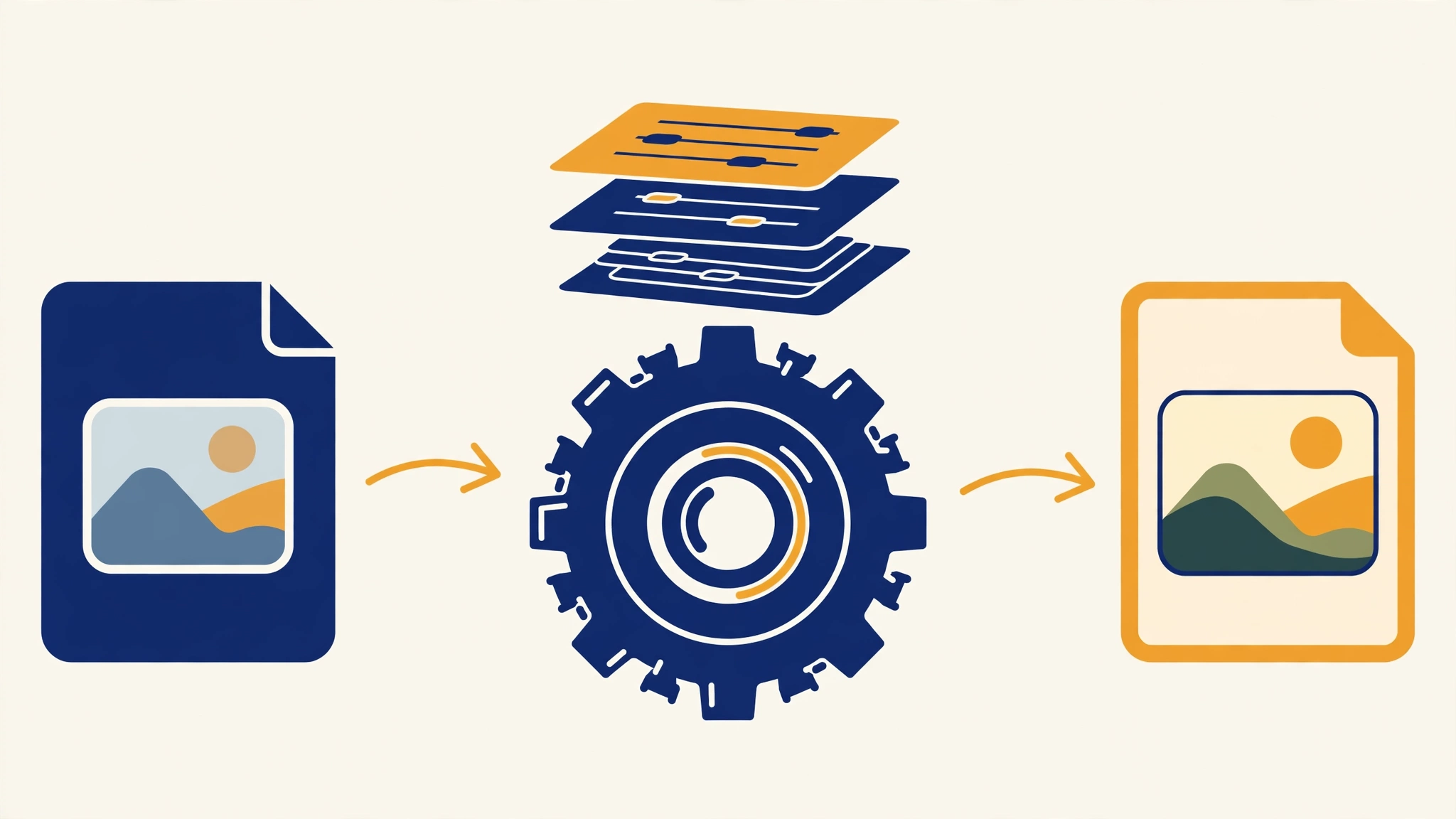
Download the release for your platform from the project's releases page. On Linux x86_64, the file is photocraft-0.17.0-linux-x86_64.tar.gz. The release also ships a SHA256SUMS.txt — check your download against it before you run anything from it:
curl -LO https://github.com/storytold/photocraft/releases/download/v0.17.0/photocraft-0.17.0-linux-x86_64.tar.gz
curl -LO https://github.com/storytold/photocraft/releases/download/v0.17.0/SHA256SUMS.txt
grep "linux-x86_64.tar.gz" SHA256SUMS.txt
sha256sum photocraft-0.17.0-linux-x86_64.tar.gz
Expected result, verified October 28, 2026: the hash printed by sha256sum is 5259f9c428c8ee3478c35500ece98713561cafc050e4c9eb354a5050f36eb2b8, matching the release checksum. If yours differs, stop — re-download, and do not run the binary.
Extract it and confirm the tool answers:
tar -xzf photocraft-0.17.0-linux-x86_64.tar.gz
./photocraft-0.17.0-linux-x86_64/bin/photocraft-cli --version
./photocraft-0.17.0-linux-x86_64/bin/photocraft-cli --help
Expected output:
photocraft-cli 0.17.0 (b8c3f3aa8, 2026-10-28)The help listing shows eight subcommands: convert, info, run, batch, droplet, commands, mcp, and serve. This guide runs the first four plus commands and mcp. The tarball also contains the desktop app binary (photocraft), which needs a display and is not used here. Put the CLI on your PATH if you plan to use it regularly; the rest of this guide calls it as photocraft-cli for brevity.
Step 2: Inspect a photo before you touch it
Copy a photo into a scratch directory and ask the CLI what it sees. This guide used a 640×400 test image; substitute your own file:
mkdir photocraft-demo
cp your-photo.jpg photocraft-demo/
cd photocraft-demo
photocraft-cli info your-photo.jpg
Expected output (abridged): a JSON document describing the image — its channels (Red, Green, Blue), composite mode (RGB), and layer tree, starting with "activeLayer": 2 for a flat import. The info command changes nothing; it is the read-only way to confirm the CLI can parse your file before you build an edit chain on top of it. If info fails on your file, the edit steps will too, and you have found that out cheaply. Run it on every new format you plan to feed the tool: PNG, JPEG, WebP, TIFF, and PSD are all on the convert list, but your specific file is the only test that matters.
Step 3: Make your first headless edit
The core command is run: open a file, apply engine commands in order, save the result. This is the exact shape from the project's README, run here verbatim — a Smart Sharpen filter followed by a Curves adjustment layer:
photocraft-cli run your-photo.jpg \
  --cmd filter.sharpen.smartSharpen --params '{"amount":80}' \
  --cmd layer.newAdjustmentLayer.curves --params '{"points":[[0,0],[64,48],[192,212],[255,255]]}' \
  --out graded-photo.png
Expected output, as printed by the run in this guide:
{"command":"filter.sharpen.smartSharpen","result":{"filter":{"amount":80.0,"filter":"smartSharpen","radius":1.0,"reduceNoise":10.0},"layer":2}}
{"command":"layer.newAdjustmentLayer.curves","result":{"layer":3}}
warning: 2 layer(s) flattened; layers, masks and blend modes are not kept
Read that output carefully, because it teaches you three things. First, every command echoes its result as JSON, so a script can check success per step instead of trusting an exit code alone. Second, the defaults are visible: Smart Sharpen at amount 80 also applied radius 1.0 and noise reduction 10.0, which the command line never mentioned — when you tune a look, query the result JSON to see what actually ran. Third, the warning is real and worth understanding: PNG output is flat, so the adjustment layer and the sharpened layer were flattened into one image. The layers survive only in layered formats (the native .pcraft format, PSD, or TIFF with the --tiff-layers flag in batch mode). If your workflow needs the layers back later, export to a layered format; if you need a finished file for the web, PNG is the right, honest end of the chain.
Verify the edit did something, rather than assuming it. Open both files and compare: the output keeps the input's dimensions (640×400 in this guide's test) and the pixels change — a sample pixel moved from RGB (240, 230, 180) to (247, 241, 199) after the sharpen-plus-curves chain. Your numbers will differ with your photo and your curve points; what matters is that you check, because a command that silently no-ops is worse than one that errors.
To find more commands, ask the registry itself instead of guessing names:
photocraft-cli commands | grep -i -E "vibrance|curves|levels|hue"This lists real, callable command IDs with their menu paths — for example layer.newAdjustmentLayer.vibrance, image.adjustments.levels, and layer.newAdjustmentLayer.hueSaturation. Every command in this guide came from that list or from the README; none was invented, and you should hold any other tutorial to the same rule.
Step 4: Grade a whole folder with one recipe file
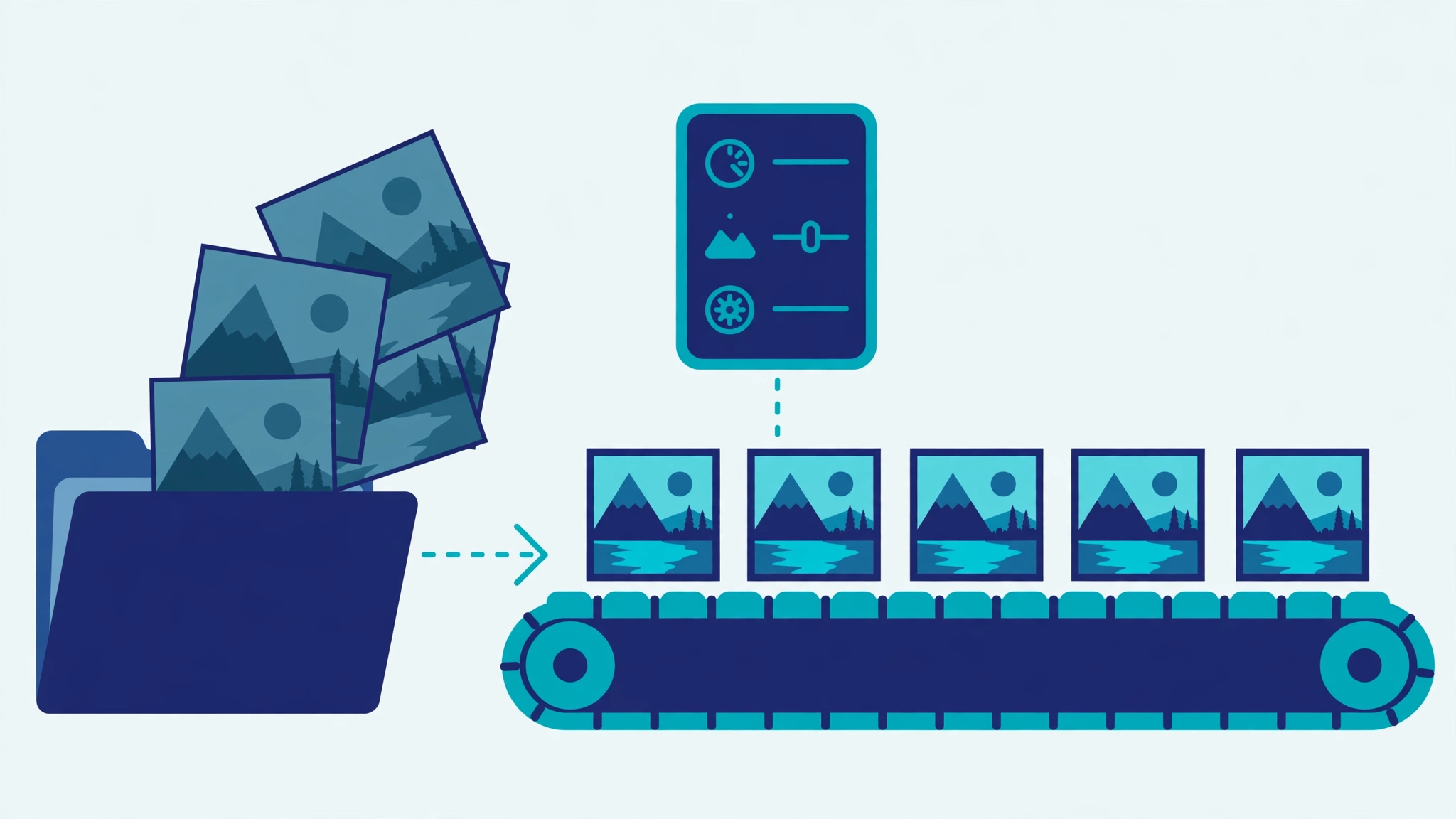
Single-image edits are a demo. The real use case is a folder: a shoot, a product catalog, a set of blog images that all need the same grade. That is what batch is for. Write the recipe as a JSON list of steps, one file per look:
cat > grade.json << 'EOF'
[{"command":"filter.sharpen.smartSharpen","params":{"amount":80}}]
EOF
mkdir raw graded
cp photo-a.jpg photo-b.jpg raw/
photocraft-cli batch --actions grade.json --in ./raw --out ./graded
Expected output, verified with two test images:
ok    ./raw/a.png -> ./graded/a.png
ok    ./raw/b.png -> ./graded/b.png
2 succeeded, 0 failed
Two details in that recipe are load-bearing, and both were learned the hard way in this guide's sandbox. First, each step needs the key "command". The batch help also describes [id, params] pairs and bare ids, but a step written with "cmd" instead of "command" fails outright with error: invalid parameters for `batch --actions`: step needs "command" — that exact error is what this guide got on its first attempt, and the fix is the one-word key change above. Second, batch refuses to write into the input folder unless you pass --in-place; keep input and output separate, as above, so a bad recipe never eats your originals. Useful extras on the same command: --format webp to change the output format regardless of input extension, and --quality 85 for lossy JPEG/WebP output (without a quality value, WebP output is lossless).
Step 5: Convert formats, including real PSD files
PhotoCraft's headline format claim is PSD without compromise: its PSD support is a standalone crate written from Adobe's public specification, and the project reports re-saving renders identically for 307 of the 309 files in the psd-tools test set. You do not need Photoshop to test the round trip at the CLI level:
photocraft-cli convert your-photo.png your-photo.psd
photocraft-cli info your-photo.psd
photocraft-cli convert your-photo.png your-photo.webp
All three commands ran cleanly in this guide's sandbox: the PNG became an 84,898-byte PSD that info reads back as a valid RGB document, and the same PNG became a 1,248-byte WebP. The convert list covers .pcraft, .psd, .png, .jpg, .tif, .webp, .exr, and more, with the output extension picking the format unless --format overrides it. Two honest limits, both from the README: HEIC photos from iPhone and Mac are read-only, and AVIF is write-only in official builds. And the PSD fidelity figures above are the project's corpus numbers, not something this guide re-measured — treat them as the project's claim, verified here only to the extent that a real PSD file was produced and re-read.
Step 6: Let an agent drive the same engine over MCP
The same engine is also an MCP server, which is the step that matters if you want a coding agent to edit images instead of you typing commands. Start it on stdio with explicit read and write roots — an omitted root denies that direction of file access, so grant only the scratch directory:
photocraft-cli mcp --automation-read-root "$PWD" --automation-write-root "$PWD"Send it a standard MCP handshake (JSON-RPC initialize, then notifications/initialized, then tools/list), and it answers with server info photocraft 0.17.0 and a tool list that includes command_list (discover command ids and parameter docs), command_run and command_batch (edit, one history step per command), doc_open, doc_save, and doc_inspect. Its own instructions say to start with doc_new/doc_open, discover ids with command_list, and save as native .pcraft or export by extension. The ui_* tools (inspect, screenshot) require bridge mode against a running desktop app via --bridge 127.0.0.1:PORT and do not work headless — do not build an agent workflow on them unless the app is open.
What this guide verified for MCP is the handshake and the tool list, not a full agent-driven edit session. Wiring it into your MCP client is the documented next step: point the client at the stdio command above with the two root flags, and the agent gets the same 500+ commands the CLI has, scoped to one folder. That scoping is the point — an agent with an image editor should get a scratch folder, not your photo library.
When to use this vs alternatives
PhotoCraft's CLI is the right shape when your edits are a repeatable recipe: grade every photo from a shoot the same way, convert a folder between formats, or hand a bounded set of commands to an agent. It is the wrong shape when you need one-off creative work with a mouse — that is what the desktop app (or GIMP, or Photoshop) is for — and when your pipeline is already Python, where a Pillow script will beat a subprocess call on simplicity. Against ImageMagick, the difference is the model: ImageMagick is a pixel pipeline, while PhotoCraft is a layered document engine with adjustment layers, masks, and PSD round trips, so a recipe can stay editable instead of baked. Against GIMP's Script-Fu, the difference is friction: no Scheme, no display server, one JSON recipe file, and an MCP surface an agent can call. Against Photoshop Actions, the difference is cost and openness: no subscription, no account, and the whole engine is MIT/Apache-2.0 source you can read. And against writing your own editor: do not. This one already has 1,700+ tests behind it, including compositor oracles that check the CPU and GPU renderers against each other.
What this guide did not verify
- The desktop GUI: it needs a display, and this guide's sandbox has none. Every GUI claim here (68 tools, brush engine, live adjustment layers) is the project's, not a measured result.
- A full agent-driven edit over MCP: the handshake and tool list were verified, but no agent session edited an image end to end in this guide.
- PSD fidelity beyond produce-and-re-read: the 307-of-309 corpus figure is the project's measurement, quoted as such.
- Smart selection and Select Subject: documented as on-device with no cloud or account, but not exercised headless here.
- Star, commit, and fork counts move with every release. The figures here (74,359 stars, 7,040 commits, 13,130 forks, version 0.17.0) are dated October 28, 2026; re-run
--versionand check the repository page before quoting them elsewhere.
The takeaway
PhotoCraft earns its stars the way open-source tools used to: it is a real, working engine with a real, working command line, and it does not ask for your account, your money, or your GPU before it does anything useful. Download one 123 MB tarball, check its hash, and you can inspect, sharpen, curve, batch-grade, convert, and hand the whole thing to an agent — all from a terminal, all offline after the download. The alpha label is honest and the GUI is unproven here, but the headless path is not a promise. It ran. Start with Step 3 on a copy of one photo tonight; if the recipe-file workflow in Step 4 feels like the missing piece in your image pipeline, the rest of the engine is already installed.
Sources
- PhotoCraft repository page (github.com/storytold/photocraft) — star, commit, fork, license, and creation-date figures; the early-alpha status note.
- PhotoCraft README — the headless CLI examples, the 500+ command registry, the MCP and control-channel description, the format list, and the HEIC/AVIF limits.
- PhotoCraft release v0.17.0 (October 28, 2026) — the Linux tarball, the SHA256SUMS.txt checksum, and the per-platform download table.
- The installed CLI itself, run in this guide: photocraft-cli 0.17.0 — every version string, command result, batch count, conversion, and MCP handshake quoted here came from running it, not from documentation alone.