Make your AI-built UI stop looking AI-built: hands-on with unslop, the Claude skill that redlines like a designer
unslop (heydamir/unslop, CC BY 4.0, 3,104 GitHub stars) is a Claude Code skill by designer Damir Sokolovsky that turns vibecoded, AI-looking interfaces into designed ones: it audits the slop, sets a five-line direction drawn from the product itself, then fixes spacing, color, icons, copy, type, layout, details, visuals and motion in nine ordered passes. This guide installs it, runs it on the bundled EmberAI dashboard example, takes it to a live site, and renders the optional story video.
~/.claude/skills, run it on the bundled EmberAI example, and keep the result only if the audit earns it.- Who: Damir Sokolovsky (@heydamir), designer of the Unslopping series on X. The skill is licensed CC BY 4.0, with credit to Sokolovsky kept in copies and adaptations.
- What: A Claude Code skill — one SKILL.md, reference files and two Node scripts — for dashboards, apps and landing pages built in React, Vue, Svelte, Tailwind or plain HTML and CSS, or reached by a live-site link.
- When: Repository created 29 October 2026; 3,104 GitHub stars and 153 forks at check time on 31 October 2026.
- Process: Audit first, then a five-line direction (product, character, world, moments, signature) shown to you for approval, then nine passes in a fixed order. At most three renders per run to check the work.
- Extras: A snapshot script saves a live page for rework, and a story script renders an approximately 10-second square video of the screen unslopping itself. The story render needs Playwright and ffmpeg.
- What it will not do: Rename the product, change its features, content or section order, invent claims or data, or redesign a screen the audit finds clean.
Why this matters now
AI-built interfaces fail in the same predictable ways. Every surface glows, every label carries an emoji, the spacing is whatever the model typed that day, and the copy shouts. Anyone who has shipped a few AI-generated screens can spot the pattern in seconds — which means your users can too, and they read it as unfinished work even when the product underneath is sound.
unslop, published by designer Damir Sokolovsky on 29 October 2026, takes a different approach from asking a model to “make it nicer.” It is a skill for Claude Code that works the way a designer does on a redline review: first it audits the screen against a written list of slop signs, then it derives a short design direction from what the product actually does, shows both to you, and only then edits — one layer at a time, in a fixed order, so a later pass never undoes an earlier one. The features, content and section order stay. What changes is that every size, color, word and image becomes deliberate.
Every command and behavior below was checked against the project’s own README and SKILL.md on 31 October 2026. The skill itself was not executed end to end for this article, so treat the walkthrough as verified against the docs, and the first run on your own screen as the real test.
What you’ll need
- Claude Code, set up and working. The skill is a folder of instructions Claude Code follows; there is no separate app, binary or account to create for the skill itself.
- Git, to clone the repository. Node.js, only for the two optional scripts in Steps 5 and 6.
- A screen to fix: your own project, a live-site link, or the bundled examples in the repo. Start with the bundled examples — they are already full of slop, and nothing you own is at risk.
- An image-generation tool connected to Claude Code (the README names fal, Replicate, OpenAI images and Higgsfield) only if you want a generated hero visual. Without one, the skill writes the prompts and leaves empty slots of the right size instead.
- Playwright and ffmpeg, only for the optional story video in Step 6.
Step 1: Install the skill
Installation is a copy, not a package install. Clone the repository, then copy the skill folder into Claude Code’s skills folder:
git clone https://github.com/heydamir/unslop
mkdir -p ~/.claude/skills && cp -r unslop/skills/unslop ~/.claude/skills/
For one project only, copy it into that project instead:
mkdir -p .claude/skills && cp -r unslop/skills/unslop .claude/skills/Check the copy landed. The skill folder holds SKILL.md, a references/ folder with the signs list, token values and visual guidance, and a scripts/ folder with the snapshot and story scripts used in Steps 5 and 6:
ls ~/.claude/skills/unslopThat is the whole install. The skill is licensed CC BY 4.0, so keep Sokolovsky’s credit in any copy or adaptation of it — the SKILL.md file itself says so, and this article’s images carry the same credit.
Step 2: Open the practice screen
The repo ships two vibecoded screens to practise on, examples/dashboard.html and examples/hero.html. Both show the same fictional product, EmberAI, and both are textbook slop. Open the dashboard file in a browser and look at what people actually see, not just the code — the skill’s first instruction is to judge the rendered screen.
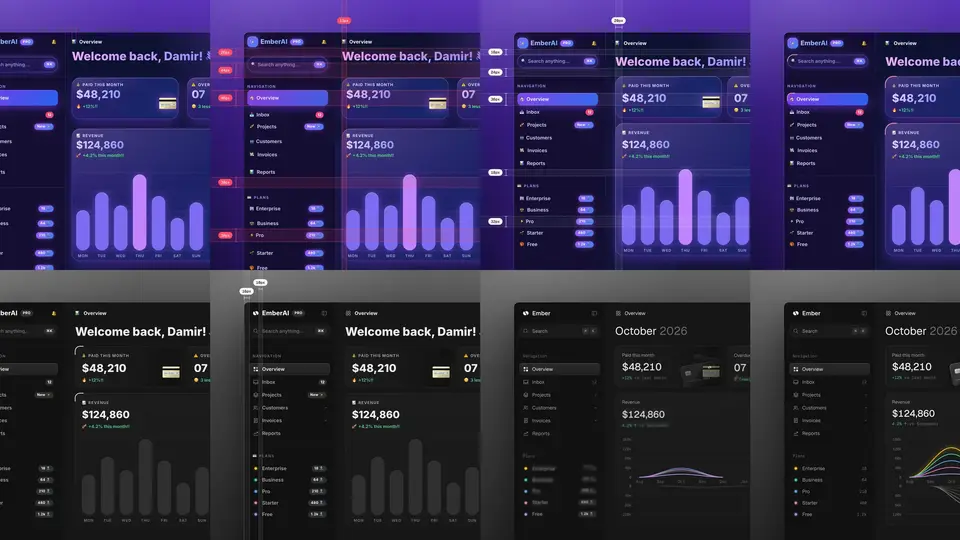
The tells are all there, in the open. Headings use gradient text running from pink to indigo (linear-gradient(135deg, #f0abfc 0%, #818cf8 100%)). Buttons and pills glow purple. Cards are glass, with a white inner highlight and a colored shadow. The sidebar labels are emoji — a house, an inbox tray, a rocket — under uppercase NAVIGATION and PLANS headings. One nav item carries a New ✨ badge, the search box says Search anything..., and the headline greets you with Welcome back, Damir! 👋. The hero example is the same story in miniature: “Supercharge Your Invoicing With AI,” a glowing gradient button, a glass panel, a grid backdrop and a floating animation.
Keep that screen open beside Claude Code. You will want to compare the audit against it line by line, and later compare the result against the audit list.
Step 3: Ask for the audit — and hold the direction gate
In Claude Code, invoke the skill in your own words or with its slash command. The README’s examples:
/unslop this dashboard
/unslop the hero of https://example.com
/unslop my landing page and make the story video so I can post it
For the practice run, point it at the example file and tell it to carry on without stopping for approval, or it will wait for you at the direction step by design:
/unslop examples/dashboard.html, just do itWhat happens first is an audit, not an edit. The skill walks references/signs.md — surfaces and color, type, icons, spacing, copy — and lists every sign it finds, one line each, with where it lives. A purple-to-blue gradient on a button, gradient text in a heading, a colored glow, emoji as nav icons, headings at weight 800 or 900, arbitrary spacing like mt-[13px], a greeting headline, an exclamation mark: each gets a line and a fix.
Then it decides how much to change, honestly, before planning anything. Heavy slop gets the full process. Light slop gets polish mode: fix only what the audit found, take the direction from the existing brand, and put bigger ideas in the report as suggestions, not changes. No slop gets a plain answer — the skill says so, suggests at most two or three small refinements with exact values, applies them only if you agree, and stops. Never let a run redesign a good screen just to make it different; that is the skill’s own rule, and it is the fastest way to tell whether a run is working.
Step 4: Approve the direction, then let the nine passes run
Before touching anything, the skill writes five short lines and shows them to you with the audit. Changing the direction later means redoing everything, so this is the gate that matters — unless you already said “just do it,” as in Step 3. The five lines, derived from what the page says the product does and who it is for, never from what is trending:
- Product. What it does and for whom, in one plain sentence.
- Character. Two or three concrete words — the skill’s own example shape is “calm, exact, a little warm.” Words like clean, modern, sleek, minimal and premium are banned, because they describe every template.
- World. The place or material the product naturally belongs to — paper and ink for a note app, instruments and night shifts for a monitoring tool. The world sets the tint of the neutrals, the accent and the visual.
- Moments. One or two places where the screen gets rich color, material and detail, chosen from what the product shows.
- Signature. One small detail only this product would have, used consistently — a live status dot, keycaps, a route line. One detail, not five.
If the product already has a real brand — a logo file, a color, a typeface that is not itself slop — the skill keeps it and builds around it. A violet-to-blue gradient, sparkles and glow do not count as brand, even in the logo.
Once the direction is set, the fixes run in nine passes, in order, each finished across the whole screen before the next starts. Spacing comes first, because everything else reads differently once the rhythm is right; copy comes before type and layout, because headline length decides size and position; visuals and motion come last, because they should fit a screen that already works without them:
- Spacing. Everything on a 4px grid, equal things at equal sizes, space showing grouping. Navigation rows 32 to 36 tall; cards padded 20 to 24.
- Color. One neutral ramp tinted toward the world, three text roles, one accent used rarely. No hue gradients, gradient text, colored glows or blobs. Accent with text on it reaches 4.5 to 1 contrast.
- Icons. Every emoji icon becomes a line icon from one set — the project’s own set, otherwise lucide — at 16 or 18px with a 1.5 stroke, in the text role’s color.
- Copy. Headlines say what the product does for whom, in plain words. No exclamation marks, no greeting headlines, no hype words — the banned list includes supercharge, seamless, unlock, magic, revolutionize and game-changing. Claims that cannot be checked are made quiet and specific if confirmed real, otherwise removed.
- Type. One family plus at most one partner, a few sizes, weights 400 and 500 with 600 at most for rare emphasis. Sentence case everywhere; numbers in
tabular-numsand one format. - Layout. Sections and their order stay. The strongest hero is a scene; without one, an asymmetric split with the visual given at least half the width. One primary action and at most one secondary.
- Details. Nested radius, quiet counts instead of glowing pills, charts on a muted grid with one accent per chart. Stat cards are numbers: a label, a big figure, a change with what it compares to.
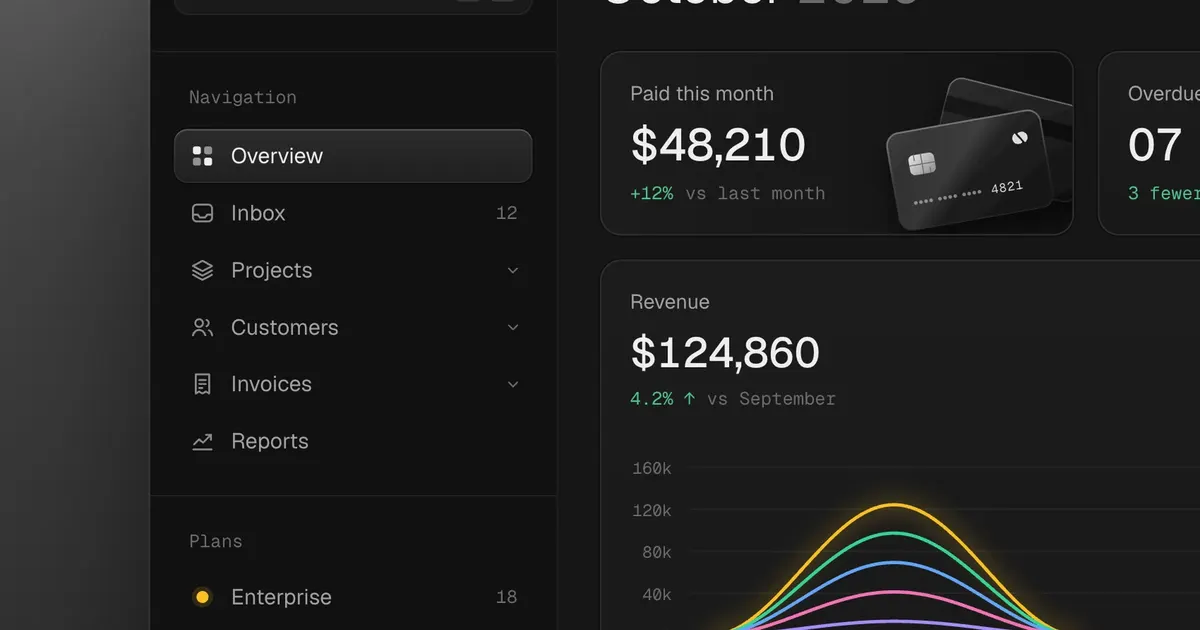
- Visuals. Decorative filler goes — glossy blobs, orbs, floating cubes, holographic brains. Dashboards almost never need generated images; their moments come from the product itself, like the rendered payment card beside the revenue figure in the finished dashboard example.
- Motion. Looping pulse, shimmer, floating elements and
transition-allgo. Keep motion that explains something: a quick color change on hover, a tiny press scale, a menu fading a few pixels from where it opens.
Then the check: run the checklist at the end of SKILL.md, render again, and compare with the audit list. Anything still on the list gets fixed. A run renders the screen to check it at most three times — if you find yourself on render five, something in the direction is wrong, not the CSS. The report at the end states the direction, a few lines per pass about what changed, and any image prompt written.
Step 5: Take it to a live site, or a screenshot
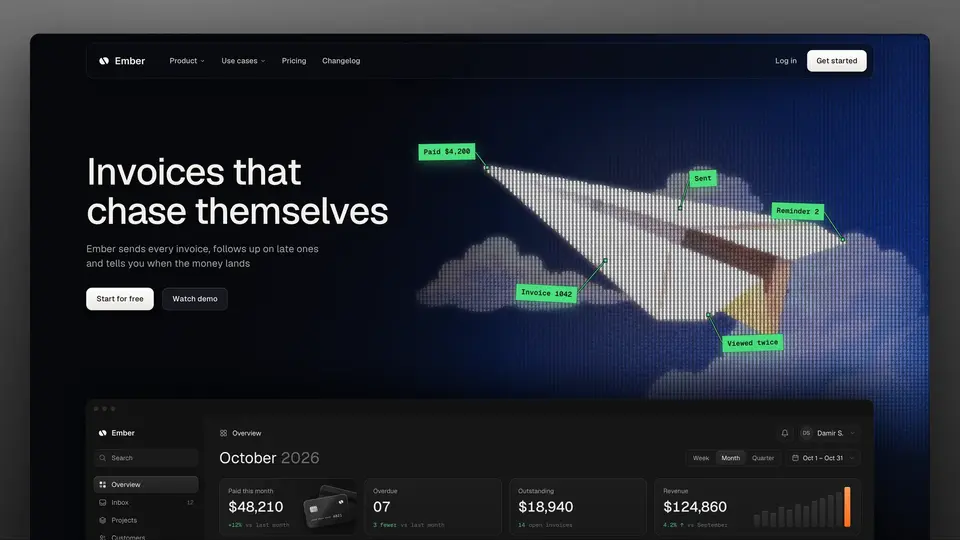
Two input modes cover screens you do not have code for. If all you have is a link to a live site, the snapshot script saves the page and a screenshot of it as it actually renders:
node ~/.claude/skills/unslop/scripts/snapshot.mjs <your-live-site-url> unslop/original.htmlAdd --dark or --light to match the theme you see. The script also saves original.live.png, so render the saved copy and compare the two before starting — and note that animated backgrounds drawn by scripts do not survive the save, so describe them in the audit from the live page. The result is redesigned page code you can hand to whoever owns the real site; say that in the report, because the skill’s output is code, not a live edit.
If all you have is a screenshot, rebuild the screen as one static HTML file first, matching it closely, and treat that file as the original. Either way, the audit, direction and nine passes run exactly as in Steps 3 and 4 — the input mode changes only how the “before” is captured.
Step 6: Render the story video (optional)
The story video is the part that went viral for the original series: one page, each step changing only CSS, so padding opens up, purple drains out and corners soften in place, with redlines marking the slop first and measurements counting from old values to new ones. It is a presentation piece, made only when asked — the clean result still ships as normal code in the project’s own stack, without story classes or attributes.
Build a standalone story file, unslop-story/story.html, keeping the original rules as step 0, then layer each merged step under .s1, .s2 and so on. List the steps in the head, and set the camera crop:
<meta name="unslop-steps" content="Spacing, Color and icons, Type and copy, Details">
<meta name="unslop-frame" content="0 0 960">
Text that changes uses a swap element capped at eight per story; things that disappear or appear use data-out and data-in; measured gaps and corner radii use data-gap and data-radius. Then render:
node ~/.claude/skills/unslop/scripts/story.mjs unslop-story/story.html unslop-story.mp4The output is square by default and about 10 seconds; add --wide for 16:9, or run with --play instead of an output path to watch it loop in a browser first. It needs Playwright and ffmpeg — if either is missing, the skill tells you the one command that installs it. Pull a few frames with ffmpeg and look at them before handing the video over, and keep the small unslop by @heydamir credit the video carries, as the license asks.
What you built
A repeatable design-review pass you can run on any screen in the stack the skill covers. Concretely, you now have: the skill installed for Claude Code, globally or per project; a practised run on the EmberAI dashboard that shows the audit-to-direction-to-passes flow on a screen full of real tells; a five-line direction format you can reuse before any redesign; and, if you went further, a live-site snapshot workflow and a story video that shows the work instead of describing it. The EmberAI “after” state is the proof of the method: quiet navigation with line icons and sentence-case labels, stat cards that are numbers with one rendered object, and a single chart carrying the color — the same content, the same sections, none of the glow.
Honest limitations
- It is instructions, not an app. The skill only acts through Claude Code, so its judgment is only as good as the agent running it, and Claude Code’s own setup still applies. There is no standalone binary, GUI or preview server of its own.
- The direction gate is the point — and the friction. Every run stops for approval unless you said “just do it” upfront. That protects good screens and bad directions alike, but it means unattended bulk redesigns are not what this tool is for.
- Generated visuals need a connected tool. Without an image service wired into Claude Code, hero scenes stay as written prompts and empty slots. Dashboards rarely need them; landing heroes usually do.
- Live-site capture is lossy. Script-drawn animated backgrounds do not survive the snapshot, and the output is replacement code, not an edit to the live site. Budget time to reconcile it with the real codebase.
- Three renders is a discipline, not a guarantee. The skill caps checking renders at three per run. A screen with heavy slop across every pass can still need a second run, and a direction chosen from a thin reading of the product will show up as churn, not craft.
- Verified against the docs, not executed end to end. Commands, flags, file paths and behaviors were checked against the README, SKILL.md and reference files on 31 October 2026. Run the practice example on your own machine before trusting a pass on a screen that matters, and credit Sokolovsky when you reuse the skill, as its CC BY 4.0 license requires.
Frequently asked questions
Do I need an API key or a paid image tool to run unslop?
No new key is needed for the core pass: the skill is a folder of Markdown and two Node scripts that Claude Code follows, and it runs inside Claude Code, so Claude Code’s own setup still applies. A connected image tool is only needed if you want a generated hero visual; without one, the skill writes the prompts and leaves empty slots of the right size.
Will it redesign a screen that is already good?
No. If the audit finds no slop, the skill says so plainly, suggests at most two or three small refinements with exact values, applies them only if you agree, and stops. A lightly slopped screen gets polish mode only: fix what the audit found, keep the existing brand, and leave bigger ideas as suggestions in the report.
Can I use it on a live site when I do not have the code?
Yes. The snapshot script saves the page and a screenshot of it as rendered, and you work on a copy of the saved file, comparing it with the live screenshot before starting. Script-drawn animated backgrounds do not survive the save, so describe them in the audit from the live page, and hand the redesigned code to whoever owns the site.