Give Blender an AI copilot: hands-on with mcp-for-blender-pro
A hands-on guide to anujasid/blender-ai-mcp-addon: install the add-on in Blender 4.2+, connect Claude, GPT, Gemini or a local Ollama model, and direct your 3D scenes in plain English — with 21 scene tools and a built-in MCP server for coding agents.
There is a particular kind of 3D work that eats your evenings: selecting, duplicating, aligning, re-materialing, exporting — dozens of small operations that are individually trivial and collectively exhausting. The usual answer is a shelf of Python scripts. A newer answer is a chat panel that lives inside Blender's 3D viewport and carries them out for you.
That panel is mcp-for-blender-pro (anujasid/blender-ai-mcp-addon, MIT). It is an AI assistant for Blender that inspects your scene, builds objects, edits materials, finds assets, and runs multi-step workflows — with a built-in MCP server so your coding agent can drive Blender too. At the time of writing it has 669 stars on GitHub and a 1.0.0 release. In this tutorial you'll install it, connect a model, direct your first scene in plain English, run an agent team, and hook it up to OpenCode over MCP — following the project's own README.
- Project:
anujasid/blender-ai-mcp-addon("mcp-for-blender-pro") — MIT licensed, release 1.0.0, 669 GitHub stars as of 2026-10-17. - Requirements: Blender 4.2 or later; the release bundle targets Windows x64.
- Model connections: OpenAI, Anthropic Claude, Google Gemini, OpenRouter, OpenCode Zen, Ollama, and custom endpoints speaking the OpenAI Chat Completions, Anthropic Messages, or Ollama protocols. Choose models with tool-calling support; image-capable models can interpret viewport screenshots.
- 21 scene tools in six groups — scene inspection, object creation, editing, visual feedback and scripting, Blender API lookup and export, asset workflows — exposed to chat and over an authenticated Streamable HTTP MCP server.
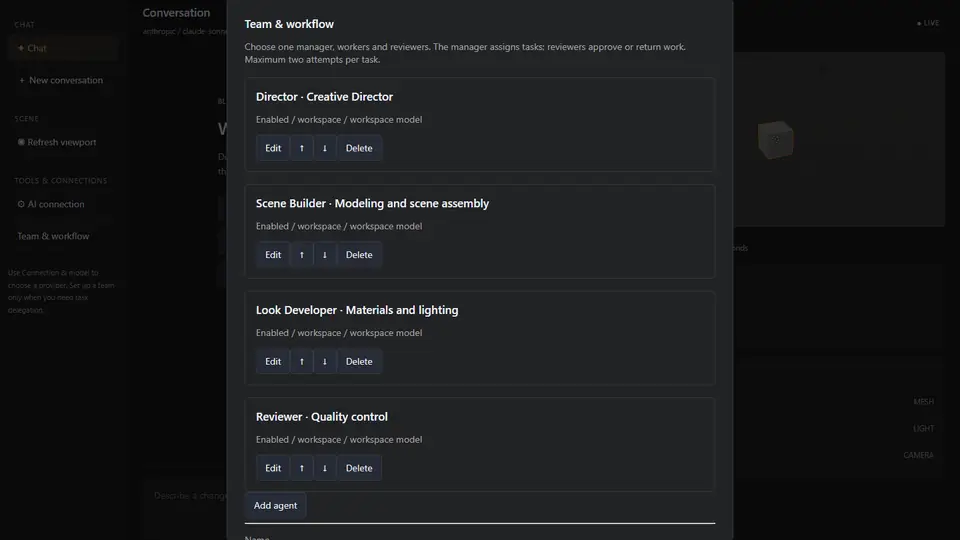
- Agent teams: a manager breaks a request into assignments with acceptance criteria, workers perform the scene operations, reviewers approve or return findings. A blocked task gets one correction attempt; a second failed review stops the workflow.
- Safety: operation approvals, cancellation after the current step, named undo steps for mutations; connection credentials stay in your user settings and chat history lasts for the current session. Python tool validation helps catch disallowed operations but is not a security sandbox.
What you'll need
- Blender 4.2 or later — the release bundle targets Windows x64.
- mcp-for-blender-pro.zip — download it from the repo's Releases page (release 1.0.0).
- A model to connect — an API key for OpenAI, Anthropic Claude, Google Gemini or OpenRouter, or Ollama running locally. Custom endpoints speaking the OpenAI Chat Completions, Anthropic Messages, or Ollama protocols also work.
- Optional: service keys for asset libraries (Poly Haven, Sketchfab, Poly Pizza) if you want AI-driven asset imports.
Step 1 — Download and install the add-on
Grab mcp-for-blender-pro.zip from the latest release. In Blender, open Edit → Preferences → Get Extensions, open the menu and choose Install from Disk, select the ZIP, then enable mcp-for-blender-pro. Now open the 3D Viewport, press N, and switch to the MCP Pro panel — that's your new chat workspace.
Step 2 — Connect your model
In the MCP Pro panel choose a provider and add your connection details. Supported connections include OpenAI, Anthropic Claude, Google Gemini, OpenRouter, OpenCode Zen, Ollama, and custom APIs. Saved connections keep work and personal keys separate, including multiple keys for the same provider. Load the model catalog and pick a model — choose one with tool-calling support, and an image-capable one if you want the assistant to interpret viewport screenshots. Prefer local? Point it at Ollama and no pixels leave your machine. Then click Open Studio Window for the companion workspace: chat, scene objects, viewport snapshots, approvals, and a task board.
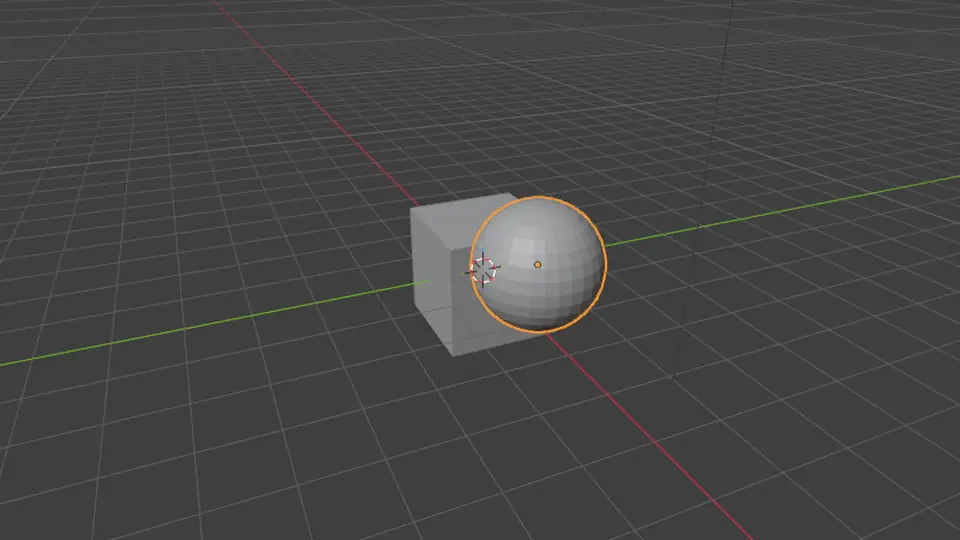
Step 3 — Direct your first scene in plain English
Start with the project's own example prompts. First, context before action:
Inspect this scene and explain its object structure before making any changes.
Then a real build:
Create a simple product-display scene with a pedestal, a camera and three lights. Give the pedestal a matte blue material.
Then iteration:
Duplicate the selected object into a neatly spaced row of five and show the viewport.
The assistant inspects first (get_scene_info, list_objects), then acts. Keep Blender open while using Studio — and note the control surface: operation approvals, cancellation after the current step, and named undo steps for mutations, so every AI edit is reversible.
Step 4 — Run an agent team on a bigger task
For small jobs a single assistant is enough. For bigger ones, configure a Team chain: a manager breaks your request into assignments with acceptance criteria, workers perform the scene operations, and reviewers inspect the results and approve the work or return specific findings. Tasks run sequentially so scene edits stay ordered. A blocked task gets one correction attempt; a second failed review stops the workflow. The task board exposes assignments, attempts, and review findings as work progresses — useful when you're handing a tedious multi-step job to the machine and checking in between.
Step 5 — Drive Blender from your coding agent over MCP
The add-on ships a built-in MCP server exposing authenticated Streamable HTTP — your coding agent can call Blender's scene tools directly. The easiest route: launch OpenCode Portable from the sidebar, which opens OpenCode with the Blender connection already configured. Other compatible MCP clients can connect to the authenticated local endpoint described in the repo's docs/CONNECTIONS.md. The 21 tools fall into six groups:
| Group | Tools |
|---|---|
| Scene inspection | get_scene_info, list_objects, get_object_info |
| Object creation | add_cube, add_sphere, add_cylinder, add_plane, add_light, add_camera |
| Editing | move_object, duplicate_object, delete_object, parent_objects, set_material |
| Visual feedback and scripting | viewport_screenshot, execute_code |
| Blender API and export | bpy_api_lookup, describe_node_type, export_scene |
| Asset workflows | search_assets, import_asset |
Step 6 — Fetch assets without leaving the chat
search_assets and import_asset pull from Poly Haven, Sketchfab, and Poly Pizza. A prompt like "Find an appropriate Poly Haven asset for this scene and ask before importing it" keeps you in the loop — the assistant searches, proposes, and imports on your approval. Configure service keys where required, and follow the license of each asset you use.
What you built, and the honest limitations
You now have a Blender that takes direction in English: a chat panel and Studio workspace wired to your choice of model, an agent-team mode for multi-step jobs, and a local MCP endpoint your coding agent can call. The menus also speak English, German, French, Spanish, and Chinese — pick yours in the interface settings.
The honest limitations, straight from the project: the release bundle targets Windows x64 with Blender 4.2+; the AI side needs a provider key or a local Ollama model with tool calling; viewport understanding needs image-capable models; the Python tool validation catches disallowed operations but is not a security sandbox; and AI edits mutate real scenes — approvals and named undo steps exist for a reason, so keep them on. External MCP clients manage their own approval policies. It is an independent project, not affiliated with or endorsed by the Blender Foundation.
Frequently asked questions
Can I use it with a local model instead of a paid API?
Yes. Alongside OpenAI, Anthropic Claude, Google Gemini, OpenRouter, and OpenCode Zen, the add-on connects to Ollama and to custom endpoints speaking the OpenAI Chat Completions, Anthropic Messages, or Ollama protocols — so a local model stays entirely on your machine. Pick one with tool-calling support so it can actually operate the scene tools.
What happens if the assistant makes a change I don't want?
Every mutation goes through the built-in control surface: operation approvals, cancellation after the current step, and named undo steps for mutations. In team mode the task board shows assignments, attempts, and review findings, and a blocked task gets one correction attempt before a second failed review stops the workflow.
Can my coding agent control Blender through this?
Yes — the add-on runs a built-in MCP server over authenticated Streamable HTTP, exposing all 21 scene tools. Launch OpenCode Portable from the sidebar for a preconfigured connection, or point another compatible MCP client at the authenticated local endpoint described in docs/CONNECTIONS.md.