Cicada: live subtitles and AI meeting notes for any call — hands-on
Every meeting tool wants to send a bot into your call. Cicada doesn't. It listens to what your own computer is already playing — a Zoom call, a Teams meeting, a YouTube livestream — and turns it into live bilingual subtitles and structured meeting notes on your screen, with nobody else in the meeting knowing, or needing to install, anything. On an Apple silicon Mac the speech recognition happens entirely on your machine, no API key required. This guide installs v1.3.0, captions a real call, connects an AI service for live notes, and answers back in the other side's language.
- Who: Cicada (知了), by wquguru —
wquguru/cicadaon GitHub, Apache-2.0 license. - What: live bilingual subtitles, simultaneous interpretation, and AI meeting notes for any call or stream on Mac, Windows, Linux, and Android — by listening to system audio, so no bot ever joins the meeting.
- Momentum: 1,485 stars on GitHub, created November 1, 2026; v1.3.0 released November 5, 2026.
- Requirements: macOS 14.4+, Windows 10 2004+, Ubuntu 22.04/24.04, or Android 10+. The fullest feature set is on Apple silicon Macs.
- Cost: free and open source. Subtitles, translation, records, and push-to-talk interpreting need no key on Apple silicon. Live notes need an OpenRouter or Ling key — Ling gives ¥10 of credit a month, about 10–50 hours of meetings at ¥0.15–1 per hour.
- Models: on-device Apple SpeechAnalyzer (macOS 14.4–15 uses SFSpeechRecognizer); Ling-3.1-flash for notes and translation, Ming-3.0-audio-flash for interpreting, Ming-3.0-tts-0.5B for voice cloning from an 8–30 second sample.
The trick is where Cicada listens. Meeting-note tools normally join your call as a participant — a bot with a name, a tile, and a recording light. Cicada never joins anything. It reads the audio your Mac, PC, or phone is already playing, recognizes the speech, and draws subtitles and notes on your screen only. The other side sees nothing, installs nothing, and consents to nothing, because from their side nothing happened. Six steps: install v1.3.0 and verify it, take the first-launch tour, caption a real call, connect an AI service for live notes, speak back in the other side's language, and keep the record. If you like running AI tools on your own machine, our hands-on guide to Tencent's Octop self-hosted AI assistant and our local Chatterbox voice-cloning guide cover the same ground — local-first, no cloud account required.
One honest note up front: the key-free experience is an Apple silicon story. Only there does speech recognition run fully on-device. On Intel Macs, Windows, Linux, and Android, the audio goes to the cloud in short pieces, so you need an AI service key before subtitles work at all. The guide is Mac-first because that is where the feature set is complete, with the other platforms called out at each step.
What you'll need
- A Mac on macOS 14.4 or later — Apple silicon is the fullest experience, with on-device speech recognition and no key required. Windows 10 2004+, Ubuntu 22.04/24.04, or Android 10+ work too, but need an AI service key.
- The v1.3.0 installer from the Cicada Releases page or cicada.indaloop.app/download.
- An OpenRouter or Ling API key, if you want live structured notes — optional for subtitles on Apple silicon, required on every other platform.
- A meeting or livestream to listen to: Zoom, Teams, Feishu, X Spaces, Discord, or a YouTube livestream.
Step 1: Download and verify v1.3.0
Cicada ships one version number across all four platforms. On a Mac, pick the disk image for your chip:
# Apple silicon
Cicada-1.3.0-macOS-AppleSilicon.dmg
# Intel
Cicada-1.3.0-macOS-Intel.dmg
Every release includes a checksums.txt — verify the download before you open it:
shasum -a 256 Cicada-1.3.0-macOS-AppleSilicon.dmgThen open the image and drag Cicada into Applications. The builds are ad-hoc signed and not notarized yet, so macOS will block the first launch: open System Settings › Privacy & Security and click Open Anyway. Notarization is on the roadmap; for now this is the expected first-run step, not a warning sign.
On Windows, download the installer (x64 for most PCs, ARM64 for Snapdragon laptops) and double-click it — it installs with no admin rights. SmartScreen will stop it because the installer isn't code-signed yet; click More info › Run anyway. On Linux, download Cicada-1.3.0-Linux.tar.gz and run:
tar xzf Cicada-1.3.0-Linux.tar.gz && cicada-linux/install.shCicada then appears in the app menu. On Android, download the APK on your phone, open it, and allow installing unknown apps when asked.
Step 2: First launch: one permission and a sample meeting
The first-launch guide asks for exactly one permission — Screen & System Audio Recording — so Cicada can hear what your Mac plays. It never records the screen, and it never listens to its own sound. Decline it and subtitles and notes simply don't work; everything else is unaffected, and Cicada only asks for each permission when you first use the feature that needs it.
The guide then plays a short two-person sample meeting so you can see live subtitles right away, helps you connect an AI service key (or skip it for now), and offers to set up the virtual microphone for interpreting. Later updates show as an orange dot on the menu bar icon and install in one click without losing your permissions.
Step 3: Caption a real call or stream
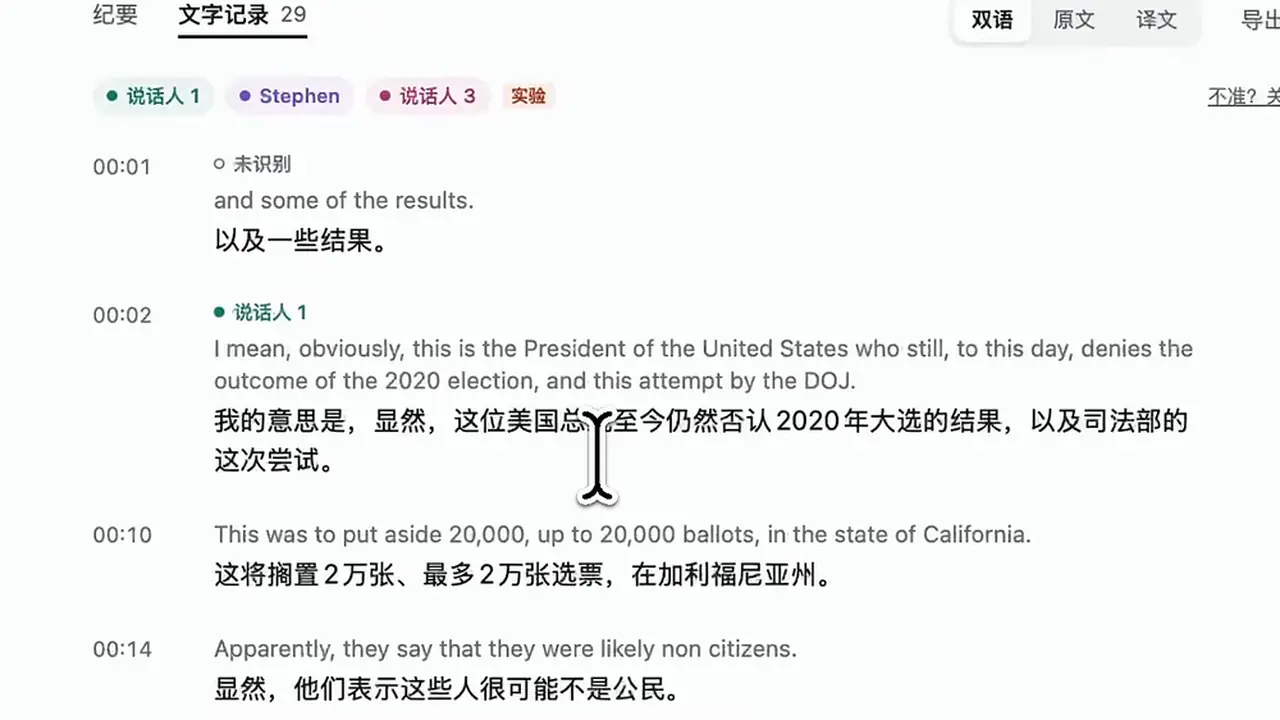
Now open something real — a Zoom call, a Teams meeting, a YouTube livestream. Cicada detects the spoken language on-device within seconds and translates it into your system language. Press ⌃⌥S to switch between the notes window, a compact subtitle bar, and hidden. The subtitle bar only appears while someone is speaking, and turns see-through under your pointer so you can click right through it.
Two details matter in practice. First, the notes window is hidden from screen sharing, screen recording, and screenshots by default — handy for privacy, awkward if you are recording a demo; there is a setting to show it. Second, if nothing plays on the Mac for a minute while it listens to the computer, the panel asks whether to listen to the room instead — useful when a meeting moves from a laptop to a table. In the menu bar panel, Listen to offers Computer, Room (the Mac microphone, for people around a table), and, on macOS 26, Mac + Room, which hears both sides at once, each in its own language, in one record.
Step 4: Connect an AI service for live notes
Subtitles are free; structured notes need a key. OpenRouter is the recommended service — it carries the same Ling text model and natural Gemini voices. Create a key at openrouter.ai/settings/keys, then in Cicada open Settings › AI Service, pick OpenRouter from the menu at the top right, paste the key, and click Save and check. Models are already picked for quality and price; change them on the same page if you like.
Ling — Ant Group's model service — has every feature, including your own voice, and gives ¥10 of credit every month. Sign up on the Ling open platform, click 创建令牌 (create token), and copy the key that starts with sk-. Paste it in the same Settings › AI Service page and click Save and check; a one-token request confirms it works. ZenMux, OpenAI, or any OpenAI-compatible service — including a model running on your own Mac, such as Ollama — work from the same menu.
With a key set, the notes window organizes a summary, topics and key points, conclusions, to-dos, a fishbone diagram, and a glossary of names and terms while the meeting runs — and every conclusion or to-do clicks straight back to the supporting lines in the bilingual transcript. If the AI service has a problem only you can fix (key, credit, model), the notes window says so and the menu bar icon gets an orange dot. Without a key, live notes are simply unavailable; subtitles, translation, records, and interpreting keep working.
Step 5: Speak back in their language
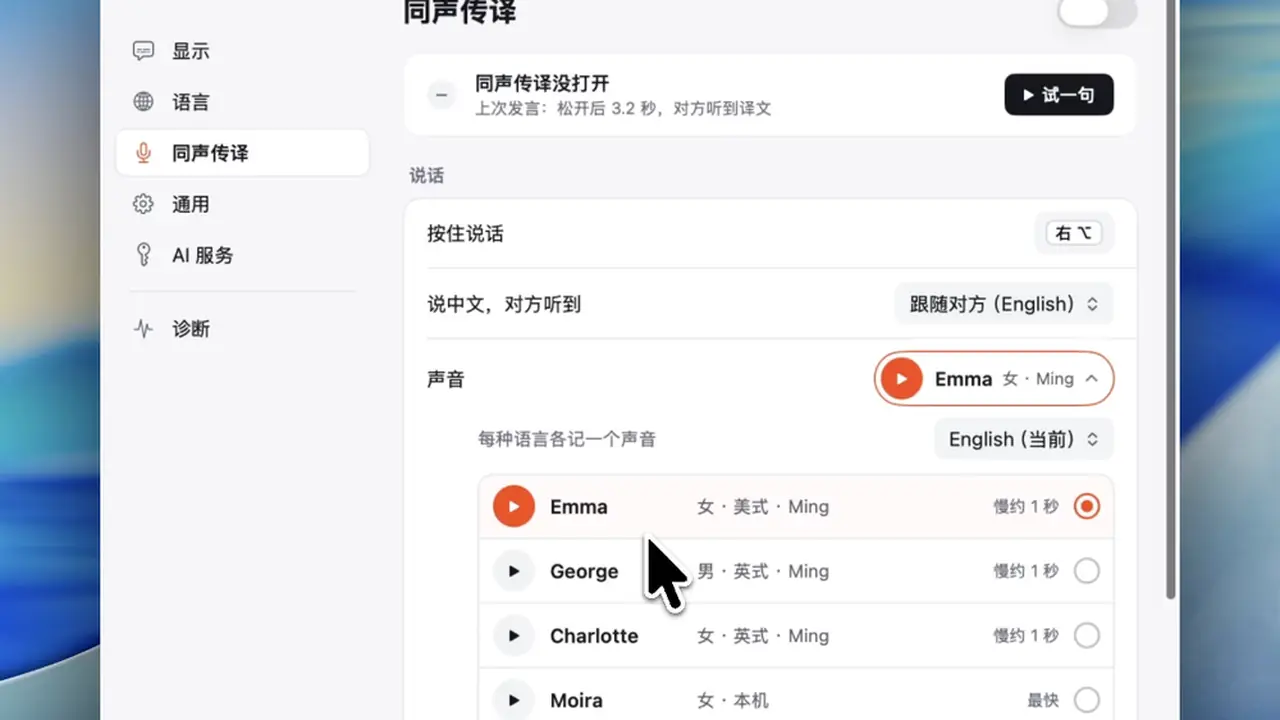
When you need to jump in, hold the talk key — right ⌥ on the Mac, right Ctrl on Windows — and speak. The other side hears your translated voice in the meeting. On the Mac this routes through BlackHole 2ch, a virtual microphone you install from the app with one click; Cicada switches to it automatically while interpreting is on. It downloads the official Apple-notarized BlackHole package and verifies it against a hardcoded SHA-256 checksum before installing, and asks for your administrator password once. On Windows the guide helps you install the free VB-Cable virtual microphone instead; on Linux, interpreting makes its own "Cicada Microphone" with no driver to install.
What the room hears depends on your key. With a Ling key, Ming's Ming-3.0-audio-flash hears and translates what you say in one step, and Ming-3.0-tts-0.5B speaks it in a natural voice — or in a clone of your own voice, built from an 8 to 30 second sample. With OpenRouter or ZenMux, the room hears natural Gemini voices. With no key at all, Cicada uses macOS system voices. If you are in a room rather than online, speak-back reads the translation out of the speakers instead — no virtual mic needed — and the microphone stops listening while it does so the translation isn't recorded as someone else.
Step 6: Keep the record: export and import
Every session saves its bilingual transcript, notes, and audio recording on your machine, in ~/Library/Application Support/LiveSubs. Speaker identification separates voices on the other side using WeSpeaker's ResNet34-LM voiceprints, bundled and run on-device with Core ML, and fills in names when a Ling key is set. If it gets someone wrong, rename, merge, or reassign a passage right in the live notes window.
Cicada ends the session and trims the silent tail when the call hangs up or after 10 minutes of silence, and you can generate notes later or export to Markdown, Word, or SRT subtitles. Drop an existing recording or video on the records window — or use File › Import Recording or Video… — and it is transcribed on your Mac, much faster than real time, into a bilingual record; click a line's time to play the original file from there. A meeting whose language was never recognized still keeps its recording: pick the language and click Transcribe Again.
To remove everything, quit Cicada, drag it from Applications to the Trash, delete ~/Library/Application Support/LiveSubs, and clear preferences with:
defaults delete com.wquguru.cicadaWhat you built
A meeting setup where any call or stream — Zoom, Teams, a YouTube livestream, an X Space — gets live bilingual subtitles, structured notes, and a searchable bilingual record, with no bot joining the call and nothing leaving your Mac except recognized text sent for translation and notes. On Apple silicon it runs with no API key at all; with an OpenRouter or Ling key it adds live notes and natural-voice interpreting, including your own cloned voice. And when you need to answer, you hold one key and speak in the other side's language.
Honest limitations
Six things to know before you build on this. First, the key-free experience is Apple silicon only — Intel Macs, Windows, Linux, and Android recognize speech in the cloud, so they need a key for the basics. Second, live notes need a key on every platform; without one you get subtitles, translation, records, and interpreting, but no structured notes. Third, your own voice isn't recorded yet: the transcript's "you" covers only what you say while holding the talk key, and full microphone capture is on the roadmap. Fourth, the builds are ad-hoc signed and not notarized — expect the "Open Anyway" step on macOS and SmartScreen on Windows. Fifth, voice cloning and one-step voice translation are Ling-only; other services fall back to on-device recognition plus translation. Sixth, Android can't capture call audio at all — put the call on speaker and switch to In person mode.
Frequently asked questions
Do I need an API key to use Cicada?
No — not on an Apple silicon Mac. Subtitles, translation, meeting records, and push-to-talk interpreting all work with no key, because speech recognition runs on-device. Live structured notes are the one feature that needs a key, from OpenRouter (recommended) or Ling. On Intel Macs, Windows, Linux, and Android, speech recognition runs in the cloud, so those platforms need a key for the basics too.
Does Cicada join my meetings as a bot?
No. It listens to the audio your own computer is already playing, so nobody else in the meeting installs anything, sees a participant join, or knows it is there. The notes window is even hidden from screen sharing, screen recording, and screenshots unless you turn that option on.
How much do live notes cost?
Ling gives ¥10 of credit every month, and an hour of live notes costs roughly ¥0.15–1 at current pricing — about 10–50 hours of meetings per month on the free credit. With OpenRouter you pay that service's per-token price for the model you pick, and it warns you before your balance runs out.