CleanYourTV: debloat your Android TV and get an Apple TV-style home screen — hands-on
CleanYourTV (Gathin23/cleanyourtv, MIT, 51,716 GitHub stars at the 4 November 2026 check) debloats any Android TV or Google TV over Wi-Fi with a coding assistant: it backs up, disables bloat with pm disable-user, and installs a 572 KB launcher — with nothing uninstalled and a one-line restore. This guide follows the project's README and prompt, step by step.
- Who: CleanYourTV, by Gathin (
Gathin23/cleanyourtvon GitHub). MIT licence. - What: An open-source Android TV cleanup driven by a coding assistant over Wi-Fi: backup,
pm disable-userdebloat, and a 572 KB native launcher as the new Home, with a one-line restore. - When: Repository created 17 October 2026; at the check on 4 November 2026: 51,716 GitHub stars, 6,555 forks. Lists covered 433 TV models from 114 brands as of 30 October 2026.
- Needs: An Android TV or Google TV on the same Wi-Fi, a computer with Python 3, and a coding assistant (Claude Code, Codex, Gemini CLI or Antigravity CLI). Building the launcher needs a JDK 17–22 and Android SDK platform 34 with build-tools 34; Docker is an alternative.
- Numbers: About 15 minutes with an assistant; launcher about 572 KB, built for TVs with 1 GB of RAM; 21 themes, 31 languages; TV needs Android 8.0 (API 26) or newer.
- Limits: No root, no cable, nothing uninstalled — packages are disabled in the user profile only. Samsung Tizen, LG webOS, Roku, Vizio and Hisense VIDAA are not supported; Fire TV gets the debloat half only. Firmware updates undo the cleanup until re-checked.
Turn your TV on and count what is fighting for your attention before you have pressed anything: sponsored rows, a “Discover” rail, apps you never installed, telemetry phoning home. CleanYourTV takes the other route. It is an open-source project that hands your own TV back to you: a coding assistant works over Wi-Fi, backs the TV up, switches the manufacturer's bloat off, and installs a small, pitch-black launcher that shows your apps and nothing else. Nothing is uninstalled, nothing is rooted, and one command puts it all back.
The project started on 17 October 2026, when its author posted a before-and-after of his parents' TV, cleaned up by Claude Code over Wi-Fi. The post reached 8.6 million views, and the replies turned into tested debloat lists: 433 TV models from 114 brands, in the project's own count as of 30 October 2026. This guide follows the project's README and its PROMPT.md exactly as written — the assistant route first, then the same job by hand, then how to undo it and how to close the debug port afterwards. Run it on a TV you own.
Why this matters now
An Android TV is an Android device with a remote instead of a touchscreen, and it has the same debug bridge as a phone. That is the whole mechanism: switch on USB debugging in the TV's developer options, allow your computer once, and the rest is standard Android tooling — pm disable-user to switch packages off in your user profile, the same switch as Settings > Apps > Disable. The bloat differs by brand, so the prompt has your coding assistant discover it on your TV and ask before touching anything you might use.
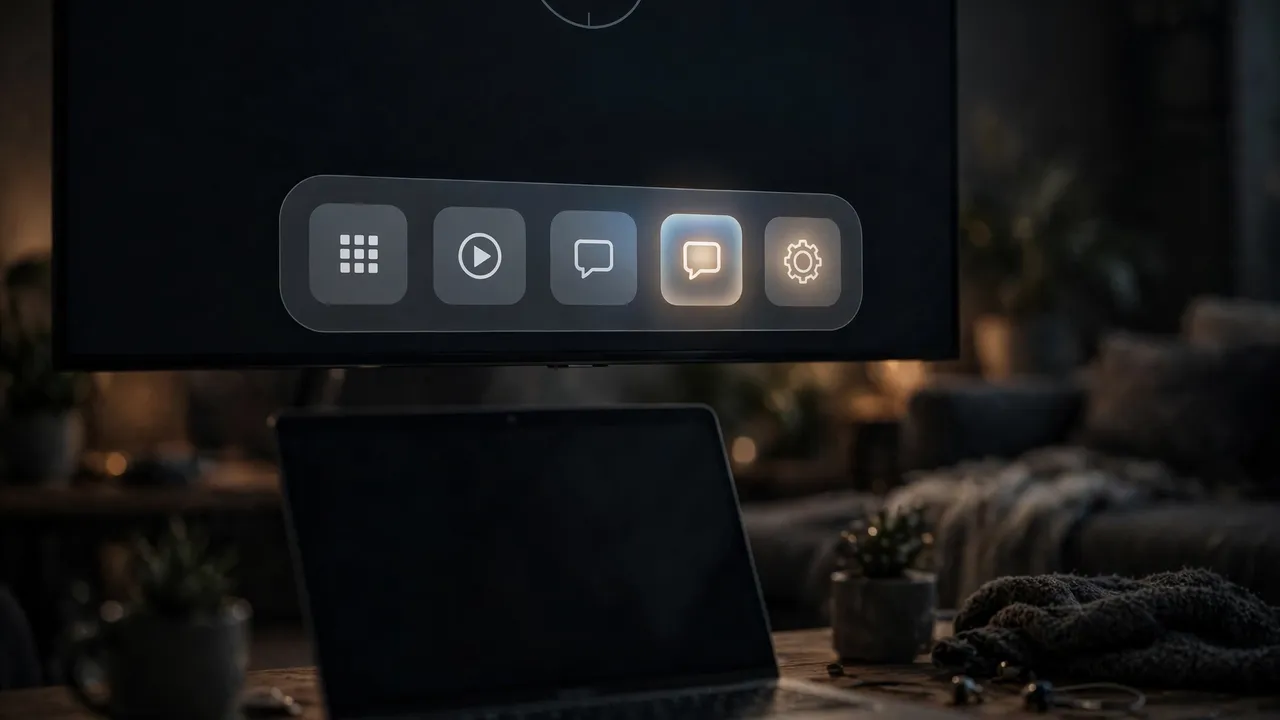
What you get for it is a home screen built for a TV with 1 GB of RAM: about 572 KB, plain Java, no network permission, no background services, no blur and no video. A dock of your favourite apps in a rounded band, a top shelf naming the focused app, the rest of your apps in a grid a press away, frosted buttons for inputs, Wi-Fi and Settings, and a thin clock with a drifting screensaver so nothing burns in. Twenty-one themes ship with it, and it follows the TV's language — 31 of them, with a mirrored right-to-left layout for Hebrew. The other half of the payoff is quieter: no sponsored rows, no “Discover” nags, no analytics phoning home.
What you’ll need
- An Android TV or Google TV, on the same Wi-Fi as your computer. Samsung (Tizen), LG (webOS), Roku, Vizio and Hisense VIDAA sets are not supported — they have no ADB. Fire TV gets the debloat half only, because Fire OS will not hand Home to a third-party launcher.
- A computer with a shell, Python 3, and a coding assistant — Claude Code, Codex, Gemini CLI or Antigravity CLI. The assistant builds the launcher there, so it also needs a JDK from 17 through 22 and Android SDK platform 34 with build-tools 34. If you have no coding assistant, the by-hand route below needs the same JDK and SDK, or Docker instead.
- Your TV's model name, for the prompt and for finding its tested debloat list. If no list exists for your model, the prompt discovers the bloat itself — and contributing your list afterwards is the project's most-wanted contribution.
- About fifteen minutes with the assistant, and the TV kept on throughout. Some boxes cut power to their USB port while USB debugging is on, so a USB speaker, drive or Ethernet adapter on that port can go dead until debugging is switched off again — plan to do the session in one sitting.
- No account, no API key, and no app-store download. CleanYourTV publishes no app in any app store, and the project warns that lookalike domains using its name are not run by it. Clone the repository from GitHub, or use the official site, cleanyour.tv.
Step 1: Check your TV qualifies — and find its list
Before anything else, confirm the platform. Anything running Android TV or Google TV qualifies for both halves, debloat and launcher. A few China-market TCL sets refuse to install any launcher at all, and their lists say so in the header. On Fire TV, expect the debloat only — and on the 2015 Fire TV Box (Fire OS 5), even that half fails, because every pm route is refused.
Search the project's TV index at cleanyour.tv/tvs for your model. The brands with the most tested lists are TCL (81 models), Sony (49) and Xiaomi (42), followed by Philips, Hisense and Skyworth — but the index is generated from the examples/ folders in the repo, one per model, and it grows with contributions. If your TV is there, the assistant will use its list. If it is not, do not stop: the prompt is written to discover the bloat on the real device and ask you, app by app, what to keep. If your set is a Samsung, LG, Roku, Vizio or Hisense VIDAA TV, stop here instead — CleanYourTV cannot run there, and the project's not-android page walks through turning the tracking off with the remote.
Step 2: Switch on USB debugging on the TV
On the TV, go to Settings → Device Preferences → About, press OK on Build seven times, go back, open Developer options, and turn USB debugging on. If you see a Network or ADB debugging toggle, turn that on too. Keep the TV on. This is the same authorisation dance as setting up an on-device Android agent over adb: the TV will ask you to allow USB debugging from your computer, and that one tap is the whole trust decision. On some firmware any device on the local network gets a shell once network ADB is open, which is why Step 6 closes it again — do not skip that step.
If your TV offers Wireless debugging with a pairing code instead — the Chromecast with Google TV and the Google TV Streamer do — pair it once with the stock adb. The project's tools can then reach the TV through the paired connection, or you can run adb tcpip 5555 to open the port, which usually lasts only until the TV reboots. The troubleshooting guide covers both, including the macOS case where Local Network privacy makes the terminal app report “No route to host” although the port is open.
Step 3: Hand it to a coding assistant — clone, paste the prompt, answer the checklist
On your computer, clone the repository and open that folder in your assistant. Cloning matters: the assistant reuses the repo's tools/disable.sh and launcher/build-and-install.sh instead of writing its own, and that is where the backup, the Home guard and the restore record live.
git clone https://github.com/Gathin23/cleanyourtvThen paste the contents of PROMPT.md into the assistant and fill in your TV model. The prompt opens:
I want to debloat my Android TV and replace its launcher with a clean Apple TV style home screen.
My TV model is: <MODEL NAME HERE>. Work on the real device, step by step, and verify everything you
do with screenshots pulled from the TV. Ask me before anything that depends on my preferences.
Follow along. Accept “Allow USB debugging?” on the TV, then answer the checklist: which apps you use, the dock size and app order, whether to keep the voice assistant, Chromecast and updates. The assistant backs up the list of installed packages and settings, disables the manufacturer's telemetry, ad services, content rows and preloaded apps with pm disable-user, builds and installs the launcher, and checks each step with screenshots pulled from the TV. With the repo as context it takes about fifteen minutes. The install script only disables a stock launcher it recognises, and only once the new launcher answers HOME — the scripts never leave the TV without a Home app.
Step 4: Or do it by hand — the same three moves, run yourself
Everything the assistant does, you can run yourself. First, set up the tools. Python 3 is needed for the tools; the JDK and Android SDK are needed only to build the launcher. On macOS, when none of these is installed, the README gives brew install openjdk@17 android-commandlinetools, then sdkmanager "platforms;android-34" "build-tools;34.0.0". JDK 23 and newer stops Gradle 8.9, and a newer platform does not replace platform 34 — the build reads 34.
python3 -m venv tools/venv && tools/venv/bin/pip install -r tools/requirements.txt
export TV_HOST=192.168.1.50                                   # your TV's IP address

tools/venv/bin/python -I tools/tv.py --probe                 # model, Android version, firmware
tools/venv/bin/python -I tools/tv.py 'pm list packages'      # one shell command on the TV
tools/tv.py is a pure-Python ADB client — shell, batch, push, pull, reboot and screenshots — talking to network ADB on port 5555, which works where the stock adb binary is blocked. Once the probe answers, apply a debloat list, using your own TV's folder under examples/ (the Xiaomi path below is the README's example, not a list to apply blindly to another set):
tools/disable.sh examples/xiaomi-mi-tv-4a/debloat.txt        # apply a debloat list
TV_HOST=192.168.1.50 launcher/build-and-install.sh           # build the launcher and make it Home
The build script builds a shrunk release of about 572 KB, installs it, switches Home, and rolls back if Home does not land on it. If you would rather not install a JDK and SDK at all, tools/docker-build.sh builds the launcher in Docker (JDK 17, Android SDK 34) so the computer needs nothing but Docker, and the result installs with SKIP_BUILD=1. Windows users get a PowerShell twin of every script; the build line is powershell -ExecutionPolicy Bypass -File launcher\build-and-install.ps1 -TvHost 192.168.1.50. And if you have no laptop and no coding agent at all, independent developers have built free, open-source phone and desktop apps on CleanYourTV's TV lists — the Clean Your TV app, Tellyscope and TidyTV for Android phones, and CleanMyTV for Mac and Windows — each showing a plan first, switching apps off only, and able to put everything back. They are independent projects, not affiliated with or endorsed by CleanYourTV.
Step 5: Make the home screen yours — themes, order, app library
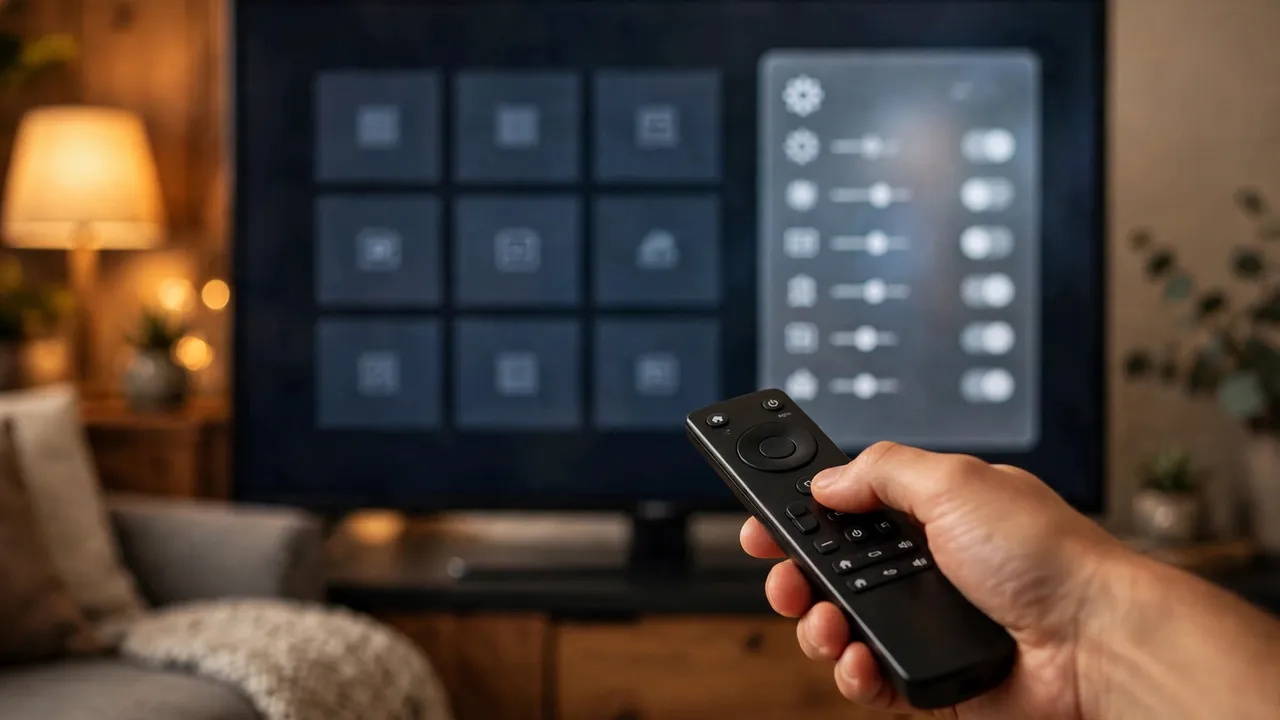
Press Down from the dock and the rest of your apps slide up in a grid. Hold OK on a tile for Move and App info, plus Remove from Home when the app library is on; hold OK on Settings for launcher settings, including Reorder apps — OK picks an app up, the arrows move it, Back places it. Themes change colours, wallpaper, dock and columns without a rebuild: push one over Wi-Fi with the theme script, and --reset removes it.
tools/theme.sh themes/aurora # push a theme; --reset removes itTwenty-one themes ship in themes/, including the built-in default, and a theme's config.json sets the dock size and columns — six columns and a six-app dock is one shipped example. The app library, when switched on, lists every installed app so one press puts a removed app back on Home. Module cards let other TV apps offer their own tile, but only with your say-so, one approval each. The launcher keeps the Input, YouTube and gear buttons working after the stock launcher is gone, and the Clock screensaver drifts so nothing burns in. Dock order, hidden apps, the Live TV app, tiles per row and reduced motion all live in config.xml if you want to change the defaults before building.
Step 6: Restore, re-check after updates, and close ADB
Keep the list you applied. Before tools/disable.sh changes anything it writes down what the TV looked like, in ~/.cleanyourtv/, and one line replays that record: a package you had disabled yourself stays disabled, and Home goes back to the component that owned it. The launcher stays installed — remove it from the TV's Settings → Apps if you want it gone.
TV_HOST=192.168.1.50 tools/restore.sh examples/<your tv>/debloat.txt                                    # Android TV
TV_HOST=192.168.1.50 tools/restore.sh examples/<your tv>/debloat.txt com.google.android.apps.tv.launcherx  # Google TV
A firmware update installs over the cleaned-up system: the listed packages come back, Home goes to the stock launcher, and new preloads appear that no list mentions. Open ADB again as in Step 2, compare the TV with the list you applied, and let --fix put it back:
TV_HOST=192.168.1.50 tools/venv/bin/python -I tools/check.py examples/<your tv>/debloat.txt --fixThen close the door you opened. On the TV, turn USB debugging, Network/ADB debugging and Wireless debugging off, whichever the TV has, and revoke the USB debugging authorisations. Reboot the TV, then confirm the port is gone from your computer — the project's adb-closed.py check must say the port is closed. The launcher keeps working without debugging.
python3 tools/adb-closed.py 192.168.1.50What you built, and where it stops
You built a TV that opens on your apps and nothing else: a verified backup in ~/.cleanyourtv/, the manufacturer's telemetry and ad services switched off in your user profile, and a 572 KB launcher answering HOME, themed and ordered the way you chose it, with a one-line restore standing by. Re-run the check after a firmware update and the cleanup holds. It is the same own-hardware logic as running your own multi-agent assistant at home: the device answers to you, on your network, with the off switch in your hand.
Its limits are the project's own, and they bound every claim in this guide. Nothing is flashed, rooted or deleted — packages are disabled in the user profile, so the risk is disabling something the TV leans on, which is why lists are applied in small batches with a restore script ready, and why the TV's own Settings → Apps page can re-enable packages even without the tools. If the TV no longer starts far enough for that, a factory reset from its recovery menu is usually the way back, and changing a TV's software may affect its warranty or support. On Google TV, the setup wizard (com.google.android.tungsten.setupwraith) can take Home and crash-loop the system after the stock launcher is disabled — the README says to disable it too and list it in your debloat.txt so restore brings it back, after checking first whether the Wi-Fi network was saved during setup, since disabling it deletes the network. The launcher needs Android 8.0 (API 26) or newer; there is no prebuilt APK to download, by design — you build it, and you control what goes on your TV. And on the privacy question the project is careful: its privacy.py audit reports what the TV actually says, with the evidence for each voice, ACR and telemetry candidate, but it cannot prove intent, and no permission scan can honestly answer “which of these packages is listening?” on its own. The cleanup is real. The certainty has limits, and the project says so.
Frequently asked questions
Will CleanYourTV work on my Samsung, LG, Roku or Vizio TV?
No. Those sets run Tizen, webOS, Roku OS or VIDAA and have no ADB, so CleanYourTV cannot run there — the project's not-android page walks through turning the tracking off with the remote instead. Fire TV is the partial exception: the debloat half works, but Fire OS will not hand Home to a third-party launcher.
Can I undo it if I change my mind?
Yes. Before disabling anything, the tools write a record of what the TV looked like in ~/.cleanyourtv/, and tools/restore.sh with the list you applied replays it — a package you had disabled yourself stays disabled, and Home goes back to the component that owned it. The launcher stays installed afterwards; remove it from the TV's Settings → Apps page if you want it gone.
Is leaving ADB debugging on a security risk?
Yes, if you leave it open: network ADB is plaintext on port 5555, and on some firmware any device on the local network gets a shell. When you are done, turn USB debugging, Network/ADB debugging and Wireless debugging off, revoke the USB debugging authorisations, reboot the TV, and confirm the port is closed with tools/adb-closed.py. The launcher keeps working without debugging.