Give your Android phone an agent that works in the background: hands-on with Mika
Mika (wangzan101/Mika, Apache-2.0, 3,350 GitHub stars) is an on-device AI agent for Android that works your apps and the web on a hidden background screen while you keep using your phone. This guide installs the v0.1.31 APK, connects a model, pairs wireless debugging with Mika’s six-step wizard, proves it with a safe first task, and shows the adb install route from a computer.
- Who: Mika, by wangzan101 on GitHub. An open-source Android app, written in Kotlin, that turns one sentence into work done in your apps and on the web.
- What: An on-device AI agent: no Mika server. It opens apps, taps, types and scrolls on a separate background screen, reads pages in a built-in browser, runs a per-conversation Linux sandbox (arm64), and hands logins, verification codes and payments back to you.
- When: Repository created 29 October 2026. At research time on 1 November 2026: 3,350 GitHub stars, and version 0.1.31 released the same day.
- Needs: Android 11 or later for chat, web and files; Android 12 or later to operate phone apps; Android 14 or later recommended. The APK is about 89 MB. Licence: Apache-2.0.
- Model: None included. Add your own provider in Settings — presets for DeepSeek, Kimi, OpenAI, Anthropic, Gemini, Groq, Ollama, LM Studio and more, or a Custom OpenAI-compatible endpoint. The main model must support tool calling. Or sign in with a ChatGPT (Plus/Pro), xAI/Grok or OpenRouter account, no key needed.
- Privacy: What you say and what is on your screen goes only to the model provider you set up. API keys and memories are stored encrypted on the phone; conversations and run records stay on the device.
Why this matters now
Phone assistants mostly answer questions. Mika does the errand: it opens the app, scrolls the chat, finds the button, and reports back. The trick is where it works. Mika runs your apps on a hidden background screen, so the phone in your hand stays yours while the task runs. Tap the small live view whenever you want to watch; touch the page and it stops.
That is also why the setup below is mostly permissions, not code. To drive apps Mika needs Android’s wireless debugging and its own accessibility service, and Android quite rightly makes you grant both deliberately. The wizard walks you through it in 3 to 5 minutes and checks each switch itself. Every command and menu path below is the project’s own, checked against the repository and its docs on 1 November 2026, when the project was three days old and already at 3,350 stars.
What you’ll need
- An Android phone: Android 11 or later to install Mika, Android 12 or later for phone control, Android 14 or later recommended so background work never steals focus from your typing.
- Wi-Fi the phone is connected to, for pairing. Internet access is not required for pairing itself, just being on a network.
- A model: your own API key for a provider Mika presets, a model running on your own computer or LAN, or a ChatGPT Plus/Pro, xAI/Grok or OpenRouter sign-in. Mika ships with no model and no key.
- A computer with adb, only for Step 5. Steps 1–4 need no computer and no cable.
- No account with Mika. There is no Mika server to sign up to.
Step 1: Install the APK from GitHub Releases
Mika is not presented in the docs as an app-store install. The only update source the docs name is the repository’s Releases page, and the app can also check for updates from About › Check for updates. Download the APK from Releases and install it on the phone, allowing the install when Android asks. Version 0.1.31, released 1 November 2026, is the current release at research time; its APK is about 89 MB and is named Mika-v0.1.31.apk.
Open Mika once after installing. On first launch it walks you through adding a model. You can skip that for now (“Not now”) and come back to it in Step 2; opening the app once matters because it initialises Mika and prepares the files later steps use.
Step 2: Connect a model — yours, not Mika’s
Open Settings › Model in Mika. Presets are built in for DeepSeek, Qwen, Kimi, Zhipu, SiliconFlow, Volcano Engine, MiniMax, StepFun, Tencent Hunyuan, Baidu Qianfan, OpenRouter, OpenCode Go, Anthropic, Gemini, OpenAI, xAI, Mistral, Groq, Ollama and LM Studio; anything else goes through Custom, which takes any OpenAI-compatible, Anthropic, Gemini or OpenAI Responses endpoint. Pick a preset or Custom, enter the endpoint if asked, enter your API key, and tap “Test and save”. If the provider has no model list, or the model you want is missing, tap “Enter a model name yourself”, type the model ID from the provider’s docs, and test again: only that model gets a test call, and the provider is saved only if it works.
Three roles matter. The main model does the work and must support tool calling — if your model cannot call tools, Mika cannot drive apps with it, and no setting fixes that. The vision model describes the UI and finds buttons in screenshots; it is off by default on a fresh install, or you can choose “use main model”. The light model handles small jobs like judging task outcomes and extracting memories, and defaults to the main model. Speech to text, the fourth role, uses the phone’s built-in recognition by default and costs nothing.
No key? At the top of “Add provider” is “Sign in with an account · no key needed”. ChatGPT needs Plus or Pro and uses your plan’s usage; xAI/Grok needs a SuperGrok or X Premium+ subscription and borrows the public sign-in entry of xAI’s official command-line tool, which xAI did not set up for Mika and may restrict; OpenRouter’s official third-party authorisation gives Mika a key of its own, named “Mika”, paid from your OpenRouter balance. For a model on your own machine, choose Custom and enter its LAN address, for example http://192.168.1.10:11434/v1 for an Ollama server on your network — the key is optional there. Enter the key on the phone, in Mika, yourself. Nobody else needs it, and no step in this guide asks you to type it anywhere else.
Step 3: Pair wireless debugging with the six-step wizard
In Mika, “Set up phone control” is the last step after the model on first launch. If you tapped “Not now”, open Settings and tap the notice in the status card at the top, or go to Settings › Phone control › Pair again. The wizard is a numbered checklist of six steps, and each step ticks itself off when Mika can verify the switch. If a phone cannot report a switch correctly, tap “I’ve turned it on, next” under the step; what counts in the end is pairing and connecting. Do not change any Developer options switch this guide does not mention — the docs warn that some switches can erase the phone.
1. Developer options. In Mika, tap “Open About phone”, go to Settings › About phone, scroll to “Build number” and tap it 7 times quickly. You will see “You are now a developer!” If you cannot find it, look inside “Software information” or search Settings for “Build number”.
2. USB debugging. In Mika, tap “Open Developer options”, find “USB debugging” and turn it on, tapping “OK” when asked. No cable is needed. Keep it on from now on: turning it off stops phone control.
3. Accessibility — skip it. Tap “Skip (Mika turns it on after pairing)”. Doing it by hand can get stuck: an APK installed from outside an app store marks accessibility as a “Restricted setting” Android will not let you turn on directly. Once pairing is done, Mika turns its own accessibility service on by itself. The only cost is typing the 6-digit pairing code yourself once, in the next steps.
4. Wireless debugging. Make sure the phone is on Wi-Fi, then in Developer options turn on the “Wireless debugging” switch. When the system asks “Allow wireless debugging on this network?”, tick “Always allow on this network” and tap “Allow”, so Mika can turn it back on itself on this network later.
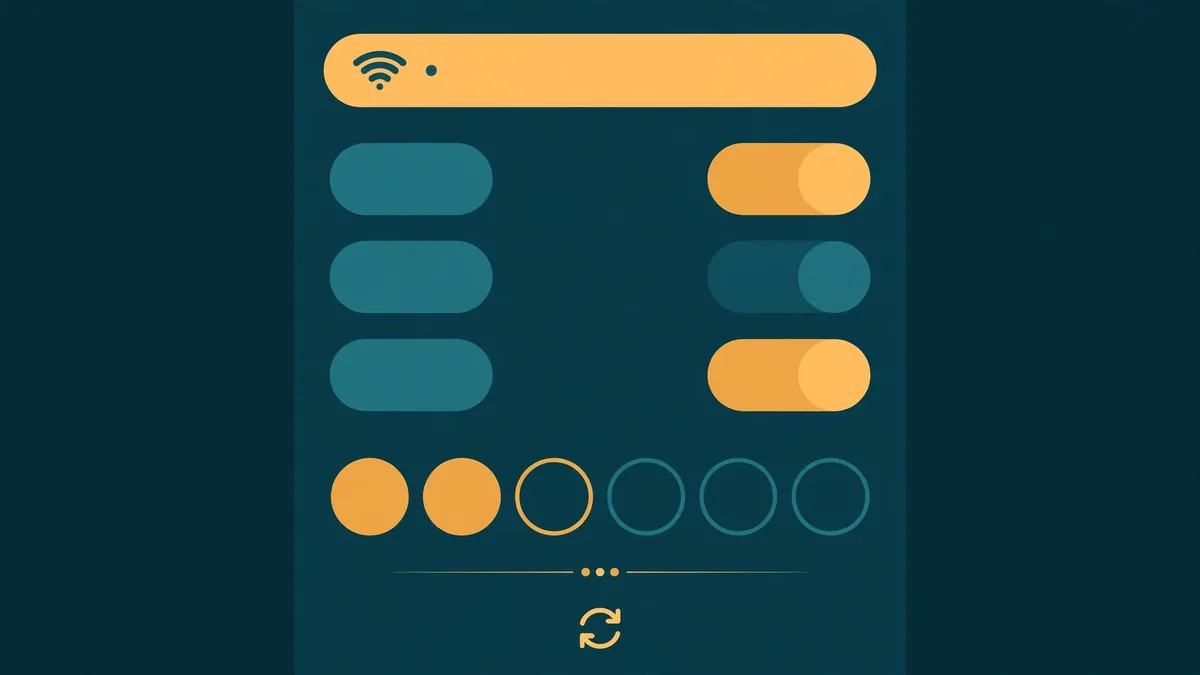
5. Pair with the code — and stay on the dialog. In Mika, tap “Open Wireless debugging”, tap the words “Wireless debugging” (not the switch) to open its page, then tap “Pair device with pairing code”. A dialog shows a 6-digit code and an IP address and port. The code only works while that dialog is open: switching apps, pressing Back or locking the screen invalidates it. If accessibility is already on, wait a few seconds and Mika reads the code and pairs by itself. If you skipped step 3, Mika’s “Enter pairing code” notification pops up at the top of the screen (swipe down for the shade if it does not); tap “Enter code”, type the 6 digits and send. The notification changes to “Pairing…”, then “Paired”, and goes away by itself. Allow Mika’s notifications first, or this step has nowhere to put the code. If the code was wrong or expired, get a fresh one from “Pair device with pairing code” again — never reuse a code from a closed dialog.
6. Connect automatically. Nothing to do. Once paired, Mika connects and gets ready by itself, usually in a few seconds, and turns on its own accessibility service if you skipped step 3. When you see “Phone control is set up”, you are done. If it cannot find the wireless debugging port, it asks you to enter the number after the colon in the “IP address & port” line (for example 41235 in 192.168.1.5:41235) and remembers it. The whole wizard takes about 3 to 5 minutes. If your phone has no working wireless debugging at all, Step 5’s USB route is the fallback, not a different product.
Step 4: Prove it with a task that cannot spend money
Check the status card at the top of Mika’s Settings first. With a model set up and phone control ready it reads “Model set up · Phone control ready”. If it says phone control is not ready, redo the wizard steps above rather than retrying tasks and wondering why nothing moves. Then send Mika a task with no money, no messages and no irreversible side effects. The docs’ own verification task is:
Open Settings and tell me the Android versionMika should open Settings on its background screen, read the version, and answer in the chat while your own screen stays free. If it works, try one of the README’s everyday examples next: “Set alarms for 9:40 and 10:00 tomorrow morning”, or “Check the weather at 8 every morning and tell me only if it will rain”. Mika runs in Ask mode by default: it checks with you only before spending money and otherwise just does the work. Do not switch to Autonomous mode until you have watched it handle a few tasks. Payment and password screens block screenshots, so Mika asks you to take over there — that handover is the safety feature working, not a failure.
Step 5: Install from a computer with adb (optional, faster for repeat setups)
Everything above works from the phone alone. The computer route is for when you want an AI agent on your computer to do the installing, or you are setting Mika up repeatedly. It uses adb and follows the project’s install-with-agent guide, whose rules are worth adopting: only install and set up Mika, leave unrelated system settings alone, never uninstall an app or clear its data, and never handle the user’s model API key — it is entered on the phone, in Step 2, and never typed or sent over adb.
Connect the phone over USB with USB debugging on (Steps 1 and 2 of the wizard), then check the prerequisites. Exactly one device must be listed, with state device; unauthorized means tap “Allow” on the phone’s prompt:
adb version
adb devices
adb shell getprop ro.build.version.sdk
adb shell getprop ro.product.cpu.abi
SDK below 30 (older than Android 11) means Mika cannot be installed — stop. SDK 30 means it installs but cannot operate apps. SDK 31–33 works, with background work occasionally taking input focus; 34 or higher is best. arm64-v8a means the Linux sandbox works; anything else installs and works normally without it. Then download the latest APK from the GitHub API and install it:
URL=$(curl -fsSL https://api.github.com/repos/wangzan101/Mika/releases/latest \
  | grep -o '"browser_download_url": *"[^"]*/Mika-v[^"]*\.apk"' \
  | sed 's/.*"\(https[^"]*\)"/\1/' | head -n 1)
echo "$URL"
curl -fL -o Mika.apk "$URL"
adb install -r Mika.apk
Success is a final line reading Success. Watch the phone for an install confirmation and tap “Allow” or “Install” if one appears. Then grant the notification permission (Android 13 and later), turn on Mika’s accessibility service without removing any service already there — the append-only form matters, so read the current list, add Mika only if missing, and write it back — add Mika to the battery allowlist, and open it once:
adb shell pm grant com.wangzan101.mika android.permission.POST_NOTIFICATIONS
ME=com.wangzan101.mika/.a11y.MikaAccessibilityService
CUR=$(adb shell settings get secure enabled_accessibility_services | tr -d '\r')
case ":$CUR:" in
  *":$ME:"*|*":com.wangzan101.mika/com.wangzan101.mika.a11y.MikaAccessibilityService:"*)
    NEW="$CUR" ;;
  *)
    if [ -z "$CUR" ] || [ "$CUR" = "null" ]; then NEW="$ME"; else NEW="$CUR:$ME"; fi ;;
esac
adb shell settings put secure enabled_accessibility_services "'$NEW'"
adb shell settings put secure accessibility_enabled 1
adb shell cmd deviceidle whitelist +com.wangzan101.mika
adb shell am start -n com.wangzan101.mika/.ui.MainActivity
For phone control, either pair wireless debugging as in Step 3 (recommended, set up once), or start the helper over USB with the cable connected and run it again after each reboot:
adb shell sh /sdcard/Android/data/com.wangzan101.mika/files/usb-start.shIf that file does not exist, open Mika, wait a few seconds and try again; if it is still missing, use wireless pairing instead. Finish by checking the install and, on the phone, adding the model exactly as in Step 2. If you want to hand Mika tasks from the computer afterwards, the docs offer two entry points — CLI + Skill, or MCP — and say to normally pick one, not both; this guide does not set either up, because the choice depends on the AI tools already on your computer.
Step 6: Schedules, skills, and the compatibility self-check
Once a first task works, teach Mika the recurring ones. Schedules and conditions are first-class: “Remind me at 9 tomorrow” and “do this every Friday” run on time in the original conversation. Mika also remembers preferences you tell it and turns finished tasks into skills, so the next run is faster and steadier. You can keep talking while a task runs to add or correct things, and after a stop it reports where it got to — “continue” picks up from there. If anything about your phone is in doubt, run Settings › Recovery & repair › Compatibility self-check: 12 checks in about a minute, with a one-tap device report you can send the project.
What you built
An agent that lives on your phone, works your apps and the web on a background screen, and answers in one chat — installed from a versioned APK, connected to a model you chose and paid for, paired once through wireless debugging, and verified with a task that could not spend money. No server was created, no account was opened, and nothing about your phone left the device except what your chosen model provider received. The computer route adds a repeatable adb install on top of the same setup, with the same rule throughout: keys go in on the phone.
Honest limitations
- Three days old. Created 29 October 2026, version 0.1.31 released 1 November 2026. Expect fast movement, rough edges and behaviour changes between releases. Check About › Check for updates, and re-read the setup guide when a release changes the wizard.
- Bring your own model, and its bill. Mika includes no model. Your provider, key or subscription does the reasoning, and the main model must support tool calling. A model that cannot call tools will chat fine and drive nothing.
- Permissions are the product. Wireless debugging, USB debugging and an accessibility service are powerful grants. Mika needs all three to operate apps, and Android can turn wireless debugging off when Wi-Fi changes or the phone reboots — with permission, Mika turns it back on itself, but if it cannot connect, pair again from the wizard rather than toggling switches at random.
- Some screens are off-limits by design. Payment and password screens block screenshots, so Mika hands those to you. Operating third-party apps automatically may also break their terms of service: for anything important, stay in Ask mode and check the results.
- Vendor ROMs differ. Menu names and places move between manufacturers, some phones report switches wrongly or omit wireless debugging entirely, and Android 12–13 can let background work briefly take input focus. The wizard’s “I’ve turned it on, next” escape hatch and the USB start route exist for exactly these cases.
- The built-in app knowledge is written in Chinese. The app UI is English, Simplified and Traditional Chinese and follows your system language, but the built-in usage knowledge for apps and websites is written in Chinese. The docs say that does not limit you: the model reads it fine, and you can talk to Mika in your own language.
Frequently asked questions
Do I need a computer or a cable to set Mika up?
No. Steps 1 to 4 need only the phone: install the APK, add a model, and follow the six-step “Set up phone control” wizard, which takes about 3 to 5 minutes. A computer with adb is only the optional faster route in Step 5, or the fallback if your phone has no working wireless debugging.
Does Mika come with a model or an API key?
No. Mika ships with no model; you add your own provider in Settings › Model and tap “Test and save”, or sign in with a ChatGPT (Plus/Pro), xAI/Grok or OpenRouter account. The main model must support tool calling, and you enter any key on the phone, in Mika, yourself.
What if wireless debugging turns itself off, or my pairing code expires?
Android turns wireless debugging off when Wi-Fi changes or the phone reboots; with your permission Mika turns it back on itself, and if it still cannot connect, pair again from the wizard. A pairing code only works while the system pairing dialog is open, so if it expired, open “Pair device with pairing code” again and use the fresh 6-digit code.