See every coding agent at once: hands-on with whatsmyagentdoing's live office
whatsmyagentdoing (Charonyuu/whatsmyagentdoing, MIT, 371 GitHub stars) turns the session logs Claude Code, Codex and nine more coding agents already write into a live office in your browser: figures at desks while they work, wandering off duty when they finish, and waving when they need you. This guide installs it with one clone, tries the made-up demo team first, reads real sessions, and uses its JSON snapshot, privacy mode and stuck-agent alerts, with the log-format limits the project states itself.
- Who: whatsmyagentdoing, by Charonyuu (Charonyuu/whatsmyagentdoing on GitHub). MIT licence; 3D models by Kenney under CC0.
- What: A local dashboard and agent skill (
/myoffice) that tails session logs and shows live status in a 2D or 3D office, a list view, or a JSON snapshot — for Claude Code, Codex, Gemini CLI, Antigravity CLI, Copilot CLI, OMP, Kimi Code, DeepSeek Harness, Grok Build, OpenCode and Hermes. - When: Repository created 23 October 2026. At research time on 3 November 2026: 371 GitHub stars, 50 forks, version 0.7.0.
- Needs: Node.js 18 or newer (22.13 or newer for OpenCode and Hermes). No
npm install, no API keys, no configuration file. - Defaults: Port 4545 (next free port if taken), sessions from the last 24 hours, server bound to 127.0.0.1 only. No-progress flags: a tool running over 10 minutes, or thinking silent for 8.
- Privacy: Logs are read read-only and never written; nothing leaves the machine apart from an optional version check, disabled with
WMAD_NO_UPDATE_CHECK=1.--privatehides prompts, replies and titles.
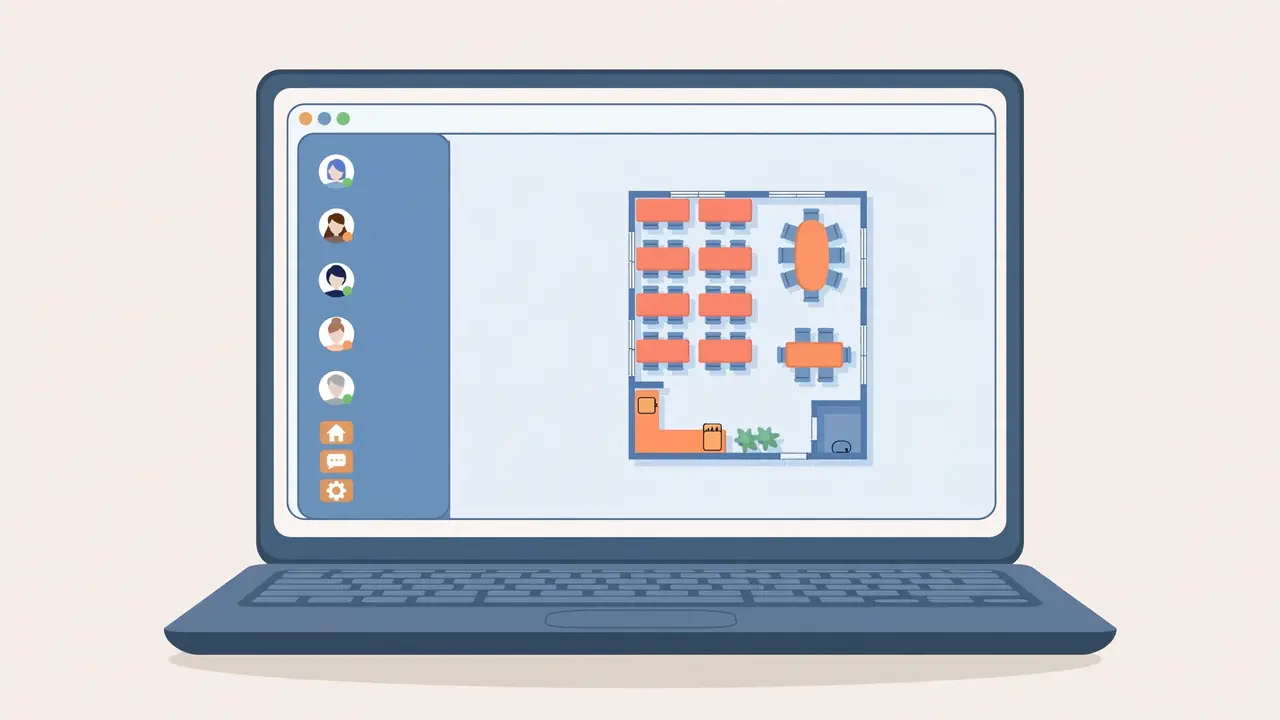
Run two or three coding agents at once and the problem is not the work. It is the checking. One tab is thinking, another is waiting on a permission you never saw, a third finished ten minutes ago and you are still waiting for it. whatsmyagentdoing answers that with one glance: a little office in your browser where every agent on your machine gets a desk, a status, and a habit of wandering off when the work is done.
It does not run your agents or talk to them. It reads the session logs they already write — Claude Code, Codex, Gemini CLI and eight more — and turns the latest event in each log into a status, pushed live to the page. No API key, and the server only ever listens on your own machine. This guide installs it, tries it safely on a made-up team, then points it at your real sessions.
Why this matters now
Agent CLIs multiply fast. The project supports eleven of them, and a typical afternoon can easily hold a Claude Code session refactoring a feature, a Codex session writing tests, and a Gemini CLI session answering a question — each in its own terminal, each with its own idea of whether it is done. The cost is a steady leak of attention, plus the occasional hour lost to an agent that silently stopped. A single status board, grouped by what needs you first, turns checking into glancing. A figure standing up and waving is harder to miss than another line in a log, and the list view is there when you want plain cards instead.
What you’ll need
- Node.js 18 or newer. Check with
node --version. OpenCode and Hermes sessions need Node.js 22.13 or newer, because they are read through Node’s built-in SQLite support; on older Node those two are simply skipped. - At least one supported agent CLI with sessions on disk: Claude Code, Codex, Gemini CLI, Antigravity CLI, Copilot CLI, OMP (oh-my-pi), Kimi Code, DeepSeek Harness, Grok Build, OpenCode or Hermes. The demo in Step 2 needs none of them.
- A terminal. Nothing needs
npm install: the repository runs as cloned, with no runtime dependencies. - No API keys, no account, no configuration file. The only network call the project makes is an optional version check, which you can turn off with
WMAD_NO_UPDATE_CHECK=1.
Step 1: Check Node.js and install the skill
There are two ways in, and they install the same files. The easiest is to ask the agent you already use. Paste this into Claude Code or Codex, exactly as the project’s README words it:
Install the myoffice skill from https://github.com/Charonyuu/whatsmyagentdoing: clone it with `git clone --depth 1` into `~/.claude/skills/myoffice` (for Codex: `~/.codex/skills/myoffice`), check that `node --version` is 18 or newer, then tell me to start a new session and type /myoffice.Or do it yourself. The two clone commands differ only in the destination folder:
# Claude Code
git clone --depth 1 https://github.com/Charonyuu/whatsmyagentdoing ~/.claude/skills/myoffice

# Codex
git clone --depth 1 https://github.com/Charonyuu/whatsmyagentdoing ~/.codex/skills/myoffice
That is the whole install: no package, no settings file. If you would rather not use it as a skill, node bin/cli.js from inside any clone starts it directly. Update later with git -C ~/.claude/skills/myoffice pull, or from the page’s Update button.
Step 2: Try the demo office before trusting real sessions
Start with the made-up team: the office, views and statuses, without reading any real history. Learn what each posture means before interpreting a real one.
node ~/.claude/skills/myoffice/bin/cli.js --demo --no-open --port 4546The default port is 4545; the example uses 4546 to avoid clashing with a dashboard already running, and the server steps to the next free port if its first choice is taken. Open http://localhost:4546. You should see the made-up team at work: figures at cubicle desks, a thought bubble while one thinks, code scrolling while a tool runs, and finished agents wandering to the pantry, the couch, or a nap at an empty desk. In the Medium (2D) view there is also an office cat. Stop it with Ctrl+C, or with --stop as in Step 6.
Try the two looks while you are here. Medium is a hand-drawn 2D canvas with no dependencies. High renders the same office in 3D, with real-time lighting and shadows, using Kenney’s CC0 Mini Characters and Furniture Kit; the three.js bundle (about 180 KB gzipped) and models (about 1.3 MB) only load when you pick High.
Step 3: Read your real agents — statuses, panel, click-through
Start it for real, in the background, and open the page it prints:
node ~/.claude/skills/myoffice/bin/cli.jsOr type /myoffice, or ask “what are my agents doing?” Running the command again just reopens the tab. By default it shows sessions active in the last 24 hours; narrow that with --hours 4. Every session gets one status, from its latest log event:
- Thinking — reasoning, or reading a tool result.
- Running — a tool call is in flight, and the panel names it, for example
Bash: npm testorEdit app.ts. - Writing reply — the answer has started landing and the turn is not finished.
- Waiting for you — the agent asked a question or needs an approval.
- Done — the turn finished, with the last reply.
- Interrupted, Error, or Idle — the turn was cut short, failed, or has gone quiet without finishing.
The side panel groups sessions Needs you → Working → Finished, with a live timer for the current turn, a copy button for the resume command, and filters for agent, subagents and idle sessions. The tab title counts working agents, so you can watch from another tab. Click an agent to see its status, model, folder, usage and recent conversation, read from the end of its own log; hover anyone in the office to see what they are on. The Today panel totals today’s turns and tokens by agent and project from Claude Code and Codex usage records since local midnight, and each card shows context-window fullness: amber from 60%, red from 85%.

Turn on alerts before you need them: a browser notification when an agent needs you, plus a short chime with Settings → Sound. Learn the stuck-agent flag first: a tool running over 10 minutes, or thinking silent for 8, is flagged No progress. Read it as “go and look”, not proof of failure — a long build can legitimately run past 10 minutes.
Step 4: Ask it from chat with --json, and spot a stuck agent
Sometimes you want an answer inside the chat you are already in, not a page. The --json flag prints one snapshot as JSON and exits — what the skill itself uses when you ask in chat what your other agents are doing:
node ~/.claude/skills/myoffice/bin/cli.js --json --hours 2On a machine with no recent sessions it prints an empty list, [], and exits cleanly — the correct result, not an error. With sessions present, summarise by status: who is waiting, who is working, who is done. Pair it with the No progress rule from Step 3: a session still Running with the same tool after 10 minutes, or Thinking with no new log event for 8, is your cue to open the office and decide whether to resume, interrupt, or leave it alone. The snapshot shows exactly what the dashboard sees, with no office dressing in the way.
If a client’s logs live somewhere unusual, the overrides are environment variables, not config files — CLAUDE_CONFIG_DIR, CODEX_HOME, GEMINI_CLI_HOME and equivalents for the other clients, plus --omp-dir for OMP. The dashboard reads those locations and never writes to them.
Step 5: Share your screen safely, and catch waiting agents properly
The dashboard reads your prompts and replies, which makes screen sharing risky. Start it in private mode when anyone else can see your screen:
node ~/.claude/skills/myoffice/bin/cli.js --privatePrivate mode hides prompts, replies and titles and shows status only; it also applies to the --json snapshot and the optional Magpie feed in Step 6. Either way, the server binds to 127.0.0.1 only, rejects requests not addressed to localhost, and sends nothing anywhere apart from the optional version check. Logs are tailed read-only and pushed to the page over Server-Sent Events.
One gap deserves a deliberate choice. Claude Code does not log permission prompts, so a tool waiting on approval shows as Running until you answer; Codex and Gemini CLI do log them. The optional hook closes the Claude Code gap:
node ~/.claude/skills/myoffice/bin/cli.js --install-hookIt adds one Notification hook to your Claude Code settings. On a permission or question prompt the hook writes a small marker to ~/.whatsmyagentdoing/waiting, and the session shows Waiting for you until its log moves on. --uninstall-hook removes it; if you switch Node versions, run --install-hook again. The skill’s own instruction is to ask before running it, since it changes your settings. Without the hook, treat a long Running status on a Claude Code session as possibly waiting on you, and check the terminal before assuming it is stuck.
Step 6: Change the view, try a scene, and stop or update cleanly
Prefer plain cards? Switch to the list view: the same grouping, with the live timer, the latest prompt and reply, and the one-click resume command. Want the office always visible? Pop out opens it — or just the compact Needs you and Working list — in an always-on-top window where the browser supports the Document Picture-in-Picture API; elsewhere it falls back to a view-only video preview, with nothing uploaded. The interface speaks nine languages, defaulting to the language you write your prompts in.
For a change of scenery, list the downloadable 3D scenes and open one by the id the tool prints — do not guess ids:
node ~/.claude/skills/myoffice/bin/cli.js --scenes
node ~/.claude/skills/myoffice/bin/cli.js --scene pirate
Besides the built-in office, packs such as Haunted Hollow, Pirate Cove, Café, Space Station and Castle are 100–230 KB each, fetched only when you pick one and checked against a pinned SHA-256 before installation into ~/.whatsmyagentdoing/scenes. --scene office goes back, and --remove-scene <id> deletes one. Optionally, a local Magpie gateway can feed in sessions it observes: set WMAD_MAGPIE_URL and WMAD_MAGPIE_KEY in your environment (never in a command line or a file); Magpie only fills in missing metadata and never overwrites what the local logs say.
Stop and update use the same command shape:
node ~/.claude/skills/myoffice/bin/cli.js --stop
node ~/.claude/skills/myoffice/bin/cli.js --update
--stop stops the running dashboard; --update runs git pull in the install folder and restarts it. The page shows its version in the corner and an Update button when a newer one is out.
What you built, and where it stops
You built a local, read-only status board for every coding agent on your machine: one clone, one command, and a page that tells you at a glance who is thinking, who is running which tool, who is waiting on you, who is done, and who has gone quiet for too long. No accounts, no keys, no cloud, and a JSON mode for when a page is more than you need: less tab-hopping, fewer missed approvals, and a stuck agent caught in minutes instead of an hour.
Its limits are the limits of reading logs. Logs are written per finished block, not per token, so “Writing reply” means a reply block has landed and the turn is not over — not a live keystroke stream. Gemini CLI writes its thoughts together with the reply, so before its first tool call it simply shows Thinking. Very large logs are read head and tail, so Today counts for them can be low. And the log formats are not public APIs: if an update changes them, statuses may degrade. It is a reader of evidence, not a controller. When a status and the terminal disagree, believe the terminal.
Frequently asked questions
Does whatsmyagentdoing send my prompts or code anywhere?
No. The server binds to 127.0.0.1 only, rejects requests not addressed to localhost, tails your agents’ session logs read-only, and sends nothing anywhere apart from an optional version check you can disable with WMAD_NO_UPDATE_CHECK=1. With --private, prompts, replies and titles are never sent to the page at all.
Do I need an API key, a subscription, or an install step?
No. You need Node.js 18 or newer and a clone of the repository into your Claude Code or Codex skills folder; nothing needs npm install, there are no API keys and no configuration file. It works with the agent plan you already have, and the demo team needs no agent at all.
Why does a Claude Code agent show Running when it is waiting for my approval?
Claude Code does not log permission prompts, so a tool waiting on your approval shows as Running until you answer; Codex and Gemini CLI do log them and show Waiting for you. The optional --install-hook adds a Claude Code Notification hook that writes a small marker when a permission or question prompt appears, so those sessions show Waiting for you; --uninstall-hook removes it.