Run AWS on your laptop for free: hands-on with Floci, the LocalStack replacement
LocalStack’s free edition is gone — auth tokens, frozen updates. Floci is the MIT-licensed replacement: 128 AWS services on localhost:4566, no account, no token. This guide installs it three ways, runs a five-service pipeline against it, and shows where it stops being AWS.
floci-io/floci, MIT, just over 31,000 stars) is a local AWS emulator that answers real AWS API calls on http://localhost:4566. Install it with the floci CLI, with Docker Compose, or as a standalone binary; point the AWS CLI, boto3, Terraform, or your test suite at it with throwaway credentials; and get S3, SQS, DynamoDB, Lambda, RDS, and 123 more services with no account and no bill. This guide installs 2.4.0, proves the S3 round trip, runs one Python script against five services, turns on persistent storage, isolates two accounts, wires it into pytest, and migrates a LocalStack setup — with the honest limits at the end.- What:
floci-io/floci— a free, MIT-licensed local AWS emulator; the AWS member of the Floci emulator family (Azure on :4577, GCP on :4588, OCI on :4599). - Versions: Floci 2.4.0 (released October 31, 2026); Docker 23.0+ for the container route; AWS CLI v2; Python 3.10+ with boto3 1.43.x for the demo script.
- Verified: November 8, 2026: every install command, flag, environment variable, default, and service claim in this guide was checked against the project README and the official installation docs. The demo script compiles, and every boto3 operation it calls was checked against boto3 1.43.126’s service models. Floci itself could not be executed in this sandbox — it needs Docker or Java and neither is available here, and the 2.4.0 GitHub release lists no binary assets (see Step 1) — so the run outputs shown are the README’s own documented outputs, not captured transcripts. Nothing here is a fabricated run.
- Requirement: Docker 23+ (recommended route) or a Linux/macOS/Windows machine for the native binary; about 30 minutes; $0 and no AWS account.

For years the standard answer to “how do I test AWS code without touching AWS?” was LocalStack Community Edition: one container, port 4566, throwaway credentials, done. That answer expired on March 23, 2026, when LocalStack shipped version 2026.03.0, archived the Community repositories, and made the unified image refuse to start without an auth token tied to a registered account. A free Hobby plan still exists for non-commercial use, and commercial use starts at $39 a month — but the thing developers actually relied on, a free emulator with no account in the loop, was gone.
Floci is the project that filled the hole, and the numbers explain why it is the one to learn. It launched in February 2026, passed 31,000 GitHub stars by early November, and topped GitHub Trending on November 3–4. It is a single program — a Quarkus app compiled to a GraalVM native image — that listens on the same port 4566 and answers the same AWS API calls: S3, SQS, SNS, DynamoDB, Lambda, IAM, KMS, Secrets Manager, Step Functions, EventBridge, API Gateway, Cognito, CloudFormation, and 115 more, 128 services in total according to the project’s site. No account, no auth token, no telemetry, no feature gates. The license is MIT, which means the “community edition sunset” that killed its predecessor cannot happen to it the same way: anyone can fork it and keep shipping it.
This guide does the whole loop end to end. You will install Floci three ways and pick one, prove S3 works with the AWS CLI, run a single Python script that exercises five services as one small order pipeline, look at the result in the web console, make the state survive a restart, isolate two accounts from each other, start Floci from inside a pytest run, and migrate an existing LocalStack setup. It ends with the limits — the services that need Docker to be real, the ones that are stubs, and the ways an emulator can still lie to you.
What you'll need#
- Docker 23.0 or later and Docker Compose v2, for the recommended route. The image layers are compressed with zstd, which older Docker engines cannot pull. If you have no Docker at all, the native-binary route in Step 1 covers you — but read the caveat there first.
- AWS CLI v2 for the Step 2 checks. Install it from your distribution or the official installer;
aws --versionshould print a 2.x version. - Python 3.10 or later and boto3 for the Step 3 script:
pip install boto3. This guide verified against boto3 1.43.126. - About 30 minutes. The install takes five; the rest is learning which parts of AWS are real on your laptop and which parts are a polite fiction.
- Nothing from Amazon. No account, no access keys, no credit card. The credentials in this guide are literally the word
test.
Step 1: Install Floci — three ways in#
Floci runs three ways: the official CLI, a Docker image, or a standalone native binary. They all serve the same emulator on the same port. Pick the one that matches your machine; the rest of the guide is identical whichever you choose.
Route A — the CLI (fastest if you have Docker). The floci CLI manages all four emulators (AWS, Azure, GCP, OCI) from one tool:
curl -fsSL https://floci.io/install.sh | sh
floci start && eval $(floci env)
floci start pulls the image, starts the container, mounts your Docker socket, and waits until the server is healthy. eval $(floci env) exports the endpoint and throwaway credentials into your shell, so every AWS command after it talks to localhost. If something does not start, floci doctor checks Docker, ports, and your environment and tells you which one is at fault. Stop it with floci stop; start it again and you get a clean cloud.
Route B — Docker Compose (best for a project). This is the route to commit to a repo, because the whole setup is one file:
services:
  floci:
    image: floci/floci:latest
    ports:
      - "4566:4566"
docker compose up -dThen configure your shell by hand, since Compose does not do it for you:
export AWS_ENDPOINT_URL=http://localhost:4566
export AWS_DEFAULT_REGION=us-east-1
export AWS_ACCESS_KEY_ID=test
export AWS_SECRET_ACCESS_KEY=test
Two details matter here. First, pin the image in a real project — floci/floci:2.4.0 instead of latest — so a teammate checking out the repo next month gets the emulator you tested against, not whatever shipped since. Second, the plain Compose file above only gives you the in-process services. Lambda, RDS, ElastiCache, MSK, ECS, EC2, EKS, OpenSearch, and the other container-backed services need the Docker socket, and they need to run as root inside the container:
services:
  floci:
    image: floci/floci:latest
    ports:
      - "4566:4566"
    volumes:
      - /var/run/docker.sock:/var/run/docker.sock
    user: root
Without the socket, those services keep their control plane — you can create an RDS instance, for example — but start no containers, and Lambda invocations fail outright. Floci logs one warning at startup naming every affected service when Docker is unreachable, so check the first lines of the log before you conclude a service is broken.
Route C — the native binary (no Docker at all). Every release is documented as attaching a standalone executable per platform; the Linux x86_64 asset is floci-aws-linux-amd64:
VERSION=2.4.0   # the release to install
ASSET=floci-aws-linux-amd64
curl -fsSLO "https://github.com/floci-io/floci/releases/download/$VERSION/$ASSET"
curl -fsSLO "https://github.com/floci-io/floci/releases/download/$VERSION/sha256sums.txt"
sha256sum --ignore-missing -c sha256sums.txt
mkdir -p ~/.local/bin
install -m 755 "$ASSET" ~/.local/bin/floci-aws
~/.local/bin/floci-aws
The binary is named floci-aws because floci is the CLI. It needs glibc 2.34 or newer (Ubuntu 22.04, Debian 12, RHEL 9, Amazon Linux 2023) and it listens on 127.0.0.1:4566 rather than all interfaces. One honest caveat, verified while writing this guide: the 2.4.0 release page on GitHub lists no attached binaries as of November 8, 2026, despite the docs saying every release ships them. If the download 404s for you too, use Route A or B and check the next release — the docs and the release artifacts are out of sync right now, and the Docker routes are the ones the project actually ships on every release.
Whichever route you took, prove the emulator is up before you go further:
curl -s http://localhost:4566/_floci/healthThat is the readiness endpoint Floci’s own Makefile waits on. A healthy instance answers; an unhealthy one means the container is still starting or the port is taken — floci doctor will say which.
Step 2: Your first bucket — the S3 round trip#
With the environment loaded, the AWS CLI works exactly as it would against real AWS, except the endpoint flag and the credentials:
aws s3 mb s3://my-bucket
echo "hello from floci" > hello-floci.txt
aws s3 cp hello-floci.txt s3://my-bucket/
aws s3 cp s3://my-bucket/hello-floci.txt hello-back.txt
cat hello-back.txt
The expected output, from the project’s own quick start:
make_bucket: my-bucket
upload: ./hello-floci.txt to s3://my-bucket/hello-floci.txt
download: s3://my-bucket/hello-floci.txt to ./hello-back.txt
hello from floci
Two things are worth noticing. First, aws s3 mb is the only command that does not need --endpoint-url when AWS_ENDPOINT_URL is exported — the CLI reads the variable for every service, so the four export lines in Step 1 are doing the work for the whole session. Second, nothing here touched Amazon: the bucket, the object, and the download all happened inside the process on your machine, and floci stop would throw them away. That disposability is the point — it is also the reason Step 5 exists.
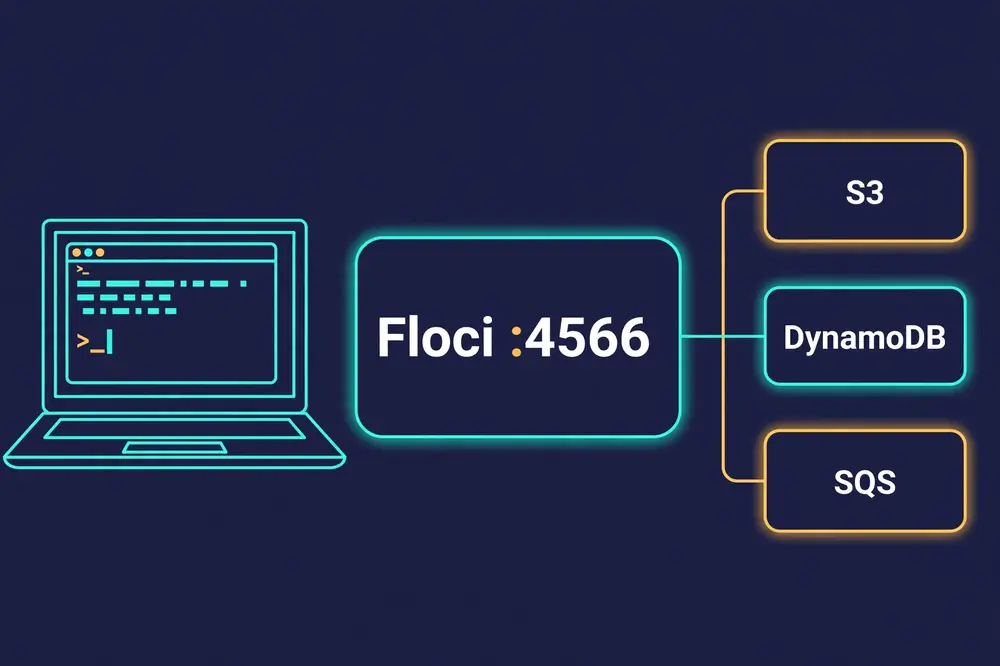
S3 in Floci is in-process, and it is one of the more complete emulations: versioning, multipart upload, pre-signed URLs, Object Lock, and event notifications all work. That is the shape of the whole project — the services that can be implemented as state machines over HTTP run inside the binary, and the services that need a real engine run a real container behind the same port. The next step uses the in-process half; Step 8 of the limits section tells you where the boundary is.
Step 3: Five services, one script — a small order pipeline#
A bucket proves the emulator answers. A pipeline proves it is useful. The script below is the smallest honest version of a real order flow: an order lands as JSON in S3, a message about it goes onto an SQS queue, the order is recorded in DynamoDB, and the app’s config and a database password come from SSM Parameter Store and Secrets Manager. Save it as floci_pipeline.py:
"""Floci end-to-end demo: S3 + SQS + DynamoDB + SSM + Secrets Manager.

Every call here is a standard boto3 operation pointed at the local
Floci endpoint (http://localhost:4566). Run it after `floci start`
(or the Docker Compose stack) with the environment from `floci env`
loaded. No AWS account, no real credentials: test/test.
"""

import json

import boto3

ENDPOINT = "http://localhost:4566"
REGION = "us-east-1"
CREDS = {"aws_access_key_id": "test", "aws_secret_access_key": "test"}

s3 = boto3.client("s3", endpoint_url=ENDPOINT, region_name=REGION, **CREDS)
sqs = boto3.client("sqs", endpoint_url=ENDPOINT, region_name=REGION, **CREDS)
dynamodb = boto3.client("dynamodb", endpoint_url=ENDPOINT, region_name=REGION, **CREDS)
ssm = boto3.client("ssm", endpoint_url=ENDPOINT, region_name=REGION, **CREDS)
secrets = boto3.client("secretsmanager", endpoint_url=ENDPOINT, region_name=REGION, **CREDS)

# --- S3: bucket + object -------------------------------------------------
s3.create_bucket(Bucket="floci-demo-orders")
order = {"order_id": "ord-1001", "customer": "ada", "total": 42.5, "items": 3}
s3.put_object(
    Bucket="floci-demo-orders",
    Key="orders/ord-1001.json",
    Body=json.dumps(order),
    ContentType="application/json",
)
print("S3:", s3.get_object(Bucket="floci-demo-orders", Key="orders/ord-1001.json")["Body"].read().decode())

# --- SQS: queue + message ------------------------------------------------
queue_url = sqs.create_queue(QueueName="orders")["QueueUrl"]
sqs.send_message(QueueUrl=queue_url, MessageBody=json.dumps({"order_id": "ord-1001"}))
msg = sqs.receive_message(QueueUrl=queue_url, MaxNumberOfMessages=1)["Messages"][0]
print("SQS:", msg["Body"])

# --- DynamoDB: table + item ----------------------------------------------
dynamodb.create_table(
    TableName="orders",
    AttributeDefinitions=[{"AttributeName": "pk", "AttributeType": "S"}],
    KeySchema=[{"AttributeName": "pk", "KeyType": "HASH"}],
    BillingMode="PAY_PER_REQUEST",
)
dynamodb.get_waiter("table_exists").wait(TableName="orders")
dynamodb.put_item(
    TableName="orders",
    Item={
        "pk": {"S": "ord-1001"},
        "customer": {"S": "ada"},
        "total": {"N": "42.5"},
        "status": {"S": "received"},
    },
)
item = dynamodb.get_item(TableName="orders", Key={"pk": {"S": "ord-1001"}})["Item"]
print("DynamoDB:", {k: list(v.values())[0] for k, v in item.items()})

# --- SSM Parameter Store + Secrets Manager --------------------------------
ssm.put_parameter(Name="/demo/app/message", Value="hello from floci", Type="String", Overwrite=True)
print("SSM:", ssm.get_parameter(Name="/demo/app/message")["Parameter"]["Value"])

secrets.create_secret(Name="demo/db-password", SecretString="not-a-real-password")
print("Secrets Manager:", secrets.get_secret_value(SecretId="demo/db-password")["SecretString"])

print("All five services answered. That is your local AWS.")
Run it:
python3 floci_pipeline.pyThe waiter on the DynamoDB table is deliberate, not decorative. On real AWS a table takes seconds to become active and put_item before that fails; Floci answers fast enough that you might never notice, but the waiter makes the script correct against both, which is the whole point of writing code against an emulator — the same script should run unchanged against the real account later. The same reasoning applies to the endpoint_url on every client: in production code that value comes from an environment variable (AWS_ENDPOINT_URL), and the only difference between local and real is whether the variable is set.
Three boto3 details in the script are easy to get wrong. First, SQS returns the queue URL from create_queue — you cannot guess it, because Floci builds it as http://localhost:4566/000000000000/orders, with the default account ID in the middle. Second, DynamoDB items are typed: {"S": "ada"} and {"N": "42.5"} are not optional decoration, they are the wire format, and Floci validates them the way AWS does. Third, the SSM example is the README’s own — put_parameter with Overwrite=True followed by get_parameter — because it is the shortest proof that the parameter store keeps state between calls.
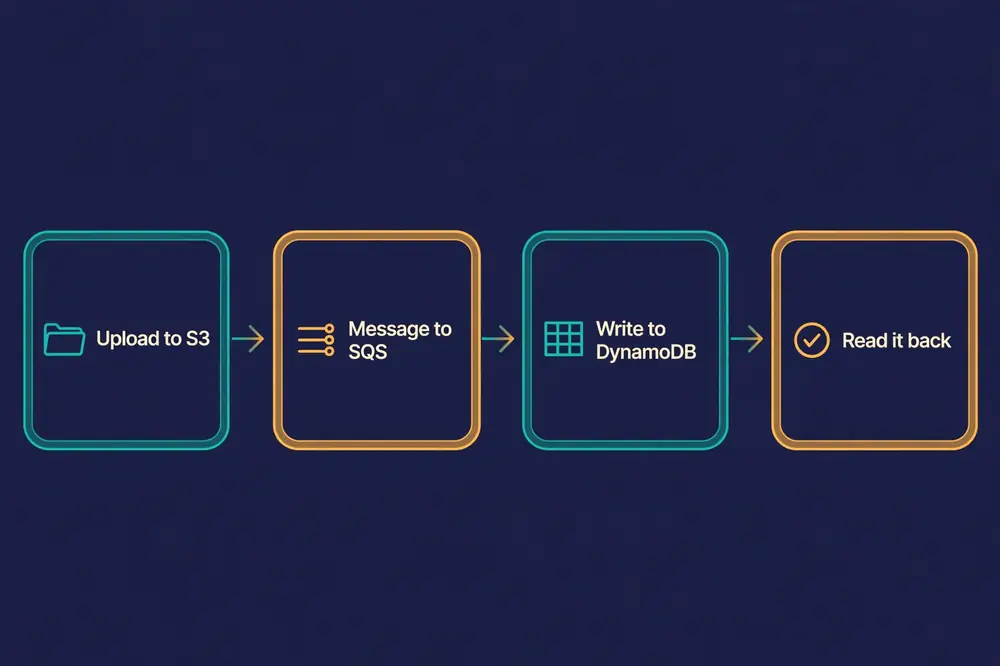
What you have at this point is a local AWS account with a bucket, a queue, a table, a parameter, and a secret in it — created by the same SDK calls your production code uses. That is the test that matters: if the code works here, the wiring is right, and the only thing left to verify against real AWS is behavior the emulator cannot promise, which the limits section covers.
Step 4: Look at it — the web console#
Floci ships a browser console for inspecting the resources in your local emulator. Open it at:
http://localhost:4566/_floci/uiNothing runs at boot: the first request pulls the console image, starts it as a sidecar container on Floci’s Docker network, and redirects your browser once the sidecar reports healthy. That means the console needs the Docker socket mounted — the Compose file with the /var/run/docker.sock volume from Step 1 — and it will not work at all on the native-binary route without Docker. The sidecar is floci/floci-ui:0.7.0, its port is published by Docker on 4500, and its logs are streamed into CloudWatch Logs under /floci/ui, which is a nice touch: the console’s own logs are visible through the emulator it inspects.
Two console behaviors are worth knowing before you rely on it. First, the sidecar stops when Floci stops unless you set FLOCI_SERVICES_UI_KEEP_RUNNING_ON_SHUTDOWN=true. Second, the console is not fixed to the one Floci ships: any console implementing the Floci console contract runs with nothing but an image name, via FLOCI_SERVICES_UI_IMAGE. That is a small detail, but it tells you something about how the project is built — the console is a client of the same HTTP API your code uses, not a privileged back door into the emulator’s state.
Step 5: Make state survive a restart#
By default Floci keeps everything in memory. Stop the container and the bucket, the queue, and the table from Step 3 are gone — which is exactly what you want in CI, and exactly what you do not want while developing. Floci trades speed for durability with FLOCI_STORAGE_MODE:
| Mode | Behavior | Best for |
|---|---|---|
memory | Entirely in RAM; data is lost when the container stops | CI and ephemeral tests |
persistent | Loaded at startup and flushed to disk immediately on every write | Simple local state preservation |
hybrid | In-memory performance with periodic async flushing every 5 seconds | Local development |
wal | Write-ahead log; every mutation is logged before responding | Maximum durability |
For day-to-day development, hybrid is the right default — state survives a restart, and the 5-second flush window costs almost nothing:
services:
  floci:
    image: floci/floci:2.4.0
    ports:
      - "4566:4566"
    volumes:
      - /var/run/docker.sock:/var/run/docker.sock
      - ./data:/app/data
    environment:
      - FLOCI_STORAGE_MODE=hybrid
Restart and check:
docker compose restart
aws s3 ls
aws dynamodb list-tables
The bucket and the table should both still be there. If you are coming from LocalStack, the equivalent of PERSISTENCE=1 is FLOCI_STORAGE_MODE=persistent — Floci translates the old variable automatically, which is one of several translations in Step 8. With the native binary, persistent state goes to your user data directory (~/.local/share/floci-aws on Linux) rather than the working directory, and FLOCI_STORAGE_PERSISTENT_PATH overrides it. One warning from the docs: two persistent binaries must not share a state path — give each its own FLOCI_STORAGE_PERSISTENT_PATH, or they will write the same state files.
Step 6: Two accounts, one emulator#
Real AWS work is multi-account, and Floci isolates accounts with no extra setup. If your access key ID is exactly 12 digits, Floci uses it as the account ID, and resources created by one account are invisible to another:
AWS_ACCESS_KEY_ID=111111111111 aws sqs create-queue --queue-name orders
AWS_ACCESS_KEY_ID=222222222222 aws sqs create-queue --queue-name orders
Both commands succeed, and each account sees only its own queue — same name, two queues, no collision. Any other key format, such as test or an AKIA… key, falls back to FLOCI_DEFAULT_ACCOUNT_ID, which defaults to 000000000000 (that is the account ID in the SQS queue URL from Step 3). STS temporary credentials are routed too: credentials from AssumeRole resolve to the assumed role’s account, so the cross-account assume-role-then-provision pattern works locally. That is the kind of thing that is painful to test against real AWS — it needs two accounts, an IAM trust policy, and a reason to get it wrong in production — and trivial here.
Step 7: Start Floci from inside your tests#
A shared emulator on port 4566 is fine for development. For tests it is the wrong shape: tests share state, leak into each other, and fight over the port. Floci’s answer is Testcontainers modules that start an isolated instance per test run and stop it afterwards. The Python module is testcontainers-floci 0.1.1:
pip install testcontainers-flociimport boto3
from floci import FlociContainer
def test_s3_create_bucket():
with FlociContainer() as floci:
s3 = boto3.client(
"s3",
endpoint_url=floci.get_endpoint(),
region_name=floci.get_region(),
aws_access_key_id=floci.get_access_key(),
aws_secret_access_key=floci.get_secret_key(),
)
s3.create_bucket(Bucket="my-bucket")The container starts, the test creates a bucket against it, and the with block tears the whole cloud down. No shared state, no manual daemon, no port conflicts. The same modules exist for Java (io.floci:testcontainers-floci 1.14.0 for Testcontainers 1.x, 2.15.0 for Testcontainers 2.x and Spring Boot 4.x), Node.js (@floci/testcontainers 0.1.0), and .NET; Go is in progress. In CI the same idea works as a service container — the project’s own docs show a GitHub Actions job with image: floci/floci on port 4566 and AWS_ENDPOINT_URL set, so every job gets an isolated cloud and teardown is free.
The compatibility numbers behind this are worth a line, because they are the reason to trust the Testcontainers route for real test suites: the project reports 2,576 automated compatibility tests across 5 SDKs (Java 1,326; Node.js 449; Python 311; Go 157; AWS CLI 205) and 3 IaC tools (Terraform 67, OpenTofu 41, CDK 20). Those are the project’s own figures, run against its own emulator — but the breadth is the point. A test that passes against Floci’s boto3 surface has been exercised by the same suite that checks the Java and Go surfaces too.
Step 8: Migrate from LocalStack in one diff#
If you already run LocalStack, Floci is designed as a drop-in replacement: the port, the credentials, the SDK configuration, and the CLI endpoint pattern all work the same way. The migration is mostly one line:
# Before
image: localstack/localstack
# After, standard image
image: floci/floci:latest
# After, if init scripts need AWS CLI or boto3
image: floci/floci:latest-compat
Use the latest-compat variant only if your init scripts call the AWS CLI or boto3 from inside the container; the standard image is identical in startup time and memory. LocalStack environment variables are translated automatically:
| LocalStack | Floci equivalent |
|---|---|
LOCALSTACK_HOST | FLOCI_HOSTNAME |
PERSISTENCE=1 | FLOCI_STORAGE_MODE=persistent |
LAMBDA_DOCKER_NETWORK | FLOCI_SERVICES_LAMBDA_DOCKER_NETWORK |
LAMBDA_REMOVE_CONTAINERS=1 | FLOCI_SERVICES_LAMBDA_EPHEMERAL=true |
DEBUG=1 | QUARKUS_LOG_LEVEL=DEBUG |
Init scripts mounted under /etc/localstack/init/ run unchanged, the /_localstack/init and /_localstack/health endpoints are still served, and the log ends with a LocalStack-style Ready. line — so tooling that watches the log for it, such as Testcontainers’ default wait strategy for LocalStackContainer, works unchanged. Set LOCALSTACK_PARITY=false to opt out of the automatic translation if you would rather see Floci’s own behavior. The honest version of “drop-in” is that the wire protocol and the port are the same, and the project went out of its way to keep the migration surface small — but read the limits section before you assume every LocalStack workflow ports without a second look.
Which approach should you use?#
| Approach | Use it when | What it costs you |
|---|---|---|
floci CLI | Day-to-day development on a machine with Docker; you want start/stop/env in three commands | One more CLI to install; Docker still required underneath |
| Docker Compose | The setup lives in a repo and teammates or CI must reproduce it exactly | You manage the env vars and the socket mount yourself; pin the tag |
| Native binary | No Docker, or you want the fastest start with nothing to pull | Container-backed services degrade without Docker; check the release actually ships the binary |
| Testcontainers | Tests that need an isolated cloud per run with no shared state | A container start per test run; Docker required |
| Stay on LocalStack | You need LocalStack Pro’s paid breadth, or your workflow depends on a Pro-only service | Auth token, account, and paid tiers for commercial use |
If you only adopt one of these, adopt the Compose file. It is the only route that is version-pinned, reproducible by a teammate, and identical in CI — and the floci start CLI is the same emulator underneath it for the days you just want to poke at something quickly. The native binary is the right answer on machines without Docker, with the caveat in Step 1. Testcontainers is the right answer inside a test suite, and the wrong answer everywhere else: an emulator that starts per test is a tool, not a development environment.
What Floci is not — the honest limits#
An emulator earns trust by saying where it stops, and Floci’s docs are unusually candid about it. Three limits matter most.
Without Docker, a third of the catalog degrades. Lambda, ECS, CodeBuild, Batch, SageMaker, Amazon MQ, Managed Flink, Redshift, the RDS Data API, Athena, the ECR registry, CodeArtifact, and Verified Permissions fail the request that needs a container; RDS, ElastiCache, MemoryDB, OpenSearch, Neptune, DocumentDB, MSK, EKS, Timestream, and EC2 keep their control plane but start no containers. If your workflow is “Lambda reads from SQS and writes to DynamoDB,” you need the socket mount from Step 1 — the in-process half alone will not run it.
Some services are stubs, and the docs label them as such. Bedrock Runtime returns dummy responses; Transcribe jobs complete immediately with no real audio processing; Textract returns dummy block data. That is fine for testing that your code calls the API and handles the response shape — it is not a test of the model, the transcription, or the extraction. The same applies to the headline performance figures: the project advertises ~24 ms startup and ~13 MiB idle memory against ~3.3 s and ~143 MiB for LocalStack Community. Those are the project’s own figures, and at least one independent hands-on check measured closer to ~130 ms than 24 ms. Fast either way — just not literally 24 ms on every machine.
Passing against an emulator does not prove the code behaves the same on real AWS. IAM evaluation, eventual consistency, throttling, service quotas, and regional behavior are all approximated or absent. Use Floci for what it is good at — the inner loop, the wiring, the test suite — and keep a real-account smoke test for the things only AWS can tell you. The emulator makes the cheap mistakes cheap; it does not make them impossible.
Troubleshooting: the failures you will actually hit#
floci startfails or the health check never answers. Runfloci doctor— it checks Docker, ports, and your environment. The most common cause is Docker not running, or port 4566 already taken by an old LocalStack container.docker pull floci/floci:latestfails on old Docker. The image layers use zstd compression, which needs Docker 23.0+. Upgrade Docker, or use the native binary route.- Lambda invocations fail but S3 works. Lambda needs the Docker socket. Add the
/var/run/docker.sockvolume anduser: rootfrom Step 1, and check the startup log for the warning naming the affected services. - Your data vanished after a restart. The default storage mode is
memory. SetFLOCI_STORAGE_MODE=hybridand mount a data volume, as in Step 5. - The native binary download 404s. The docs say every release ships binaries, but the 2.4.0 release page listed none when this guide was written. Use the Docker route and check the next release.
- Two accounts see each other’s resources. Account isolation only kicks in for exactly-12-digit access key IDs.
testfalls back to the shared default account000000000000. - The web console never loads. The console is a sidecar container: it needs the Docker socket mounted, and it pulls its image on first use. On a machine without Docker it will not start.
- A test passes locally and fails in CI. Check the image tag:
latestin CI may be a newer Floci than the one on your laptop. Pin the version in both places.
The takeaway#
The interesting thing about Floci is not the star count or the startup time. It is that the free local cloud exists again, under a license that cannot be taken back the way LocalStack Community was. A 31,000-star project with 128 services, no account, no token, and no paid tier is a piece of infrastructure you can build a workflow on without checking the pricing page first — and the migration from the thing it replaces is, deliberately, a one-line diff.
Install it with Compose, pin the version, put the S3 round trip in your onboarding docs, and run your test suite against it in CI. Keep the limits in mind — Docker-backed services need the socket, some AI services are stubs, and the emulator is not AWS — and it will do the job it is for: making the cheap mistakes cheap, on your own machine, before a real account ever sees them.
Frequently asked questions
Is Floci really free?
Yes. MIT-licensed, no account, no auth token, no telemetry, no paid tier or feature gates. Every supported service is available to everyone, and the source is on GitHub at floci-io/floci if you want to verify that rather than take the project’s word for it.
Do I need Docker?
For the recommended routes, yes — Docker 23.0+ for the image or the CLI. The native binary runs without Docker, but every container-backed service (Lambda, RDS, ElastiCache, MSK, ECS, EC2, EKS, OpenSearch, and more) degrades or fails without a Docker daemon to run against.
How is Floci different from LocalStack?
Same port (4566), same wire protocol, same SDK configuration — that is the point. The differences are the license (MIT vs. LocalStack’s restricted terms after the Community sunset), the price (free with no account vs. auth token and paid tiers for commercial use), and the size: a ~90 MB image and ~40 MB native binary against LocalStack’s ~1 GB image. LocalStack Pro still covers more services; Floci covers 128 and counting.
Can I use Floci in CI?
Yes — that is one of its main uses. Run it as a service container in GitHub Actions (the project’s docs show the job definition), or start an isolated instance per test run with the Testcontainers modules for Python, Java, Node.js, and .NET. There are no CI quotas or credits.
Does Floci work with Terraform and the CDK?
Yes. Terraform, OpenTofu, and the CDK all work by pointing the AWS provider at http://localhost:4566, and the project’s compatibility suite covers all three (67 Terraform tests, 41 OpenTofu, 20 CDK). There is a dedicated Terraform guide in the project docs.
What about Azure, GCP, and OCI?
The same team ships sister emulators: floci-az on port 4577 (32 services), floci-gcp on port 4588 (28 services), and floci-oci on port 4599 (11 services). One CLI — floci az start, floci gcp start, floci oci start — manages all four.
Sources
- floci-io/floci — GitHub repository — README: quick start, service list, Docker integration, storage modes, multi-account isolation, SDK examples, Testcontainers, compatibility tests, migration guide; 31,068 stars, MIT; read November 8, 2026.
- Installation — Floci docs — Docker, native binary (asset names, checksum verification, glibc 2.34+ requirement, Docker-optional behavior, state paths), build from source; read November 8, 2026.
- floci.io — CLI install,
floci start/floci env/floci doctor, 128 AWS services, sister emulators and ports; read November 8, 2026. - Release 2.4.0 — floci-io/floci — changelog, October 31, 2026; no binary assets attached as of November 8, 2026; read November 8, 2026.
- Floci: The Free, Open-Source LocalStack Alternative — dev.to — LocalStack Community sunset (March 23, 2026, version 2026.03.0), independent startup measurement (~130 ms vs. the advertised 24 ms); read November 8, 2026.
- Open-source Floci runs a local copy of AWS services on your own machine — zolna.uk — service model (real Docker containers vs. stubs), 2,576 compatibility tests, Bedrock Runtime dummy responses; read November 8, 2026.