Your laptop is the API: run a local LLM server with llama-cpp-python and a 398 MB GGUF model
llama-cpp-python turns a 398 MB GGUF model into a local OpenAI-compatible API: this guide loads Qwen2.5-0.5B on CPU, streams tokens, forces JSON-schema output, and serves it on localhost — with every command verified and one honest model failure included.
- Who: llama-cpp-python (MIT) — Python bindings for llama.cpp, maintained by abetlen.
- What: load a GGUF model in-process, stream tokens, force JSON-schema output, and serve an OpenAI-compatible API from localhost.
- When: verified October 30, 2026, on Python 3.12.3 with llama-cpp-python 0.3.35 and no GPU: Paris answer in 0.7 s of generation, a 9-chunk stream, and an SDK call that returned 7 for 3 + 4.
- Requirement: Python 3.10 or newer and about 500 MB of disk. No account, no API key, no GPU.

Why this matters now
Every agent framework you use already speaks the OpenAI chat API. That is the quiet reason a local model server is so useful: if your code can talk to an OpenAI-compatible endpoint, it can talk to a model running on your own machine with no code changes beyond the base URL. No API key, no per-token bill, no data leaving your laptop, and no outage on someone else's status page standing between you and your demo.
That is the gap this tutorial fills. The blog already covered Ollama, the appliance-style way to run open models from a terminal. This guide covers the other way: llama-cpp-python, the Python library that puts the same llama.cpp engine inside your own program. You load a GGUF model file, call it from Python, stream tokens as they arrive, force its output into a JSON schema, and — when you want other programs to use it — serve it behind an endpoint that any OpenAI client already understands. By the end, a 398 MB model file is answering HTTP requests on your localhost.
The model in this guide is deliberately tiny: Qwen2.5-0.5B-Instruct, quantized to Q4_K_M. It will not write your novel or reason through a hard problem. It is here because it runs anywhere, loads in seconds, and lets you learn every step — loading, prompting, streaming, structured output, serving — on a machine with no GPU. Every step below was run on a 2-core virtual machine with no GPU, and every output quoted is the output that run actually produced. When the small model gets something wrong, this guide says so; that failure is one of the most useful lessons in it.
What you'll need
- Python 3.10 or newer (tested with Python 3.12.3) and
pip. A C compiler helps if pip builds llama.cpp from source; see Step 1. - About 500 MB of free disk for the model file, plus a few hundred megabytes for the Python packages.
- No GPU, no account, and no API key — for anything in this guide.
- Versions used here:
llama-cpp-python0.3.35 and, for the client step only, the OpenAI Python SDK 3.41.0.
Step 1 — Install llama-cpp-python with the server extra
Create a project folder and a virtual environment first. Installing a package that compiles native code into your system Python is how you end up debugging someone else's environment for an afternoon; a virtual environment keeps the blast radius inside one folder.
mkdir local-llm-server && cd local-llm-server
python3 -m venv .venv
source .venv/bin/activate
pip install 'llama-cpp-python[server]'
The [server] part matters. The base package alone does not include the web server's dependencies: on the test machine, running the server from a base-only install failed first on a missing starlette_context module, then on a missing pydantic_settings module. Installing the [server] extra is the documented fix — do not chase the imports one by one. Note also that the default install builds llama.cpp from source, which takes a few minutes and needs a compiler. If you want a prebuilt CPU wheel instead, the project's README documents one via an extra package index for CPU builds; either route lands you the same llama_cpp package.
Verify the install before you go further:
python3 -c "import llama_cpp; print(llama_cpp.__version__)"
python3 -m llama_cpp.server --help | head -20
You should see a version number (0.3.35 here) and a long list of server flags, including --model, --model_alias, --chat_format, --host, --port, and --api_key. If the second command fails, you are on the base install — reinstall with [server].
Step 2 — Download one small GGUF model
GGUF is the file format llama.cpp loads: a single file holding the model's weights plus its metadata. The conversion used here comes from bartowski's Qwen2.5-0.5B-Instruct-GGUF repository, and the Q4_K_M quantization is the sweet spot for a demo — small enough to download quickly, accurate enough to follow instructions.
mkdir models
curl -L -o models/Qwen2.5-0.5B-Instruct-Q4_K_M.gguf \
  https://huggingface.co/bartowski/Qwen2.5-0.5B-Instruct-GGUF/resolve/main/Qwen2.5-0.5B-Instruct-Q4_K_M.gguf
ls -la models/
Expect a file of about 398 MB. If you would rather download from inside Python, the library offers that too — Llama.from_pretrained(repo_id="bartowski/Qwen2.5-0.5B-Instruct-GGUF", filename="*Q4_K_M.gguf") — but it needs the huggingface-hub package installed, and the plain curl download is easier to verify with ls. Either way, you now own the model file. Nobody can revoke it, rate-limit it, or change it under you.
Step 3 — Your first chat completion in Python
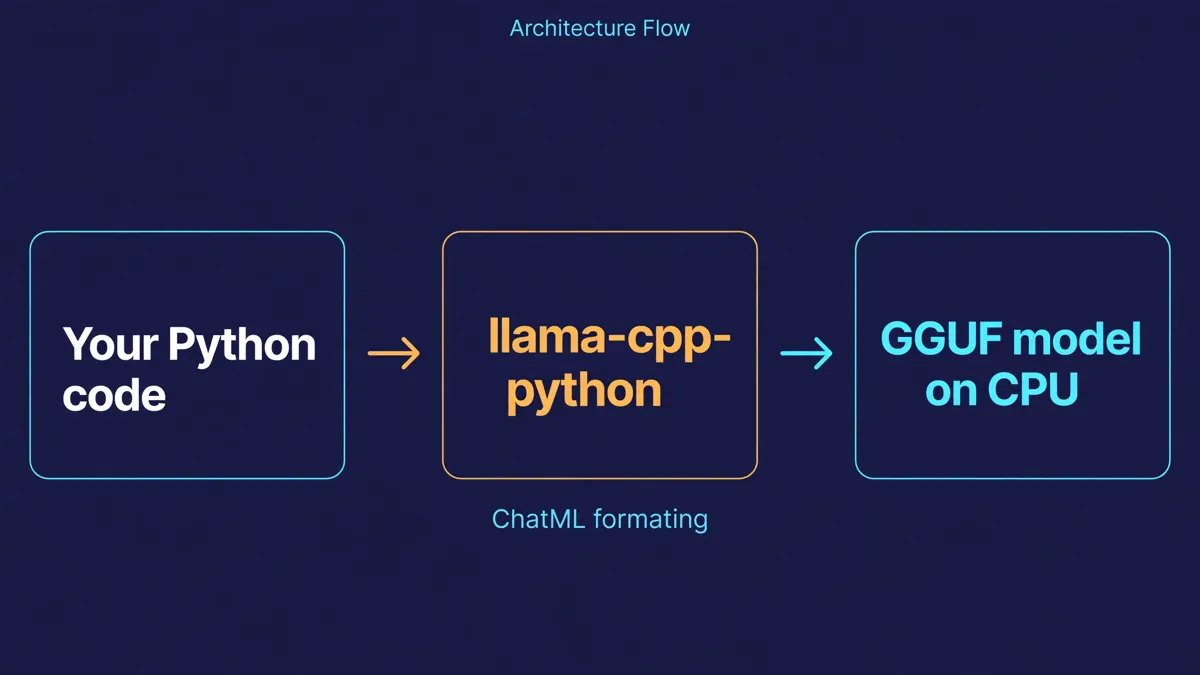
Save this as chat.py. Three choices in it deserve explanation, because getting any one of them wrong is the most common reason a first run looks broken. First, chat_format="chatml": Qwen2.5-Instruct models expect the ChatML prompt format, and this argument tells the library to wrap your messages in it. Skip it and the model receives raw text with no role markers, and its answers degrade accordingly. Second, n_ctx=2048: the library's default context window is 512 tokens, which is cramped for any real conversation; 2048 costs little on a half-billion-parameter model. Third, verbose=False: without it, the engine logs its load sequence to stderr on every run, which drowns your output.
from llama_cpp import Llama

llm = Llama(
    model_path="models/Qwen2.5-0.5B-Instruct-Q4_K_M.gguf",
    chat_format="chatml",
    verbose=False,
    n_ctx=2048,
)

out = llm.create_chat_completion(
    messages=[
        {"role": "system", "content": "You are a helpful assistant. Answer in one short sentence."},
        {"role": "user", "content": "What is the capital of France?"},
    ],
    max_tokens=64,
    temperature=0.0,
)

print(out["choices"][0]["message"]["content"])
print(out["usage"])
python3 chat.pyOn the test machine the run printed:
Paris is the capital of France.
{'prompt_tokens': 32, 'completion_tokens': 7, 'total_tokens': 39}
The whole script took 4.1 seconds including model load; the generation itself took 0.7 seconds, about 10 tokens per second. That is slow by cloud standards and entirely usable for a local tool. Two knobs matter most from here: temperature controls randomness (0.0 here, so the answer is repeatable), and max_tokens caps how long the model may ramble. Set max_tokens too low and answers get cut off mid-word; set it high and a chatty model will keep going after it has answered.
Step 4 — Stream tokens instead of waiting for the whole reply
Real chat interfaces do not wait for the full answer. They print each token as it arrives. The same call supports that with one flag, stream=True, which turns the return value into an iterator of chunks. Each chunk carries a delta with the next piece of text, and your job is to accumulate the pieces.
from llama_cpp import Llama

llm = Llama(
    model_path="models/Qwen2.5-0.5B-Instruct-Q4_K_M.gguf",
    chat_format="chatml",
    verbose=False,
    n_ctx=2048,
)

pieces = []
for chunk in llm.create_chat_completion(
    messages=[{"role": "user", "content": "Count from 1 to 5, one number per line."}],
    max_tokens=64,
    temperature=0.0,
    stream=True,
):
    delta = chunk["choices"][0]["delta"]
    if "content" in delta:
        pieces.append(delta["content"])

print(repr("".join(pieces)))
The output is exactly what you would hope for, and the chunk count tells you something about how the model tokenizes:
'1\n2\n3\n4\n5'Nine content chunks arrived — one per character, newlines included. In a real application you would print each piece as it arrives instead of collecting it, and you would check for the final chunk's finish reason rather than assuming the stream ends cleanly. Streaming changes nothing about quality; it changes perceived speed completely, which is why every serious local chat UI uses it.
Step 5 — Force the output into a JSON schema
Agents do not want prose; they want data they can parse. Asking a model nicely for JSON works until it doesn't — a stray sentence before the opening brace breaks json.loads. The library's JSON schema mode removes that failure class: you pass a schema, and generation itself is constrained so the output cannot leave the shape you specified.
import json
from llama_cpp import Llama

llm = Llama(
    model_path="models/Qwen2.5-0.5B-Instruct-Q4_K_M.gguf",
    chat_format="chatml",
    verbose=False,
    n_ctx=2048,
)

out = llm.create_chat_completion(
    messages=[
        {"role": "system", "content": "You are a helpful assistant that outputs in JSON."},
        {"role": "user", "content": "What is the capital of France?"},
    ],
    response_format={
        "type": "json_object",
        "schema": {
            "type": "object",
            "properties": {"capital": {"type": "string"}},
            "required": ["capital"],
        },
    },
    temperature=0.0,
    max_tokens=32,
)

raw = out["choices"][0]["message"]["content"]
print(raw)
print(json.loads(raw))
{"capital": "Paris"}
{'capital': 'Paris'}That is the happy path. Now the lesson that makes this step worth the whole tutorial: a schema guarantees the shape of the answer, not its truth. Asked the same way about a harder fact — who won the 2020 World Series, with a schema requiring exactly one team_name string — the same model returned perfectly valid JSON containing a wrong answer:
{"team_name": "New York Yankees"}The Yankees did not win the 2020 World Series; the Los Angeles Dodgers beat the Tampa Bay Rays 4–2. The JSON parsed, the schema held, every key was present — and the fact was false. A half-billion-parameter model is a weak fact store, and no output constraint fixes that. Treat schema-constrained output as a contract about format, then verify the contents the same way you would verify anything else a model tells you: against a source you trust, not against the parser.
Step 6 — Serve the model as an OpenAI-compatible API
Everything so far runs inside one Python process. The server step turns the same model into a service any program can use. Start it in one terminal:
python3 -m llama_cpp.server \
  --model models/Qwen2.5-0.5B-Instruct-Q4_K_M.gguf \
  --model_alias qwen2.5-0.5b \
  --chat_format chatml \
  --host 127.0.0.1 --port 8000
Two flags do real work here. --model_alias gives clients a clean model name; without it, the model list shows the full file path as the model id. --host 127.0.0.1 binds the server to your own machine only — keep it that way unless you have deliberately set --api_key and thought about your firewall, because the default server has no authentication.
From a second terminal, check that the server is alive and that it speaks the API you expect. The built-in docs page is the fastest smoke test:
curl -s http://127.0.0.1:8000/v1/models
curl -s -o /dev/null -w "%{http_code}\n" http://127.0.0.1:8000/docs
{"object": "list", "data": [{"id": "qwen2.5-0.5b", "object": "model", "owned_by": "me", "permissions": []}]}
200Now a chat completion over plain HTTP, exactly as an OpenAI client would send it:
curl -s -X POST http://127.0.0.1:8000/v1/chat/completions \
  -H 'Content-Type: application/json' \
  -d '{"model": "qwen2.5-0.5b",
       "messages": [{"role": "user", "content": "Say hello in one word."}],
       "max_tokens": 8, "temperature": 0}'
{"id": "chatcmpl-...", "object": "chat.completion", "created": 1793359243,
"model": "qwen2.5-0.5b",
"choices": [{"index": 0, "message": {"content": "Hello!", "role": "assistant"},
"logprobs": null, "finish_reason": "stop"}],
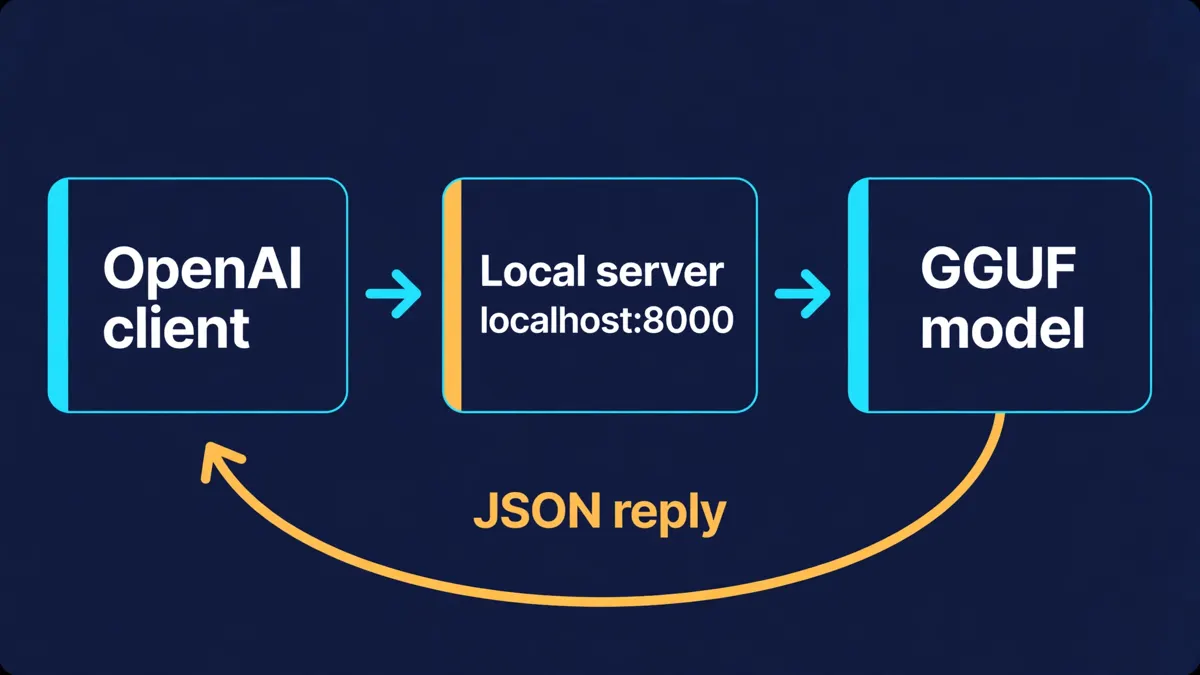
"usage": {"prompt_tokens": 19, "completion_tokens": 2, "total_tokens": 21}}That response shape is the whole point: it is indistinguishable in structure from a hosted API's response, which means existing client code works unchanged. The only change is the base URL and the API key, which the local server ignores. With the OpenAI Python SDK installed (pip install openai), the same call looks like this:
from openai import OpenAI

client = OpenAI(base_url="http://127.0.0.1:8000/v1", api_key="not-needed")
resp = client.chat.completions.create(
    model="qwen2.5-0.5b",
    messages=[{"role": "user", "content": "What is 3 + 4? Answer with just the number."}],
    max_tokens=8,
    temperature=0,
)
print(resp.choices[0].message.content)
print(resp.usage)
Verified against the local server, that printed 7 with usage of 27 prompt tokens and 1 completion token. Swap the base URL back to a hosted provider and the same code runs against a frontier model; swap it to localhost and it runs for free, offline, on your data. That interchangeability is the reason to learn this interface rather than a library-specific one.
Which approach should you use?
Three ways to run a local model, three different jobs:
| Approach | Use it when | Watch out for |
|---|---|---|
In-process Llama (Steps 3–5) | Your Python program is the only consumer and you want the lowest latency and full control over generation. | Only Python can reach it, and the model lives and dies with your process. |
| The built-in server (Step 6) | Several programs, languages, or teammates need the same model, or you want to swap models without touching client code. | It is another process to supervise, and it needs an API key and a firewall before it ever leaves localhost. |
| Ollama (covered separately) | You want a managed appliance: install, pull, run, with model management handled for you. | You trade control over prompts, grammars, and generation internals for that convenience. |
If you are building an agent or a tool, start in-process; the moment a second program wants the model, promote it to the server. If you just want to chat with open models from a terminal, Ollama remains the shorter path, and this blog's Ollama guide covers it end to end.
The limits, stated plainly
First, the model: 0.5 billion parameters is a teaching size. It follows simple instructions, answers easy facts, and fails at anything requiring real reasoning or reliable knowledge — the World Series error above is representative, not an outlier. When you outgrow it, the upgrade path is one string: point model_path at a bigger GGUF file (a 1.5B or 7B model from the same family) and rerun the same code. Check your RAM first; a 7B Q4 model needs roughly 4–5 GB free.
Second, the context window: 2048 tokens here is a choice, not a law. Longer contexts cost memory and slow the prompt-processing step; shorter ones truncate conversations silently when the limit is hit, so size it to your longest real input plus the answer.
Third, the server is a local development tool, not a production deployment. It has no rate limiting, no user accounts, and no TLS unless you configure it. Bind it to localhost, put a key on it if anything else on your network can reach it, and never paste a secret into a prompt you send to a model you do not control.
Finally, GGUF files are large binaries from the internet. Download them from publishers you recognize, check the file size against the listing, and treat an unexpected size as a reason to stop and re-check the URL — not as a detail to ignore.
The takeaway
A local model stops being a curiosity the moment it answers an HTTP request your existing code already knows how to send. With one library, one model file, and six steps, you have that: a Python object that chats, streams, and returns schema-valid JSON, and a server that offers the same to anything speaking the OpenAI API. Start with the tiny model to learn the interface. The interface is the durable part — the model behind it can grow whenever your machine, and your problem, is ready for it.
Sources and further reading
- llama-cpp-python — Python bindings for llama.cpp (installation, high-level API, chat completion, JSON schema mode, and the OpenAI-compatible web server).
- bartowski/Qwen2.5-0.5B-Instruct-GGUF (model files, including the Q4_K_M quantization used here).
- Run open models on your own machine: the complete Ollama hands-on guide (the appliance-style alternative discussed in this tutorial).