Route every AI coding agent to any model from one menu bar: hands-on with magpie
magpie (yetone/magpie, MIT, 3,100+ GitHub stars in its first week) is a tiny Go app that lists every AI agent on your machine and the model each one is set to — click a value, pick a model. We installed it, routed Codex to DeepSeek and Claude Code to Kimi, and wired its local gateway so any tool can draw from the same catalog.
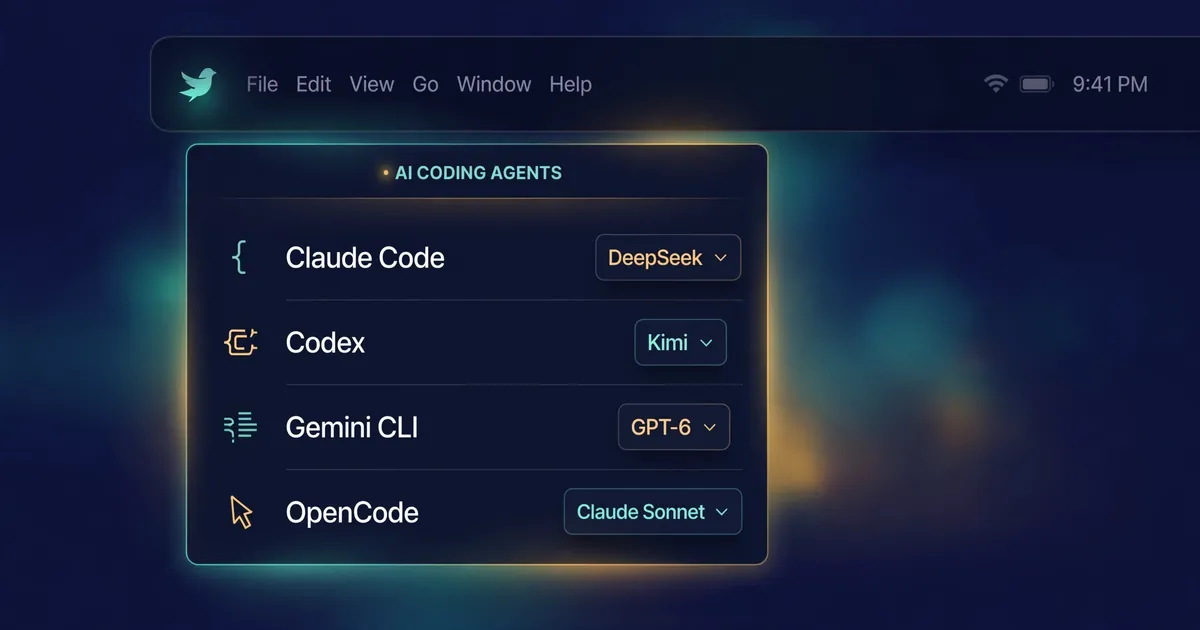
Every frontier coding agent ships with a default model, and each one buries the choice somewhere different: Claude Code in ~/.claude/settings.json, Codex in ~/.codex/config.toml, Gemini CLI in ~/.gemini/settings.json, OpenCode in ~/.config/opencode/opencode.json. So the day a cheaper or faster model lands — the day you decide Codex should run on DeepSeek and Claude Code on Kimi — you're hand-editing four config files in three formats, hoping you don't break the JSON. magpie (yetone/magpie, MIT, 3,100+ GitHub stars in its first week) replaces all of that with one screen: every AI agent on your machine and the model each one is set to. Click a value, pick a model. We installed it, routed three agents to three different vendors through it, and wired up the local gateway it ships so even tools that aren't agents can draw from the same model catalog. Every command below comes from the project's own README.
What you'll need#
- A macOS, Linux, or Windows machine. The desktop app uses the system webview through Wails — on Linux, the app build needs WebKitGTK 4.1; otherwise the terminal-only build does everything.
- At least one supported agent installed: Claude Code, Codex, Gemini CLI, OpenCode, Cursor CLI, Copilot CLI, or any of the 20+ others it detects.
- One API key from a vendor (DeepSeek, Kimi, OpenRouter, OpenAI, Anthropic…) — or an agent you're already signed into, like Claude Code or Codex, which magpie can reuse as a provider.
- About five minutes.
Step 1: Install — one binary, under 15 MB#
curl -fsSL https://usemagpie.ai/install.sh | shThat downloads the app for macOS, Windows, or Linux. It's small on purpose: under 15 MB with the desktop app (nothing bundled — it rides the system webview) and 7 MB for the terminal-only build. Prefer Go?
go install github.com/yetone/magpie@latestEvery release is published at yetone/magpie-releases, and each build keeps itself current — the app downloads updates in the background, and magpie update does the same from a terminal. Two caveats from the README, stated plainly: Mac builds are signed and notarised, but the Windows and Linux builds are not signed yet, so Windows SmartScreen may ask before the first run. And everything below works the same on all three platforms.
Step 2: See every agent on your machine at once#
magpie lsThis lists each detected agent and its current settings — the whole fleet, one page. For the full interactive version in the terminal:
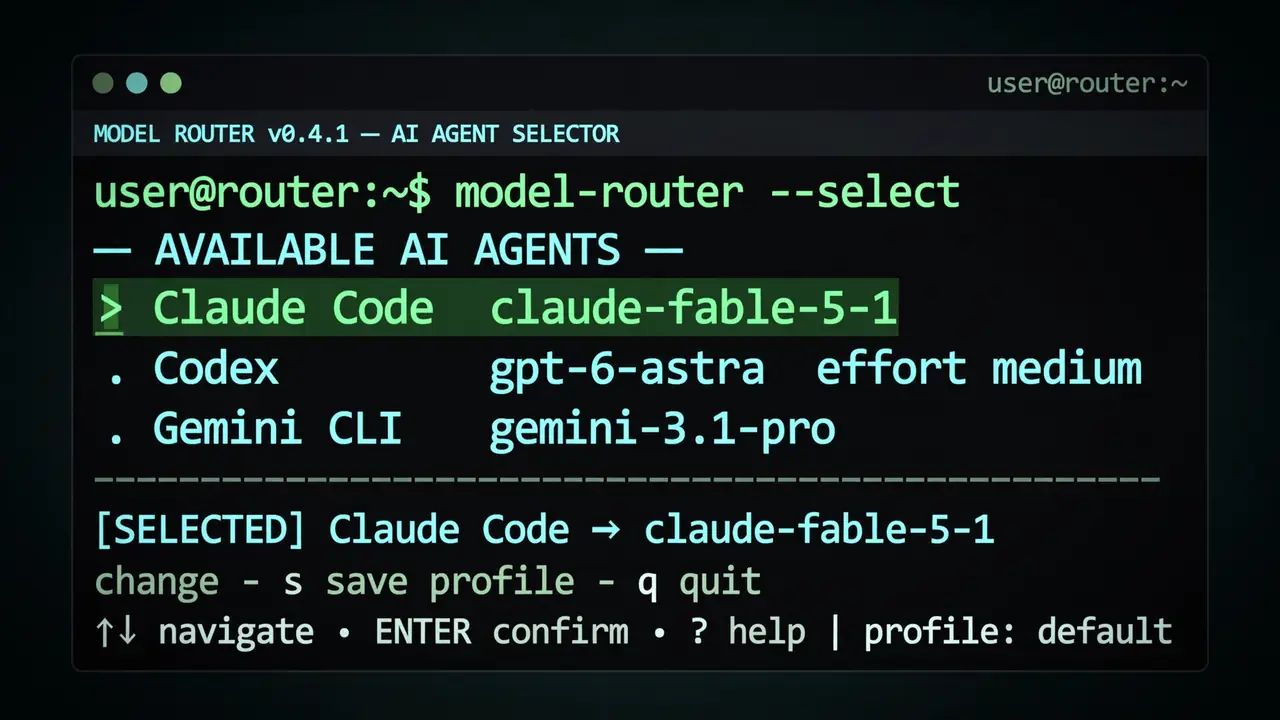
magpie tuiArrow keys pick an agent, left/right pick a field (model, effort, small), Enter opens the picker, s saves a profile, q quits. Or just run magpie — a window plus the menu bar icon (use magpie tray for the icon alone, handy in login items). This first view is the one that sells the tool: rows of agents with their models, and nothing to configure yet. What magpie finds on your machine is what it manages — it detects configs, never asks you to declare them.
Step 3: Add a provider — one field, nothing more#
In the app, the Providers tab shows presets as tiles: Anthropic, OpenAI, Gemini, DeepSeek, Kimi, GLM, MiniMax, StepFun, Qwen, Baidu Qianfan, Tencent Cloud Token Plan, Huawei Cloud MaaS, Volcengine Ark, Mistral, Groq, xAI, OpenRouter, Together, Fireworks, SiliconFlow, NVIDIA NIM, ModelScope, AiHubMix, 302.AI, Ollama, LM Studio… Pick one, paste a key, done. A custom vendor needs only a name and a base URL.
Two things worth knowing, both straight from the docs. First: with a key in hand, magpie asks the vendor which models it actually serves and offers exactly those — the models.dev catalog fills in names and reasoning efforts for vendors with no list, and refreshes itself in the background when it goes stale. A model released this morning is in your picker on the next refresh. Second: magpie never reads keys from your shell environment — keys live in ~/.config/magpie/providers.json with 0600 permissions.
Terminal alternative — an import link, which any vendor can hand to its users:
magpie import "magpie://import?preset=deepseek&key=sk-…"Opening the link shows you exactly what it would add — the name, the hosts your prompts and key would go to, the models. Nothing is saved until you press Add.
Step 4: Point each agent at any model — the payoff#
This is the whole tutorial in three commands:
magpie codex deepseek/deepseek-chat
magpie claude moonshot/kimi-k2.5
magpie claude opus
Agent names accept prefixes (cc, oc, gem), and effort levels too: magpie codex effort high, or bare magpie codex xhigh. Under the hood, magpie edits each agent's config file surgically: only the key you changed is touched — comments, ordering, and indentation in your settings.json, config.toml, opencode.jsonc, or config.yaml survive intact, and writes are atomic. Claude Code gets the gateway variables in the env block of settings.json; Codex gets a [model_providers.magpie] table and a model_catalog_json so the models show in Codex's own list; OpenCode, Pi, and Crush get a magpie provider entry and magpie/provider/model ids.
One behavioral fact the README is explicit about: agents read their config at startup, so a running session keeps its old model until you start a new one. Switching is instant; the new model only appears in fresh sessions.
Also useful: under an agent's name, "Showing 5 / 32 models" opens that agent's own model list — click to take a model out of that agent's picker (Codex's /model included) or put it back. Other agents are unaffected, and new models appear automatically.
Step 5: Share the models with anything — the local gateway#
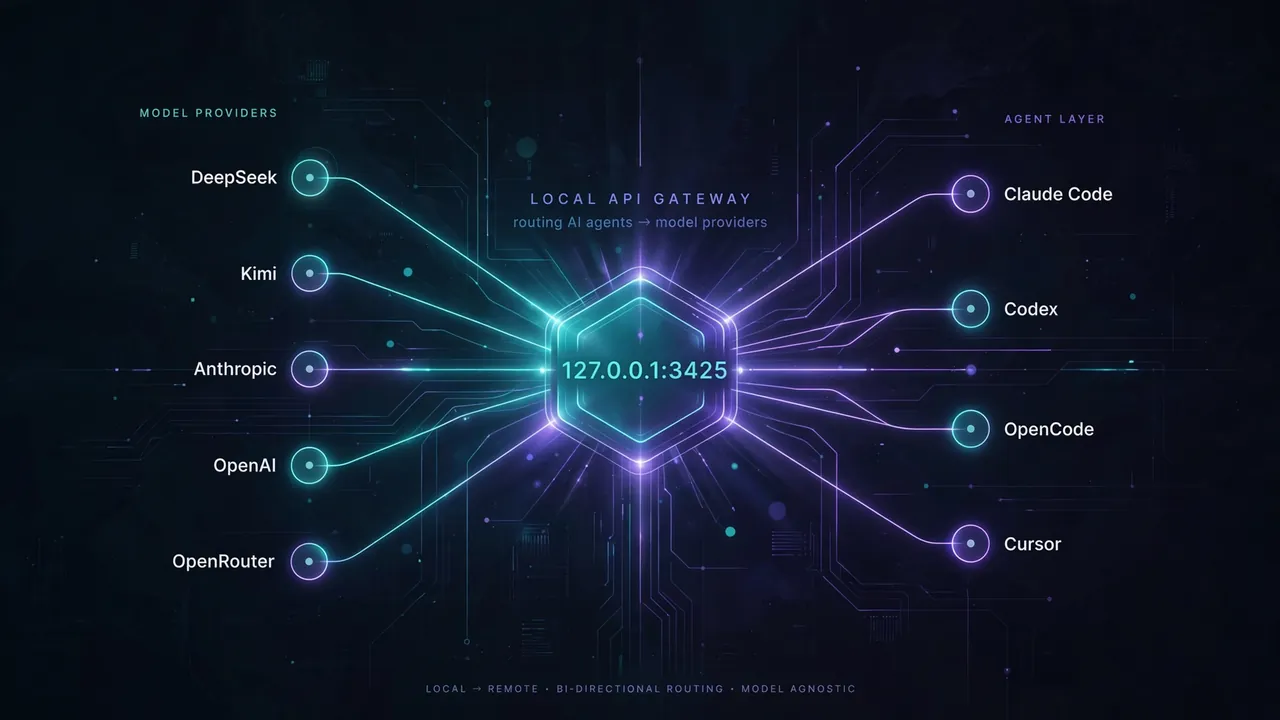
magpie runs a local gateway that speaks OpenAI chat completions, OpenAI Responses, the Anthropic Messages API, and Google's Gemini API — and translates between them, streaming, tool calls, and reasoning included. Every agent points at http://127.0.0.1:3425/v1 and picks from one catalog. But the gateway is also useful on its own: magpie serve runs it without the app, and then any tool with a base-URL setting can draw from your providers:
export OPENAI_BASE_URL=http://127.0.0.1:3425/v1
export OPENAI_API_KEY=magpie   # any value works — it only listens on loopback
Models are named provider/model: deepseek/deepseek-chat, openrouter/z-ai/glm-5.2:batch. The Gateway tab in the app has copy buttons and ready-made snippets for shell, curl, Python, and Node per API, the full model-id list, and a recent-calls log. For debugging, MAGPIE_DEBUG=1 logs every translated call to the terminal (MAGPIE_ADDR moves the port).
The cleverest trick: an agent you're signed in to becomes a provider. Claude Code (OAuth in the macOS Keychain or ~/.claude/.credentials.json), Codex (ChatGPT login in ~/.codex/auth.json), and Copilot (GitHub login) show up in magpie providers as signed in as … — and their models, spelled claude/claude-sonnet-5 or codex/gpt-5.5, appear in every other agent's picker. Nothing is copied, no key to paste, and magpie refreshes tokens the way the agent itself does. (For Claude subscriptions, magpie drives the genuine local claude binary per generation — so Claude Code must be installed and signed in.)
Step 6: Snapshot the whole fleet with profiles#
magpie save work     # snapshot every agent's settings under a name
magpie use work      # switch everything back in one move
magpie profiles      # list profiles
magpie sync          # refresh the models.dev catalog + every live model list
This is where the tool earns a permanent place: keep a cheap profile (Codex on DeepSeek, Claude Code on Kimi) and a flagship profile, and flip the whole fleet with one command when a task deserves the big model. Moving to another machine?
magpie backup                      # encrypted backup incl. keys; asks for a passphrase
magpie backup --no-keys ~/b.backup # same, keys left out
magpie restore magpie.magpie-backup
The backup holds providers, settings, profiles, every agent's model, plus the instruction sets, MCP servers, and skills library (files over 2 MB skipped). It's encrypted on your machine — AES-256-GCM, key derived from the passphrase with PBKDF2-SHA256 — and subscriptions aren't in it; sign in to those on each machine.
What you built#
One place where every AI agent's model is visible and switchable — from the menu bar, the terminal, or a single CLI command — plus a local translation gateway on 127.0.0.1:3425 that lets any base-URL-aware tool pull from the same providers, with signed-in subscriptions (Claude Code, Codex, Copilot) shared as providers and the whole setup snapshotted into one-command profiles. Config edits stay surgical and atomic; model lists refresh themselves from the vendors.
Honest limitations#
- Young project. magpie was created September 23, 2026 and passed 3,100 stars in its first week, with 34 open issues at the time of writing. Expect rough edges and fast-moving APIs — run
magpie updateormagpie syncwhen something looks stale. - Unsigned Windows/Linux builds. Mac releases are signed and notarised; the others aren't yet, so expect a SmartScreen prompt or a manual approval on first launch.
- Running sessions don't switch. Agents read their config at startup — after
magpie codex …, finish the current session and start a new one. - The gateway trusts loopback. Until you enable LAN sharing (Settings → Share on local network, or
"lan": true, "lanKey": "sk-magpie-…"in settings), it accepts any API key value — so keep it on127.0.0.1and don't publish the port past the loopback interface. - Subscription quirks. Claude-subscription routing requires the real
claudebinary installed and signed in. Gemini CLI's Google sign-in no longer works for individual accounts — it needs Code Assist Standard or Enterprise plus a named Google Cloud project. Antigravity accounts can be suspended if used outside Antigravity; magpie asks before adding one. - One daily ping. A running magpie sends one anonymous stats event a day to PostHog (random install id, version, OS/arch — no prompts, keys, or usage). Turn it off in Settings → Privacy → Count me as a user, or with
DO_NOT_TRACK=1orMAGPIE_NO_STATS=1. Builds from source never send it.