Render text-perfect images on your own GPU: a hands-on guide to MOSS-Image
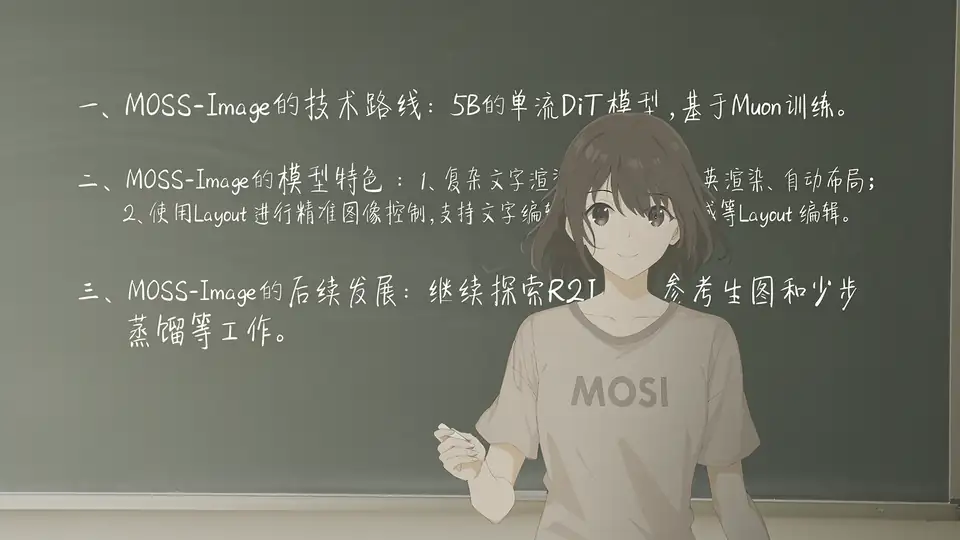
OpenMOSS/MOSS-Image (867 stars on 2026-10-19, Apache-2.0) is a 5B-parameter open image model that renders legible text in pictures — posters, whiteboards, sticky notes — and pins text and objects to exact positions with JSON layouts. Released 2026-10-16 with Base and SFT weights, it runs on your own GPU via diffusers, Gradio, ComfyUI, SGLang or vLLM-Omni. Hands-on: the install, your first generation, the recommended sampling settings, layout-controlled posters, and the prompt-enhancer skill.
- Repo: OpenMOSS/MOSS-Image — “a 5B-parameter base DiT model”, launched 2026-10-16, 867 GitHub stars by 2026-10-19; license Apache-2.0
- Two weights: MOSS-Image-Base (base text-to-image) and MOSS-Image-SFT (fine-tuned on curated data; clearer text grouping and more organized layouts); mirrors on Hugging Face (OpenMOSS-Team) and ModelScope
- Recommended sampling: Flow-matching Euler, 50 steps, CFG 3.0, shift 5.0, Skip-Layer-Guidance layer 22; resolutions at 1M/1.5M/2M pixels, dimensions in multiples of 16
- Layout control (experimental): JSON
summary/itemsformat;bbox_formatyxyx ([y_min, x_min, y_max, x_max]); coordinates centered on the canvas - Ecosystem: day-0 support in SGLang, vLLM-Omni and ComfyUI (ComfyUI Manager plugin); native Gradio app; prompt-enhancer agent skill; technical report on arXiv 2026-10-19 (2610.23374)
Ask an image model for a poster and you get a beautiful layout with beautiful gibberish where the words should be. For years, legible rendered text was the reliable tell that separated a real graphic from an AI one. MOSS-Image, released by OpenMOSS on 2026-10-16, attacks exactly that weakness: a 5B-parameter open (Apache-2.0) diffusion model built to render accurate text, hold a layout you specify in JSON, and chew through prompts up to 4K tokens — all on your own GPU.
It picked up 867 GitHub stars in three days, and the ecosystem moved fast: day-0 support landed in SGLang, vLLM-Omni and ComfyUI, with a technical report on arXiv the same week. Here is how to run it yourself, from a bare checkout to a layout-controlled poster.
What you’ll need
- Linux or macOS with a CUDA-capable GPU and Python 3 (the README ships a
requirements.txt) git, and enough disk for the model weights (two variants on Hugging Face:OpenMOSS-Team/MOSS-Image-BaseandOpenMOSS-Team/MOSS-Image-SFT)- Roughly fifteen minutes, most of it the first model download
Step 1 — Clone the repo and install
git clone https://github.com/OpenMOSS/MOSS-Image.git
cd MOSS-Image
python -m venv .venv
source .venv/bin/activate

pip install -r requirements.txt
That is the entire install: a checkout, a virtualenv, and one pip install. No compiled extensions, no Docker image, no API key — the weights are pulled from Hugging Face on first run. There are mirrors on ModelScope too if Hugging Face is slow from your region.
Step 2 — Generate your first image with the Python API
MOSS-Image ships a diffusers-compatible custom pipeline. This is the README’s quickstart, pointed at a text-heavy poster — the thing this model exists to do:
import torch
from diffusers import DiffusionPipeline

pipe = DiffusionPipeline.from_pretrained(
    "OpenMOSS-Team/MOSS-Image-Base",
    custom_pipeline="pipeline_moss_image",
    trust_remote_code=True,
    torch_dtype={"default": torch.bfloat16, "vae": torch.float32},
)
pipe.scheduler = type(pipe.scheduler).from_config(pipe.scheduler.config)
pipe.to("cuda")

prompt = (
    "A minimalist travel poster, cream background. "
    "A flat blue mountain illustration in the lower half. "
    'Large dark-blue uppercase title at the top: "EXPLORE"'
)

image = pipe(
    prompt,
    height=1024,
    width=1024,
    num_inference_steps=50,
    guidance_scale=3.0,
    uncond_skip_layers=[22],
    generator=torch.Generator("cpu").manual_seed(42),
).images[0]
image.save("explore_poster.png")
Three details worth noticing. First, trust_remote_code=True and the custom_pipeline are required — this is not a stock Stable Diffusion pipeline. Second, torch_dtype keeps the VAE in float32 while the diffusion backbone runs in bfloat16. Third, the seed is fixed with a CPU generator, so you can re-run the exact same image while you tune settings in the next step.
Step 3 — Dial in the sampling settings
Unlike the SFT weights, MOSS-Image-Base deliberately ships without any post-training of the inference parameters — the team kept the full training signal intact so the community can train LoRAs cleanly. The trade-off: you have to set the dials yourself. The user guide gives exact recommendations:
# resolution: 1M, 1.5M or 2M pixels; dimensions must be multiples of 16
height, width = 1024, 1024      # 1M pixels

num_inference_steps = 50        # >= 50 for best results
guidance_scale = 3.0            # recommended range 3.0-6.0; 3.0 suits long prompts
# shift = 5.0                   # flow-matching shift, default
# sampler: Flow-matching Euler (default)
uncond_skip_layers = [22]       # Skip-Layer Guidance; layers 22, 24, 26 all help
Two more levers from the guide: a negative prompt like nsfw, worst quality, bad anatomy, watermark, jpeg artifact still helps, and for short prompts you may want CFG a touch above 3.0. English prompts have the most training data, though Chinese is supported — and if the model renders your line breaks in the wrong place, write \n or real newlines straight into the prompt to pin them down.
Step 4 — Run the Gradio UI
pip install -e '.[ui]'
python gradio_app.py --model OpenMOSS-Team/MOSS-Image-Base
The app exposes the same settings in a browser, plus three memory modes in Advanced settings when your GPU runs short: GPU resident keeps everything on the card, Component shuttles pieces between CPU and GPU, and Sequential trades the most speed for the least memory. Two gotchas from the docs: turn down the image size if you still run out of memory, and Compile DiT is disabled by default and unavailable in Sequential mode.
Step 5 — Control the layout with JSON
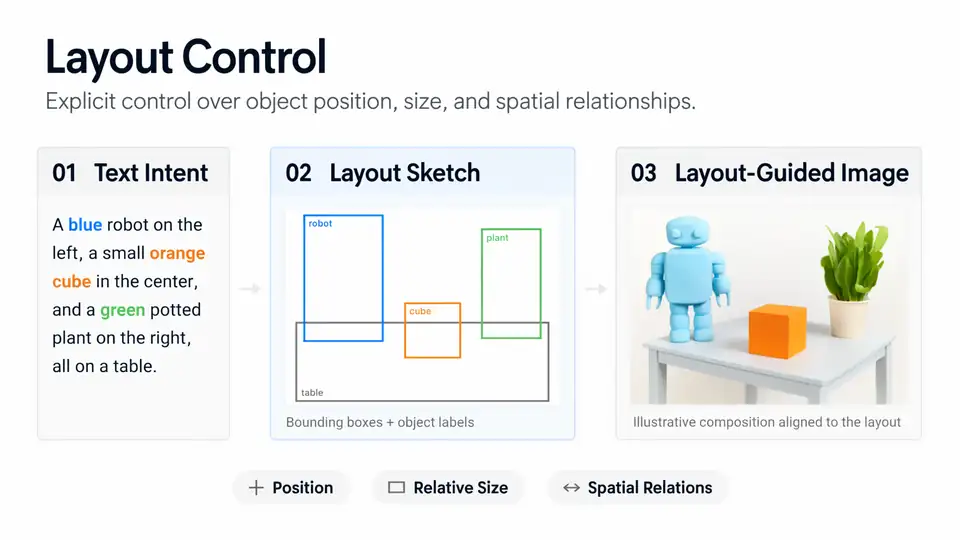
This is the experimental superpower: instead of begging the model to put the title at the top, you pin it there. Save this as layout.json (the README’s own example, on a 1024×1024 canvas):
{
  "summary": {
    "meta": ["poster"],
    "canvas": "single",
    "caption": "A minimalist travel poster with a cream background, a blue mountain illustration, and the title EXPLORE at the top."
  },
  "items": [
    {
      "label": "text",
      "caption": "Large dark-blue uppercase title centered at the top.",
      "text": "EXPLORE",
      "bbox": [-416, -384, -288, 384]
    },
    {
      "label": "object",
      "caption": "A flat blue mountain illustration in the lower center.",
      "bbox": [-192, -288, 384, 288]
    }
  ],
  "bbox_coord_space": "abs_centralized",
  "bbox_format": "yxyx"
}
The coordinate system takes a moment to internalize: it is absolute pixels centered on the canvas, so a 1024×1024 canvas runs from −512 to +512 on each axis (subtract W/2 and H/2 from ordinary top-left coordinates to convert). The bbox_format is yxyx — [y_min, x_min, y_max, x_max]. Paste the JSON into the prompt field of the Gradio app with matching dimensions, or pass it through the Python API as a string:
import json

layout = json.load(open("layout.json"))
image = pipe(
    json.dumps(layout, ensure_ascii=False),
    height=1024,
    width=1024,
    num_inference_steps=50,
    guidance_scale=3.0,
    uncond_skip_layers=[22],
).images[0]
image.save("explore_layout.png")
You can mix natural language and structured input, and the model even supports controlled editing: change the text, the element descriptions, or the bounding boxes to adjust content and composition directly.
Step 6 — Plug it into your stack
Three integrations cover the common shapes of use. For interactive noodling, search for MOSS-Image in ComfyUI Manager and install the native plugin (the repo ships an example workflow under comfyui/). For serving, the model had day-0 recipes in SGLang and vLLM-Omni. And if writing layout JSON by hand feels like CAD work, the repo ships a prompt-enhancer skill: copy the skills/moss-image-prompt-enhancer folder into your agent’s skills directory, invoke $moss-image-prompt-enhancer with your idea and canvas size, and paste the compiled result into the positive prompt — with the same generation dimensions when it produced a layout.
What you built — and the honest limitations
You built a local, open-weights image pipeline that does the one thing most models fumble: text you can actually read, positioned where you said. The README’s own highlights are the 5B backbone (compact for an image model), up to 4K-token prompts, anime and photorealistic styles, and easy fine-tuning — if you train a LoRA on the Base weights, keep the text encoder frozen.
The limitations, straight from the project’s docs: MOSS-Image-Base is deliberately un-distilled, so you must bring your own sampling settings — bad settings give bad images. Layout control is explicitly experimental. The docs publish no minimum VRAM number; the three memory modes exist precisely because GPUs vary, so budget time for the Component/Sequential trade-off on smaller cards. Some announced directions (reference-based generation, GIF generation via simple SFT) are still “stay tuned,” not shipped. And the model was trained on alternative GPU platforms — you run it on yours, with diffusers, and your mileage on fp16 vs bf16 behavior may vary. Test typography carefully before you ship a client poster.
Frequently asked questions
Should I use the Base or the SFT weights?
For most people, the SFT weights: they are fine-tuned from the Base model on curated data and produce clearer text grouping and more organized layouts. The Base model keeps the full training signal untouched (no post-training of inference parameters), which makes it the cleaner target if you plan to train your own LoRA — just keep the text encoder frozen.
What GPU do I actually need?
The docs don’t publish a minimum VRAM number. You get three memory modes in the Gradio app: GPU resident keeps the whole model on the card, Component shuttles pieces between CPU and GPU, and Sequential trades the most speed for the least memory. If you still run out, drop the image size — valid outputs range from 512×512 up to about 2K total pixels.
Why are the layout coordinates negative?
The layout system uses absolute pixel coordinates centered on the canvas, so on a 1024×1024 canvas each axis runs from −512 to +512. Convert ordinary top-left coordinates by subtracting half the width and half the height. The box order is yxyx — [y_min, x_min, y_max, x_max] — and the feature is still experimental, so expect rough edges.