Build a voice agent with ElevenLabs: from first call to a working website widget
ElevenLabs’ ElevenAgents turns a system prompt into a voice agent that answers the phone and your website. This tutorial builds one end to end — dashboard or API, a knowledge base, a real order-lookup tool, and an embeddable widget — on the free tier.
- ElevenAgents (formerly Conversational AI) is ElevenLabs' hosted voice-agent platform; agents work over the web, phone, WhatsApp, and mobile apps.
- Default pipeline: Scribe v3 transcribes, Gemini 2.5 Flash reasons, Eleven v3 Conversational speaks (voice “Jessica”) — every stage is configurable; this tutorial uses Eleven v4 for speech.
- Free tier: 15 call minutes a month, 4 concurrent calls, no limit on the number of agents — enough to build and test everything here.
- The Python SDK (elevenlabs 2.78.0) and the JavaScript client (@elevenlabs/client 1.36.0) were verified in a sandbox with a mocked transport; the one live call you must make yourself is creating the agent with your own key.
- The gotcha to remember: pass the agent configuration as plain dicts, as the official docs do — the typed PromptAgentApiModelInput class fails the SDK's own validation for this call.

A voice agent used to mean stitching three systems together yourself: a speech recognizer, a language model, and a voice synthesizer — plus the phone lines. ElevenLabs' ElevenAgents hosts the whole loop, and after the company's November 11 summit the pipeline runs on new models: Scribe v3 for transcription, Gemini 2.5 Flash for reasoning, and Eleven v4 for speech. This tutorial builds a working support agent end to end — in the dashboard or with the Python SDK, with a knowledge base, a real order-lookup tool, and a widget on your own site — on the free tier.
The example agent is Maya, a support agent for Ridgeway Cycles, a fictional neighbourhood bike shop. She answers questions, looks up real orders through a webhook, and knows the shop's policies from a knowledge base. Swap in your own business and the same steps apply: the shape of the work is identical whether you sell bikes, book appointments, or triage support tickets.
What you'll need#
- An ElevenLabs account (free). Sign up at elevenlabs.io. The free tier includes 15 call minutes a month and 4 concurrent calls — enough to build and test everything here.
- An API key, for the SDK route in Step 3. Create one at
elevenlabs.io/app/api/api-keysand store it asELEVENLABS_API_KEYin a.envfile. Never put it in client-side code — the docs are blunt about that, and Step 6 shows the safe pattern. - Python 3.12+ with pip, for the SDK and the webhook server. Node.js 20+ is needed only for the website-widget step.
- A public URL for your webhook in Step 5 — ngrok, Cloudflare Tunnel, or any server you control. ElevenLabs calls your server over the internet, so
localhostalone won't do. - No GPU, no telephony account, no credit card. Phone numbers are optional; everything here is tested over the web widget.
Step 1: How the loop works#
Every turn of a conversation runs the same five-stage loop. The defaults come from ElevenLabs' own architecture table; every stage is configurable.
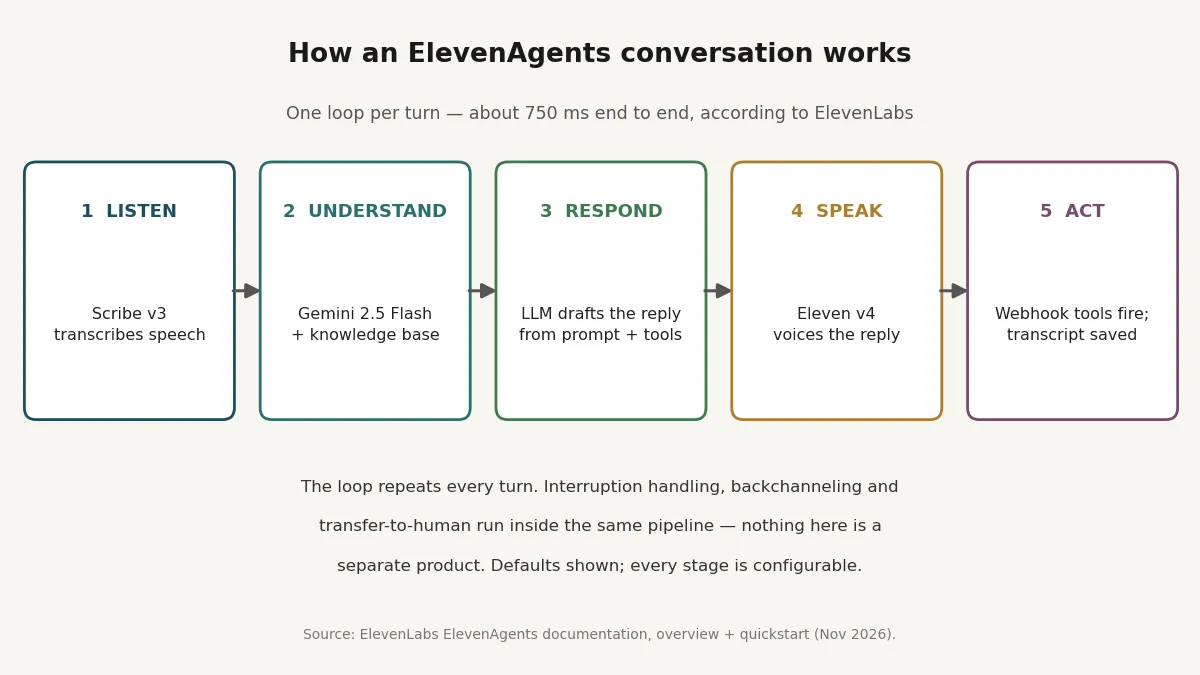
Listen. Scribe v3 transcribes the caller's speech — 99 languages, with diarization and word-level timestamps in the standalone API. In the agent pipeline it runs alongside Eleven Turbo v2.5 for real-time transcription.
Understand. The LLM — Gemini 2.5 Flash by default — reads the transcript with context from the knowledge base, memory, and tools, and decides what to do next.
Respond. The LLM drafts the reply from the system prompt, the knowledge base, and whatever the tools returned.
Speak. Eleven v3 Conversational voices the reply by default; this tutorial uses Eleven v4, the flagship model, which ElevenLabs prices at 50% below v3. ElevenLabs cites about 750 ms average end-to-end latency for the loop and 99% uptime for the platform.
Act. The agent can fire webhook tools, send data to other systems, and end the call — then the transcript, summary, and analysis are saved to call history.
One more distinction matters before you build: ElevenAgents has two voice modes. Custom mode wires a separate TTS model and LLM together — the flexible default this tutorial uses. Realtime mode is speech-to-speech, audio in and audio out with no separate TTS or LLM settings: lower latency, less control. Start with Custom; switch to Realtime only if latency measurements tell you to.
Step 2: Create the agent in the dashboard#
The fastest route takes about ten minutes and needs no code. Open elevenlabs.io/app/agents, create a new agent, give it a name — Ridgeway Cycles — Support — and pick the Blank template.

On the Agent tab, set the two fields that define the agent's behaviour:
First message — what the agent says when the call starts:
Hi, this is Maya from Ridgeway Cycles. How can I help you today?System prompt — the agent's role and rules. Keep it short and concrete; this is the prompt used in every step that follows:
You are Maya, a friendly support agent for Ridgeway Cycles, a neighbourhood bike shop. Answer in short, plain sentences with no markdown. If the customer asks about an order, ask for the order number and call lookup_order. Never invent an order status. If you don't know something, say so and offer to take a message.On the Voice tab, pick a voice from the Voice Library. The docs warn that higher-quality voices, models, and LLMs may increase response time — for a first agent, take the default and tune later. Then press Test AI agent and talk to it in the browser. If it answers, introduces itself, and asks how it can help, the skeleton works. The rest of this tutorial gives it knowledge and hands.
Step 3: Create the same agent with the Python SDK#
The dashboard is fast, but the API is repeatable: the same configuration in code, in version control, deployable from CI. Install the SDK and load the key from a .env file:
pip install elevenlabs python-dotenv
echo "ELEVENLABS_API_KEY=sk_your_key_here" > .env
Then save this as create_agent.py. Every call in it was verified against the elevenlabs Python SDK (version 2.78.0) with a mocked transport, so the request shapes, parameter names, and response fields are exactly what the SDK sends:
import os
from dotenv import load_dotenv
from elevenlabs import ElevenLabs

load_dotenv()
client = ElevenLabs(api_key=os.environ["ELEVENLABS_API_KEY"])

config = {
    "agent": {
        "first_message": "Hi, this is Maya from Ridgeway Cycles. How can I help you today?",
        "language": "en",
        "prompt": {
            "prompt": (
                "You are Maya, a friendly support agent for Ridgeway Cycles, a neighbourhood bike shop. "
                "Answer in short, plain sentences with no markdown. If the customer asks about an order, "
                "ask for the order number and call lookup_order. Never invent an order status."
            ),
            "llm": "gemini-2.5-flash",
            "temperature": 0.3,
        },
    },
    "tts": {
        "model_id": "eleven_v4",
        "voice_id": "aMSt68OGf4xUZAnLpTU8",
        "stability": 0.5,
        "similarity_boost": 0.75,
    },
    "asr": {"provider": "scribe_realtime", "quality": "high"},
    "turn": {"turn_timeout": 7.0, "silence_end_call_timeout": 20.0},
}

agent = client.conversational_ai.agents.create(
    conversation_config=config,
    name="Ridgeway Cycles — Support",
)
print(agent.agent_id)
python create_agent.py
# agent_01k8...What each block does:
agent— the first message, the language, and the prompt. The LLM isgemini-2.5-flash, the platform's default for agent models; the SDK also accepts GPT-5, GPT-4o-mini, Claude Sonnet 4.5, and the rest of the documented list. Temperature runs 0–2 and defaults to 0.5 — 0.3 keeps a support agent factual without making it wooden.tts—eleven_v4, the flagship speech model, with the voice ID from the official quickstart example. Swap in any voice ID from the Voice Library. Stability (0–1) and similarity boost (0–1) are shown at their documented defaults, 0.5 and 0.75.asr— the live Scribe path at high quality, which the docs describe as Scribe v3 plus Eleven Turbo v2.5.turn—turn_timeoutcaps how long the agent waits on a turn (the docs' default is 30 seconds; 7 keeps a support call moving), andsilence_end_call_timeoutends the call after 20 seconds of silence.
Two gotchas worth knowing. First, pass the configuration as plain dicts, exactly as the official docs do: the typed PromptAgentApiModelInput class fails the SDK's own pydantic validation for this call (the prompt field expects the output model), while the dict form validates and serializes correctly. Second, the create call returns only the agent ID — the dashboard is where you inspect and tweak the agent afterwards.
The same route exists in TypeScript (@elevenlabs/elevenlabs-js, ElevenLabsClient, conversationalAi.agents.create) and as a CLI: npm install -g @elevenlabs/cli, then elevenlabs agents init, elevenlabs agents add "My Assistant" --template assistant, and elevenlabs agents push — config as code, with the agent ID recorded in agents.json.
Step 4: Give it a knowledge base#
A system prompt can't hold your opening hours, return policy, and price list — and it shouldn't try. The knowledge base is where business facts live. In the dashboard, open the agent's Knowledge Base section and upload a document, paste text, or add a URL. Supported formats are .pdf, .docx, .txt, .md, .html, and .epub, up to 20 MB per file.
A shop FAQ is enough to start. Save this as shop-faq.md and upload it:
# Ridgeway Cycles — customer FAQ

## Hours
Open Tuesday to Saturday, 9:00 to 18:00. Closed Sundays and Mondays.

## Repairs
A standard tune-up costs $89 and takes two business days. E-bike
servicing starts at $129. We do not service scooters.

## Returns
Unused parts can be returned within 30 days with a receipt. Bikes
can be returned within 14 days if ridden fewer than 50 km.

## Delivery
Local delivery within 15 km is free for orders over $150. Assembly
is included for every bike we deliver.
Three usage modes control how the agent consults it. Auto (the default) lets the LLM decide whether to use it. Prompt injects the document into the system prompt — limited to roughly 300,000 characters. RAG retrieves relevant chunks during the conversation. Start with Auto; switch a document to RAG when it grows past a few pages, and to Prompt only for short, must-always-apply facts.
Through the API, documents are uploaded to POST /v1/convai/knowledge-base/file (or /url, or /text) and attached to an agent via conversation_config.agent.knowledge_base with an id and a type of file, url, or text. Test it by asking the agent about the return policy: if it quotes 30 days for parts, the knowledge base is wired in. If it hedges or invents, check that the document actually attached — the most common failure is uploading to the workspace but never attaching to the agent.
Step 5: Give it hands — the order-lookup webhook#
An agent that can only talk is a FAQ with a voice. Tools are what make it useful: webhook tools call your server, client tools run in the user's app, MCP tools reach MCP servers, and built-in tools end calls, transfer to a human, or send a text. This step adds one webhook tool — order lookup — which is the pattern every other tool follows.
First, the server. Save this as orders_api.py and run it with uvicorn orders_api:app --port 8000:
# orders_api.py — the tiny order-lookup service the voice agent calls.
from fastapi import FastAPI, HTTPException

app = FastAPI()

ORDERS = {
    "RC-1042": {"order_number": "RC-1042", "status": "Out for delivery",
                "items": ["City Hybrid bike, matte green, size M"],
                "tracking_url": "https://track.example.com/RC-1042"},
    "RC-1043": {"order_number": "RC-1043", "status": "Being built in the workshop",
                "items": ["Road bike tune-up", "Chain and cassette replacement"],
                "tracking_url": "https://track.example.com/RC-1043"},
}

@app.get("/api/orders")
def get_order(order_number: str):
    order = ORDERS.get(order_number.upper())
    if order is None:
        raise HTTPException(status_code=404, detail=f"No order {order_number} found")
    return order
Verify it before the agent ever sees it:
curl -s "http://127.0.0.1:8000/api/orders?order_number=RC-1042"
# {"order_number":"RC-1042","status":"Out for delivery","items":["City Hybrid bike, matte green, size M"],"tracking_url":"https://track.example.com/RC-1042"}
curl -s -o /dev/null -w "%{http_code}
" "http://127.0.0.1:8000/api/orders?order_number=RC-9999"
# 404
Now add the tool to the agent. In the dashboard, go to Tools → Webhook; in the Python config, add a tools list to the prompt block:
"tools": [{
    "type": "webhook",
    "name": "lookup_order",
    "description": "Look up a customer's order by its order number. Returns the order status, items, and tracking link.",
    "api_schema": {
        "url": "https://orders.ridgewaycycles.example.com/api/orders",
        "method": "GET",
        "query_params_schema": {
            "type": "object",
            "properties": {"order_number": {"type": "string", "description": "The order number, e.g. RC-1042"}},
            "required": ["order_number"],
        },
    },
    "response_timeout_secs": 10,
}],
Three things to get right. First, the description is load-bearing: the LLM reads it to decide when to call the tool, so describe the trigger ("when the customer asks about an order") and the return value. Second, the URL must be public — ElevenLabs calls your server over the internet, so expose the local server with ngrok http 8000 or Cloudflare Tunnel and paste the public URL into the tool; the orders.ridgewaycycles.example.com address in the code above is a placeholder, not a real endpoint. Third, response_timeout_secs runs 1–180 seconds and defaults to 20 — 10 is plenty for a database lookup, and a slow tool should get a higher value rather than a retry loop.
Test it by calling the agent and asking "Where is my order RC-1042?" The exchange should sound like this: the agent asks for the order number if you don't give it, calls the tool, then says the order is out for delivery and offers the tracking link. If it instead says it can't look up orders, check the tool call in the conversation record — the usual causes are a non-public URL, a description that doesn't mention orders, or the tool never being saved to the agent.
Step 6: Put it on your website#
An agent that only lives in the test panel helps nobody. There are three ways to ship it, in increasing order of control.
Option A — the widget (two lines). Paste this into any page. The widget is a floating button that opens the voice conversation:
<elevenlabs-convai agent-id="agent_01k8..."></elevenlabs-convai>
<script src="https://unpkg.com/@elevenlabs/convai-widget-embed" async type="text/javascript"></script>
Useful attributes: variant (expanded, full, text), placement (default bottom-right), text-only for a chat-only widget, and transcript-enabled to show the live transcript. The CLI can generate this for you: elevenlabs agents widget embed <agent_id>.
Option B — the JavaScript SDK (custom UI). Install @elevenlabs/client and drive the conversation from your own buttons:
import { Conversation } from "@elevenlabs/client";

const conversation = await Conversation.startSession({
  agentId: "agent_01k8...",
  onConnect: () => console.log("Connected"),
  onMessage: (message) => console.log("Agent:", message),
  onDisconnect: () => console.log("Disconnected"),
  onError: (error) => console.error(error),
});

// Later, when the user hangs up:
await conversation.endSession();
Option C — React. @elevenlabs/react wraps the same client with ConversationProvider, ConversationControls, and a useConversationStatus hook, and re-exports everything from the client package, so you need only one of the two.
One security rule governs all three: a public agent starts with just its ID, but a private agent needs a signed URL minted by your backend. Never ship your API key in client-side code. The backend side is a few lines — the signed-URL call below was verified against the Python SDK with a mocked transport:
# token_server.py — mint a signed URL so the browser never sees your key.
from fastapi import FastAPI
from elevenlabs import ElevenLabs
import os

app = FastAPI()
client = ElevenLabs(api_key=os.environ["ELEVENLABS_API_KEY"])

@app.get("/api/agent-token")
def agent_token(agent_id: str):
    signed = client.conversational_ai.conversations.get_signed_url(agent_id=agent_id)
    return {"signed_url": signed.signed_url}
Then start the session with the signed URL instead of the agent ID:
const { signed_url } = await fetch(`/api/agent-token?agent_id=${agentId}`).then(r => r.json());
const conversation = await Conversation.startSession({ signedUrl: signed_url });
Step 7: Test it like a product#
A voice agent that works once in the test panel is a demo. The dashboard's Analysis tab is where it becomes a product. Add a success evaluation — a criterion with a name, such as solved_user_inquiry, that the platform grades as success, failure, or unknown with a rationale after every call. Add a data collection item — for example, an item of type string with the identifier user_question and the description "Extract the user's questions & inquiries from the conversation" — and read the results in the Call history tab.
Then run a fixed test script, five calls, and read the transcripts:
- Ask about the return policy — the answer should quote 30 days for parts, from the knowledge base.
- Ask where order RC-1042 is — the agent should call the tool and report "Out for delivery".
- Ask about an order that doesn't exist — the agent should say it can't find it, not invent a status.
- Ask about scooters — the agent should say the shop doesn't service them.
- Interrupt mid-sentence — the agent should stop, listen, and pick up the new thread.
Four failure modes cover most of what you'll see. Invented facts mean the prompt or the tool description is too vague — tighten both, and check the knowledge base actually attached. Talking over the caller is a turn-taking problem: adjust the turn settings or the voice's interruption behaviour. Misheard order numbers are a transcription problem: ask the caller to spell the number, and keep the numbers format consistent in the tool schema. Long pauses usually mean the LLM or the tool is slow — check the call's latency breakdown before swapping models, since the docs note that higher-quality voices, models, and LLMs may increase response time.
Step 8: What it costs#
There is no limit on the number of agents on any plan — you pay for call minutes, not agents. The pricing below is from ElevenLabs' agents pricing page, read November 13, 2026; prices exclude taxes.
| Plan | Price | Call minutes / month | Concurrent calls |
|---|---|---|---|
| Free | $0 | 15 | 4 |
| Starter | $6 | 75 | 6 |
| Creator | $22 | 275 | 10 |
| Pro | $99 | 1,238 | 20 |
| Scale | $299 | 3,738 | 30 |
| Business | $990 | 12,375 | 40 |
Extra minutes cost $0.08 each on paid tiers, and burst pricing ($0.16/min) lets an agent temporarily run up to 3× its plan's concurrency during demand spikes. Do the arithmetic before you pick a tier, because the answer is rarely obvious:
- 100 calls a month, 4 minutes each (400 minutes): Starter covers 75 minutes, so 325 extra × $0.08 = $26, for $32 total. Creator covers 275, so 125 extra × $0.08 = $10, for $32 total. Same bill — pick Creator for the headroom, not the price.
- 1,000 calls a month, 4 minutes each (4,000 minutes): Pro covers 1,238, so 2,762 extra × $0.08 ≈ $221, for about $320 total. Scale covers 3,738, so 262 extra × $0.08 ≈ $21, for about $320 total. Again the same — the tiers are priced so the crossover points land on each other; choose by concurrency and seats, not by the minute math.
- This tutorial: the free tier's 15 minutes covers roughly five 3-minute test calls. Build and test free, upgrade when real callers arrive.
Two costs sit outside the table: external LLM and telephony providers are billed at cost, and a phone number (Twilio or SIP trunk) is a separate setup with its own charges. Neither applies to the web widget path in this tutorial.
Which approach should you use?#
| Situation | Best route |
|---|---|
| First agent, today, no code | Dashboard: Blank template, Test AI agent, widget embed |
| Repeatable, reviewable, deployed from CI | Python or TypeScript SDK, config in version control |
| Config as code, multiple environments | Agents CLI: agents init / add / push, agent ID in agents.json |
| Lowest latency matters more than control | Realtime speech-to-speech mode (no separate LLM/TTS settings) |
| You need your own model or data to stay on-prem | Custom LLM via an OpenAI-compatible endpoint, or a self-hosted stack |
| Full control, no per-minute fee, you run the infra | Self-hosted voice agent (see our Lampline hands-on) |
One more thing from the November 11 summit: Memory, Routines, and the Interaction Engine were announced as previews with no ship dates, alongside the ElevenAI workplace app in free early access. This tutorial uses only generally available pieces, so nothing here depends on a preview — when Memory lands, the agent you built will be able to remember returning customers without a rebuild.
The takeaway#
A voice agent is a loop — listen, understand, respond, speak, act — and ElevenAgents hosts the loop for you. The work that matters is not the wiring: it's the system prompt, the knowledge base, and the tools. Write the prompt like a job description, keep business facts in the knowledge base instead of the prompt, give the agent one real tool before you give it ten, and test it with a fixed script and a success criterion before real callers arrive. Do that, and the free tier takes you from zero to a working agent on your own website in an afternoon.
Sources#
- ElevenLabs Docs — ElevenAgents overview — the platform, the default pipeline (Scribe v3, Gemini 2.5 Flash, Eleven v3 Conversational), the five-stage conversation flow, and the 1M+ agents / ~750 ms figures.
- ElevenLabs Docs — ElevenAgents quickstart — the dashboard, CLI, and API routes; the API-key setup; the official Python and TypeScript agent-creation examples.
- ElevenLabs Docs — Create agent (API reference) —
POST /v1/convai/agents/create, thexi-api-keyheader, and theconversation_configbody. - ElevenLabs Docs — LLM customization — the supported models, temperature (0–2, default 0.5),
max_tokens, fallback cascade, and the custom-LLM contract. - ElevenLabs Docs — Voice customization — Eleven v4 and the other TTS models, voice settings and their defaults, and the language list.
- ElevenLabs Docs — Tools — webhook, client, MCP, built-in, and system tools; webhook fields,
response_timeout_secs(1–180, default 20), and authentication types. - ElevenLabs Docs — Knowledge base — the auto / prompt / RAG modes, supported formats and the 20 MB limit, and the upload endpoints.
- ElevenLabs Docs — Widget — the
<elevenlabs-convai>embed snippet and its attributes. - ElevenLabs — Agents pricing — the Free / Starter / Creator / Pro / Scale / Business tiers, the $0.08 per-minute overage, and burst pricing. Read November 13, 2026.