Drive a browser from the command line: hands-on with webctl
webctl is an MIT-licensed CLI that drives a real Chromium browser from your shell — navigate, snapshot, click, type, and fill forms with no API key and no MCP server in between. Install it, drive a page, and hand it to your coding agent.
@e1-style references, and the next clicks, types, or fills a form. Install it from PyPI, run webctl setup once, start the daemon headless, and you can script any site from bash — or give the same commands to a coding agent through the skill file webctl init generates.- What it is: an MIT-licensed command-line browser controller (Python, Playwright + Chromium) from cosinusalpha — a stateless CLI that talks to a long-lived daemon over a Unix socket.
- Why now: 418 stars and 54 commits since January 2026; version 0.4.2 on PyPI; it reached Hacker News’ Show HN this week as “browser automation for agents based on CLI instead of MCP”.
- Model: none required. No API key, no account, no model provider — the browser runs on your machine and you (or your agent) decide what enters the context.
- Cost: free. The only download is Chromium itself, about 150 MB, fetched once by
webctl setup. - Verified: every command in this tutorial was run end to end in a headless Linux sandbox (Python 3.12, webctl 0.4.2) against a local demo site, because this sandbox’s egress proxy blocks Chromium’s network access. The public-page examples use the same flags, and the DuckDuckGo search in step 3 is the README’s own example.
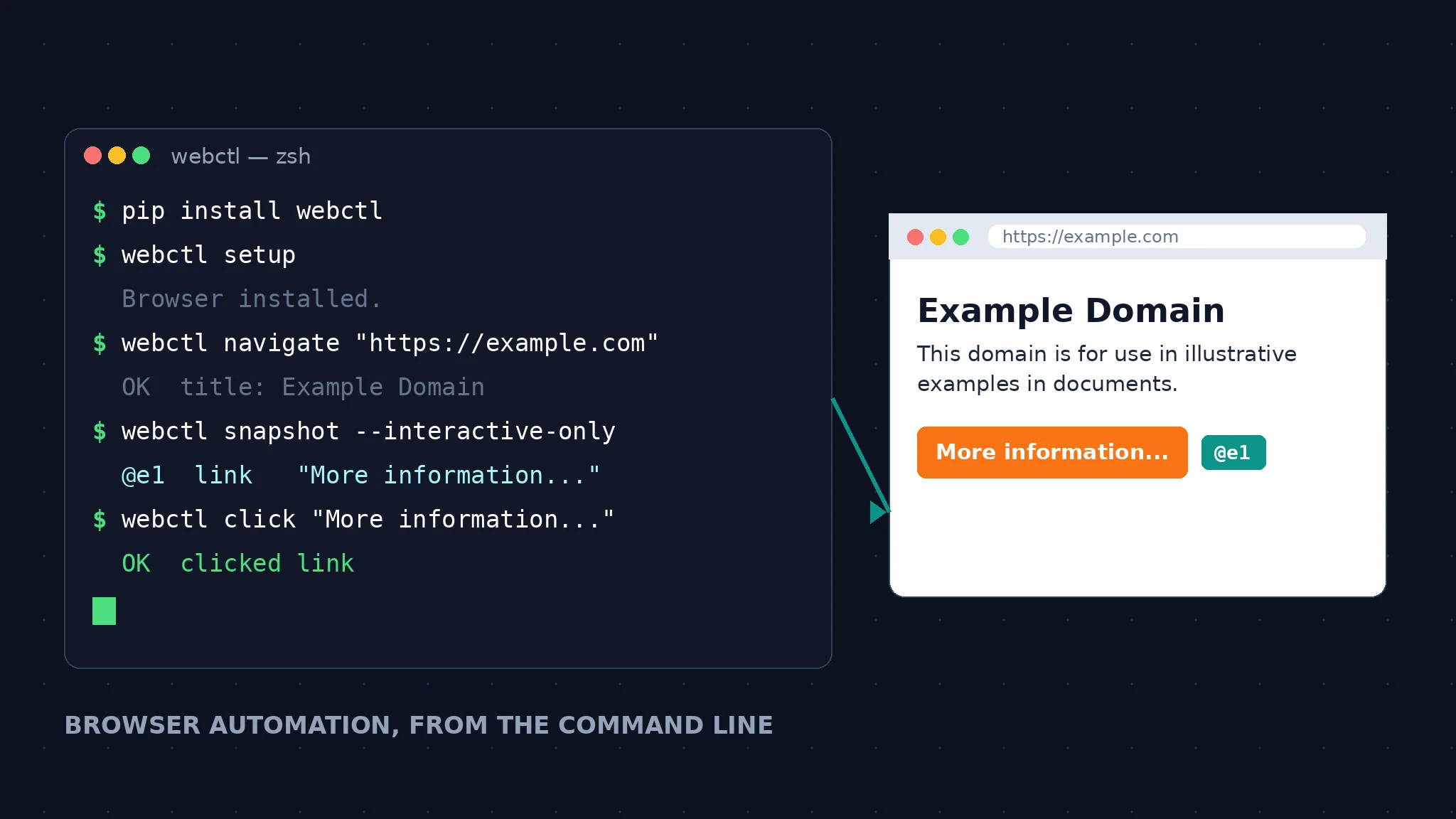
Most browser automation today asks you to hand the browser to something else: an MCP server that dumps the whole page into your model’s context, a Playwright script you have to write and maintain, or a hosted agent that logs in as you. webctl flips the arrangement. The browser stays yours, on your machine, and you drive it the way you drive everything else — from the shell, one command at a time, with output you can pipe, grep, and hand to an agent only when you choose to.
This tutorial installs webctl, drives a real page through its full loop — navigate, snapshot, click, search, fill a form — checks what the browser saw, and wires the same commands into a coding agent. Every step was run, not read: the commands, flags, and outputs below are the ones that came back from webctl 0.4.2, including the places where the README and the released binary disagree.
1. Why webctl is blowing up now#
webctl is a small project — 418 stars, 54 commits, created in January 2026, four releases, the latest 0.4.2 on PyPI — and it hit Show HN this week because it names a frustration a lot of agent builders share. The dominant way to give an agent a browser is MCP: the agent asks the server for the page, the server serializes the DOM, and the whole thing lands in the context window whether the agent needed it or not. webctl’s pitch is the inverse: the human (or the agent) issues a plain command, gets back a compact, probe-style snapshot with stable references like @e1, and decides what to do next. Nothing enters the context except what you asked for.
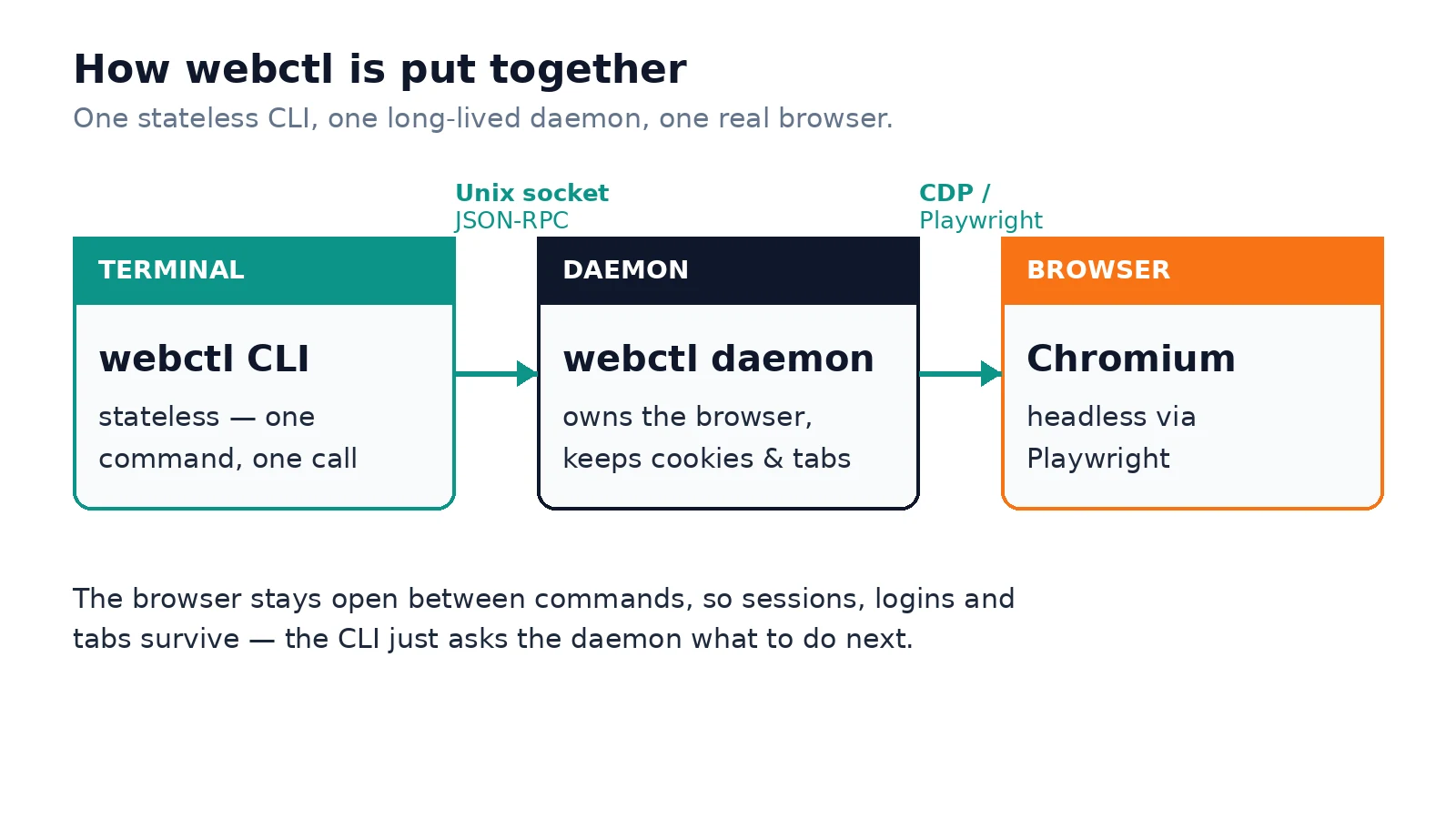
The design follows from that. A stateless CLI sends one JSON-RPC call over a Unix socket to a daemon that owns the browser; the daemon keeps the browser alive between commands, so cookies, logins, and tabs persist. You get the scriptability of curl with a browser that can actually click things — and because every action is a shell command, it composes with the tools you already have: jq for the JSON output, cron for schedules, and your coding agent’s shell access for everything else.
The other reason it is getting attention is the comparison the project publishes against agent-browser, Vercel’s browser CLI: on four real-world tasks driven by Claude Opus, webctl averaged 8 turns and 79k tokens against agent-browser’s 13 turns and 183k tokens. Those are the project’s own numbers, and section 10 reads them carefully — but the direction is the point: fewer, smaller snapshots mean fewer tokens and fewer wrong turns.
2. What you’ll need#
Before you start, check the list. There are no accounts, no keys, and no subscriptions anywhere in this tutorial.
- Python 3.11 or newer and
pip. webctl installs from PyPI as a plain package; nothing needs compiling. - About 150 MB of disk for the Chromium download
webctl setupfetches. If you already have Playwright’s Chromium installed, you can point webctl at it instead (step 1 shows how). - A terminal. On a server or a machine with no display, everything runs headless — webctl’s unattended mode is built for exactly that.
- Linux system libraries for Chromium on a fresh server (
playwright install-deps chromiuminstalls them; on some systems theapt-get updatestep can hang — the workaround is in step 1). - Fifteen minutes. Install, setup, and the first working drive-through take about that long.
3. Step 1 — Install and check the setup#
Install from PyPI, then let webctl setup fetch Chromium and check the result with webctl doctor:
pip install webctl
webctl setup
webctl doctor
On a clean machine webctl setup downloads Chromium (about 150 MB) and then tries to install the Linux system libraries with playwright install-deps chromium. That last step runs apt-get update, which can hang on some systems — in the sandbox it sat for ten minutes before being stopped. If it hangs for you, skip it: the browser itself is already downloaded. If you already have Playwright’s Chromium from another tool, tell webctl to reuse it instead of downloading its own:
webctl config set use_global_playwright true
webctl doctor
A healthy setup ends with doctor reporting All checks passed!. On a machine with no display server it also prints a useful note: No display server detected — attended mode may fail. Use: webctl config set default_mode unattended. Take that advice — it makes every later command default to headless:
webctl config set default_mode unattended
webctl config show
Two environment details matter on servers and in containers. The daemon talks over a Unix socket that normally lives under /run/user/<uid>/; if that directory does not exist, set WEBCTL_SOCKET_DIR to a directory that does. And if your home directory is small or read-only, point the config and data directories elsewhere with XDG_CONFIG_HOME and XDG_DATA_HOME before the first config set.
4. Step 2 — Start the daemon and take your first snapshot#
Start the daemon in unattended (headless) mode, then navigate to a page. navigate returns a snapshot of the page as it loads — a compact list of elements, each with a stable reference:
webctl start --mode unattended
webctl navigate "https://example.com"
On the demo page used for this tutorial the snapshot came back with 13 elements, @e1 through @e13: headings, links, text, and the page’s buttons, each on one line with its role and visible text. That snapshot is the whole interaction model. You never read raw HTML and you never guess a selector: you read the snapshot, pick a reference, and tell webctl what to do with it.
Most pages are noisier than a demo. Filter the snapshot to the elements you can act on:
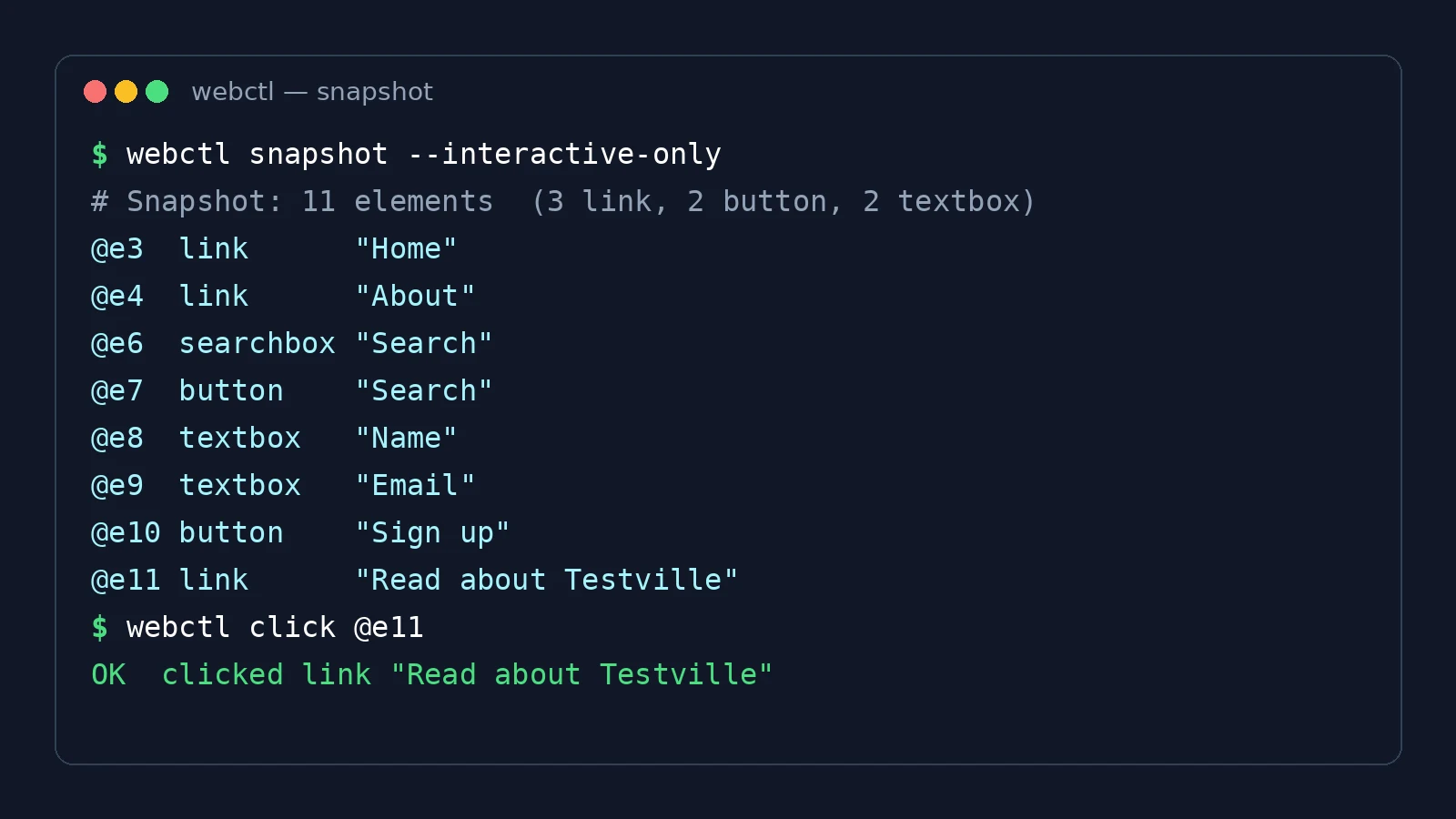
webctl snapshot --interactive-onlyThis returns only links, buttons, textboxes, and other interactive elements — 11 on the demo page, against 13 in the full snapshot. It is the view you will use most: small enough to read at a glance, and small enough to paste into an agent’s context without flooding it. The snapshot is also available as JSON for scripting — pipe it to jq and you can pull out every link on the page in one line.
5. Step 3 — Click, type, and search#
Click by visible text or by reference — both work, and the reference is the safer choice when a page has two links with the same label:
webctl click "Read about Testville"
webctl click @e11
webctl back
Each click reports OK and what it clicked; back returns to the previous page the same way a browser’s back button does. The click in this run landed on the about page, and the snapshot after back confirmed the browser was home again.
Searching is a one-liner. navigate --search finds the page’s search box, types your query, and submits it:
webctl navigate "https://duckduckgo.com" --search "lighthouse"This is the README’s own example. In the sandbox the same flag was verified against a local search page: webctl found the search box, submitted lighthouse, and landed on the results page with a Results heading. If you prefer to spell the steps out — or you need to type into a box that is not the search box — batch the actions with do:
webctl do '[["type", "Search", "lighthouse"], ["press", "Enter"]]' --snapshotdo takes a JSON array of actions and runs them in order; --snapshot prints the fresh snapshot when they finish. The run above completed both actions and landed on search.html?q=lighthouse, with the new snapshot showing the results page. The same batching works for longer sequences — type, press Tab, press Enter, wait for a selector — in a single call, which is how you keep an agent’s turn count down.
One flag placement to get right: --quiet is a global flag, so it goes before the subcommand — webctl --quiet navigate ..., not webctl navigate ... --quiet. The latter is rejected. When you need the page as text rather than a snapshot, navigate --read returns the page’s readable content as Markdown plus a small JSON object with the URL and title — the right call when you want the article, not the controls.
6. Step 4 — Fill a form end to end#
Forms are where browser automation usually gets fiddly. webctl keeps it to one command: fill-form takes a single JSON object whose keys are the fields’ visible labels and whose values are what to type. On a signup form with Name and Email fields:
webctl fill-form '{"Name": "Ada Lovelace", "Email": "[email protected]"}'The result is a small JSON object: {"filled": 2, "total": 2, ...} — two fields found, two filled. Then submit the way a user would, by clicking the button from the snapshot:
webctl click "Sign up"The form submitted and the values appeared in the resulting URL, exactly as a manual submission would produce them. Two details from the run are worth knowing. First, the keys must match the page’s labels exactly — fill-form matches on visible text, not on field names in the HTML. Second, run it on the page that actually has the fields: pointed at a page with no matching fields, the command hung for over two minutes before being stopped. On the right page it returns in seconds. If it ever seems stuck, it is almost certainly on the wrong page.
7. Step 5 — See what the browser sees#
Once a page is doing something, check the browser’s side of the story. A screenshot is one command:
webctl screenshot --path /tmp/page.pngThe run produced a 21 KB PNG of the current page — the fastest way to confirm a layout, a modal, or a state change without describing it in words. For the page’s own errors, console reads the browser console as JSON:
webctl console --countOn the clean demo pages this returned zero errors, warnings, and messages. On a page that misbehaves, the same command is the first thing to run: a failed request or an uncaught exception shows up here before it shows up anywhere else.
status is the health check — current URL and title, open pages, and element and error counts — with a --brief form for scripts. And query is the escape hatch when you do need a selector: webctl query "role=heading" returned a JSON debug listing with the matching heading. Between snapshot, console, status, and screenshot, you can see everything the browser sees without ever opening its window.
8. Step 6 — Hand it to your coding agent#
The reason webctl exists is agents, and the project treats that as a first-class install step. webctl init writes a skill file and a prompt for your agent’s tool of choice:
webctl init --agents claudeThat creates .claude/skills/webctl/SKILL.md in the current project, teaching Claude Code the commands, the snapshot format, and the @ref convention. The same generator covers Cursor, Codex, Gemini CLI, Copilot, Goose, Windsurf, and OpenCode — pass several names to --agents to generate for all of them at once. If your agent tool reads skills from a registry instead, the equivalent is npx skills add cosinusalpha/webctl.
For an agent that does not use skill files, webctl agent-prompt prints a ready-made instruction block describing the CLI, the snapshot format, and the rules for driving a page. Paste it into the agent’s instructions and it can navigate, snapshot, click, and fill forms with the same commands this tutorial used — and because each command returns a small snapshot instead of a DOM dump, the agent spends its context on decisions, not on markup.
When you are done, shut it down. Plain webctl stop closes the browser and the daemon — there is no --daemon flag in 0.4.2, despite what the README says; --keep-daemon is the flag that leaves the daemon running. One housekeeping note: even after stop, the daemon process can linger until its 900-second idle timeout expires, so check your process list if you are counting processes rather than browsers.
9. When to use webctl vs alternatives#
| Approach | Use it when | Watch out for |
|---|---|---|
| webctl (this tutorial) | You want to drive a real browser from the shell, scripts, cron, or an agent — with small, stable snapshots and no account | Young project (0.4.2); the README and the binary already disagree on two flags; no hosted option |
| agent-browser (Vercel) | You want a similar CLI-first browser with a larger community and Vercel’s backing | Larger snapshots and more turns per task in the project’s own comparison; see section 10 |
| Playwright MCP / chrome-devtools-mcp | Your agent already speaks MCP and you want the browser inside its tool loop | The whole page lands in context on every call; you give up the shell-scripting and piping that make webctl cheap |
| Playwright scripts (Python/Node) | The task is a repeatable pipeline — a scraper, a test suite, a scheduled check with assertions | You write, debug, and maintain code for every flow; overkill for “go look at this page and tell me what it says” |
| Full browser agents | The job needs judgement across many sites with logins, uploads, and multi-step flows | Heavier, slower, and usually billed per run; webctl is the cheaper way to do the same steps when you can name them |
The deciding question is who issues the next command. If the answer is “a shell script, a cron job, or an agent with shell access,” webctl is the only option on this list built for that caller. If the answer is “an agent that only speaks MCP,” use the MCP servers instead — and if the answer is “the same deterministic flow every day,” write the Playwright script.
10. What the project’s own benchmark does and doesn’t prove#
webctl’s README leads with a head-to-head against agent-browser, and it is worth reading carefully because it is the reason to take the tool seriously — and the reason to keep your guard up. Across four real-world tasks driven by Claude Opus, webctl averaged a quality score of 8.5 out of 10, 8 turns, 79,000 tokens, and $0.18 per task; agent-browser averaged 7.0 out of 10, 13 turns, 183,000 tokens, and $0.26. Quality was scored by a separate Claude evaluation call.
What that proves: the snapshot design does what it claims on the project’s own tasks — fewer, smaller observations, fewer turns, fewer tokens. What it doesn’t prove: that the same gap holds on your tasks, your sites, or your driver model. Four tasks is a small sample, the benchmark is self-reported by the project being measured, and the quality score comes from the same model family as the driver. Treat the numbers as a reason to try webctl on a real task of your own, and the small sample as a reason to measure it yourself before switching a workflow over. The honest test takes ten minutes: pick a task you already do with another tool, run it with webctl, and count the turns.
11. Sharp edges worth knowing#
Four things from the verification run that will save you time. First, the README is ahead of the binary in two places: webctl stop --daemon does not exist in 0.4.2 (plain stop closes everything; --keep-daemon keeps the daemon), and --quiet is a global flag that goes before the subcommand. Second, fill-form takes one JSON object, not field pairs, and hangs if the page has no matching fields — always snapshot first and confirm the labels. Third, webctl setup’s dependency step can hang on apt-get update; if it does, stop it and reuse an existing Playwright Chromium with use_global_playwright. Fourth, the daemon outlives stop until its 900-second idle timeout, so a lingering process after shutdown is normal, not a leak.
The takeaway#
webctl is the smallest honest answer to a real question: how do you let a shell script — or an agent with shell access — drive a browser? Install it from PyPI, run webctl setup once, start the daemon headless, and you have navigate, snapshot, click, type, fill-form, screenshot, and console as ordinary commands with pipeable output. No account, no API key, no model in the loop, and no DOM dump flooding your context. Run webctl init for your agent’s tool, hand it one real task — check a price, fill a form, file a bug with a screenshot — and count the turns. If it does the job in fewer steps than the tool you use now, the CLI has earned its place in your scripts.
Sources#
- cosinusalpha/webctl — the official repo: README, install and setup instructions, the agent-browser benchmark, and the agent-skill generator (v0.4.2, November 2026; 418 stars, 54 commits).
- webctl on PyPI — the install source used in this tutorial: webctl 0.4.2, Python 3.11+, MIT license.