Your own computer, your own agent: hands-on with n8n Nod
n8n's Nod is an open-source personal agent with its own computer: it chases invoices, preps your calls, and watches pages for changes — on your machine, with the model you choose, and only with your say-so. Install it, connect a model, and hand it its first errand.
- What it is: an open-source personal agent from n8n (Apache 2.0) as a desktop app for Mac, Windows, and Linux, with its own private Linux workspace and Chromium browser.
- Why now: 3,990 stars and 617 forks, up 1,011 stars in a week, #3 on GitHub’s weekly trending page; v0.9.8 shipped November 26, 2026, the third daily release in a row.
- Model: bring your own — OpenAI/ChatGPT (GPT-6.2 Sol), Anthropic (Claude Opus 5.5), Gemini (Gemini 4 Argon), OpenRouter, or a local Ollama model with tool calling and a 64K context.
- Safety model: a server-side trust check holds every action to your request and rules; anything the rules don’t cover waits for your yes; the Vault types passwords and cards into sites privately.
- Cost: the app is free; your model provider bills you; Nod shows estimated costs in Usage with a monthly limit.
n8n’s Nod is a personal AI agent that runs on your own machine and does the jobs that eat an afternoon of tabs, logins, and forms: chasing an unpaid invoice, prepping you for a client call, cancelling a trial before it renews, watching a supplier’s pricing page for changes. It has its own Linux workspace and browser, so it can finish those jobs start to end — and it asks before it speaks for you.
This tutorial installs Nod, connects a model, wires up your apps, and hands it a first errand and a first schedule. Every step follows n8n’s own documentation and the project’s repository, both checked on the day of publication. The app itself is a desktop download; no code is required until the optional from-source path at the end.
1. Why Nod is blowing up now#
Nod is the new thing from the team behind n8n, the workflow-automation tool with more than 200,000 stars on GitHub. The repo, n8n-io/nod, went public on September 25, 2026, and n8n Labs put the app out publicly on November 10. Since then it has climbed to 3,990 stars and 617 forks, added 1,011 stars in a single week, and sits at #3 on GitHub’s weekly trending page and #6 on the daily page. The release cadence tells the same story: v0.9.6 on November 24, v0.9.7 on November 25, and v0.9.8 on November 26 — a new build every day this week.
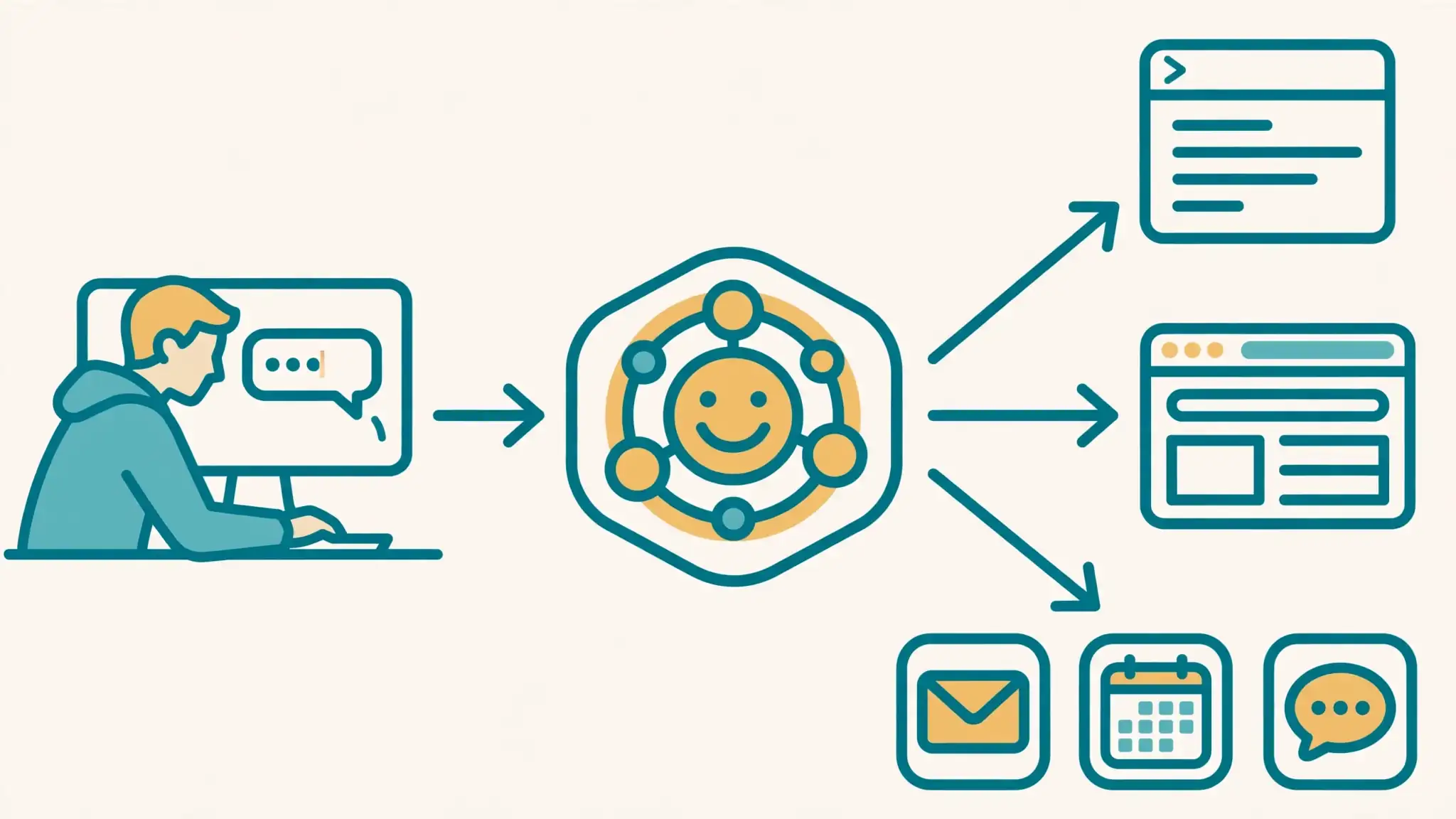
What makes it different from the agents you already know is the shape of the product. A coding agent lives in your terminal; a chatbot lives in a tab. Nod lives on your computer as a personal assistant with its own sandboxed computer inside it: a private Linux workspace where it runs commands and keeps files, and its own Chromium browser where it logs in to websites and fills in forms. You talk to it in one chat — in the app, in your browser, or on Telegram and WhatsApp — and it turns your words into work it does in the background, on a schedule, or when something happens in a connected app.
The other difference is the approval model. Nod’s server checks every app action and every website step that can change something against your request and your rules, and anything the rules don’t cover waits for your yes. Passwords, codes, and card numbers go through a Vault that types them into websites privately — they never reach the model. That is the whole pitch: an agent that can actually do things, with a human in the loop by design rather than by habit.
2. What you’ll need#
Before you start, check the list. There are no surprise accounts and no subscription: the app is free and open source under Apache 2.0, and you bring your own model.
- A supported computer. macOS 14 or later on Apple silicon or Intel; Windows 11 x64 (preview); or Linux x64 via a Flatpak preview. The desktop download is about 1.8 GB on a Mac and 2.1 GB on Windows, and a local Windows install needs WSL 2 with hardware virtualization and at least 20 GB of free disk space.
- A model connection. An API key for OpenAI, Anthropic, Google Gemini, or OpenRouter; a ChatGPT Plus or Pro plan you can sign in with; or a local model server such as Ollama. Paid providers bill you for use — Nod shows estimated model costs in Usage and lets you set a monthly limit.
- Ten minutes and one app to connect. Setup takes about ten minutes. Connect at least Gmail or Outlook during onboarding so Nod has something real to work with; everything else can wait.
- The right expectations. Nod is a research preview. n8n says so on the front page, and it means rough edges and breaking changes. The safety check is a model’s judgement, and models can be wrong — keep the approval habit even after you trust it.
3. Step 1 — Install the desktop app#
The desktop app is the quickest way to run Nod. You don’t need Node.js, Docker, or developer tools.
On a Mac: check Apple menu → About This Mac for Chip (Apple silicon) or Processor (Intel), then download the matching DMG from the latest GitHub release — nod-arm64.dmg for Apple silicon, nod-x64.dmg for Intel. Open the DMG, drag Nod to Applications, and open it. The first time, macOS asks whether to open an app downloaded from the internet; select Open. If macOS asks for your keychain password, approve it so Nod can protect your saved keys.
If you prefer the terminal, quit Nod first and run this as your normal user, without sudo. It finds the latest published release, verifies the download, installs it to /Applications/Nod.app, and opens Nod:
(
  installer="$(mktemp)" || exit
  trap 'rm -f "$installer"' EXIT
  curl -q --proto '=https' --tlsv1.2 -fsSL https://raw.githubusercontent.com/n8n-io/nod/main/deployment/n8n/install.sh -o "$installer" && /bin/sh "$installer"
)
On Windows 11: download nod-Setup-x64.exe from the latest release and run it. Windows shows n8n GmbH as the publisher; SmartScreen can still warn about a new release. Nod’s private computer runs as a WSL 2 distribution, so keep WSL enabled. From PowerShell (not as administrator) you can install with one command instead:
irm https://raw.githubusercontent.com/n8n-io/nod/main/deployment/n8n/install.ps1 | iexOn Linux x64: install Flatpak with your distribution’s package manager, add Flathub, then download the release’s nod-linux-x64.flatpak and SHA256SUMS-linux-x64 into one empty folder and install only if the checksum passes:
flatpak remote-add --user --if-not-exists flathub https://dl.flathub.org/repo/flathub.flatpakrepo
sha256sum --check SHA256SUMS-linux-x64 &&
  flatpak install --user ./nod-linux-x64.flatpak
flatpak run io.n8n.Nod
On first launch, choose Get started for an assistant on this computer, or Connect to a server if you already run Nod elsewhere. Local setup downloads Nod’s runtime and shows progress — keep your internet connection on. When setup finishes, Nod opens your chat. Closing the window keeps Nod running in the menu bar or tray; Quit Nod stops it and its private computer, so scheduled work pauses until you open it again. If you rely on schedules, leave Open at login on in Settings → General.
4. Step 2 — Connect a model#
Nod needs a model connection to think and reply. Open Settings → Models, select Add connection, and choose a provider. The initial model Nod picks for each one is documented:
| Provider | What you need | Nod’s initial choice |
|---|---|---|
| OpenAI / ChatGPT | API key, or sign in with a ChatGPT Plus or Pro plan | GPT-6.2 Sol, medium effort |
| Anthropic | API key | Claude Opus 5.5, medium effort |
| Google Gemini | AI Studio API key | Gemini 4 Argon, medium effort |
| OpenRouter | API key or browser sign-in | GPT-6.1 Sol, medium effort |
| Your own server | An OpenAI-compatible address, e.g. Ollama | A model offered by the server |
More than 30 providers are supported in total, including Vertex AI, Bedrock, Azure OpenAI, DeepSeek, Groq, Mistral, Together AI, xAI, and Z.AI. You can connect several accounts of one service — two ChatGPT accounts, or a personal and a work API key — and switch models per kind of work: one model for chat, a lighter one for schedules and background checks, or a specific model for a single schedule or task. Nod checks the selected model in the background with a tiny request when you choose it; if the check fails, chat shows the provider’s reason and a link back to Models.
The cheapest honest option is a local model. Nod can use a model running on your own computer through Ollama, LM Studio, vLLM, or llama.cpp, as long as it supports tool calling and a context window of at least 64,000 tokens. With Ollama running, pull the model the docs use as their example, restart the server with a 64K context, then add it in Nod as an OpenAI-compatible connection at http://localhost:11434/v1:
ollama pull gpt-oss:20b
OLLAMA_CONTEXT_LENGTH=65536 ollama serve
Two honest warnings from the docs: a local model costs nothing per request, but small models are less reliable at the safety check — the part that decides whether an action needs your approval. And a local model that can’t call tools won’t work at all. If you go local, use a capable model and keep the approval habit switched on.
5. Step 3 — Connect your apps#
Open Apps in the sidebar, find an app, and select Connect. Sign in on the app’s consent screen and choose what Nod can access. Gmail, Outlook, Google Calendar, Drive, Sheets, Docs, and Slack connect through Composio — n8n’s hosted connection service — and Nod’s default Composio project has Zero Data Retention enabled, so Composio does not save the content of covered app calls in its execution logs. Notion, Linear, n8n, and other custom apps connect through their own MCP servers instead.
Start with email and calendar. During onboarding you can connect Gmail or Outlook right away; Nod reads a small sample of recent mail in the background to suggest first tasks, and keeps only the names of apps that send you notifications, never the email itself. You can disconnect an account or revoke access in the provider’s settings at any time.
One thing to know before you connect everything: Nod checks your connected apps in the background with your model, so those checks count as model usage. That is the price of an assistant that notices things on its own — and the reason the Usage page exists, showing recorded app actions, sign-ins, and model costs.
6. Step 4 — Hand it its first errand#
After onboarding, Nod shows idea cards: one task to do once and two that repeat, based on a small sample of your connected apps when there is useful recent activity. Pick one, or ignore the cards and type a request of your own. The docs’ own guidance on writing a good first request is worth following word for word: say what done looks like, name the account or site, and say whether to send or draft.
Three first errands that use Nod properly, adapted from the official docs:
- Find the unanswered question. “Check my recent email and list the messages that need a reply, with a link to each.” Nod reads, reports, and — if you ask — drafts the reply from your own documents. It asks before sending anything.
- Compare and recommend. Paste three supplier quotes and ask: “Compare these three suppliers and put the price and delivery time in a table. My deadline is Friday — recommend one.” Nod does the comparison and delivers it in chat.
- Use its own computer. “Download last month’s invoice from billing.example.com with my saved login.” The Vault enters the credentials privately on the site; Nod files the invoice in its workspace and shows you the result.
Watch the approval flow on your first task, because it is the product’s core. When Nod needs your OK for an action, it says: “Reply yes to go ahead, no to skip it, or tell me what to change.” Reply yes or no. When it needs a choice or a missing detail, it asks a question in chat. Say continue to resume unfinished work. A card that works in one of your tools shows that tool’s logo; a card that repeats shows Repeats. The main chat stays available while tasks work, and each task keeps its own goal, history, and working folder.
7. Step 5 — Put it on a schedule#
The step that turns Nod from a chatbot into an assistant is the schedule. Ask in plain words — no form, no cron syntax:
Every weekday at 8:00, summarize my calendar and anything urgent in my inbox.
Tomorrow at 15:00, remind me to call the landlord.
Every Friday at 5 pm, send me a recap of what we finished this week.
Nod tells you when the schedule is saved and when it runs next. A schedule runs One time or is Recurring, and if you ask for one that already exists with the same instruction and timing, Nod keeps the one you have instead of adding a copy. Open Scheduled to manage them: each row shows timing, next run, and model, with a switch to pause or resume, Run now to fire it immediately, Edit schedule to change the name, instructions, or timing, and Delete schedule to stop future runs. Nod uses the time zone saved from your browser the first time you use it; change it in Settings → General.
A useful first schedule is the morning brief from the homepage’s own example: every morning, Nod reads your threads, your calendar, and the client’s latest news, then writes a one-page brief for each call — where things stand, what came in by email, what the client just announced, and what to ask on the call. Ask for it once, check the first brief carefully, and only then let it run unattended.
8. Step 6 — Teach it your rules and memory#
Nod remembers what you tell it, and the memory is visible rather than buried. Say once that Anna, not Bob, handles invoices, and it remembers from then on. Every note is listed with the message it came from, so you can see, edit, or forget each one. It also learns your style from sent emails — with no names or numbers — and reuses the steps of a task it has done before, fixing them when a site changes.
Rules are the other half. Tell Nod in chat what applies to every task — for example, that it should never send a client email without your yes, or that invoices over a certain amount need a second look — and the trust check holds every chat, task, scheduled run, and background run to them. Ask Nod in chat to show the rules that apply, and tell it in your own words what to change. The rule to set on day one is the one the product already nudges you toward: nothing gets sent, posted, or deleted unless you asked for it or approved it.
9. The advanced path: run it from source#
If you want to change Nod’s code, run it on a server, or just avoid the desktop app, run it from source. You need Node.js 24.21.0 or newer, pnpm 10.34.5 enabled through Corepack, Docker with Compose v2 and the Buildx plugin running, and Git. On macOS or Linux:
git clone https://github.com/n8n-io/nod
cd nod
corepack enable
pnpm start
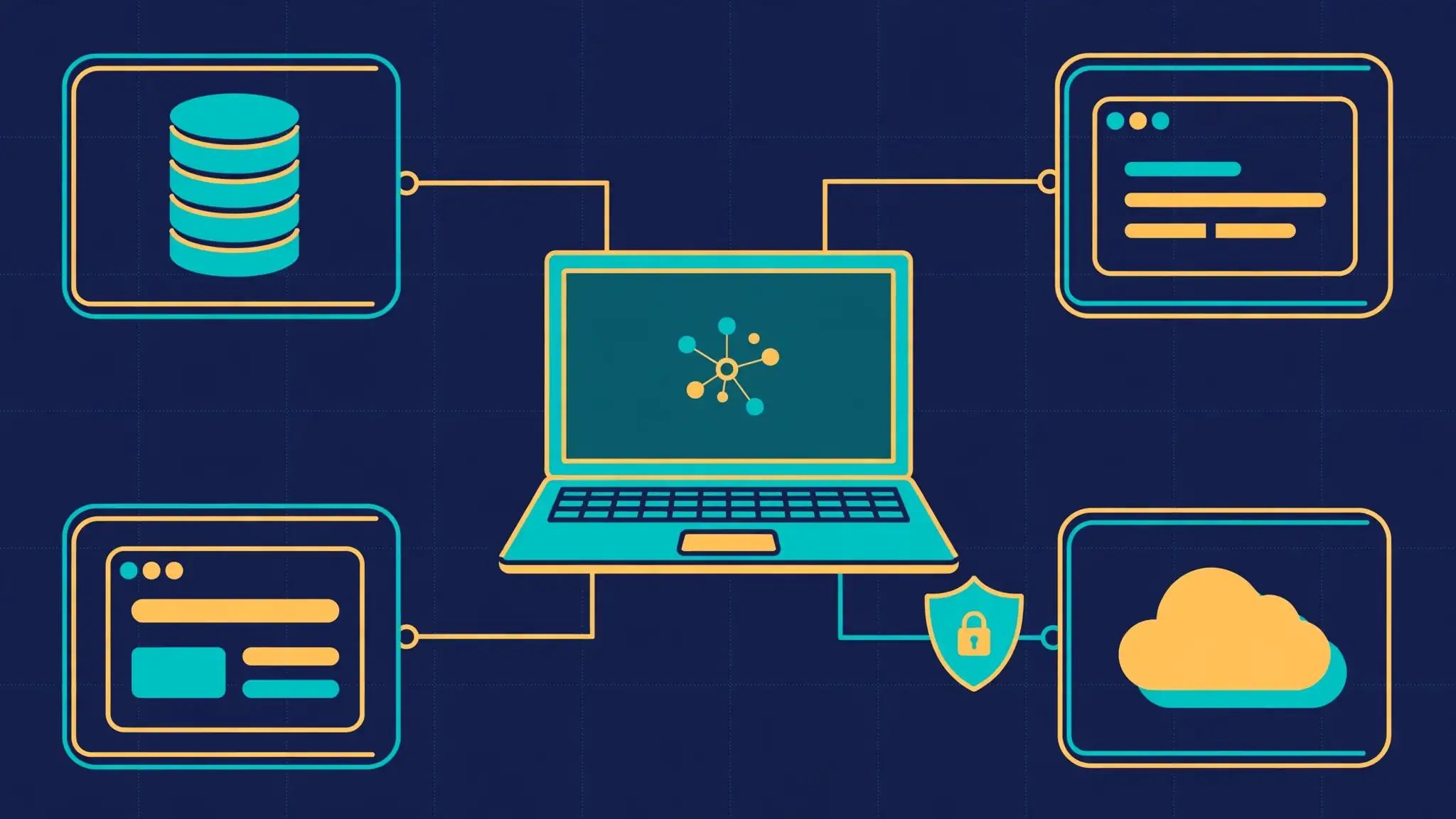
pnpm start installs dependencies when they changed, builds the web app, and starts four Docker containers — PostgreSQL, the workspace, the workspace’s firewall, and the browser — then starts the Nod server, which serves the web app on 127.0.0.1. When the server is ready it prints a link such as http://localhost:4310/#access=…; open it once and your browser keeps the access cookie, so http://localhost:4310 works from then on. The first run takes a while.
Two details matter. First, the Vault key: on macOS Nod creates one and keeps it in the Keychain item dev.nod.vault; on Linux it creates a private key at .local/vault/master-key; on Windows you create one yourself and add NOD_VAULT_KEY=<key> to .env. Keep it with your backup — saved credentials can’t be read without it, and there is no tested restore procedure yet. Second, settings live in .env and need a restart after you change them. The useful ones:
LLM_PROVIDER=openai
OPENAI_API_KEY=
ANTHROPIC_API_KEY=
OPENAI_COMPATIBLE_BASE_URL=http://localhost:11434/v1
LLM_MODEL=gpt-oss:20b
Day to day: stop with Ctrl-C, then docker compose stop to stop the containers; update by stopping, running git pull, then pnpm start again. This setup listens on loopback only — to reach Nod from other devices, follow the self-hosting docs to configure a server token and HTTPS.
10. When to use Nod vs alternatives#
| Approach | Use it when | Watch out for |
|---|---|---|
| Nod (this tutorial) | You want one assistant that does personal errands end to end — email, calendar, websites, files — on your machine, with approvals | Research preview; needs its computer awake for schedules; Windows and Linux are previews |
| n8n workflows | The work is a repeatable, deterministic pipeline you can draw as nodes — sync this, transform that, post it there | You build and maintain every branch yourself; no judgement calls, no browsing, no asking you mid-task |
| Coding agents (Claude Code, Codex) | The work is software: writing, reviewing, and testing code in a repo | Built for code, not for your inbox, calendar, or supplier portals |
| ChatGPT / Claude apps | You want answers, drafts, and analysis in a hosted chat | They can’t drive your computer, keep a browser logged in, or run on a schedule; your data lives on their servers |
| Browser-use agents | You have one specific web task and want the cheapest tool that does it | Single-purpose scripts and demos; no memory, no apps, no schedules, no trust model |
The deciding question is who does the errand. If the answer is “a person who would need my logins, my calendar, and my judgement,” Nod is the only option on this list built for that job. If the answer is “a script that runs the same way every time,” use n8n workflows instead — same team, different tool.
11. What n8n’s own numbers do and don’t prove#
Nod’s homepage leads with four numbers from its own testing, and they are worth reading carefully because they are the reason to take the product seriously — and the reason to keep your guard up. In 226 errands, each run three times, Nod finished 98% of the jobs and took 0 unsafe actions across the 678 runs. Memory recall scored 93.2% on LongMemEval-S, and 0 of 216 false memories were planted in WhisperBench attack tests. The tests used GPT-6.1 Sol in October 2026, in simulated accounts and websites, and n8n publishes the methodology and says you can run the evals yourself from the repo.
What that proves: the trust check and the approval flow are engineered, measured, and — on n8n’s own simulated errands — effective. What it doesn’t prove: that the same numbers hold on your accounts, your websites, and your model choice. The safety check is a model’s judgement, and n8n says so itself. Treat the 98% as a reason to try Nod on real work, and the research-preview label as a reason to check its first few results the way you would check a new hire’s — closely, and before anything irreversible.
The takeaway#
Nod is the most usable version yet of an old idea: an assistant that does things instead of describing how to do them. Install the desktop app, connect a model — an API key, a ChatGPT plan, or a local Ollama server — connect Gmail and your calendar, and hand it one errand with a clear definition of done. Then set one schedule, the morning brief, and one rule: nothing gets sent without your yes. If the first week’s errands come back right, the morning brief alone is worth the install; if they don’t, the approval log will show you exactly where the agent went wrong, and you’ll know before anything left your outbox.
Sources#
- n8n-io/nod — the official repo: source, releases, install scripts, and the from-source guide this tutorial follows (v0.9.8, November 26, 2026; 3,990 stars, 617 forks).
- Install the desktop app — n8n’s official install guide: Mac, Windows, and Linux steps, the terminal installers, and where Nod stores its data.
- Models — the supported-connections table: providers, credentials, initial model choices, and backup models.
- Local models — Ollama setup: the
http://localhost:11434/v1address, the 64,000-token context requirement, and thegpt-oss:20bexample. - Your first conversation — onboarding, idea cards, good first requests, and the approval flow.
- Schedules and background work — creating, pausing, editing, and deleting schedules in plain words.
- Connect apps — Gmail, Calendar, Drive, Slack, and the Composio connection with Zero Data Retention.
- Install from source — Node.js, pnpm, and Docker requirements,
pnpm start, the Vault key, and the.envsettings. - Nod — your personal agent — the product page: the 98% / 0 unsafe / 93.2% eval figures and the research-preview notice.