Detect anything in your photos with YOLO26, locally and offline: the complete hands-on guide
Your photos already contain the answers — what is in them, and where. This guide turns a laptop into a vision system: Ultralytics' newest detector, YOLO26, running entirely on your machine, with every output quoted from real CPU runs and a folder-to-spreadsheet workflow at the end.
- Who: YOLO26 (Ultralytics, January 2026), the nano model yolo26n.pt — 2,408,932 parameters, 5.5 GFLOPs, 40.9 COCO mAP per the docs.
- What: detect.py (single image to labels, confidences, boxes, JSON) and batch_detect.py (a folder to one CSV row per detection), plus confidence and NMS-free tuning.
- When: verified October 29, 2026: ultralytics 8.4.192, torch 2.9.1+cpu, Python 3.12.3, CPU-only, no GPU.
- Requirement: Linux or macOS (WSL on Windows), Python 3.11+, about 1.5 GB of disk. No account, no API key, no GPU. Note the AGPL-3.0 licence before building a closed commercial product on it.
Why this matters now
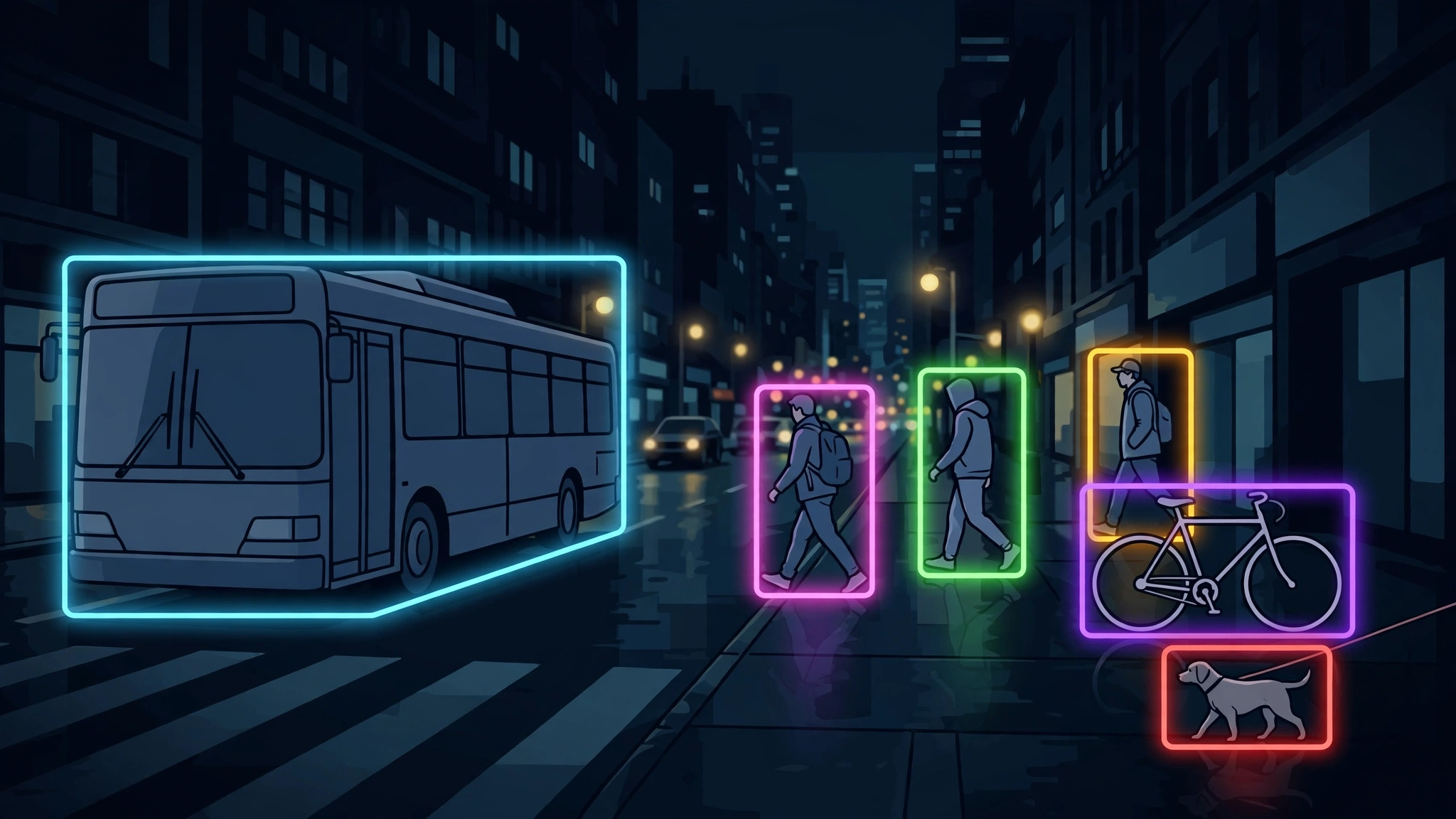
Most of the AI you read about here lives behind an API: you send data out, you get text back, you pay per call. Object detection is the opposite kind of problem. The question is usually simple — what is in this photo, and where? — and the photo is often private, numerous, or both: product shots, security-camera stills, wildlife-trap images, warehouse shelves. Sending thousands of those to a hosted vision API is slow, expensive, and, for many of them, a non-starter on privacy grounds.
That is why the newest YOLO release is worth your afternoon. YOLO26, released by Ultralytics in January 2026, is the current end of the longest-running real-time detection lineage in computer vision. Its headline change is an optional end-to-end detection head that needs no non-maximum suppression (NMS) — the post-processing step that has, for a decade, deduplicated overlapping boxes. The docs report 40.9–57.5 mAP on COCO across its five detection scales, and up to 43% faster CPU ONNX inference for the nano model versus YOLO11n. You do not need to take those numbers on faith: this guide installs the real package, runs the real model on a real photo on an ordinary CPU, and quotes every output.
By the end you will have a working detector you can point at a folder of images and get back a CSV of everything it found — no account, no API key, no GPU, and no image leaving your machine.
What you'll need
- Python 3.11 or newer. Verified here on Python 3.12.3 on Linux. macOS works the same way; on Windows, use WSL.
- About 1.5 GB of disk. The
ultralyticspackage pulls in PyTorch, and the nano model weights are 5.3 MB. The verification environment's full install measured 1.4 GB. - No GPU, no account, no API key. Everything below runs on CPU and downloads only open weights.
- One licence note, read before you ship anything. Ultralytics code and models are under AGPL-3.0, with a commercial Enterprise licence available. Personal projects, internal tools, and open-source work are fine; if you build a closed commercial product on it, read the licence or buy the Enterprise licence first. This guide is for learning and internal use.
Step 1 — Install YOLO26 in a virtual environment
Never install a package this large into your system Python. Make a folder, a virtual environment, and install into that:
mkdir yolo26-demo && cd yolo26-demo
python3 -m venv .venv
source .venv/bin/activate
pip install ultralytics
On this machine that installed ultralytics 8.4.192 with PyTorch 2.9.1+cpu. This verification deliberately used PyTorch's CPU-only build, because the default bundle — a 539 MB wheel plus its CUDA libraries — kept stalling on this machine's proxy; on a normal connection, plain pip install ultralytics fetches the standard build, which also runs on CPU. If your own download stalls, re-run the command with pip install --resume-retries 10 ultralytics, or take the smaller CPU-only build from PyTorch's CPU wheel index. Confirm the install:
yolo version
python3 -c "import ultralytics; print(ultralytics.__version__)"
Expected output, with your versions in place of these:
8.4.192
8.4.192
If yolo version fails with "command not found", your virtual environment is not activated — the source .venv/bin/activate line is the step people skip.
Step 2 — Run your first detection from the command line
Ultralytics ships a demo image, and the CLI downloads the nano weights on first use. One command detects everything in it:
yolo predict model=yolo26n.pt source='https://ultralytics.com/images/bus.jpg'The first run downloads yolo26n.pt (about 5 MB) and prints a one-line summary per image, then saves the annotated image under runs/detect/predict/. On this CPU-only machine the run reported:
YOLO26n summary (fused): 120 layers, 2,408,932 parameters, 0 gradients, 5.5 GFLOPs
image 1/1 bus.jpg: 640x480 4 persons, 1 bus, 192.3ms
Speed: 6.2ms preprocess, 192.3ms inference, 73.7ms postprocess per image at shape (1, 3, 640, 480)
Results saved to runs/detect/predict
Read that line right to left: the image was run at the 640x480 inference shape, the model found 4 persons and 1 bus, and the annotated copy — the same photo with a box around each detection — is in runs/detect/predict/. Open it. That annotated image is the whole product: a label, a box, and a confidence for every object the model is sure enough about.
Two defaults are doing quiet work here, and you should know them before you trust any output. The confidence threshold defaults to 0.25: anything the model is less than 25% sure about is dropped silently. And the model knows exactly 80 classes — the COCO set (person, bicycle, car, bus, dog, and 75 others). It cannot label anything outside that set. A forklift, a defect on a circuit board, a species of bird: all of those are "not one of the 80" until you train or switch models, and the model will either miss them or force them into the nearest familiar class. That is the single most common source of "the detector is wrong" complaints, and it is a vocabulary problem, not a vision problem.
Step 3 — Do it in Python and get the numbers, not just the picture
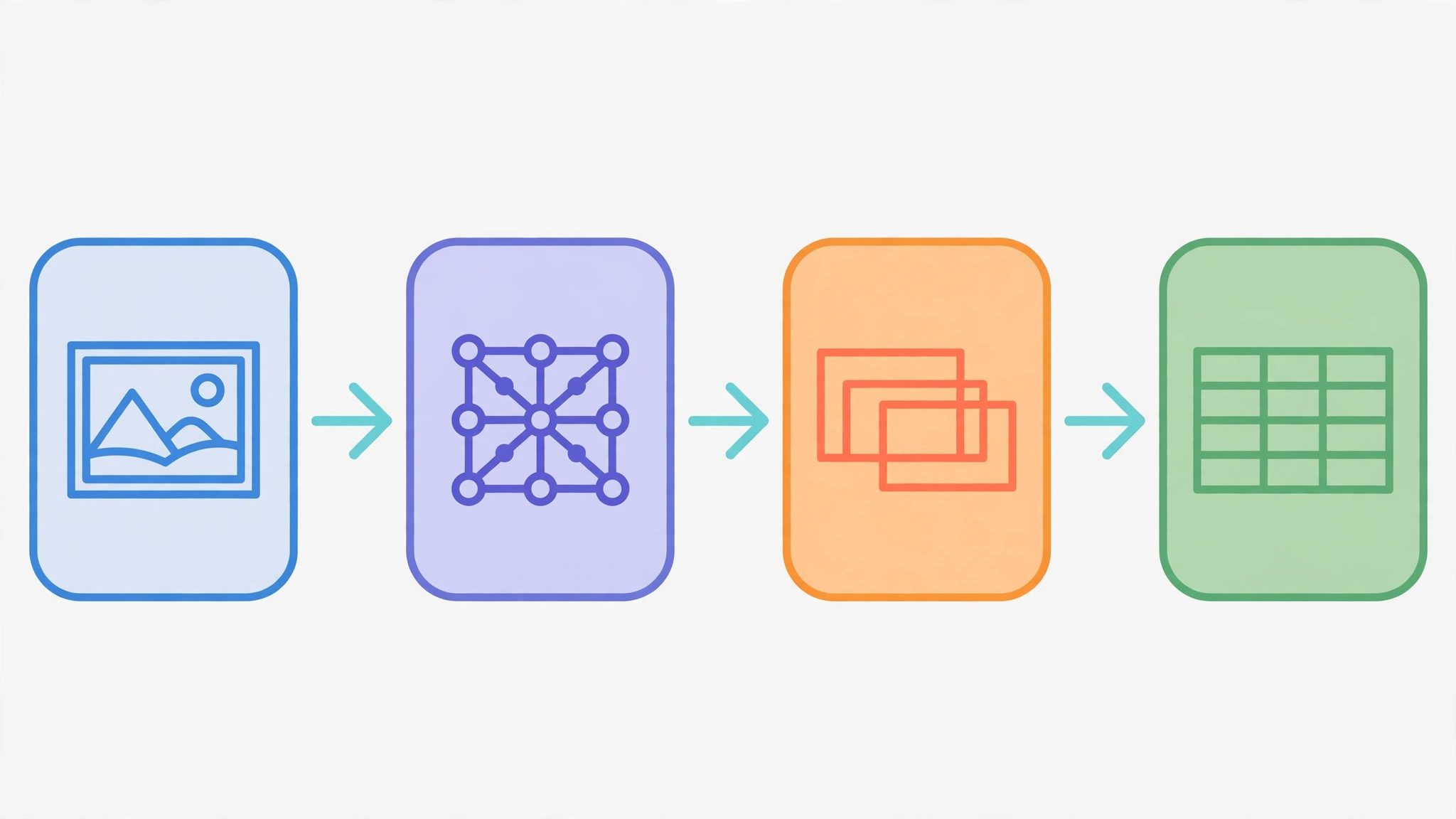
The CLI is for a first look. Real work happens through the Python API, where every detection is data you can filter, count, and save. Save this as detect.py:
import json, sys, time
from pathlib import Path
from ultralytics import YOLO

src = sys.argv[1]
out = Path(sys.argv[2]) if len(sys.argv) > 2 else Path("annotated.jpg")
model = YOLO("yolo26n.pt")
t0 = time.time()
results = model(src, conf=0.25, verbose=False)
dt = time.time() - t0
r = results[0]
rows = []
for box in r.boxes:
    rows.append({
        "label": r.names[int(box.cls)],
        "confidence": round(float(box.conf), 3),
        "xyxy": [round(float(v), 1) for v in box.xyxy[0]],
    })
rows.sort(key=lambda d: -d["confidence"])
print(f"image: {src}  size: {r.orig_shape[1]}x{r.orig_shape[0]}"
      f"  detections: {len(rows)}  wall: {dt:.2f}s")
for d in rows:
    print(f"  {d['label']:<12} {d['confidence']:.3f}  {d['xyxy']}")
r.save(str(out))
Path("detections.json").write_text(json.dumps(rows, indent=2))
Run it on the same demo image:
python3 detect.py bus.jpg annotated.jpgOn the verification machine this printed:
image: bus.jpg  size: 810x1080  detections: 5  wall: 2.01s
  bus          0.881  [0.0, 230.5, 803.2, 750.7]
  person       0.872  [48.6, 397.7, 240.3, 902.4]
  person       0.861  [222.9, 404.8, 345.5, 861.0]
  person       0.846  [669.6, 394.5, 809.9, 879.4]
  person       0.656  [0.2, 553.0, 59.7, 871.3]
Three things in that output are worth understanding, because they are the entire API surface you will use from here on:
r.boxesis the list of detections. Each box carriescls(a class index),conf(a 0–1 confidence), andxyxy(the box corners in pixels: left, top, right, bottom).r.namesmaps class indices to names —r.names[0]isperson,r.names[5]isbus. Never hard-code your own class list; the model ships its own.r.save()writes the annotated image, anddetections.jsonholds the same detections as data. The picture is for your eyes; the JSON is for everything else you build.
The wall-clock time includes model loading on the first call in the process, and it varies a lot between runs (later runs here were much faster once the libraries were warm in memory). The stable number is the CLI's per-image inference time: 192.3 ms on this CPU. The docs' 38.9 ms figure for YOLO26n is for the exported ONNX model, not the PyTorch path used here — exporting to ONNX is how you close that gap. Measure on your own machine before promising anyone a frame rate.
Step 4 — Tune the two knobs that actually matter: confidence and NMS
Almost every disappointing result from a detector comes down to one of two settings. Try both on the same image before you change anything else.
Confidence (conf). Raise it and weak detections vanish; lower it and more appear, including mistakes. Compare the same image at 0.25 and at 0.70:
python3 detect.py bus.jpg annotated-conf25.jpg   # conf=0.25 in the script
# then edit conf=0.25 to conf=0.70 in detect.py and re-run:
python3 detect.py bus.jpg annotated-conf70.jpg
On the demo image, raising the threshold from 0.25 to 0.70 changed the count from 5 detections to 4. The one that disappeared was the weakest detection in the set: a partially visible person at the left edge of the frame, scored 0.656. That is exactly the kind of detection a threshold is for — a real person, but one the model itself is unsure about. An instructive detail: raising the threshold to 0.50 first changed nothing at all, because every detection here scores above 0.50. A threshold only bites when it passes an actual score in your data, which is why you should always check the scores before picking a number. The rule of thumb: start at 0.25 while exploring, raise to 0.5 or higher when a false positive costs you something (an alert, a rejected item, a wrong count), and never go below 0.25 in production without a reason you can state out loud.
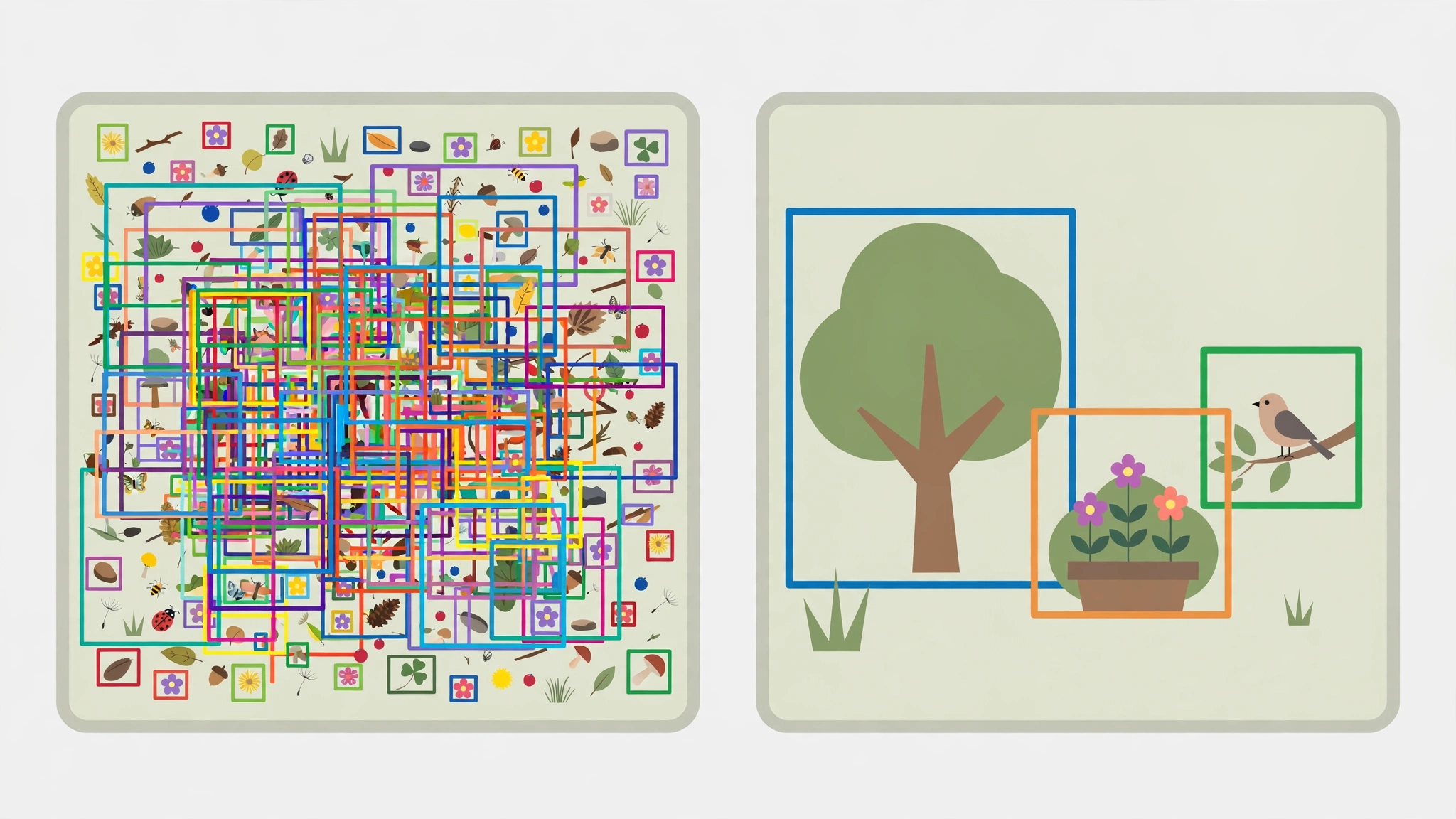
NMS, YOLO26's headline feature. YOLO26 ships two heads: the default one-to-many head, which needs NMS to merge overlapping boxes, and an optional one-to-one head that produces end-to-end predictions with nms=False. Switch it on in one argument:
results = model(src, conf=0.25, nms=False, verbose=False)On the demo image the NMS-free head returned the same 5 detections as the default head, but with slightly higher confidences across the board: bus 0.924 instead of 0.881, the three clear persons 0.913/0.905/0.870 instead of 0.872/0.861/0.846, and the weak edge person 0.534 instead of 0.656. The practical difference is not the count on one photo — it is deployment: with no NMS pass to tune or port, the model exports more cleanly to ONNX and edge runtimes, and its latency stops varying with how crowded the scene is. The docs are honest about the trade: the end-to-end head scores slightly lower on COCO (40.1 vs 40.9 mAP for the nano model). Use the default head when accuracy is all that matters; use nms=False when you are shipping to a device and want one less moving part.
Step 5 — Point it at a folder and get a spreadsheet back
One photo is a demo. A folder is a tool. Save this as batch_detect.py — it runs the model over every image in a folder and writes one CSV row per detection, plus a count per class:
import csv, sys
from collections import Counter
from pathlib import Path
from ultralytics import YOLO

folder, csv_path = Path(sys.argv[1]), Path(sys.argv[2])
model = YOLO("yolo26n.pt")
images = sorted(p for p in folder.iterdir()
                if p.suffix.lower() in {".jpg", ".jpeg", ".png", ".webp"})
totals = Counter()
with open(csv_path, "w", newline="") as f:
    w = csv.writer(f)
    w.writerow(["image", "label", "confidence", "x1", "y1", "x2", "y2"])
    for img in images:
        r = model(str(img), conf=0.25, verbose=False)[0]
        for box in r.boxes:
            label = r.names[int(box.cls)]
            totals[label] += 1
            w.writerow([img.name, label, round(float(box.conf), 3)] +
                       [round(float(v), 1) for v in box.xyxy[0]])
print(f"images: {len(images)}  detections: {sum(totals.values())}")
for label, n in totals.most_common():
    print(f"  {label:<12} {n}")
print("csv:", csv_path)
Make a folder, drop in a few photos of your own, and run it:
mkdir photos
# copy your own .jpg/.png files into photos/
python3 batch_detect.py photos detections.csv
On the verification machine, a 2-image test folder (the bus photo plus a second demo photo of two people) produced:
images: 2  detections: 8
  person       6
  bus          1
  tie          1
That CSV is the deliverable most projects actually need: it loads straight into a spreadsheet, a database, or a pandas script, and it is the input to every downstream step — counting people per frame, flagging images with no safety helmet, or finding the one photo in a thousand that contains a dog. If you also want the cropped objects themselves, the coordinates are already in the CSV: a few lines of Pillow will cut each box out of its source image.
Which size should you use?
YOLO26 ships five detection scales, all trained on the same 80 COCO classes. The docs' published figures:
| Model | COCO mAP 50–95 | Parameters | FLOPs | CPU ONNX speed |
|---|---|---|---|---|
| yolo26n (nano) | 40.9 | 2.4M | 5.5B | 38.9 ms |
| yolo26s (small) | 48.6 | 9.5M | 20.9B | 87.2 ms |
| yolo26m (medium) | 53.1 | 20.4M | 68.4B | 220.0 ms |
| yolo26l (large) | 55.0 | 24.8M | 86.8B | 286.2 ms |
| yolo26x (extra-large) | 57.5 | 55.7M | 194.4B | 525.8 ms |
The choice is a ladder, and you climb it only when the smaller rung demonstrably fails:
- Start with nano. It is the model this guide verified, it runs on anything, and its 40.9 mAP is already good enough for counting, triage, and prototyping.
- Move to small or medium when small objects disappear. Distant people, small products on a shelf, and birds in a wide shot are where the extra parameters pay first.
- Large and extra-large are for accuracy-first, offline work. At 286–526 ms per image on CPU they are not real-time on a laptop, but for overnight batch jobs over an archive they are the right call — swap one filename,
YOLO("yolo26m.pt"), and nothing else in this guide changes.
The same one-line swap reaches the rest of the family: yolo26n-seg.pt for instance segmentation, yolo26n-pose.pt for keypoints, yolo26n-cls.pt for classification, and yolo26n-obb.pt for oriented boxes. Those variants are documented in the same model family; this guide verified detection only, so treat them as the next experiment, not as verified here.
The takeaway
Local object detection in 2026 is a solved installation problem and an interesting judgement problem. The installation is three commands and a 5 MB model. The judgement is everything after: which of the 80 classes you actually need, what confidence threshold your use case can afford, whether the NMS-free head's simpler deployment is worth its small accuracy cost, and when your problem has outgrown the COCO vocabulary and needs its own trained model. Get those four decisions right and a laptop becomes a perfectly good vision system — private, free at the margin, and fast enough to chew through a folder of photos while you make coffee.
Sources: the Ultralytics YOLO26 documentation (model family, five scales, COCO mAP table, NMS-free head, licence, read October 29, 2026), the ultralytics 8.4.192 package metadata (dependencies, Python requirement), and the verification runs quoted in Steps 1–5 (install versions, CLI summary and speed lines, detect.py outputs at conf 0.25/0.70 and with nms=False, and the 2-image batch counts, all from the verification machine). The ONNX speed figure and the segmentation/pose/classification variants are the docs' figures and documented family members, not runs performed here; the article says so where it uses them.