AstrBot: run your own AI chatbot across Telegram, QQ, Discord and the web — hands-on
AstrBot turns one self-hosted bot into a chatbot on Telegram, QQ, Discord, Slack and the web, with a plugin marketplace and any LLM behind it. I installed 4.29.4, wired it to a local Ollama model, and chatted with it in the built-in WebUI — here’s the full walkthrough, with the numbers.
- What it is: AstrBot 4.29.4 (AGPL-3.0) — an all-in-one agent chatbot platform: multi-platform adapters, any LLM provider, a plugin system, knowledge base, agent sandbox, and a visual dashboard in one Python package.
- Why it is trending: 47,007 stars, 3,591 forks, 5,543 commits, 263 releases, and +5,246 stars this month — a spot on GitHub’s monthly trending list for November 2026.
- Cost: free and open source. No API key needed with a local Ollama model; a hosted provider only if you choose one.
- Verified in this tutorial: every command below ran in our sandbox — pip install of 4.29.4, the Ollama provider wired to qwen3:0.6b, a Web ChatUI exchange (“2 + 2 equals 4.” in 59.4 s), and a dice plugin installed by git clone answering /roll 1d6 in 0.26 s.
- The catch: the 0.6B model runs at ~3.7 tokens/second on two CPU cores with a 54-second cold start — use an 8B model or a hosted provider for real use — and the one-click plugin marketplace fails behind TLS-intercepting proxies.
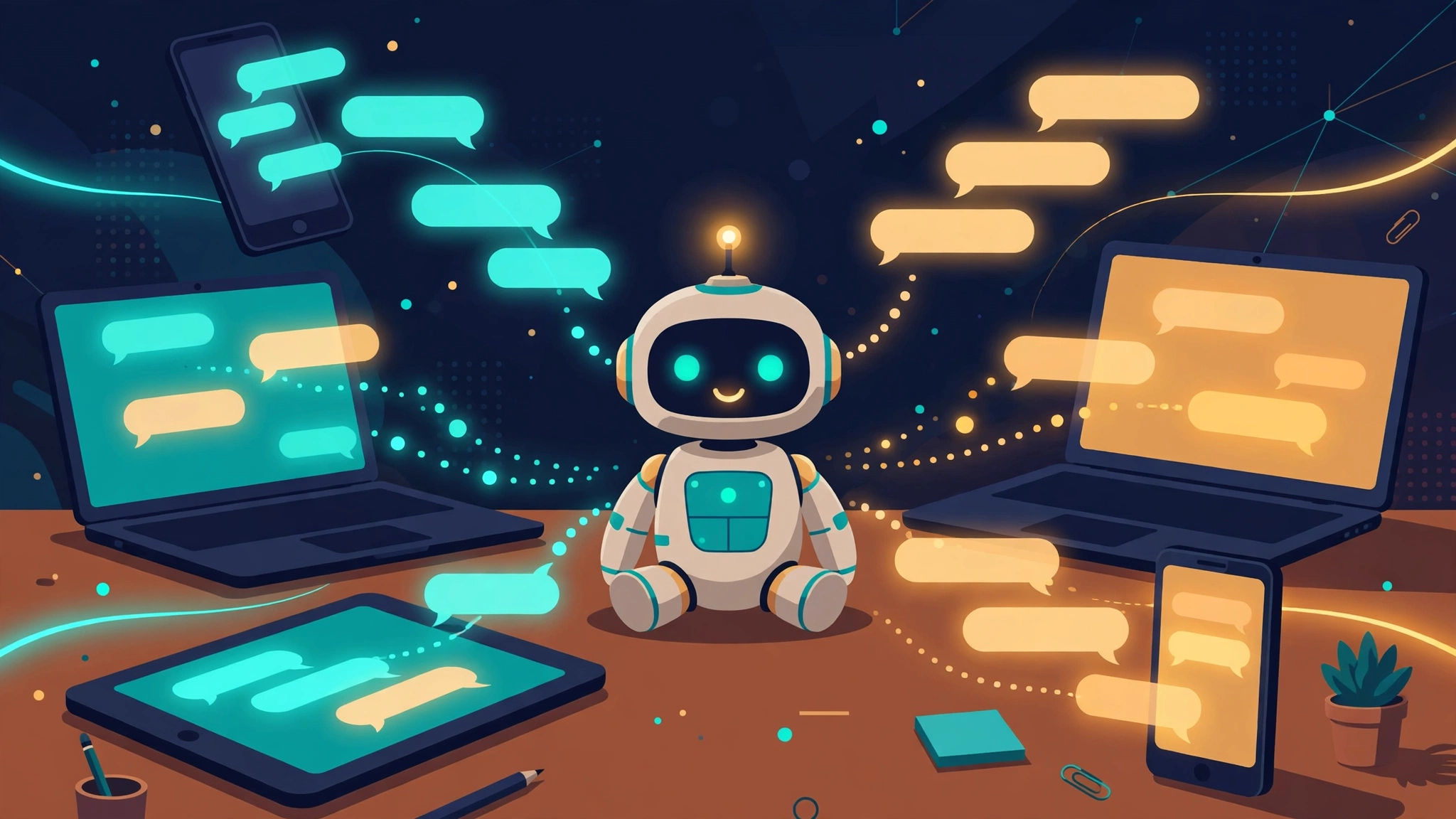
AstrBot is the open-source chatbot platform that does one thing most self-hosted AI tools don't: it puts a single bot on nearly every chat app at once. One install, one brain, and your assistant answers in Telegram, QQ, Discord, Slack, Feishu, DingTalk, and a built-in web chat — with a plugin system behind it. The project has 47,007 stars on GitHub, gained 5,246 of them this month, and ships 263 releases deep. I installed version 4.29.4, pointed it at a local Ollama model, chatted with it in its own web UI, and taught it a dice trick with a community plugin. Every step below ran for real, with the numbers it produced.
The short version: installation is one pip command, the dashboard runs on port 6185, Ollama is a first-class provider, and the whole thing works with no paid API key. The two things to know before you start: the bundled model I tested is slow on a CPU-only machine, and the one-click plugin marketplace breaks behind TLS-intercepting proxies — there is a manual fallback that works.
Why AstrBot is spiking now#
Chatbot frameworks are not new. What pushed AstrBot past 47,000 stars is the combination, not any single feature. It is an all-in-one agent chatbot platform: multi-platform adapters, any LLM provider, a plugin system with a 1,329-plugin community registry, a knowledge base, an agent sandbox for code execution, MCP support, and a visual dashboard — all in one Python package, licensed AGPL-3.0. You don't assemble five tools; you install one and configure it.
The adapter list is the differentiator. One bot can serve QQ (via the OneBot v11 protocol), Telegram, Discord, Slack, WeCom, WeChat Official Accounts, Feishu, Lark, DingTalk, LINE, Satori, KOOK, Misskey, and Mattermost, with Matrix, Rocket.Chat, and VoceChat maintained by the community. WhatsApp is listed as coming soon. The model side is equally broad: OpenAI and any OpenAI-compatible endpoint, Anthropic, Gemini, Moonshot, Zhipu, DeepSeek, Ollama, and LM Studio, plus API gateways. That breadth is why it keeps climbing the trending lists: it is the closest thing to a universal remote for conversational AI that you can run yourself.
What you'll need#
- Python 3.12 — the project targets 3.12 (its own install command uses
--python 3.12). I used the system Python 3.12.3. - Ollama, or any LLM API key — this tutorial uses Ollama with a local model, so there is no key and no bill. Any OpenAI-compatible endpoint works in its place.
- A local model — I used
qwen3:0.6b(522 MB), the smallest Qwen3. It runs on CPU with no GPU. It is a plumbing test, not a pilot: expect slow replies, and upgrade to an 8B model or an API provider for real use. See the numbers in Step 5. - Two ports: 6185 for the AstrBot dashboard, 11434 for Ollama.
- About 800 MB of disk for AstrBot and its dependencies — the install I ran measured 746 MB.
Step 1 — Install AstrBot#
The project's documented install is a one-liner with uv:
uv tool install astrbot --python 3.12
astrbot init  # Only execute this command for the first time
astrbot run
I installed with pip instead, because uv tool install failed in this sandbox: uv's HTTP client timed out fetching one wheel (google_auth-2.62.2) behind the egress proxy, while curl fetched the same wheel in under a second. That is a sandbox networking quirk, not an AstrBot problem — on a normal machine the uv command is the right one. The pip equivalent that worked:
python3 -m pip install --user --break-system-packages --no-cache-dir astrbotIt installed astrbot 4.29.4 with roughly 130 dependencies, including FastAPI, the Telegram/Discord/QQ client libraries, and the MCP SDK. Verify the install before going further:
~/.local/bin/astrbot --helpYou should see the ASCII banner and the CLI version line: AstrBot CLI version: 4.29.4. If astrbot is not on your PATH, use the full path ~/.local/bin/astrbot, as I did.
Step 2 — Initialize it#
Run the init command from the directory you want AstrBot to live in. It creates the data layout and the dashboard password:
mkdir -p ~/astrbot && cd ~/astrbot
ASTRBOT_DASHBOARD_INITIAL_PASSWORD='YourPassword1' ~/.local/bin/astrbot init -y
Two details that cost me time. First, astrbot init without -y asks "Install AstrBot to this directory?" and waits on stdin forever — in a script or a non-interactive shell it looks hung. Always pass -y. Second, the dashboard password must contain at least one uppercase letter; afp-demo-2026 was rejected with "Password must include at least one uppercase letter". Pick your own password — the one above is an example.
Init creates .astrbot (a marker file), plus data/config, data/plugins, and data/temp, and writes the dashboard credentials into data/cmd_config.json. That file is the whole configuration: providers, platforms, dashboard settings, and personas all live there (as JSON with a UTF-8 BOM, so open it with utf-8-sig if you script against it).
Step 3 — Start it and open the dashboard#
~/.local/bin/astrbot runThe log ends with the lines that matter:
Starting WebUI at http://0.0.0.0:6185
AstrBot v4.29.4 WebUI is ready
 ➜  Local: http://localhost:6185
 ➜  Username: astrbot
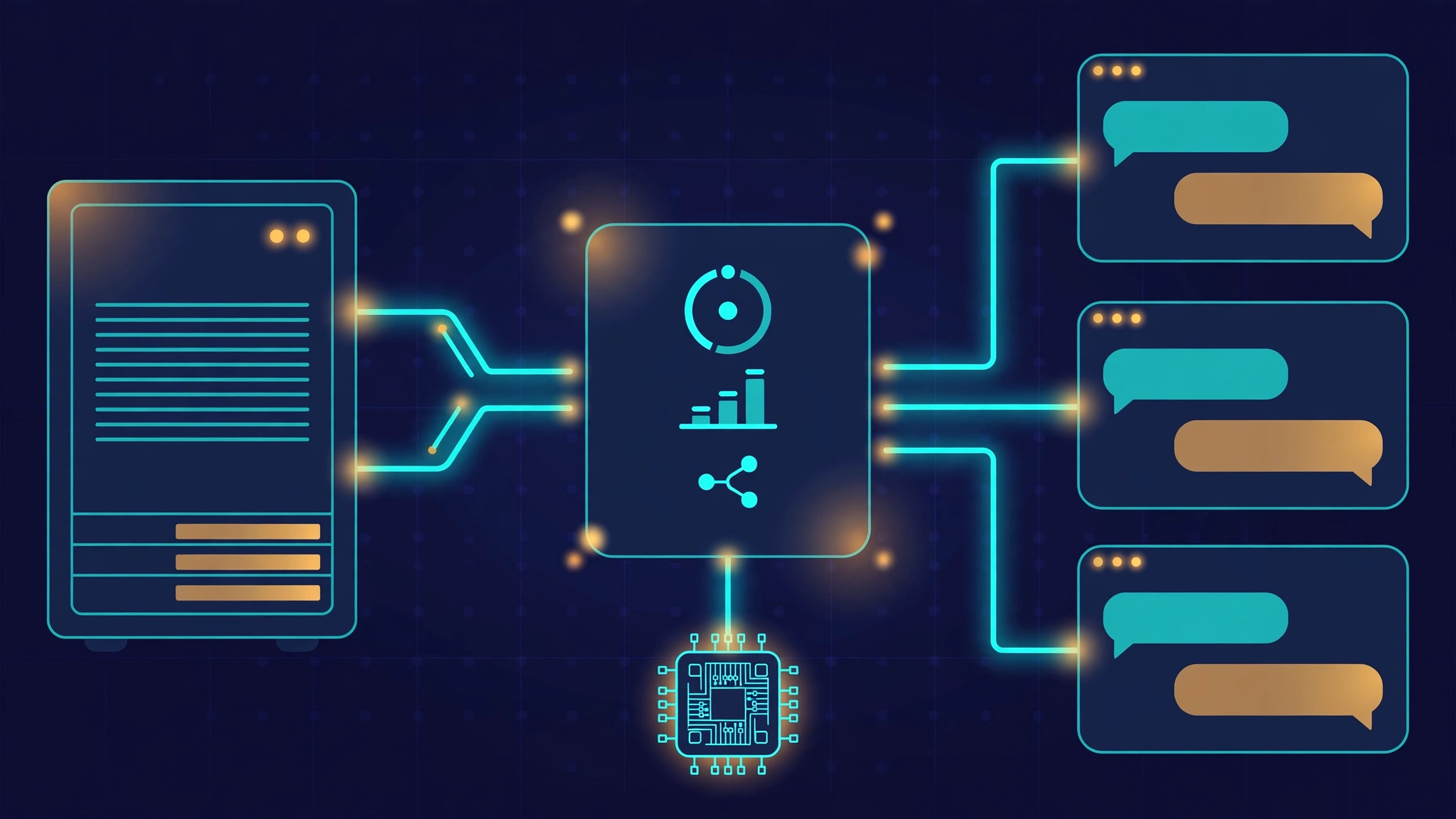
Open http://localhost:6185 and log in as astrbot with the password you set. The dashboard is the control room: providers, chat platforms, plugins, knowledge base, cron jobs, and the Web ChatUI all live here. One security note the server prints itself: the dashboard listens on all interfaces (0.0.0.0) by default. On a shared machine or a server, set dashboard.host to 127.0.0.1 in data/cmd_config.json or put it behind a reverse proxy with authentication — do not expose port 6185 to the internet with the default setup.
Step 4 — Point it at a local model with Ollama#
AstrBot ships with no model configured, so the first job is adding a provider. Ollama is a first-class provider type in AstrBot, not a generic OpenAI-compatible hack: the dashboard's provider schema has a dedicated Ollama template with its own toggle, ollama_disable_thinking. I configured it through the dashboard API, which takes the same fields the dashboard UI renders (Providers → New provider source → Ollama). The two calls:
# Log in and save the token
curl -s http://127.0.0.1:6185/api/auth/login -X POST \
  -H 'Content-Type: application/json' \
  -d '{"username":"astrbot","password":"YourPassword1"}' -o /tmp/login.json
TOKEN=$(python3 -c "import json; print(json.load(open('/tmp/login.json'))['data']['token'])")

# 1. Create the Ollama provider source
curl -s http://127.0.0.1:6185/api/v1/provider-sources -X POST \
  -H "Authorization: Bearer $TOKEN" -H 'Content-Type: application/json' \
  -d '{"id":"ollama-local","config":{
    "id":"ollama-local","provider":"ollama",
    "type":"openai_chat_completion","provider_type":"chat_completion",
    "api_base":"http://127.0.0.1:11434/v1","key":["ollama"],
    "ollama_disable_thinking":true,"enable":true}}'

# 2. Add the model as a provider in that source
curl -s http://127.0.0.1:6185/api/v1/provider-sources/providers -X POST \
  -H "Authorization: Bearer $TOKEN" -H 'Content-Type: application/json' \
  -d '{"source_id":"ollama-local","config":{
    "id":"ollama-qwen3-06b","model":"qwen3:0.6b","enable":true}}'
Both calls return {"status":"ok"}, and the server log confirms the load: Loading model openai_chat_completion(ollama-qwen3-06b) .... The resulting provider record is exactly what you would expect:
{"id": "ollama-qwen3-06b", "provider": "ollama",
 "type": "openai_chat_completion", "provider_type": "chat_completion",
 "api_base": "http://127.0.0.1:11434/v1", "key": ["ollama"],
 "ollama_disable_thinking": true, "enable": true,
 "model": "qwen3:0.6b", "provider_source_id": "ollama-local"}
The ollama_disable_thinking flag matters more than it looks. Qwen3 is a thinking model: left alone, it spends its token budget reasoning in a hidden channel before answering. I proved it against Ollama directly — with a 40-token budget the reply came back empty while all 40 tokens went to reasoning; with a 200-token budget it finally answered "4". AstrBot's toggle maps to reasoning_effort=none (think=false), so the model answers directly instead of thinking out loud. If you use any Qwen3 model through Ollama, turn this on.
The same Ollama template is the pattern for any other provider: pick the template, fill in the API base and key, name the model. The dashboard's schema endpoint (GET /api/v1/providers/schema) lists every template with its exact fields, so you never have to guess a field name.
Step 5 — Your first chat in the Web ChatUI#
AstrBot has a built-in web chat, so you can talk to the bot without connecting any messaging platform. Create a session and send a message (again via the API; the dashboard's Web ChatUI button does the same thing in the browser):
curl -s "http://127.0.0.1:6185/api/v1/chat/sessions/new?platform_id=webchat" \
  -H "Authorization: Bearer $TOKEN"
# → {"status":"ok","data":{"session_id":"7965005a-f9f8-4e39-994b-fc40596112f5","platform_id":"webchat"}}

curl -s -N --max-time 300 http://127.0.0.1:6185/api/chat/send -X POST \
  -H "Authorization: Bearer $TOKEN" -H 'Content-Type: application/json' \
  -d '{"message":"What is 2+2? Answer with just the number.",
       "session_id":"7965005a-f9f8-4e39-994b-fc40596112f5",
       "selected_provider":"ollama-qwen3-06b","selected_model":"qwen3:0.6b"}'
The streamed reply came back as:
2 + 2 equals 4.With the honest numbers attached: time to first token was 54.3 seconds (cold model load on two shared CPU cores), 9 output tokens, and 2,279 input tokens — most of that is AstrBot's agent system prompt, not your message. The whole exchange took 59.4 seconds. Directly against Ollama, the same model runs at roughly 3.7 tokens per second on this hardware. That is usable for a demo and unusable for a daily driver. Treat qwen3:0.6b as proof the plumbing works, then swap in a larger model — Qwen3 8B through Ollama, or any hosted provider — for anything real. The swap is one field: change model on the provider.
Step 6 — Give it a skill: install a plugin#
Plugins are what turn AstrBot from a chatbot into an agent. The community registry lists 1,329 of them — I counted the entries in the project's own plugin cache file. The dashboard has a one-click marketplace, but it failed in this sandbox: the dashboard's HTTP client rejected the registry's TLS certificate (SSLCertVerificationError: self-signed certificate in certificate chain), because the sandbox's egress proxy intercepts TLS and AstrBot's client doesn't trust the proxy's CA. On a normal network the marketplace works. Behind a TLS-intercepting proxy, install by hand instead:
cd ~/astrbot/data/plugins
git clone --depth 1 https://github.com/scwunai/Astrbot_Plugin_Dice_scwunai
# restart AstrBot so it discovers the plugin
The server log confirms the load on restart:
Loading plugin Astrbot_Plugin_Dice_scwunai ...
Plugin astrbot_plugin_dice (v1.0.1) by scwunai
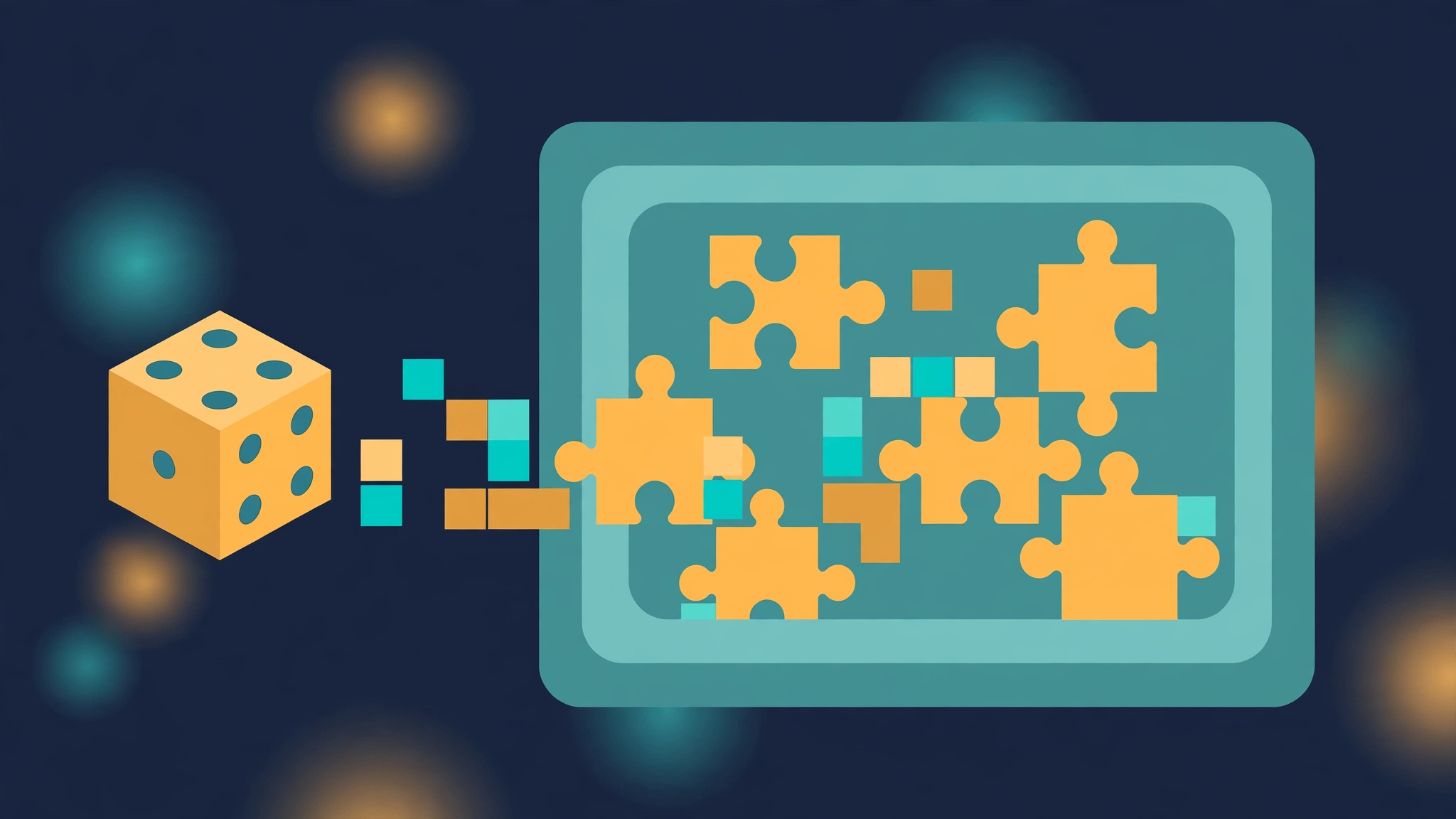
The dice plugin adds /roll, /rp, and /dicehelp commands. Sending /roll 1d6 in the same webchat session answered in 0.26 seconds — no LLM call at all, the plugin handles the command directly:
你投掷了 1 次 6 面骰子,结果: 6。
所有骰子的总和为: 6。
检定结果: 成功
Translation: "You rolled 1 six-sided die, result: 6. Sum: 6. Check: success." The plugin's own text is Chinese (much of the ecosystem is Chinese-first — the docs are too, though the dashboard has English UI). For an English-first plugin, the same flow works with any repo from the registry: clone into data/plugins, restart, and the plugin's commands appear. The registry's plugin cache file (AstrBotDevs/AstrBot_Plugins_Collection on GitHub) is the browsable index when the in-dashboard marketplace is unreachable.
Step 7 — Put it on a real chat app#
This is the step that makes AstrBot worth installing: the same bot, on the apps your people already use. The documented path for Telegram is: create a bot with @BotFather, copy the token, then in the dashboard go to Adapters (Platform) → Telegram → paste the token and start the adapter. QQ uses the OneBot v11 protocol (NapCat or Lagrange as the OneBot implementation), Discord and Slack take bot tokens the same way. I did not connect a live chat account in the sandbox — that needs your own Telegram account and bot token — so treat this step as the documented flow, not a sandbox-verified one. Everything up to it (install, dashboard, provider, webchat, plugin) is verified; the adapter step is the same configuration pattern with a token instead of a model.
One thing to set before going live: the whitelist. AstrBot's platform settings default to enable_id_white_list: true with an empty whitelist, so decide who is allowed to talk to the bot before you expose it to a group chat — otherwise anyone who finds the bot can spend your tokens.
When to use AstrBot vs alternatives#
Self-hosted agent chatbots overlap heavily. The choice is mostly about which surface you care about:
| Tool | Best for | Trade-off |
|---|---|---|
| AstrBot | One bot on many chat apps, plugin ecosystem, any LLM | Chinese-first docs and plugins; dashboard binds 0.0.0.0 by default |
| OpenClaw | Personal assistant on WhatsApp/Telegram with a local-first design | Single-user focus; fewer built-in adapters |
| Whirl | A self-hosted chat web app with OpenRouter and MCP tools | Web app, not a chat-platform bot |
| OpenDuet | Proactive agent: morning briefs, Gmail/Calendar, scheduled work | Built around scheduled proactivity, not on-demand chat |
If the job is "my team already lives in Telegram and QQ and I want one assistant everywhere," AstrBot is the pick. If the job is "a personal agent on my phone," OpenClaw fits better. If you only need a private ChatGPT-style web UI, Whirl is simpler. All four are covered hands-on on this blog — see the related articles below.
Gotchas worth knowing#
- The dashboard binds 0.0.0.0:6185. Set
dashboard.hostto127.0.0.1or reverse-proxy it. The server log warns you itself. astrbot initblocks without-y. It waits on an interactive confirmation; in scripts it looks hung.- Dashboard passwords need an uppercase letter. The init step rejects all-lowercase passwords.
- Qwen3 thinks before it answers. Turn on
ollama_disable_thinkingfor Qwen3 models, or the model burns its token budget reasoning and returns empty replies on short budgets. - The plugin marketplace needs direct internet. Behind a TLS-intercepting proxy it fails certificate verification; clone plugins into
data/pluginsand restart instead. - Many plugins and docs are Chinese-first. The dashboard UI is available in English, but plugin descriptions and help text often aren't. Machine translation gets you through it.
- AGPL-3.0. If you modify AstrBot and offer it as a service, the license requires you to share the source. Fine for personal use; check before building a product on it.
The takeaway#
AstrBot earns its star count. One pip install gives you a chatbot platform that talks to a dozen chat apps, takes any LLM, and extends through a 1,329-plugin registry — and the whole loop (install, dashboard, Ollama provider, web chat, plugin command) runs locally with no paid key. The rough edges are real but bounded: a slow tiny model on CPU, a marketplace that assumes direct internet, and Chinese-first documentation. None of them blocks the core use. Set it up with a local model, prove the loop in the Web ChatUI, then connect the one chat app your people actually use — and put a real model behind it before you invite anyone else in.