Connect Claude Code to Gmail, Drive, and Calendar: the complete Google Workspace MCP setup
Google's hosted Workspace MCP servers are generally available — and from February 1, 2027, agents must use them instead of the REST APIs. This tutorial wires them into Claude Code end to end: Cloud project, OAuth client, servers, and the first verified prompts.
claude mcp add --transport http, sign in once, and Claude can search your mail, read your files, and check your calendar from the terminal. The whole setup takes about 20 minutes, and it is free on Google's Standard tier.- Why now: the servers reached general availability on November 24, 2026. From February 1, 2027, Google begins technically enforcing that AI agents reach Workspace data through MCP or the official CLI — not the REST APIs.
- What you get: pre-built tools per app —
gmail.search_threads,drive.search_files,calendar.list_eventsand more — that inherit your permissions and your organization's data-governance controls. - What it costs: nothing for nearly everyone. The Standard usage tier is free with published quotas; Google says over 99% of active developers operate within it. Scaled-tier billing starts April 1, 2027, and only for usage above daily free allowances.
- The one setting that breaks everything: your OAuth client must have Use this client for an AI-powered agent selected. Without it, requests fail with a generic
invalid tokenerror. - What Claude cannot do: the Gmail server has no send tool. It drafts; you send. Treat that as a feature, not a limitation.
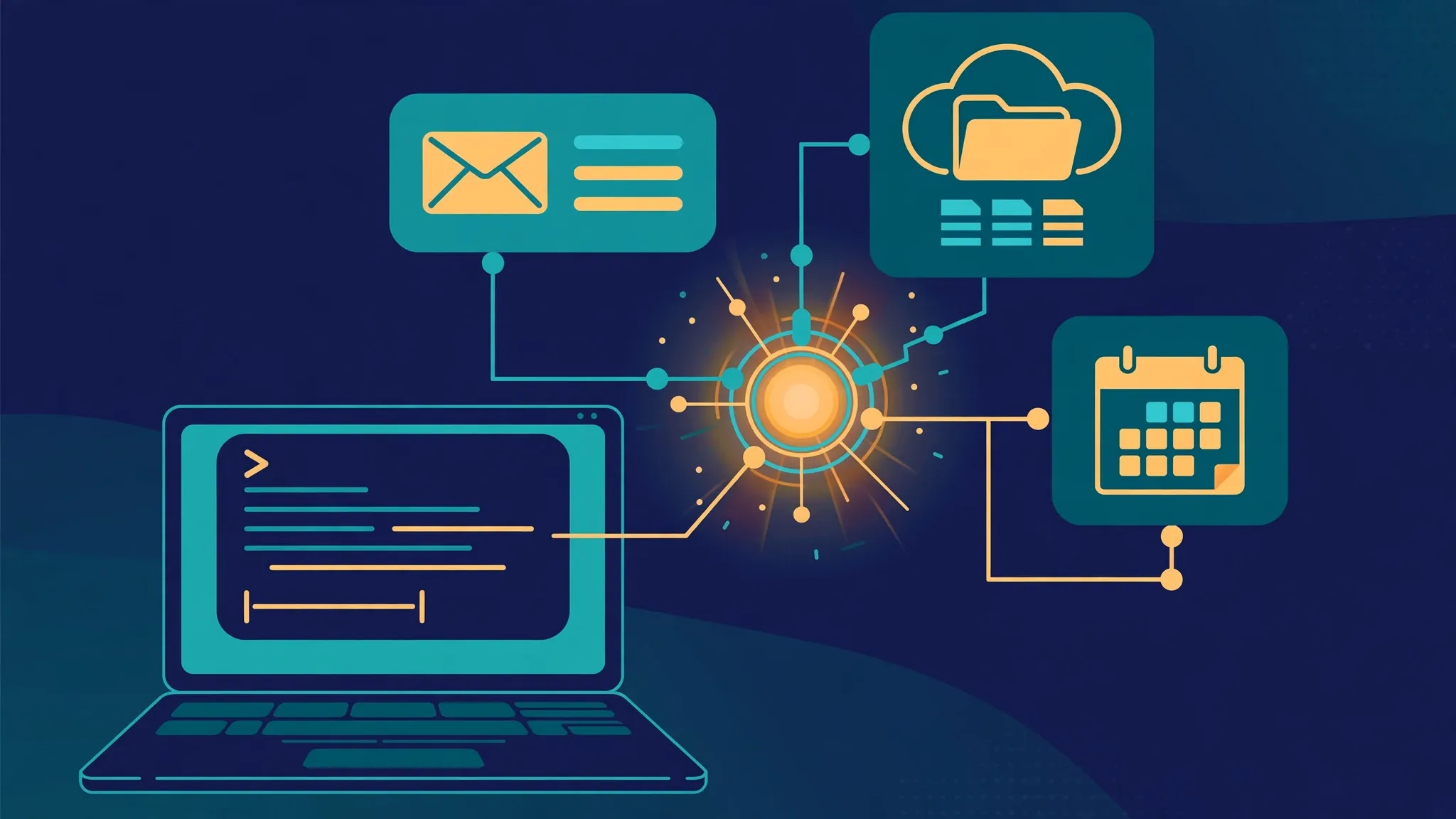
Until this week, giving a coding agent access to your inbox meant one of two bad options: hand it a service-account key with broad API access, or wire up a third-party Gmail integration and hope its OAuth scopes were honest. Google's answer, generally available since November 24, is to host the integration itself: one remote MCP server per Workspace app, speaking the open Model Context Protocol, authenticated with your own OAuth client, and governed by the same permissions and DLP rules that already apply to you.
This tutorial sets that up with Claude Code — the agent most developers already have in their terminal. By the end, Claude will answer "what did Ariel say in her last email about the marketing plan?" by searching your Gmail, summarize a Drive file without you pasting it, and check your calendar before proposing a meeting time. Every command below is taken from Google's and Anthropic's own documentation, and the server URLs were verified live at publication time.
What you'll need#
- A Google account — a personal Gmail account works. A Workspace account adds admin controls, but nothing in this tutorial requires them.
- A Google Cloud project — free to create; no billing account needed for the Standard tier.
- Claude Code installed and signed in — any recent 2.x release. Check with
claude --version. - A browser — the OAuth sign-in happens there, once per server.
- About 20 minutes — most of it is clicking through the Cloud console.
Optional but recommended: the gcloud CLI, if you prefer enabling APIs from the terminal instead of the console. Google's Quick setup path below doesn't need it.
How the pieces fit together#
Three parts, each owned by someone else, which is the point: Google hosts the servers, Google issues the credentials, and Claude Code is just the client that calls them.
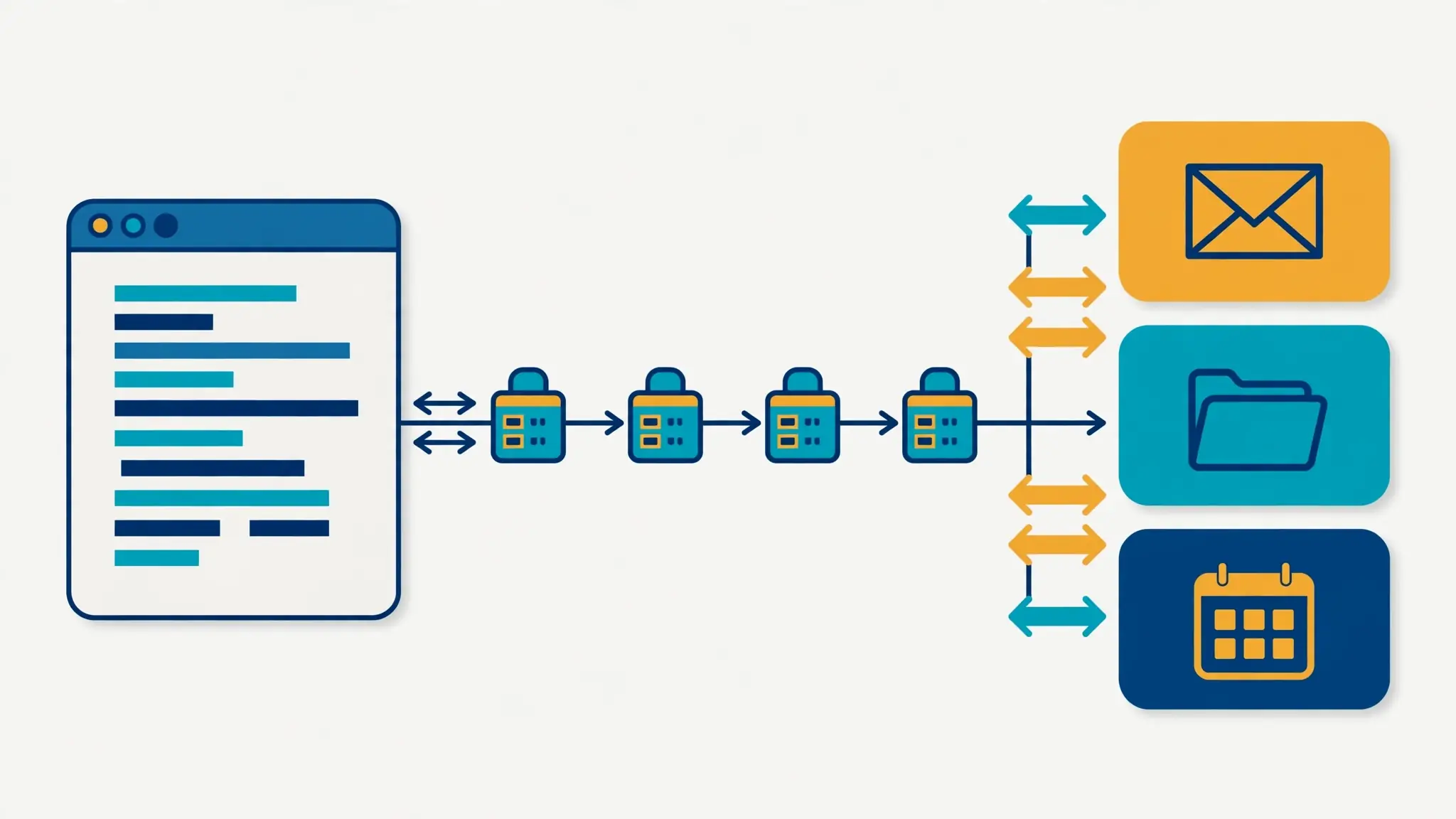
Claude Code connects to each server over Streamable HTTP with OAuth 2.0. When you ask about an email, Claude calls gmail.search_threads on the Gmail server; the server runs the search as you, under your permissions, and returns the result. The agent never sees your password, never holds a long-lived API key, and can only do what the OAuth scopes you granted allow. Revoke the OAuth client and every server stops working at once.
Each Workspace product has its own server and URL:
| Server | URL |
|---|---|
| Gmail | https://gmailmcp.googleapis.com/mcp/v1 |
| Google Drive | https://drivemcp.googleapis.com/mcp/v1 |
| Google Docs | https://docsmcp.googleapis.com/mcp/v1 |
| Google Sheets | https://sheetsmcp.googleapis.com/mcp/v1 |
| Google Slides | https://slidesmcp.googleapis.com/mcp/v1 |
| Google Calendar | https://calendarmcp.googleapis.com/mcp/v1 |
| Google Chat | https://chatmcp.googleapis.com/mcp/v1 |
| People API | https://people.googleapis.com/mcp/v1 |
| Google Tasks | https://tasksmcp.googleapis.com/mcp/v1 |
| Google Classroom | https://classroommcp.googleapis.com/mcp/v1 |
| Universal Search | https://workspacemcp.googleapis.com/mcp/v1 |
This tutorial wires up the three most useful — Gmail, Drive, and Calendar — and Step 5 adds the rest. The Universal Search server deserves a special mention: one search_corpus call searches Gmail, Drive, Calendar, and Chat together, which is the fastest way to answer "find anything about Project X."
Step 1 — Set up the Google Cloud project#
Everything the MCP servers do runs inside a Google Cloud project you own. Google offers two routes: a guided Quick setup that does the whole job on one page, or the manual route with gcloud. Use Quick setup unless you need a multi-user OAuth client or want to enable only specific APIs.
Quick setup (recommended). Open Personal mode onboarding in the Google Cloud console — it pre-selects a Web application client, which is what you want. Select an existing project or create a new one, give the client a name, and review the Google API Services User Data Policy. The console enables the core Workspace APIs and MCP services and creates your OAuth client in one pass. Copy the client ID and client secret it shows you; you'll need them in Step 3.
Manual route. If you prefer the terminal, create a project, then enable the product APIs and the MCP services with gcloud. Replace PROJECT_ID with your project ID in both commands:
gcloud services enable gmail.googleapis.com \
  drive.googleapis.com \
  docs.googleapis.com \
  sheets.googleapis.com \
  slides.googleapis.com \
  calendar-json.googleapis.com \
  chat.googleapis.com \
  people.googleapis.com \
  classroom.googleapis.com --project=PROJECT_ID
gcloud services enable gmailmcp.googleapis.com \
drivemcp.googleapis.com \
docsmcp.googleapis.com \
sheetsmcp.googleapis.com \
slidesmcp.googleapis.com \
calendarmcp.googleapis.com \
chatmcp.googleapis.com \
people.googleapis.com \
tasksmcp.googleapis.com \
classroommcp.googleapis.com \
workspacemcp.googleapis.com \
--project=PROJECT_IDTwo details worth noticing. First, the product APIs and the MCP services are separate enables: gmail.googleapis.com is the Gmail API; gmailmcp.googleapis.com is the Gmail MCP API. You need both. Second, the People API serves MCP directly on people.googleapis.com — it has no separate *mcp service — and the Universal Search and Tasks servers need no separate product API enabled. If you used Quick setup, skip both commands: the console already did this, except for Classroom, which Quick setup doesn't enable automatically.
Step 2 — Create the OAuth client (and the one checkbox that matters)#
If you used Quick setup, your client already exists — but open it and check the two settings below anyway, because they are the difference between a working setup and an afternoon of cryptic errors.
In the Google Cloud console, go to Google Auth Platform > Clients > Create Client. Select Web application as the application type and give it a name like Claude Code Workspace. Then:
- Add the redirect URI. Under Authorized redirect URIs, add
http://localhost:8080/callback. Claude Code runs its OAuth callback on a local port; fixing the port with--callback-port 8080in Step 3 makes the registered URI and the real one match exactly. Google accepts localhost redirect URIs, and the port must match character for character — a trailing slash or a different port fails the sign-in. - Tick the agent checkbox. Select Use this client for an AI-powered agent. This is mandatory: user-delegated OAuth clients that call the Workspace MCP servers without this setting get their requests rejected with a generic
invalid tokenerror. If an existing client can't be updated, or it also serves non-agent features, create a separate client for the agent and keep the old one for everything else. - Click Create and copy the client ID and client secret. You'll paste them into the
claude mcp addcommands in the next step.
Now set the OAuth scopes — the permissions your agent actually gets. In Google Auth Platform > Data Access, add the scopes for the servers you plan to use. For this tutorial's three servers, that's:
| Server | Scopes |
|---|---|
| Gmail | https://www.googleapis.com/auth/gmail.readonlyhttps://www.googleapis.com/auth/gmail.compose |
| Drive | https://www.googleapis.com/auth/drive.readonlyhttps://www.googleapis.com/auth/drive.file |
| Calendar | https://www.googleapis.com/auth/calendar.calendarlist.readonlyhttps://www.googleapis.com/auth/calendar.events.freebusyhttps://www.googleapis.com/auth/calendar.events.readonlyhttps://www.googleapis.com/auth/calendar.events |
Notice the pattern: readonly scopes let Claude look; the write scopes (gmail.compose, calendar.events, drive.file) let it act. gmail.compose only authorizes drafts — there is no scope that lets the server send mail, because the server has no send tool. If you're cautious, start with the readonly scopes only and add the write scopes later, when you actually want Claude to draft or schedule things. Also add your own email under Test users if your consent screen is in testing mode (External audience); without it, sign-in fails with a generic "Access blocked" error.
Step 3 — Add the servers to Claude Code#
With the project and the client in place, the Claude Code side is three commands. Google's MCP servers don't support dynamic client registration, so you pass the pre-configured credentials when adding each server: --client-id with your client ID, --client-secret (it prompts for the secret as masked input), and --callback-port 8080 to match the redirect URI you registered.
claude mcp add --transport http \
  --client-id YOUR_CLIENT_ID \
  --client-secret --callback-port 8080 \
  --scope user gmail https://gmailmcp.googleapis.com/mcp/v1

claude mcp add --transport http \
  --client-id YOUR_CLIENT_ID \
  --client-secret --callback-port 8080 \
  --scope user drive https://drivemcp.googleapis.com/mcp/v1

claude mcp add --transport http \
  --client-id YOUR_CLIENT_ID \
  --client-secret --callback-port 8080 \
  --scope user calendar https://calendarmcp.googleapis.com/mcp/v1
Each command prints an Added ... line on success — that confirms the configuration was written, not that the server connected. The --scope user flag makes the servers available in every project, not just the current one; the default local scope keeps them in the current project only, and --scope project writes them to a shareable .mcp.json at the repo root.
Now sign in. Run this for each server, or open the /mcp panel inside a Claude Code session and authenticate there:
claude mcp login gmail
claude mcp login drive
claude mcp login calendar
A browser window opens for Google sign-in. Approve the scopes, and Claude Code stores the token and refreshes it automatically. If you're on SSH or a headless machine, the command prints the authorization URL instead — open it on your local machine and paste the full redirect URL back at the prompt. Then check the status:
claude mcp listExpected output: all three servers showing ✔ Connected, each with its tool count. A server showing ! Needs authentication means the sign-in didn't complete — run claude mcp login <name> again. ✘ Failed to connect means Claude Code couldn't reach the server at all, which usually traces back to Step 1 or 2: an API not enabled, or the agent checkbox missing.
If you prefer config files to commands, the same servers can live in a project .mcp.json. The shape Claude Code requires is a type of http next to the url — a URL without a type is read as a stdio server and skipped:
{
  "mcpServers": {
    "gmail": {
      "type": "http",
      "url": "https://gmailmcp.googleapis.com/mcp/v1",
      "oauth": {
        "scopes": "https://www.googleapis.com/auth/gmail.readonly https://www.googleapis.com/auth/gmail.compose"
      }
    }
  }
}
Setting oauth.scopes pins the scopes Claude Code requests during sign-in, which is the supported way to keep a server to an approved subset. Leave it unset and the server decides the scope set.
Step 4 — Verify it works with real prompts#
Don't trust the green checkmark alone — make Claude do something. Open Claude Code and try these, one at a time, watching which tools it calls:
- "What did Ariel say in her last email about our marketing plan?" — Claude should call
gmail.search_threadsto find Ariel's emails, thengmail.get_threadto read the latest one and summarize it. - "Summarize the file Marketing Plan." — Claude calls
drive.search_filesto locate it, thendrive.read_file_contentto read and summarize it. - "When is my next meeting with Ariel?" — Claude checks your schedule with
calendar.list_eventsand gives you the time and details. - "Draft an email to [email protected] saying that I approve the marketing plan." — Claude uses
gmail.create_draft. Check Gmail: the draft should be sitting in your Drafts folder, unsent, waiting for your review.
If the tools run and the answers are relevant to your actual data, the setup is correct. The draft test is the most informative one: it proves the write scopes work, and it proves the safety boundary works too — Claude drafts, you send.
Step 5 — Add the rest: Docs, Sheets, Slides, Tasks, and Universal Search#
The same three commands from Step 3 work for every other server — same client ID and secret, different name and URL. Add the ones you'll actually use:
claude mcp add --transport http \
  --client-id YOUR_CLIENT_ID \
  --client-secret --callback-port 8080 \
  --scope user docs https://docsmcp.googleapis.com/mcp/v1

claude mcp add --transport http \
  --client-id YOUR_CLIENT_ID \
  --client-secret --callback-port 8080 \
  --scope user sheets https://sheetsmcp.googleapis.com/mcp/v1

claude mcp add --transport http \
  --client-id YOUR_CLIENT_ID \
  --client-secret --callback-port 8080 \
  --scope user tasks https://tasksmcp.googleapis.com/mcp/v1

claude mcp add --transport http \
  --client-id YOUR_CLIENT_ID \
  --client-secret --callback-port 8080 \
  --scope user workspace-universal https://workspacemcp.googleapis.com/mcp/v1
Remember to add the matching scopes in the console first — Docs needs the Drive scopes plus documents.readonly and documents; Sheets needs the Drive scopes plus spreadsheets.readonly and spreadsheets; Tasks needs tasks.readonly and tasks; Universal Search needs the readonly scopes for Gmail, Drive, Calendar, and Chat. If a tool call fails with a message about needing additional permissions, that's the console telling you a scope is missing: add it, then re-authenticate the server from /mcp.
Universal Search is the one to try first. Ask "Find anything related to Project X across my email, files, and chat messages" and Claude calls search_corpus once instead of searching four apps separately. And a genuinely useful everyday prompt: "Add a task to send Ariel the marketing plan by Friday" — the Tasks server's tasks.create_task drops it on your default task list.
Which approach should you use?#
Google now offers three sanctioned ways for an agent to reach Workspace data, and the right one depends on where your agent lives:
| Approach | Best for | Trade-offs |
|---|---|---|
| Hosted MCP servers (this tutorial) | Cloud and web agents, Claude Code, Antigravity | Google hosts and governs it; needs the OAuth client setup above; one server per app |
Official Workspace CLI (gwscli) | Terminal agents, VMs, sandboxes, scripts | Google-supported, built for agents, JSON output and scoped sign-in; commands are discovered at runtime, so don't hard-code them into static scripts |
Community gws CLI | Power users who want every Workspace API in one command | Not an officially supported Google product; mature and widely used, but you're on community support |
| Direct REST APIs | Traditional applications | Still fine for regular apps — but agents must migrate off them before enforcement begins February 1, 2027 |
If your agent runs in a terminal, the hosted MCP servers and the official CLI are complements, not competitors: MCP for conversational work inside Claude Code, the CLI for scripts and automation that need deterministic, pipeable JSON. What you should not do is build a new agent integration directly against the REST APIs — that's the path Google is closing for agentic access.
Troubleshooting#
Four failures cover nearly every bad setup. Check them in this order:
invalid tokenon every request. The OAuth client doesn't have Use this client for an AI-powered agent selected. Google's own docs flag this as a known issue: the error message is generic, and a descriptive one is coming in a future release. Tick the setting (or create a new client with it ticked) and sign in again.- Asked to sign in again about every hour. Your client isn't receiving a refresh token. Web application clients default to online access — request offline access with
access_type=offlineor theoffline_accessscope, and don't setaccess_type=online. If you already authorized the client without offline access, remove the app's access in your Google Account connections and sign in again; Google only issues a refresh token the first time offline access is granted. redirect_uri_mismatchduring sign-in. The port in--callback-portdoesn't match the redirect URI registered on the client. Re-check both: the client needs exactlyhttp://localhost:8080/callbackif you passed--callback-port 8080.- A tool call fails with "needs additional permissions." The scope the tool needs isn't in your granted set. Add the scope in the console's Data Access page, then re-authenticate the server from
/mcp— re-authenticating without adding the scope just returns a token that still lacks it.
One more administrative note: if you're on a Workspace domain and the servers won't connect at all, ask your admin to check the OAuth log events in the security investigation tool. Admins can disable agent access outright, and their audit logs always show the correct attribution even when the UI badge occasionally shows the user instead of the agent.
Lock it down: security notes#
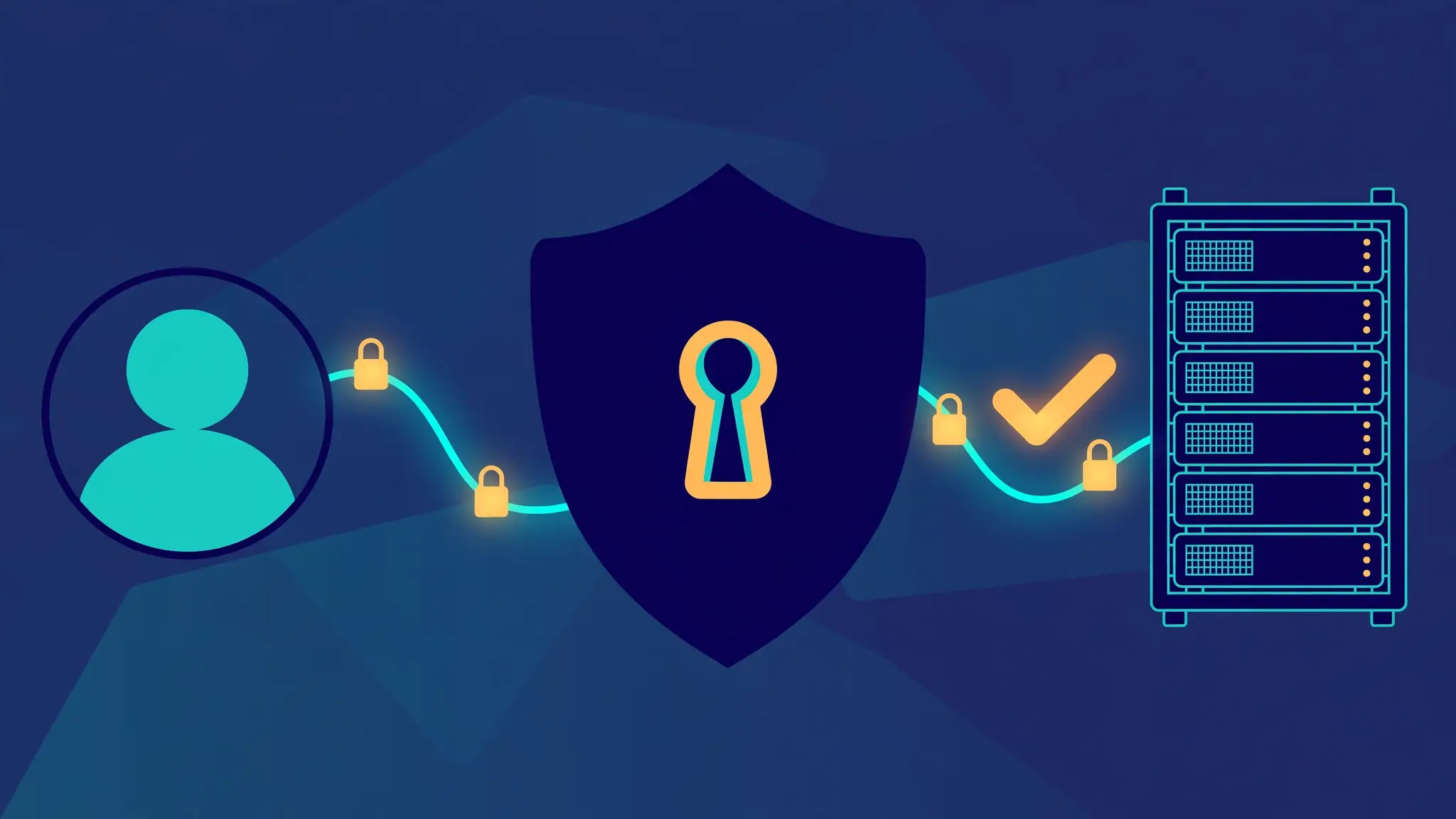
You just gave an AI agent the keys to your email, files, and calendar. The architecture limits the blast radius, but only if you respect it:
- Least-privilege scopes. Grant readonly scopes until a workflow needs a write scope. The difference between "Claude can read my mail" and "Claude can draft mail" is one checkbox — keep it deliberate.
- Review everything it does. Google's own guidance is blunt: always carefully review the actions your agent takes on your behalf. Drafts are for reviewing; calendar events it creates are for checking. The agent is fast and confident, and those are different things.
- Watch for indirect prompt injection. An email from an untrusted sender can contain hidden instructions. Once the agent can read mail and act on it, a malicious message can try to hijack the session and get the agent to modify, steal, or delete your data. Don't ask the agent to process mail or documents from unverified sources, and consider Google's Model Armor service to screen prompts and responses for injection.
- Human confirmation stays on. The servers prompt for confirmation on sensitive actions, and saved approvals expire after 90 days — you can't approve something once and forget about it forever. That friction is the design.
- Know how to kill it.
claude mcp logout <name>clears stored credentials for one server;claude mcp remove <name>deletes the server and its tokens. Revoking the OAuth client in the Cloud console kills all of them at once.
The takeaway#
The setup is twenty minutes of console clicking for something that used to be a weekend project: no service accounts, no custom Gmail integration, no third-party OAuth broker standing between your agent and your data. Google hosts the servers, you own the credentials, and Claude Code gets tools that respect your permissions instead of bypassing them.
Do it now rather than in January. The February 1 enforcement deadline means every agent integration built on the REST APIs needs this migration anyway — setting it up while the documentation is fresh and the quotas are free beats doing it under a deadline. Start with Gmail, Drive, and Calendar; add Docs and Universal Search when the first three feel routine; and keep the scopes as narrow as your actual workflows allow.
Sources: Configure the Google Workspace MCP servers — Google for Developers; Connect Claude Code to tools via MCP — Claude Code Docs.