Let your coding agent edit real Office files: hands-on with MR Office's MCP server
MR Office went from zero to 4,300 GitHub stars in fifteen days with an MCP server that lets Claude Code draft a document, open it in a real editor for you to fix by hand, and read your edits back. The full loop, verified end to end — including the two places it stops and asks for a sign-in.
- MR Office (XinaTian/MROffice): created November 10, 2026; 4,326 stars and 459 forks by November 25, with 1,061 stars gained in the previous 24 hours. AGPL-3.0, ten releases, npm package
mroffice-mcp0.2.0. - Eleven tools over stdio:
create_document,open_document,update_document,get_document,render_page,export_document,list_documents,sign_in/sign_out, plus two editor-view internals. Documents live inMROFFICE_MCP_DATA_DIR; the editor serves on 127.0.0.1:3410. - Measured on the sandbox run: document created at revision 1 and updated to revision 3; a stale
expected_revisionis refused with “reload it before saving”; Markdown export 110 bytes, CSV export 33 bytes, HTML export 349 bytes; the editor page and the download link both returned HTTP 200. - What does not work yet: PDF export answers “not in this version” despite the README listing it;
.docxexport needs Chromium installed;.docx,.xlsxand.pptxall need a free MR Office account sign-in. The sign-in flow was verified up to the OAuth link, not completed.

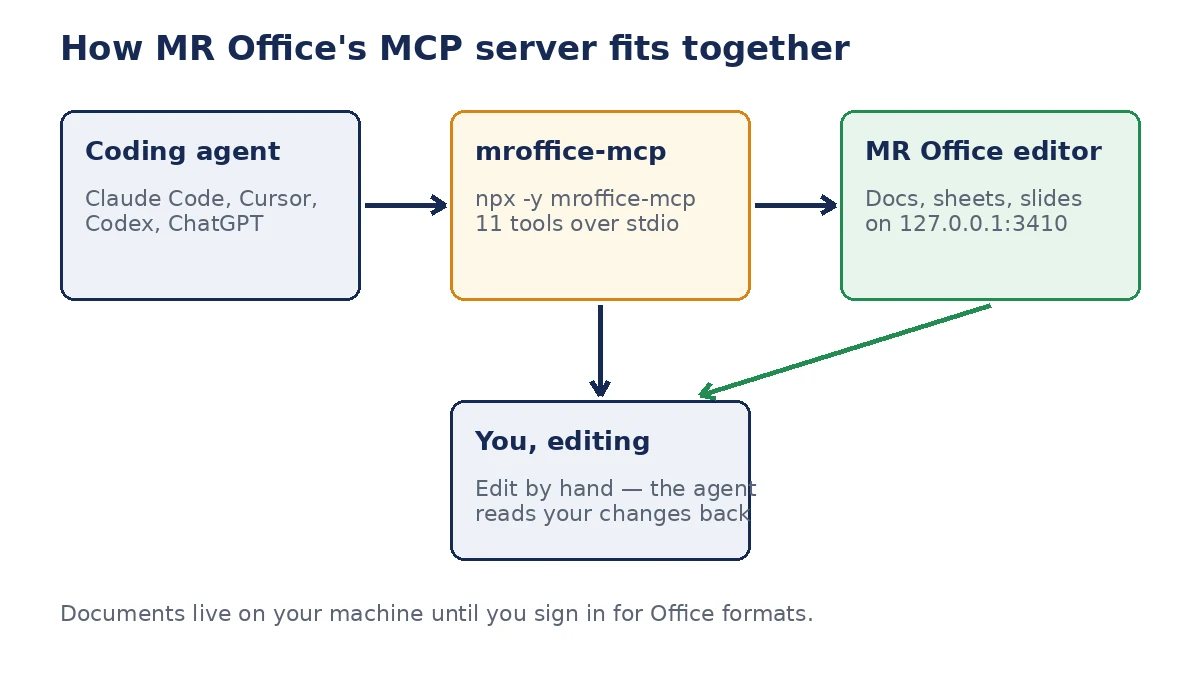
On November 10, 2026, a repository called MR Office appeared on GitHub. Fifteen days later it had 4,326 stars, 459 forks, and the sharpest 24-hour gain on the AI trending boards — 1,061 new stars in a day. The pitch is a familiar one — open-source editors for documents, spreadsheets, presentations, PDF and code in the browser, closest to Microsoft Office — but the reason it is moving this fast is the MCP server underneath it. Instead of pasting text into a chat and hoping the model reproduces it faithfully, your coding agent drafts a real document, opens it in a real editor for you to fix by hand, and then reads your edits back before it does anything else.
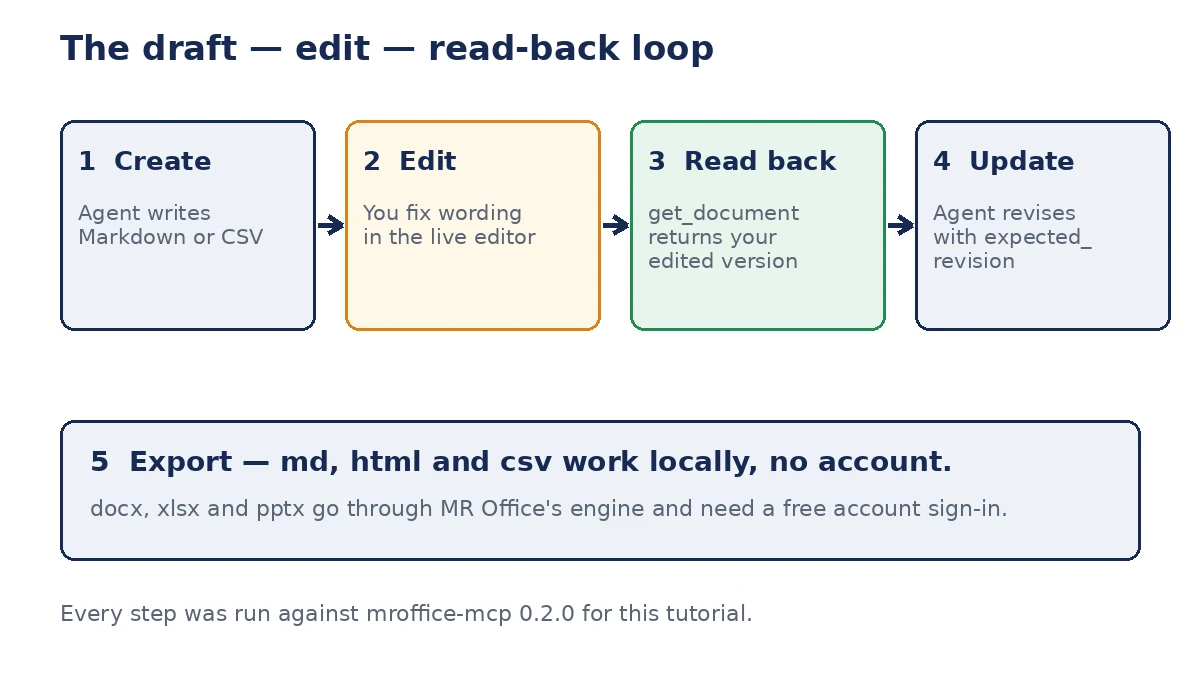
That loop — draft, edit, read back — is the whole product idea, and it is what this tutorial tests. You will install mroffice-mcp 0.2.0, wire it into Claude Code, create a document and a spreadsheet from a script, read them back, update them with revision safety, and export them. Every command and code block below is the exact code that was run for this article, with the exact output it produced. Two things did not run here, and they are reported as failures rather than glossed over: page pictures and .docx export need a Chromium install this sandbox could not fetch, and Word, Excel and PowerPoint conversion needs a free MR Office account, which this tutorial does not create for you.
What you’ll need#
- Node.js 22 or newer. The MCP server runs on
npxand needs it; the sandbox run used Node 24.22.1. Check withnode --version. - Python 3.11 or newer, plus
pip install mcp. Only for the verification client in Step 3, which drives the server directly so you can see every call and response. If you only use Claude Code, skip it. - No account, no API key, no GPU. The core loop — create, read, update, export to Markdown, HTML and CSV — runs entirely on your machine.
- Optional: Google Chrome or Chromium. Page pictures (
render_page) and.docxexport render through a headless browser. Install it withnpx playwright-core install chromium-headless-shell. - Optional: a free MR Office account. Only for
.docx,.xlsxand.pptxconversion, which runs through MR Office’s engine under your account.
Step 1: Install the server and check it answers#
The server ships as mroffice-mcp on npm, version 0.2.0 at the time of writing, from the XinaTian/MROffice repository. There is nothing to configure to start it: npx fetches the package and it speaks MCP over stdio. Run it once, on its own, to see it come up:
MROFFICE_MCP_DATA_DIR=/tmp/mroffice-data npx -y mroffice-mcpExpected output, exactly as it appeared in the sandbox:
[mroffice-mcp] editor pages at http://127.0.0.1:3410
[mroffice-mcp] MCP on stdio
Two details in those lines matter. First, the server also starts a small web server on port 3410 (set MROFFICE_MCP_PORT to change it) that serves the editor pages your documents open in. Second, documents live in MROFFICE_MCP_DATA_DIR — one folder per document, holding a meta.json and one file per revision — or in a folder under the system temp directory if you do not set it. Kill the process with Ctrl+C when you have seen the two lines; a client will start its own copy in the next steps.
Ask it what it can do. A tools/list call returns eleven tools:
| Tool | What it does |
|---|---|
create_document | New document from Markdown, or spreadsheet from CSV; opened in the editor |
open_document | Open a file by text, base64 bytes, or https URL — docx, xlsx, pptx, PDF, Markdown, HTML, CSV |
update_document | Replace a document’s content as a new revision; refuses stale writes (see Step 4) |
get_document | Read the current content, including the person’s edits in the editor |
render_page | A PNG of one page as the editor draws it — needs Chromium |
export_document | The document as a file; Office formats need a sign-in |
list_documents | Every document created or opened with this server, newest first |
sign_in / sign_out | Connect or disconnect the person’s MR Office account (OAuth) |
widget_load / widget_save | Internal: the editor view reading and saving a document |
That table is the whole surface. Everything in this tutorial is a combination of those seven user-facing tools, and the two that need something extra — render_page and the Office formats in export_document — say so in their own descriptions, which is how you know before you hit them.
Step 2: Wire it into Claude Code#
The project’s README gives the one-line setup for the two clients most people will use:
# Claude Code
claude mcp add mroffice -- npx -y mroffice-mcp
# Codex
codex mcp add mroffice -- npx -y mroffice-mcp
For Claude Desktop, Cursor, VS Code and anything else that takes a JSON configuration, the same server is one entry:
{ "mcpServers": { "mroffice": { "command": "npx", "args": ["-y", "mroffice-mcp"] } } }There is also a hosted endpoint, https://mcp.mroffice.ai/mcp, which needs no install but does need a sign-in to an MR Office account on first use. The rest of this tutorial uses the local server: it is the path with no account, and it is the path that was verified. Restart your client after adding the server, and create_document is a tool like any other — ask it to draft a status update and it will create the document and hand you the editor link.
Step 3: Create your first document — and see every call#
To verify the server without taking a client’s word for it, drive it directly with the official Python MCP SDK. Save this as mroffice_client.py:
"""mroffice_client.py — drive MR Office's MCP server from Python.
Requires: pip install mcp   (and Node 22+ for npx -y mroffice-mcp)
Run:  MROFFICE_MCP_DATA_DIR=/tmp/mroffice-data python mroffice_client.py
"""
import asyncio
import os
import re

from mcp import ClientSession, StdioServerParameters
from mcp.client.stdio import stdio_client


def doc_id(result):
    """The server answers in prose; the document id is in the first line."""
    return re.search(r"document ([a-z0-9]+),", result.content[0].text).group(1)


async def main():
    env = dict(os.environ)
    env.setdefault("MROFFICE_MCP_DATA_DIR", "/tmp/mroffice-data")
    params = StdioServerParameters(
        command="npx", args=["-y", "mroffice-mcp"], env=env)
    async with stdio_client(params) as (read, write):
        async with ClientSession(read, write) as s:
            await s.initialize()
            print("connected to mroffice-mcp")

            created = await s.call_tool("create_document", {
                "title": "Weekly status - Nov 25",
                "kind": "document",
                "content": "# Weekly status

- Shipped the new checkout flow.
- Two bugs fixed in search.
",
                "format": "md"})
            did = doc_id(created)
            print("created document:", did)

            got = await s.call_tool("get_document", {"id": did})
            print("read back, revision 1:")
            print(got.content[0].text)

            updated = await s.call_tool("update_document", {
                "id": did,
                "content": "# Weekly status

- Shipped the new checkout flow.
- Two bugs fixed in search.
- Drafted the Q1 hiring plan.
"})
            print(updated.content[0].text.split("
")[0])

            sheet = await s.call_tool("create_document", {
                "title": "November expenses",
                "kind": "spreadsheet",
                "content": "item,amount
Hosting,42
Domain,12
",
                "format": "csv"})
            sid = doc_id(sheet)
            print("created spreadsheet:", sid)

            md = await s.call_tool("export_document", {"id": did, "format": "md"})
            print(md.content[0].text.split("
")[0])
            csv = await s.call_tool("export_document", {"id": sid, "format": "csv"})
            print(csv.content[0].text.split("
")[0])

            docs = await s.call_tool("list_documents", {})
            print("all documents:")
            print(docs.content[0].text)


asyncio.run(main())
Run it:
MROFFICE_MCP_DATA_DIR=/tmp/mroffice-data python mroffice_client.pyExpected output, verbatim from the sandbox run (your document ids and tokens will differ):
[mroffice-mcp] editor pages at http://127.0.0.1:3410
[mroffice-mcp] MCP on stdio
connected to mroffice-mcp
created document: ecotjhifkvo6
read back, revision 1:
"Weekly status - Nov 25" (document ecotjhifkvo6, document), revision 1, last saved by you at 2026-11-25T09:30:59.742Z.

# Weekly status

- Shipped the new checkout flow.

- Two bugs fixed in search.
Updated "Weekly status - Nov 25" (document ecotjhifkvo6, document, revision 2).
created spreadsheet: a7ii15o6mpsm
Weekly status - Nov 25.md (110 bytes, revision 2). The person can download it here: http://127.0.0.1:3410/_mcp/file/ecotjhifkvo6?t=Yzk8G3MSwYT8GdoQLN5Ecpkm&format=md
November expenses.csv (33 bytes, revision 1). The person can download it here: http://127.0.0.1:3410/_mcp/file/a7ii15o6mpsm?t=Qb4K0IvQ_xyOGY1Pn7_e1PNr&format=csv
all documents:
a7ii15o6mpsm  November expenses (csv, revision 1, last by model)
ecotjhifkvo6  Weekly status - Nov 25 (md, revision 2, last by model)
Three things to notice. First, the server answers in prose, not JSON: the document id, the revision number, and the editor link are embedded in a sentence, which is why the script pulls the id out with a regular expression. Second, every create returns an editor link of the form http://127.0.0.1:3410/_mcp/view/<id>?t=<token> — that link is what the person opens, and it served HTTP 200 when checked directly. Third, the document is already on disk: under MROFFICE_MCP_DATA_DIR there is a folder per document id with a meta.json and one file per revision, so the editor, the agent and the filesystem are all looking at the same revisions.
One line in the full create response deserves a note. Without a Chromium installed, each create and update appends a parenthetical: “No picture of the page: pictures of pages need a Chromium: install Google Chrome or Microsoft Edge, or run npx playwright-core install chromium-headless-shell.” The document is still created — the picture is a bonus the server tries to attach for clients that can show it. The tutorial’s sandbox could not fetch the Chromium download, so the picture path is documented, not run; Step 7 covers what that costs you.
Step 4: Read it back and update it, without overwriting anyone#
The read-back is the feature that separates this server from a file generator. get_document returns the document’s current content, including edits the person made in the editor — the tool’s own description says so, and the update flow is built around it. The script above already shows the shape: create at revision 1, read it back, update to revision 2, and the export line confirms the new revision.
The guard that makes the loop safe is expected_revision. Pass the revision you read, and the server refuses the write if the document has moved on. Verified against the same document, which was at revision 2:
stale rev=1 -> isError: True
Document ecotjhifkvo6 changed since revision 1 (it is at 2); reload it before saving.
current rev=2 -> isError: False
Updated "Weekly status - Nov 25" (document ecotjhifkvo6, document, revision 3).
That is the correct behavior for a human-in-the-loop tool, and it is the rule to teach your agent: always get_document before update_document, and always pass the revision you just read. An update made on top of edits the agent has not seen is refused rather than lost — the README states it, and the server does it.
Step 5: A spreadsheet from CSV#
Spreadsheets work the same way, with CSV as the interchange format. The script creates one from three lines of CSV and reads it back unchanged:
"November expenses" (document a7ii15o6mpsm, spreadsheet), revision 1, last saved by you at 2026-11-25T09:30:59.742Z.

item,amount
Hosting,42
Domain,12
Exporting it back to CSV returned the same three lines in a 33-byte file. Two honest limits. First, the local server stores the sheet as CSV, so what you can verify end to end is CSV in and CSV out. The full formula engine — SUM, IF, VLOOKUP and hundreds more functions, calculated live — runs in the free desktop app and the hosted embed, not through this local path; do not promise a reader that a formula they type into CSV will evaluate here. Second, the same revision rules apply: update a sheet with the revision you read, or the write is refused.
Step 6: Open an existing file and list your documents#
You are not limited to documents the agent creates. open_document takes a file by name plus its text, its base64 bytes, or an https URL to fetch it from, and opens it in the matching editor — Word, Excel, PowerPoint, PDF, Markdown, HTML, text or CSV. Verified with a Markdown file passed as text:
Opened "notes" (document 5t3xln7tskta, document, revision 1).
The person can open and edit it in MR Office here: http://127.0.0.1:3410/_mcp/view/5t3xln7tskta?t=fOJzu6JO4o6yq1qY93mUgMp6
Call get_document with this id to read the person's edits.

# Opened notes

This file was opened, not created.
And list_documents returns everything the server has touched, newest first, with format, revision and who last saved it — the same listing the script prints at the end of Step 3. That listing is also how you find a document again in a later session: the ids persist in the data directory, so a document created yesterday is still listed today, as long as the data directory is the same.
Step 7: Export — what works locally, and what needs an account#
Export is where the open-source boundary sits, and it is worth stating precisely, because the README and the server disagree on one format. Verified in the sandbox:
| Format | Local, no account | What happened |
|---|---|---|
md | Works | 110-byte file, download link plus the file itself in the tool result |
html | Works | 349-byte file, same pattern |
csv | Works | 33-byte file for the spreadsheet |
pdf | No | “PDF export of documents and spreadsheets is not in this version; docx, md or csv are.” — despite the README listing PDF |
docx | No | Needs a Chromium install first, then a sign-in; see below |
xlsx | No | Needs a sign-in; see below |
pptx | No | Needs a sign-in, same as xlsx |
The PDF result is the one to remember: the README and the MCP directory listings both say PDF export exists, but 0.2.0 answers that it is not in this version. Do not build a workflow on it until a later release restores it. The native formats — mrdoc, mrsheet, mrslides — are listed in the export schema but were not run here; they are the editors’ own file formats, and the README says the open-source editors save in them.
The Office formats take two different paths to the same gate. Exporting a spreadsheet to xlsx without signing in fails immediately with the account error, and the error itself hands you the way through:
Word, Excel and PowerPoint files needs your MR Office account. MR Office's sign-in page is open in your browser (or open https://mroffice.ai/api/v1/oauth/authorize?...); allow it there, then try again.That link is a standard OAuth 2.1 authorization request — PKCE, scope office.convert+account.read, redirect back to a callback on your own machine — and the sign_in tool returns the same link on demand. The sign-in itself was not completed for this tutorial: it needs the reader’s own free MR Office account, and creating one is a personal step, not a sandbox step. The free account is enough for conversion; the README says the files are not stored after conversion.
Exporting a document to docx hits a different gate first. The server materializes the document through its own headless editor before converting it, so it needs a Chromium installed even before the sign-in matters. Without one, the error is the same Chromium message from Step 3. On a normal machine the documented install — npx playwright-core install chromium-headless-shell — provides it; in this sandbox that download was blocked, so the .docx path is documented from the server’s own code and error messages, not from a completed run. Budget for both gates: Chromium on the machine, and a signed-in free account.
When to use this vs alternatives#
- MR Office, when a human edits in the loop. The live editor and the read-back are the point. Use it for reports, briefs, spreadsheets and decks where someone will fix wording, numbers or layout by hand and the agent must see those fixes before it goes on.
- GenOffice, when the whole job stays in the terminal. GenOffice is a CLI for Office files with its own MCP server; there is no editor and no human in the loop. Pick it for batch generation and scripts, MR Office for anything a person touches. (Hands-on with GenOffice.)
- Anthropic’s Agent Skills, when you only need files out. The official document, spreadsheet, presentation and PDF skills let Claude Code generate Office files with no live editor and no read-back. They are simpler and need no server; they cannot show you the document or notice your edits. (Hands-on with Anthropic’s Agent Skills.)
- Univer, when the work is spreadsheets only. Univer is a spreadsheet-centric open harness with deep formula and collaboration support. MR Office covers docs, sheets, slides, PDF and code in one place, but its local spreadsheet path is CSV. (Hands-on with Univer.)
- ONLYOFFICE or Google Docs, when you need a hosted suite, not a building block. MR Office’s editors are AGPL-3.0 with an attribution notice, free to self-host and embed, with a commercial license available; the hosted embed’s free plan covers 1,000 sessions a month on localhost and 100 on your own domains. The trade-off is that real Office conversion still routes through MR Office’s service, so the “fully self-hosted” story stops at the editors’ own formats.
One more boundary to keep in mind: the repository is fifteen days old. The 0.2.0 server is stable at the paths verified here, but the PDF gap shows the docs run ahead of the code, and the hosted pieces — the embed, the desktop app, the conversion engine — are a commercial product wrapped around an open core. Treat the local MCP loop as the solid part, and the Office formats as a free-account feature, not an open-source one.
The takeaway#
Most agent document tools are one-way: the model writes text, you copy it somewhere real. MR Office’s MCP server closes the loop — the agent drafts in Markdown or CSV, you edit in a real editor, the agent reads your version back, and a revision number stands between your edits and an overwrite. The local half of that loop needs nothing but Node and runs entirely on your machine, as verified here: create, read, update with a stale-revision refusal, spreadsheet round-trip, and exports to Markdown, HTML and CSV, all against mroffice-mcp 0.2.0 with no account and no API key. The other half — page pictures, .docx, .xlsx, .pptx — costs a Chromium install and a free account sign-in, and PDF export is simply not in this version. Set the server up this week and let your agent draft the next status update. Open the editor link, fix two sentences by hand, and ask the agent what changed. That read-back is the feature — everything else is plumbing.
Frequently asked questions
Do I need an MR Office account to use the MCP server?
No, not for the core loop. Creating, reading, updating and exporting to Markdown, HTML and CSV all run locally with no account. You need a free MR Office account only when you export to .docx, .xlsx or .pptx, because those files are written by MR Office’s conversion engine.
Do my documents leave my machine?
Not through the local server. Documents are stored in a folder on your machine (MROFFICE_MCP_DATA_DIR, or a temp folder by default), and the editor page is served on 127.0.0.1. The README notes only the editor’s scripts, styles and fonts load from demo.mroffice.ai. Office conversion sends the file to MR Office’s engine under your account; the README says those files are not stored after conversion.
Can I export to PDF?
Not in mroffice-mcp 0.2.0. The server answers “PDF export of documents and spreadsheets is not in this version; docx, md or csv are.” The README lists PDF as an export format, so this is a gap between the docs and the code — check a later release before relying on it.
What happens if I edit a document while the agent updates it?
The update is refused. Pass expected_revision with the revision you read, and the server answers “Document … changed since revision …; reload it before saving.” Always get_document before update_document, and pass the revision you just read.
Which clients can use the server?
Any MCP client that starts local stdio servers: Claude Code, Cursor, Codex, VS Code and others, with the command npx -y mroffice-mcp. Clients that connect to remote servers can use the hosted endpoint at https://mcp.mroffice.ai/mcp, which signs you in to an MR Office account on first use.