Give Claude Code eyes: watch any video with /watch — hands-on with claude-video
Claude Code can read your code, but it can't watch a video — until now. claude-video turns any video into timestamped frames and a transcript your agent can actually reason about. Here's the full setup, verified end to end.
setup.py --check reports ready, and watch your first video with the local engine: no API key, no model download, frames and transcript as files you can inspect.- What it is: a Claude Code plugin and Agent Skills skill — also installable in Codex and other hosts — that turns a video into timestamped frames plus a transcript. Release 0.3.2, 20,689 stars, 2,200 forks, MIT licensed.
- Two engines: local (ffmpeg + yt-dlp, no key) and Gemini (free Google AI Studio key, default model gemini-3.7-flash). Auto picks Gemini when a key exists; Watch never switches engines on its own.
- Detail levels: transcript (no frames), efficient (cap 50), balanced (cap 100, the default), token-burner (uncapped).
--timestampspins “look here” frames against the cap. - Speech: native captions come first; fallbacks are local WhisperX 3.8.6 (≥3 GB disk, ≥8 GB RAM), Groq, OpenAI, or none. Keys live in
~/.config/watch/.env. - Verified here:
setup.py --checkreported ready with ffmpeg 8.1.2 and yt-dlp 2026.10.26; a 12-second test clip produced 12 timestamped 512×288 frames and a markdown evidence report, exit 0.
Your coding agent can read every file in your repo, run your test suite, and explain a stack trace. Hand it a video and it goes blind. A product demo, a recorded meeting, a tutorial, a security-camera clip — the agent has no way to see what's in it, so it guesses from the filename or asks you to describe it.
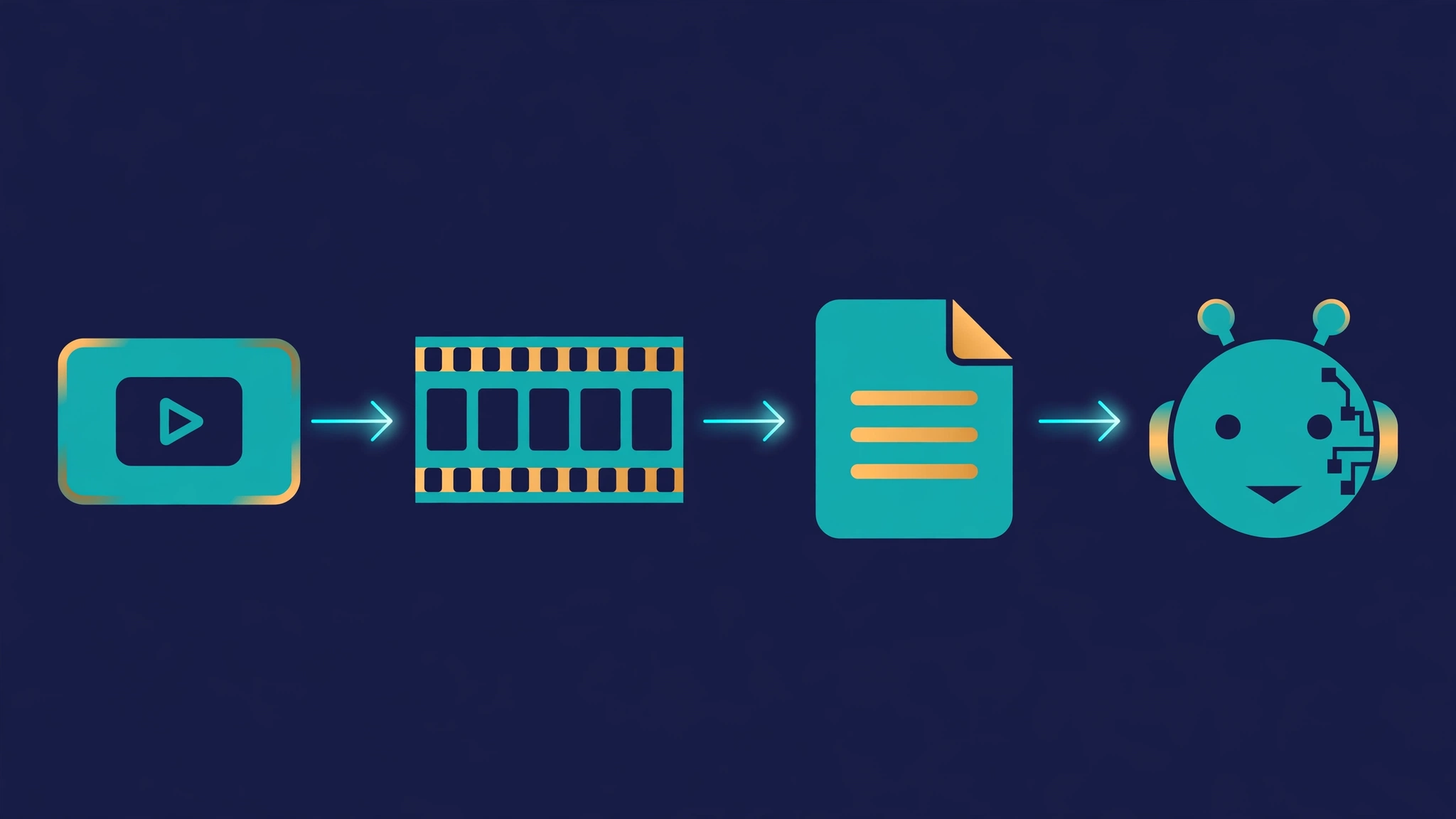
claude-video closes that gap. It is a Claude Code plugin and agent skill — also installable in Codex and other Agent Skills hosts — that turns a video into evidence an agent can reason about: timestamped frames extracted with ffmpeg, plus a transcript pulled from captions or transcribed locally. The current release is 0.3.2, the project holds 20,689 stars and 2,200 forks on GitHub, and it is on GitHub's Python weekly trending page this week. This tutorial installs it, verifies the setup, and runs a video through it end to end — the local, no-API-key path first, then the hosted Gemini engine and the transcription options.
What you'll need#
- Claude Code, Codex, or another Agent Skills host — Watch runs inside the agent. It does not work in Claude Chat or Cowork, which run in a cloud environment without the local tooling.
- Python 3.10 or newer — the skill's scripts are standard-library Python.
- ffmpeg and ffprobe — frame extraction. macOS:
brew install ffmpeg. Ubuntu/Debian:sudo apt install python3 ffmpeg pipx. - The latest yt-dlp — video downloads and caption fetching. The project supports the latest release only, because video sites routinely break older ones.
- Node.js 18 or newer — only if you install through the Skills CLI.
- Optional: a free Gemini API key from Google AI Studio — only if you want Google's video model to watch the video instead of the local engine.
- Optional: a Groq or OpenAI key — only if you want cloud transcription as a fallback.
The local engine needs no account and no key. Everything in Steps 1–5 runs offline once the tools are installed, and the verification below was done exactly that way.
Step 1: Install the skill#
Pick one installation method for your agent. Installing the marketplace alone does not install Watch — finish the install step for your host.
Claude Code in a terminal. Inside a Claude Code session, enter these one at a time:
/plugin marketplace add bradautomates/claude-video
/plugin install watch@claude-video
From an ordinary terminal prompt instead, the same commands work as executables:
claude plugin marketplace add bradautomates/claude-video
claude plugin install watch@claude-video
Start a new Claude Code session afterward, then type /watch and select /watch:watch from autocomplete.
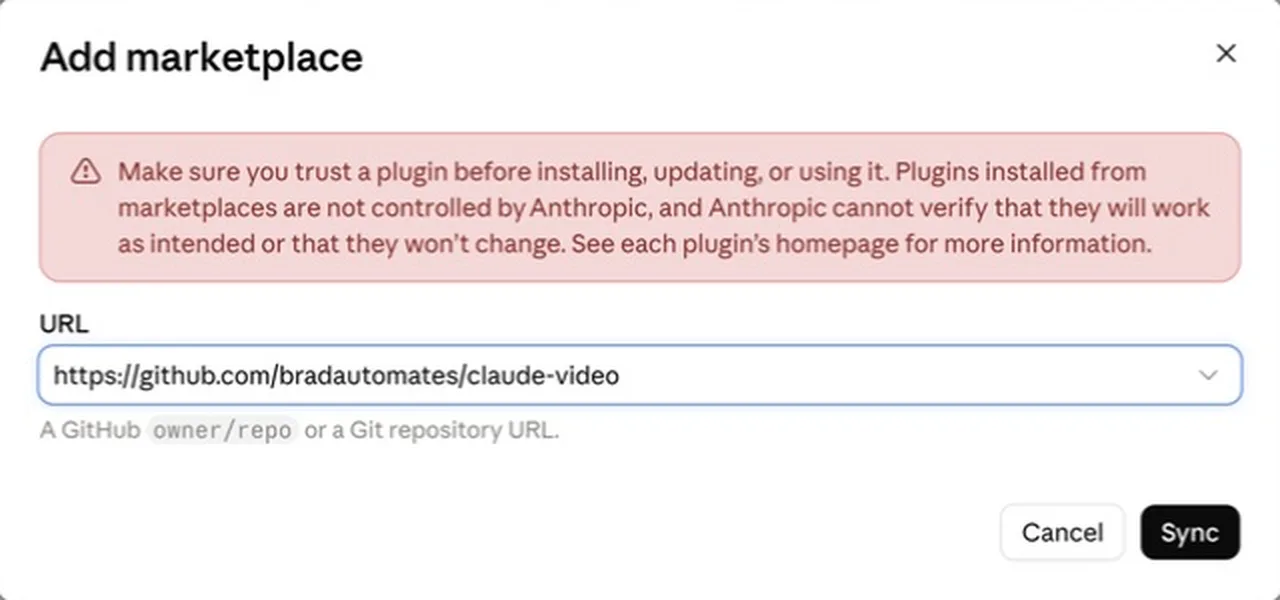
Claude Desktop. Open Claude Desktop, click Customize in the sidebar, select Plugins, open Add, then choose Add marketplace. Choose Add from a repository and paste this URL:
https://github.com/bradautomates/claude-videoClick Sync, find Watch in the added marketplace, and install it. Then start a Code session — Watch does not work in a Chat or Cowork session — and ask it to use the watch skill.
Codex. In the desktop app, CLI, or IDE extension, paste this into Codex's message box and let it finish the installation:
Use $skill-installer to install the watch skill from:
https://github.com/bradautomates/claude-video/tree/main/skills/watch
Or, with the Codex CLI installed, run these in your terminal:
codex plugin marketplace add bradautomates/claude-video
codex plugin add watch@claude-video
Verify with codex plugin list --marketplace claude-video, then start a new Codex session.
Other local agents (Cursor, Copilot, and other Agent Skills hosts). Install Node.js if needed, then run this in your terminal:
npx skills add bradautomates/claude-video -g --skill watchSelect your agent when prompted, follow the installer's reported destination, then restart the agent. You can target an agent explicitly, for example -a codex. The Skills CLI is at version 1.8.1 at the time of writing; check yours with npx -y skills --version.
Manual install. Create the host's skill directory and copy or symlink the whole skills/watch/ folder from the repository. Do not split SKILL.md from its sibling scripts/ directory — the agent finds its bundled scripts itself, and a split install breaks it.
Step 2: Verify your setup#
Before watching anything, confirm the three binaries resolve. The skill ships a setup script; run its check from the skill directory. If you installed manually, SKILL_DIR is the folder holding SKILL.md:
python3 "$SKILL_DIR/scripts/setup.py" --checkIt exits 0 silently on success. On a fresh machine the usual failure is a missing yt-dlp — the script prints [watch] Missing yt-dlp and exits 2. Install it and retry. On Ubuntu/Debian with an externally managed Python, pipx is the clean route; if pipx is unavailable, a user install works:
pip3 install --break-system-packages --user "yt-dlp[default]"Then confirm the version and re-run the check:
export PATH="$HOME/.local/bin:$PATH"
yt-dlp --version
python3 "$SKILL_DIR/scripts/setup.py" --check; echo "exit=$?"
For the full picture, ask for the JSON report:
python3 "$SKILL_DIR/scripts/setup.py" --jsonOn the machine used to verify this tutorial the report read "status": "ready", "can_proceed": true, "engine": "local", with ffmpeg 8.1.2 and yt-dlp 2026.10.26 detected and no missing binaries. Your versions will differ; what matters is can_proceed: true and an empty missing_binaries list. If you plan to use the Gemini engine, the report also tells you whether a key is present (gemini_key_present) and which model is configured — the default is gemini-3.7-flash.
Step 3: Watch your first video#
The fastest end-to-end check uses a local file and the local engine, with transcription disabled so nothing needs a key or a model download. First make a short test clip if you don't have a video handy — this 12-second clip with a moving test pattern and a tone is enough to prove the pipeline:
ffmpeg -y -v error \
  -f lavfi -i "testsrc=duration=12:size=1280x720:rate=30" \
  -f lavfi -i "sine=frequency=440:duration=12" \
  -c:v libx264 -pix_fmt yuv420p -c:a aac -shortest /tmp/testclip.mp4
Now run the watch script directly, exactly as the skill would. --engine local forces the on-machine path, --detail balanced is the default scene-change frame selection, and --no-whisper disables every transcription fallback:
python3 "$SKILL_DIR/scripts/watch.py" /tmp/testclip.mp4 \
  --engine local --detail balanced --no-whisper \
  --out-dir /tmp/watch-test
The run exits 0 and prints a markdown evidence report. On the verification run it read:
- **Detail:** balanced
- **Frames:** 12 selected from 12 candidates (uniform fallback, full range, budget 12, cap 100)
- **Frame size:** max 512px wide, max 1998px tall
- **Transcript:** fallback disabled; no captions available

## Frames

Frames live at: `/tmp/watch-test/watch-o38ufb1c/frames`

- `/tmp/watch-test/watch-o38ufb1c/frames/frame_0001.jpg` (t=00:00, reason=uniform)
- `/tmp/watch-test/watch-o38ufb1c/frames/frame_0002.jpg` (t=00:01, reason=uniform)
...
- `/tmp/watch-test/watch-o38ufb1c/frames/frame_0012.jpg` (t=00:11, reason=uniform)

## Transcript

_Fallback disabled; no captions available._
Twelve frames, one per second, each a real 512×288 JPEG with its source timestamp. That is the whole contract: a video in, timestamped visual evidence out. Inside Claude Code you don't run the script yourself — you paste the equivalent into the agent's message box and the skill runs it for you:
Use the watch skill on testclip.mp4 in the folder I shared.
For setup, choose balanced detail and captions only (none).
Summarize what is visible, with timestamps.
Step 4: Read the evidence like an agent#
The report is the interface between the video and the model, so understand what each part can and cannot prove.
- Frames are the visual evidence. Each frame carries its absolute timestamp in the source video (
t=MM:SS), so the agent can say "at 02:15 the error dialog appears" and you can check it. Default frames are up to 512px wide; pass--resolution 1024when the video is mostly on-screen text. - The transcript is the spoken evidence. Native captions come first — the skill prefers same-language manual captions before original-language auto captions, and requests at most one track. A transcript-only answer cannot establish visual facts; the skill is explicit about that, and so should you be when you read its output.
- Near-duplicates are removed by default. A 16×16 RGB thumbnail pass drops frames whose mean channel difference is negligible. That keeps static screen recordings from burning the frame budget on identical slides. Use
--no-dedupwhen subtle visual changes matter, such as small code edits. - Work directories are fresh per run. A failed download or decode never leaves stale files to be reused as evidence — media must complete successfully and report its final path, or the run fails loudly. Delete the work directory when you're done; the report prints its path at the bottom.
Step 5: Tune detail and focus#
Four detail levels control how many frames the agent reads. The cap is a token budget as much as a count — every frame costs context.
| Detail | What it selects | Frame cap |
|---|---|---|
| transcript | Transcript only; cue frames can be requested explicitly | No regular frames |
| efficient | Fast keyframes; uniform fallback when sparse | 50 |
| balanced | Scene changes; uniform fallback on nearly static clips | 100 |
| token-burner | Scene changes without a count cap; warning above 250 | Uncapped |
Set a saved preference with WATCH_DETAIL in ~/.config/watch/.env, or pass --detail for one run. Best accuracy comes from videos under 10 minutes or a focused interval — narrow the range first, then raise the detail:
/watch video.mp4 --start 2:15 --end 2:45
/watch video.mp4 --detail efficient --max-frames 30
/watch video.mp4 --detail transcript --timestamps 1:05,2:30
The --timestamps flag is the precision tool: after reading a transcript, pin "look here" moments and the skill grabs those exact frames first, reserved against the cap. With --detail transcript, timestamped frames become the only frames. Uniform sampling selects actual source frames across the range at most 2 fps, reducing its rate to fit the remaining cap; scene selection detects candidates across the range and samples down to the cap. Frame timestamps are source-relative, including for focused and fractional seeks.
Step 6: Add speech with a transcription fallback#
Captions cover most public videos. When a video has none — a local recording, a silent screen capture with narration, a private upload — pick one fallback. The first-run wizard asks; you can also set it per run with --whisper or --no-whisper.
| Backend | What it needs | When to pick it |
|---|---|---|
| none | Nothing | Captions only; visual evidence still works on captionless video |
| whisperx | Local install via the bundled setup; ≥3 GB free disk, ≥8 GB RAM | No API key; transcription stays on your machine |
| groq | GROQ_API_KEY; cloud whisper-large-v3 | Fast cloud transcription without managing models |
| openai | OPENAI_API_KEY; cloud whisper-1 | You already have an OpenAI key |
For local WhisperX, have the agent run the bundled installer:
python3 "$SKILL_DIR/scripts/setup.py" --install-whisperxIt provisions uv if needed, installs Python 3.12 and WhisperX 3.8.6, and transcribes two seconds of silence to warm the Whisper and Silero caches. Defaults are the small model on CPU with int8 compute and batch size 8, no alignment or diarization, and segment timestamps retained. The reference measurement in the project docs processed 69 seconds of English in 9.6 seconds on an Apple M5 Pro; slower CPUs and longer recordings take longer. Two honest limits from the same docs: Apple Silicon macOS is the verified platform, while Intel macOS, Linux, and Windows installs remain untested — and the large-v3 model downloads about 2.9 GB and used about 6 GB peak process RAM in the reference measurement, so stick with small unless you need non-English accuracy. Keys live in ~/.config/watch/.env or the process environment; explicit providers never borrow another provider's key, and the config file should be mode 0600.
Step 7: Let Gemini watch it instead#
The local engine is the no-key default, but there is a second engine: with a free Google AI Studio key, Google's agentic video model watches the whole video — picture and sound — and returns a timestamped answer directly. YouTube links need nothing else installed; local files are uploaded to Google and deleted after the answer.
Get a free key at Google AI Studio, then tell the setup wizard to use the Gemini engine, or save the key in ~/.config/watch/.env:
python3 "$SKILL_DIR/scripts/setup.py" --engine geminiExit 3 means the key is missing; the command creates the .env file for it. Engine selection is explicit and sticky: WATCH_ENGINE accepts auto, gemini, or local, and auto means Gemini when a key resolves, otherwise local. Watch never switches engines on its own — a Gemini failure is reported with its category (auth, quota, rejected, upload, service, network, or response) and you decide whether to rerun with --engine local. The default Gemini model is gemini-3.7-flash, configurable with WATCH_GEMINI_MODEL, and the question itself has a 600-second timeout (WATCH_GEMINI_TIMEOUT). Frame and transcription options such as --detail and --fps apply only to the local engine and are listed as ignored on a Gemini run.
Choose Gemini when the video's meaning lives in motion and sound together — a talk, a demo with narration — and the local engine when the video is private, the network is restricted, or you want the raw frames and transcript as auditable evidence rather than a model's summary.
Step 8: Point it at a URL#
URLs work the same way as local files — the skill downloads with yt-dlp, then proceeds exactly as above. Native captions are read without downloading the video when possible, and a caption-only pass may not download it at all:
/watch https://www.youtube.com/watch?v=VIDEO_ID --detail balancedKeep yt-dlp on its latest release; the project supports the latest release only, and a 403 or login challenge is usually fixed by updating it and retrying once. For videos that need authentication, it is opt-in — pass a cookie file or pull cookies from a browser, one mechanism at a time:
/watch https://example.com/video --cookies /path/to/cookies.txt
/watch https://example.com/video --cookies-from-browser firefox
A cookie file is a read/write jar that yt-dlp may update, so point it at a copy, not your live browser profile. Browser access can fail on locked or encrypted stores, especially Chromium on Windows; Firefox is a possible alternative, not a guarantee. Watch never searches your browser sessions automatically. And one boundary worth knowing: a --sub-lang request chooses a caption language, which may be a translation — it is never used as the spoken-language hint for transcription.
When to use this vs alternatives#
- claude-video vs. REA: REA reverse-engineers videos into structured reconstructions for analysis; Watch hands raw frames and a transcript to your agent so it can answer open questions. Pick Watch when the question is "what happens in this video", REA when you need a reproducible teardown of how it was made.
- claude-video vs. uploading to Gemini or ChatGPT: the chat apps take a video and answer, but the evidence stays inside their black box. Watch's local engine gives you the frames, the transcript, and the timestamps as files you can inspect, re-read, and cite — and it works inside Claude Code, where your repo and tools already are.
- claude-video vs. ffmpeg by hand: extracting frames with ffmpeg and transcribing with Whisper yourself gets you the same raw material, but you then have to feed it to the model in the right order with the right timestamps and keep the transcript aligned. Watch is that plumbing, packaged as a skill, with dedup, scene selection, caption preference, and engine choice handled.
- Local engine vs. Gemini engine: local is free, private, and auditable, and needs no key; Gemini understands motion and audio together and needs nothing installed for YouTube links. If the video is private or the claim needs checking, local. If the video is long and the question is interpretive, Gemini.
The takeaway#
Agents that can't see video will keep asking you to describe what's in it. claude-video is a small, well-scoped fix: one skill, three binaries, and your agent gets timestamped frames and a transcript for any video you point it at. Install it with the plugin commands, run setup.py --check until it reports ready, and watch one local file with the local engine before you touch keys or cloud transcription. The no-key path is the whole point — it works on a fresh machine in minutes, and everything after that is a choice about accuracy, privacy, and cost, not a prerequisite.
Start with a video you already need an answer about: a recorded demo, a meeting, a tutorial you haven't had time to watch. Ask the agent one question with timestamps in the answer, then open the frame at the timestamp it cites and check it. That check — the frame at 02:15 showing what the agent claims — is the habit that makes video evidence trustworthy instead of just convenient.
Sources#
- bradautomates/claude-video on GitHub — the repository, README, install paths, engines, detail levels, and transcription backends; 20,689 stars, 2,200 forks, MIT license, skill version 0.3.2.
- skills/watch/SKILL.md — the skill instructions, first-run wizard, setup commands, and engine rules.
- GitHub Trending — Python, weekly — claude-video on this week's trending list, verified November 13, 2026.