Generate and edit AI video with Gemini Omni 1.2 Flash
On October 22, 2026, Google shut down Veo 3.1 Preview on the Gemini API. Two weeks later, Gemini Omni 1.2 Flash went generally available — one model, one endpoint, and a completely different workflow: generate a clip, then keep editing it in plain language until it is right. Here is the whole workflow, end to end, with every call verified.
gemini-omni-1.2-flash) went GA on November 5, 2026, replacing Veo on the Gemini API. It generates 3–15 second clips with native audio through one synchronous Interactions API call — no polling, no job queue. The same call edits the clip in conversation, animates reference images, and extends clips to 30 seconds. This guide runs the full loop: first clip, format controls, image-to-video, multi-turn edits, extension, editing your own footage, and a reusable script — about $2 of API calls at 720p.- What: Gemini Omni 1.2 Flash: Google's video generation and editing model for the Gemini API, GA November 5, 2026. Model ID
gemini-omni-1.2-flash. Veo 3.1 Preview on the Gemini API was shut down October 22, 2026. - Cost: Paid tier only — no free tier. Input $1.50 per 1M tokens; video output $12.00 per 1M tokens. At 720p that works out to about $0.07 per second (~$0.70 for a 10 s clip, ~$1.04 for 15 s). 360p is ~$0.023/s, 1080p ~$0.104/s, 4K ~$0.209/s.
- Verified: November 9, 2026: Google's Omni guide, video overview, and pricing page, read the same day; Python SDK
google-genai 3.0.0installed locally. Every request shape was validated against the installed SDK's types, and the full shoot script was executed against a mock transport that asserted each payload field by field. - Requirement: Python 3.10+,
google-genai >= 2.30.1, a Gemini API key on a paid billing tier, about $2 of credit, about 45 minutes. No GPU, no Docker. A key on the free tier will not work for this model.
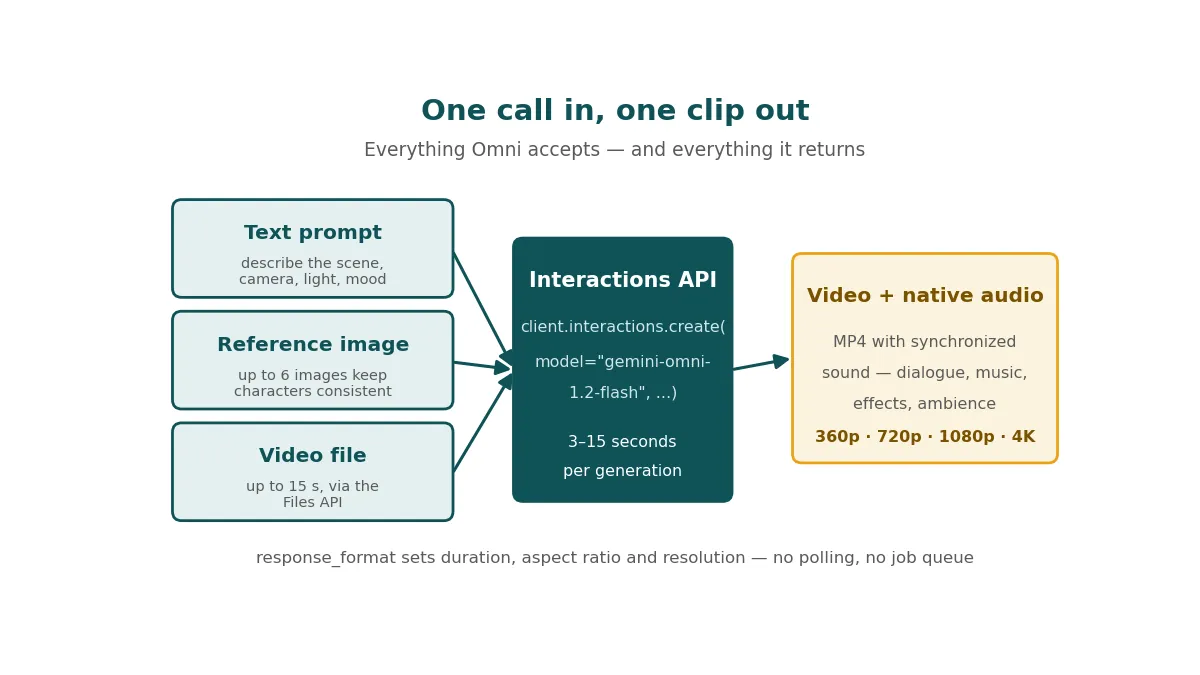
Video generation on the Gemini API used to mean starting a long-running operation, polling it every ten seconds, and downloading a file when it finished. That workflow is gone. Omni runs on the Interactions API: one client.interactions.create() call, and the video comes back in the response as base64 data. The same call shape handles everything else — a text prompt, a reference image, your own footage, an edit, an extension — and every follow-up turn references the previous interaction by id, so the model keeps the scene while you change one thing at a time.
The practical consequence is that video stops being a render job and becomes a conversation. You generate a 10-second establishing shot, look at it, and say "change the light to golden hour" instead of re-rolling the whole prompt and hoping the new clip matches the old one. This tutorial teaches that loop properly: the exact calls, the format controls, the cost of each choice, and the limits that will catch you out.
1. What you'll need#
- Python 3.10 or newer. The current
google-genaiSDK needs it. - A Gemini API key on a paid tier. Create one in Google AI Studio for a project with billing turned on. Omni is not available on the free tier at all — the pricing page lists the free tier as "Not available" for both input and output, and a free-tier key will be refused. Budget about $2 for everything in this guide.
- About 45 minutes. Most of that is watching clips render; the code is short.
- ffmpeg and ffprobe (optional). Only for inspecting the MP4s you get back. Install with your package manager if you want the verification step in Step 2.
One migration note before you start: if you have old code calling gemini-omni-1.1-flash, it keeps working for now. From December 3, 2026, Google routes every request to that id to gemini-omni-1.2-flash automatically and bills it at 1.2 rates, with no code change and no error. Pin the 1.2 id in new code and you never have to think about it.
2. Step 1 — Set up the SDK#
Create a project folder and a virtual environment, install the SDK, and export your key. The SDK reads GEMINI_API_KEY from the environment, so never paste the key into your code.
mkdir omni-shoot && cd omni-shoot
python3 -m venv .venv && source .venv/bin/activate
pip install -U "google-genai>=2.30.1"
export GEMINI_API_KEY="your-paid-tier-key"
Verify the install before spending anything. This constructs a client and prints the SDK version — it makes no API call, so it costs nothing and works offline:
python3 -c "from google import genai; c = genai.Client(); print('SDK ready:', genai.__version__)"You should see SDK ready: 3.0.0 or newer. The >= 2.30.1 floor matters: older SDK versions predate the Interactions API surface this guide uses, and the interactions.create call below will not exist. If the version prints below 2.30.1, re-run the install — you are probably picking up a stale environment.
3. Step 2 — Generate your first clip#
This is the whole API in its simplest form: a model id, a text prompt, and the video that comes back. Write it to first_clip.py:
import base64

from google import genai

client = genai.Client()  # reads GEMINI_API_KEY

interaction = client.interactions.create(
    model="gemini-omni-1.2-flash",
    input=(
        "Continuous, unbroken handheld shot of a lighthouse at dusk, "
        "waves breaking on rocks, gulls calling. No dialogue."
    ),
)

with open("lighthouse.mp4", "wb") as f:
    f.write(base64.b64decode(interaction.output_video.data))

print("saved lighthouse.mp4, interaction id:", interaction.id)
Run it with python3 first_clip.py. The call is synchronous and takes a while — generation time grows with duration, resolution, and current API load, so a 10-second clip can take a minute or more. There is nothing to poll: the call returns when the video is ready, and the MP4 arrives as base64 in interaction.output_video.data. That convenience field exists only in the SDKs; if you ever call the REST endpoint directly (POST https://generativelanguage.googleapis.com/v1beta/interactions), the video sits in the steps array as a model_output part with type: "video".
Check what you got back:
ffprobe -v error -show_entries format=duration,size \
  -show_entries stream=codec_name,width,height,r_frame_rate \
  -of default=noprint_wrappers=1 lighthouse.mp4
Expect a 10-second MP4 at 1280×720. Two defaults are doing quiet work here: duration defaults to 10 seconds when you do not set it, and resolution defaults to 720p. The clip also has native audio — the gulls and the waves are generated with the picture, not mixed in afterwards. Keep the printed interaction id: it is the handle every later step uses to edit this clip.
4. Step 3 — Control duration, aspect ratio, and resolution#
Everything about the output format lives in one response_format dict. Duration is any whole second from 3 to 15, written as a string like "15s"; setting it overrides any length mentioned in your text prompt, and anything over 15 seconds returns an invalid-argument error. Aspect ratio is "16:9" (default) or "9:16" for portrait. Resolution is "360p", "720p" (default), "1080p", or "4k" — the last two are upscaled from the generated resolution, not natively rendered at that size.
interaction = client.interactions.create(
    model="gemini-omni-1.2-flash",
    input="A single unbroken tracking shot following a paper airplane gliding through a bustling library.",
    response_format={
        "type": "video",
        "duration": "15s",
        "aspect_ratio": "9:16",
        "resolution": "1080p",
    },
)

with open("library_flight.mp4", "wb") as f:
    f.write(base64.b64decode(interaction.output_video.data))
That clip is a vertical 15-second short at upscaled 1080p — the most expensive combination in this guide. The pricing page bills video output by tokens consumed, at 5,792 tokens per second of 720p video, and the per-second cost follows from the resolution you ask for:
| Resolution | Tokens / second | Cost / second | 10 s clip | 15 s clip |
|---|---|---|---|---|
| 360p | 1,931 | ~$0.023 | ~$0.23 | ~$0.35 |
| 720p (default) | 5,792 | ~$0.07 | ~$0.70 | ~$1.04 |
| 1080p (upscaled) | 8,688 | ~$0.104 | ~$1.04 | ~$1.56 |
| 4K (upscaled) | 17,376 | ~$0.209 | ~$2.09 | ~$3.13 |
Input tokens are $1.50 per million regardless of type — text, image, or video — so a long prompt or several reference images add pennies, not dollars. The discipline that saves real money is resolution: draft at 720p, and only upscale the one take you actually ship. A 360p draft costs a third of the 720p version and is fine for judging composition and motion.
5. Step 4 — Animate a reference image#
Text alone is a blunt instrument for keeping a character or a product looking the same across shots. Pass the image in as part of the input instead: a list of content parts, image first, then the text that says what to do with it. The model decides how to use the image from your prompt, so be explicit about whether it is the first frame, a style reference, or a guide for movement.
import base64

from google import genai

client = genai.Client()

with open("product_shot.jpg", "rb") as f:
    base64_image = base64.b64encode(f.read()).decode("utf-8")

interaction = client.interactions.create(
    model="gemini-omni-1.2-flash",
    input=[
        {"type": "image", "data": base64_image, "mime_type": "image/jpeg"},
        {"type": "text", "text": (
            "Bring this product shot to life: slow orbit around the object, "
            "soft studio light, shallow depth of field. Do not change the "
            "object itself. No dialogue."
        )},
    ],
)

with open("product_orbit.mp4", "wb") as f:
    f.write(base64.b64decode(interaction.output_video.data))
Three things to know about reference images. You can pass up to 6 of them in one call, across all durations — that is how you hold a character, an object, and a location steady while the camera moves. Use high-resolution images; the docs are explicit that image-to-video works best with them. And if you want a clip that starts on one frame and ends on another, pass two images as first and last frames: that interpolation mode supports durations of 3 to 10 seconds only, and asking for more returns an invalid-argument error.
Reference videos work the same way — up to 3 of them (3 seconds each) for clips of 3 to 10 seconds, or a single 3-second reference video for 11 to 15 second clips — but only when you are generating a new video, not when editing or extending. Their audio is ignored; they are visual likeness references only.
6. Step 5 — Edit in conversation
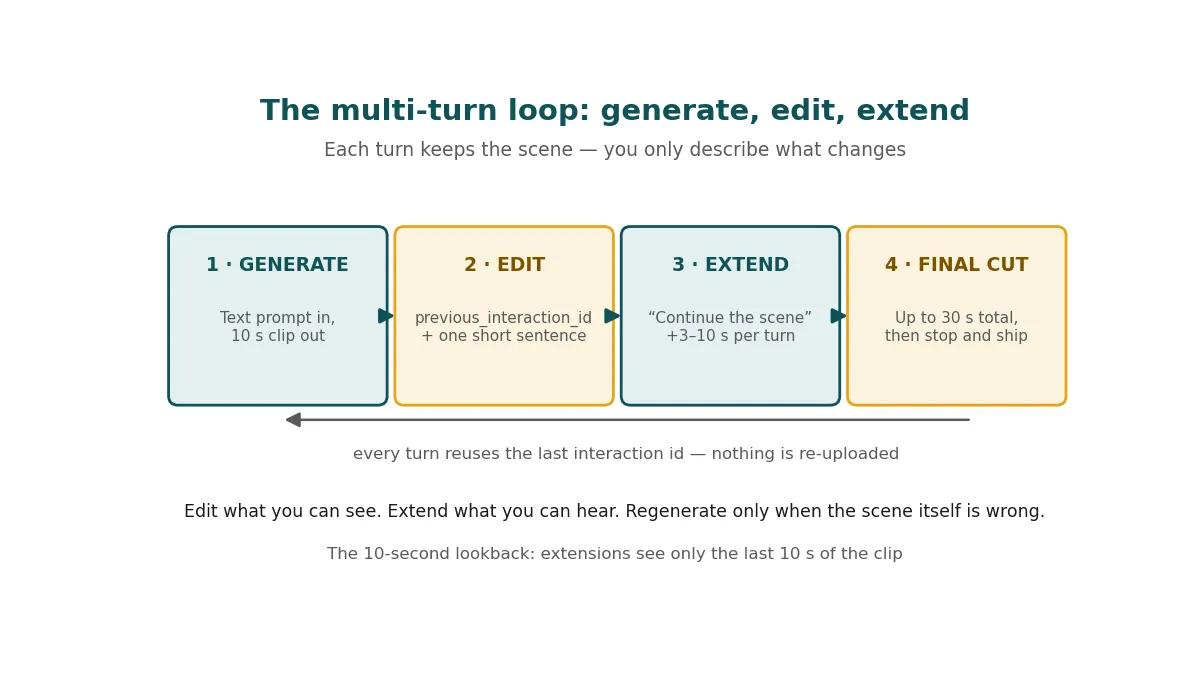
This is the step that justifies the whole model. Generate a clip, then edit it by passing the previous interaction's id and a short sentence. The model remembers the video context, applies your change, and preserves everything you did not mention. No re-upload, no re-prompting the whole scene.
import base64

from google import genai

client = genai.Client()

# Turn 1: generate the first clip.
res1 = client.interactions.create(
    model="gemini-omni-1.2-flash",
    input="A woman playing violin outdoors.",
)

# Turn 2: edit it. Same scene, one change.
res2 = client.interactions.create(
    model="gemini-omni-1.2-flash",
    previous_interaction_id=res1.id,
    input="Change the light to golden hour. Keep everything else the same.",
)

with open("violin_golden_hour.mp4", "wb") as f:
    f.write(base64.b64decode(res2.output_video.data))
Edits work on generated videos up to 15 seconds long. Each turn produces a new video, and the chain can continue: res2.id becomes the previous_interaction_id of turn 3. The prompting discipline is the opposite of what you would expect — short wins. The guide's own examples are one-liners like "Make this video anime", "Put a fashionable hat on this person", "Change the lighting to be more dramatic". Overly descriptive edit prompts cause unintended changes, because every extra clause is another thing the model may reinterpret. When you edit one specific thing, end the sentence with "Keep everything else the same" — it is the closest thing to a pin for the rest of the frame.
7. Step 6 — Extend to 30 seconds
Fifteen seconds is a clip, not a scene. Extension appends a seamless continuation to the end of a clip: describe how the scene should continue, and the model generates 3 to 10 seconds more (10 by default, or set with duration in response_format), up to a total length of 30 seconds. You can extend a video the model generated — by referencing its previous_interaction_id — or a video you upload, which Step 7 covers.
import base64

from google import genai

client = genai.Client()

# Continue the lighthouse clip from Step 2 for another 10 seconds.
res = client.interactions.create(
    model="gemini-omni-1.2-flash",
    previous_interaction_id="v1_...",  # the id printed by first_clip.py
    input="Continue the scene: the camera slowly rises above the lighthouse as the lamp turns on.",
    response_format={"type": "video", "duration": "10s"},
)

with open("lighthouse_extended.mp4", "wb") as f:
    f.write(base64.b64decode(res.output_video.data))
Extension has a memory limit worth designing around: the model uses only the last 10 seconds of the input video as context, and preserves earlier frames as-is. If a character or visual element appeared only before that window, mention it again in your prompt or pass it as a reference image, or it may quietly vanish from the continuation. Extension only appends to the end — you cannot prepend or extend the middle of a clip — and some of the final frames of the input are reworked to make the join seamless, so do not treat the last second of the original as sacred. If a plain prompt like "Extend this video" does not trigger extension mode, the docs' fallback is to set "task": "extend" in video_config; try the prompt first, because the task flag adds strict constraints to the model.
8. Step 7 — Edit a video you shot yourself
Omni also edits real footage. Upload a clip of up to 15 seconds through the Files API, wait for processing to finish, then pass the file's URI in as a video part with your edit instruction. The shape is the same list-of-parts input as image-to-video, with "type": "video" and a uri instead of base64 data.
import base64
import time

from google import genai

client = genai.Client()

# Upload your video using the Files API.
video_file = client.files.upload(file="my_video.mp4")

while video_file.state == "PROCESSING":
    print("Waiting for video to be processed.")
    time.sleep(10)
    video_file = client.files.get(name=video_file.name)

if video_file.state == "FAILED":
    raise ValueError(video_file.state)

print("Video processing complete:", video_file.uri)

# Edit your video.
interaction = client.interactions.create(
    model="gemini-omni-1.2-flash",
    input=[
        {"type": "video", "uri": video_file.uri},
        {"type": "text", "text": (
            "When the person touches the mirror, make the mirror ripple "
            "beautifully like liquid, and the person's arm turns into "
            "reflective mirror material. Keep everything else the same."
        )},
    ],
)

with open("mirror_edit.mp4", "wb") as f:
    f.write(base64.b64decode(interaction.output_video.data))
Two regional catches apply to this step and not to the others. Editing or extending uploaded videos is not available in the European Economic Area, Switzerland, or the United Kingdom — if your call returns empty output there, that is probably why. Editing videos the model itself generated works in all available regions. The same regional restriction covers uploading images that contain minors or certain recognizable people. And one content limit: you cannot extend an uploaded video of someone talking to add more dialogue; the character has to stay silent, or you extend a model-generated clip through previous_interaction_id instead, where spoken dialogue is supported.
9. Step 8 — Put it together: a reusable shoot script
The three moves — generate, edit, extend — chain into a single script that turns one prompt into a finished 20-second cut. Save this as omni_shoot.py and run it with python3 omni_shoot.py:
import base64

from google import genai

MODEL = "gemini-omni-1.2-flash"
client = genai.Client()  # reads GEMINI_API_KEY


def save(interaction, path):
    """Decode the SDK's output_video convenience field and write the MP4."""
    with open(path, "wb") as f:
        f.write(base64.b64decode(interaction.output_video.data))
    print(f"saved {path}")


# 1. Generate a 10 s establishing shot.
shot = client.interactions.create(
    model=MODEL,
    input=(
        "Continuous, unbroken handheld shot of a lighthouse at dusk, "
        "waves breaking on rocks, gulls calling. No dialogue."
    ),
    response_format={"type": "video", "duration": "10s"},
)
save(shot, "shot_1.mp4")

# 2. Edit it in conversation: same scene, golden-hour light.
shot = client.interactions.create(
    model=MODEL,
    previous_interaction_id=shot.id,
    input="Change the light to golden hour. Keep everything else the same.",
)
save(shot, "shot_2.mp4")

# 3. Extend it by 10 s to a 20 s cut.
shot = client.interactions.create(
    model=MODEL,
    previous_interaction_id=shot.id,
    input=(
        "Continue the scene: the camera slowly rises above the lighthouse "
        "as the lamp turns on."
    ),
    response_format={"type": "video", "duration": "10s"},
)
save(shot, "shot_3.mp4")

print("Done: shot_1.mp4 (original), shot_2.mp4 (edited), shot_3.mp4 (extended).")
Expected output is three files and four lines:
saved shot_1.mp4
saved shot_2.mp4
saved shot_3.mp4
Done: shot_1.mp4 (original), shot_2.mp4 (edited), shot_3.mp4 (extended).
The bill for the run is about $2.10 at 720p — three 10-second turns at roughly $0.70 each, plus pennies of input tokens. If a turn fails, the failure is usually one of three things: a free-tier key (Omni refuses it outright), a duration over 15 seconds, or an edit prompt so long the model changed something you did not ask it to. Shorten the prompt, re-run from the last good interaction id, and keep going — nothing before the failure needs to be regenerated.
10. Which approach should you use?
Omni has one endpoint and five distinct jobs. Pick by what you already have, not by what sounds most powerful:
| You have | Use | Why |
|---|---|---|
| Nothing but an idea | Text-to-video | One prompt, one clip. Draft at 360p, upscale the keeper. |
| A still image or product shot | Image-to-video | The image anchors the look; up to 6 references hold a character steady across shots. |
| A clip that is almost right | Multi-turn edit | One short sentence per turn, previous_interaction_id doing the memory work. Cheaper than regenerating. |
| A clip that ends too soon | Extension | 3–10 s per turn to a 30 s total. Remember the 10-second lookback window. |
| Footage you shot yourself | Files API + edit | Upload once, edit in language. Check the regional restriction first if you are in the EEA, Switzerland, or the UK. |
| No code, no key, no budget | The official Colab quickstart | Google's Omni Quickstart notebook runs the same model from a notebook (linked in Sources). You still need a paid-tier key for the API calls. |
The one comparison that matters is against the old Veo workflow, and it is not close: no operation to start, no polling loop, no download step, and edits that reuse the scene instead of re-rolling it. The price is that you give up the knobs video models used to expose — there is no temperature, no top-p, no seed, no system instruction. Your only controls are the prompt, the reference media, and the response format.
11. Prompting that actually works
Omni's prompt guide is short and unusually honest about what helps. The patterns that matter:
- One scene per clip, stated plainly. By default the model tries to build a small narrative with several shots. If you want a single continuous shot, say so: "In a single unbroken scene", "In a single continuous shot", "No scene cuts".
- Describe the sound. Audio is generated with the video, and silence is a choice the model makes for you unless you direct it. Name the music, the ambience, or the dialogue — "Include calm background music", "The audio is a low tinny radio broadcast in the background" — and say "No dialogue" when you mean it.
- Put negatives in the prompt. There is no negative-prompt parameter. "No dialogue", "No embellishments", "No extra sound effects" go in the regular prompt text.
- Time things explicitly. Events can be scheduled in natural language — "After 3 seconds, a woman enters the scene" — or with a timecode syntax:
[0-5s] A person is walking down a quiet street,[5-10s] They stop and turn toward a glowing doorway,[10-15s] They start running into the portal. When extending, 0s means the start of the new part, not the start of the clip. - Text in frame works if you spell it out. The model renders readable on-screen text when you quote it exactly, including on signs, storefronts, and number plates. Define background text too, or it will invent its own.
- Keep edits to one sentence. "Make this video anime." "Put a fashionable hat on this person." "Change the text on the sign to say 'Omni Flash'." Then "Keep everything else the same."
12. Limits and gotchas
- Paid tier only. There is no free tier, no trial credit path, and no way to test the model without a billed project. The cheapest possible experiment is a 3-second 360p clip for about $0.07.
- No generation knobs. System instructions, temperature,
top_p, stop sequences, and negative prompts are all unsupported. If the output is wrong, the only lever is the prompt. - No voice editing, no audio inputs. You cannot re-record dialogue on an existing clip, and you cannot pass audio in as a reference. Reference videos contribute pictures only.
- Large outputs need URI delivery. For videos over 4 MB — 1080p and 4K, in practice — set
delivery="uri"inresponse_formatto avoid payload size limits. Note that a laterGETon the interaction returns base64 inline even if the creation used URI delivery; the URI is only guaranteed in the creation response. store=falseis a trap. The docs recommendbackground=false,store=false,stream=falsefor the fastest synchronous generation — but withstore=falsethe video is not kept, and you cannot edit it later withprevious_interaction_id. Use it for one-off drafts only.- Everything is watermarked. All generated videos carry an invisible SynthID watermark for provenance. It is not visible to viewers, but it is detectable, and it survives re-encoding.
- English is the safe language. English is fully supported; other languages have not been evaluated and may work or vary. Write prompts in English even for non-English dialogue.
- Safety filters apply to inputs and outputs. Prompts that violate usage policies are blocked, and the filters vary by region.
The takeaway
Omni 1.2 Flash is not a better video generator bolted onto the old API. It is the point where Google's video API stopped being a render queue and became a conversation: generate a clip, look at it, change one thing in a sentence, extend it when it ends too soon, and stop when the cut is done. The whole skill is knowing which of the five moves a job needs — text, image, edit, extend, or your own footage — and keeping every prompt short enough that the model can only do what you asked. The script in Step 8 is the template: one prompt in, three files out, about two dollars. Start there, and let the clips teach you the rest.
Verification note
Verified November 9, 2026: Google's Omni guide, video overview, and pricing page, read the same day; Python SDK google-genai 3.0.0 installed locally. Every request shape in this guide — text-to-video, response_format with duration, aspect ratio and resolution, image-to-video with inline base64, multi-turn edits with previous_interaction_id, extension, and Files API upload with the PROCESSING poll — was validated against the installed SDK's types (CreateModelInteractionParam, VideoResponseFormat, Interaction.output_video), and the Step 8 script was executed against a mock transport that returned the documented response shape and asserted all three calls field by field, including the id chaining between turns. The Pexels cover photo and the two diagrams were produced and inspected locally. Not verified here: live generation against Google's API (no paid-tier key exists in this sandbox — run Step 1 with your own key first), the actual look or sound of any generated clip, per-call latency, or the exact token count of a real call.
Sources
- Google — Generate and edit videos with Gemini Omni Flash — model capabilities, text-to-video, duration, resolution, aspect ratio, image-to-video, stateful editing, editing your own videos, extension, best practices, limitations, and the prompt guide; read November 9, 2026.
- Google — Video generation in the Gemini API — Omni as the video model for the Gemini API, and the Veo 3.1 Preview shutdown on October 22, 2026; read November 9, 2026.
- Google — Gemini Developer API pricing — Gemini Omni 1.2 Flash rates: $1.50/1M input tokens, $12.00/1M video output tokens, 5,792 tokens per second of 720p video, and the per-resolution effective prices; read November 9, 2026.
- Google — Get started with Omni (Colab quickstart) — the official notebook for trying Omni without writing the boilerplate yourself.