Turn a Claude artifact into a real desktop app: hands-on with Install as app
Anthropic's Install as app beta turns a Claude artifact into a standalone Mac or Windows app — its own window, its own icon, its own permissions. Here is the full workflow: build a focus-timer app, install it, grant it exactly the permissions it needs, share it, and keep iterating on it.
- What it is: a beta feature in Claude for Mac and Windows that installs an artifact as a standalone app with its own window and icon — no packaging, no code signing, no app-store review.
- What it is not: an offline program. You must be online and signed in to Claude Desktop to open an installed app, and requests the app makes to Claude count toward your plan's usage limits.
- Permissions are a ladder: Default (browser-only) → App permissions (notifications, global shortcuts, float over other windows, menu bar / system tray item) → Full computer access (run programs, read, change, or delete your files).
- The rule that matters most: an "Allow" covers one version only. After any update — including your own edits — Claude asks again. And full access can only be granted to apps you made yourself.
- What can't be installed: Claude Docs, Slides, and Sheets, plus some other artifact kinds. HIPAA-ready organizations and hybrid deployments can't use the feature at all.
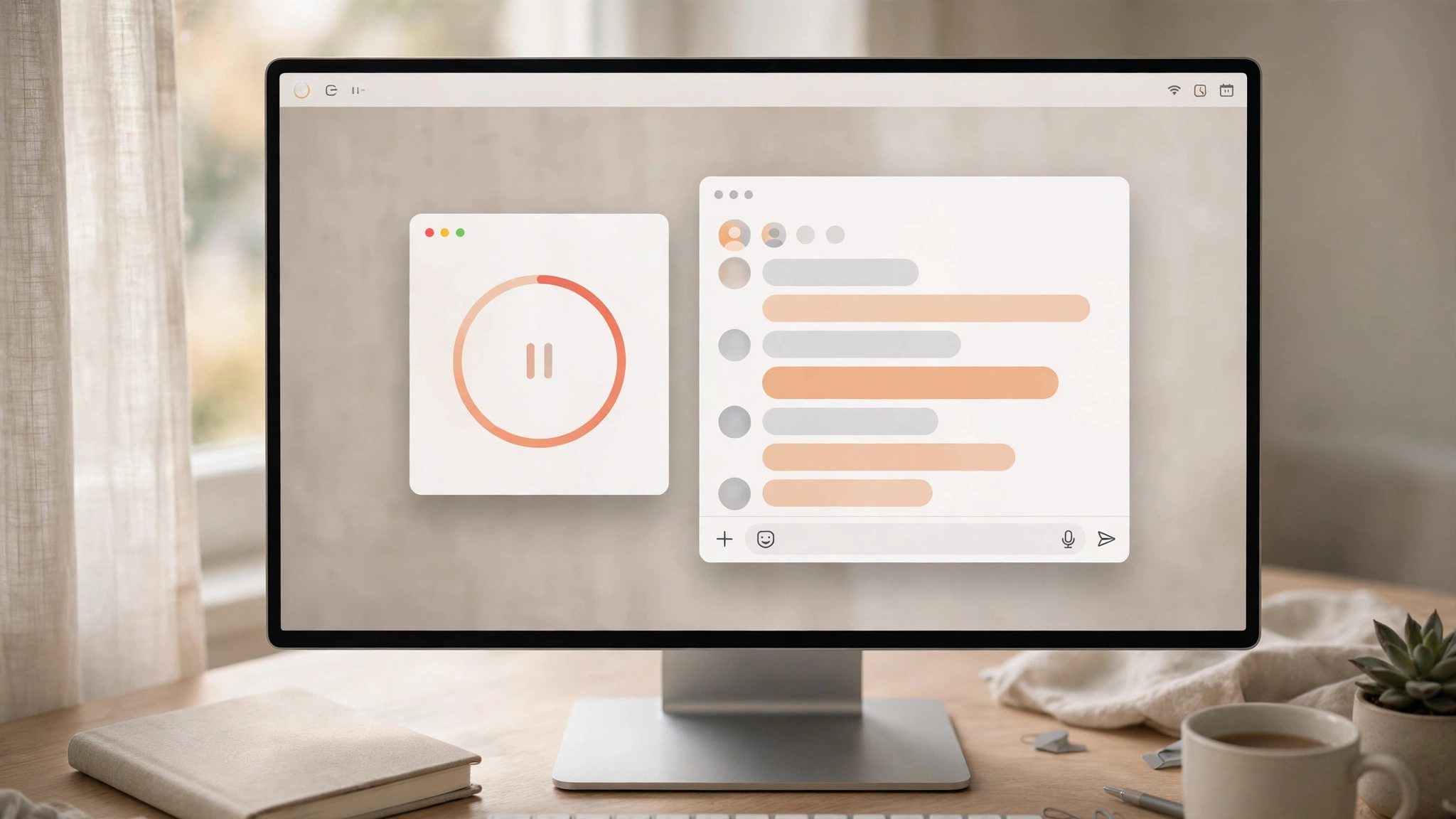
Claude artifacts started as shareable outputs — a chart, a web page, a small interactive tool you would open inside a conversation and then forget. Then people started living in them: a meeting-prep page that pulls from a calendar and email, a tracker for the orders that need to ship that day. Anthropic's answer, which began rolling out in beta on November 24, 2026, is "Install as app": the artifact leaves the chat and becomes a standalone Mac or Windows app, with its own window, its own icon, and — this is the part that makes it a desktop citizen rather than a bookmark — its own permissions.
This tutorial is the hands-on version of that announcement. You will build a small app that is actually worth installing — a focus dashboard with a Pomodoro timer and a daily task list — install it, give it the two permissions it genuinely needs, share it with someone else, change it, and uninstall it. Along the way you will learn where the edges are: what installed apps can and cannot do, and when an artifact, an installed app, or a real desktop app is the right call.
What you'll need#
- Claude for Mac or Windows, updated to the latest version. Install as app is a desktop feature; it does not exist in the browser version of Claude or on mobile.
- A Claude account on any plan. The beta is rolling out on all plans. On Team plans it is on by default with full access off; on Enterprise it is off until an owner turns it on.
- An internet connection and a signed-in Claude Desktop. Installed apps are still artifacts served through your Claude account. If you are offline or signed out, the app will not open.
- About 30 minutes. Most of that is testing the app as an artifact before you install it — the step that separates a useful desktop app from a broken one with an icon.
One thing you do not need: a developer account, a code-signing certificate, or any packaging tooling. Anthropic handles the install; you handle the app.
1. Update Claude Desktop#
Install as app is rolling out, so the first failure mode is the simplest one: an out-of-date client with no "Install as app" entry anywhere. Update before you build anything.
- On macOS: open Claude, then go to Claude > Check for Updates.
- On Windows: open the menu button (☰), then go to Help > Check for Updates.
If the option still does not appear after updating, the rollout may not have reached your account yet — the feature is in beta and rolling out progressively. On Team and Enterprise plans, ask an owner whether it is turned on for your organization.
2. Build the app as an artifact#
The app you build matters more than the install step, because the install step is one click. Pick something you would genuinely open every day, small enough to fit in one artifact, and with one job that benefits from living outside the chat. A focus dashboard qualifies on all three counts: a Pomodoro timer you glance at, a task list you check off, and a notification when a session ends — the exact desktop behavior (notifications, a menu-bar presence) that an installed app adds over an artifact sitting in a chat.
Start a new chat in Claude Desktop and paste this prompt:
Build me a focus dashboard as a single HTML artifact.

It must have:
- A Pomodoro timer with 25-minute focus sessions and 5-minute breaks,
  a circular progress ring, and Start / Pause / Reset buttons.
- A daily task list: add a task, check it off, delete it. Tasks must
  persist in localStorage so they survive closing and reopening.
- A "Notify me when the timer ends" button that asks for notification
  permission and sends a browser notification when a session finishes.
- A compact layout that still works in a small window, with large,
  readable type.
- An "Install as app" button in the header that tells the user they can
  install this artifact as a desktop app from Claude's Share menu.

Use plain HTML, CSS, and JavaScript in one file. No external images.
Test the timer math and the task persistence before you show it to me.
Two details in that prompt are doing deliberate work. First, localStorage persistence: an installed app that forgets your tasks every time you close it is a demo, not a tool. Second, the in-app "Install as app" button: artifacts can build their own install button if you ask them to, which gives anyone you share the app with a visible path to install it — they do not have to discover the Share menu themselves. Claude still asks you to confirm the installation no matter which path you take.
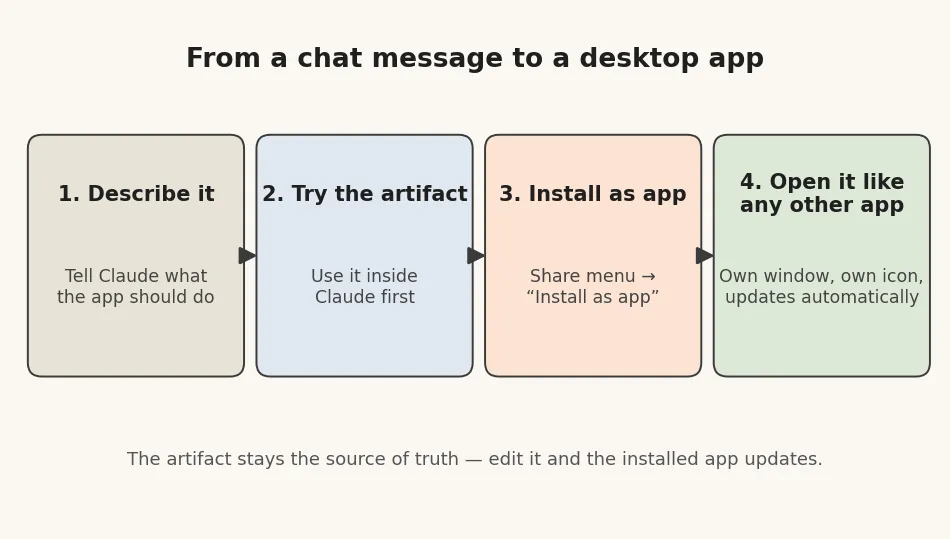
When Claude shows you the artifact, read the code it generated before you touch anything else — not line by line, but checking the three load-bearing pieces:
- Timer math. A 25-minute session is 1,500 seconds; the display should read
25:00at the start, tick down one second at a time, and flip to a 5-minute break at zero. The core of it looks like this, and you can run it in Node to confirm the arithmetic before trusting the artifact:
const WORK_S = 25 * 60, BREAK_S = 5 * 60;

function fmt(totalSeconds) {
  const m = Math.floor(totalSeconds / 60);
  const s = totalSeconds % 60;
  return String(m).padStart(2, "0") + ":" + String(s).padStart(2, "0");
}

fmt(WORK_S);   // "25:00"
fmt(BREAK_S);  // "05:00"
fmt(61);       // "01:01"

// One tick: 25:00 -> 24:59, and the phase flips at zero.
let remaining = WORK_S;
remaining -= 1;              // fmt(remaining) === "24:59"
remaining = 1; remaining -= 1;
const phase = remaining === 0 ? "break" : "work"; // "break"- Task persistence. Adding a task, reloading the artifact, and seeing the task still there is the test. Under the hood it is one
localStorageround-trip:
function loadTasks() {
  return JSON.parse(localStorage.getItem("focus.tasks") || "[]");
}
function saveTasks(tasks) {
  localStorage.setItem("focus.tasks", JSON.stringify(tasks));
}- The notification gate. The timer must only notify when permission was actually granted — never assume it. The pattern is a one-line check before calling the Notification API:
function maybeNotify(title) {
  if (Notification.permission === "granted") {
    new Notification(title);
    return "notified: " + title;
  }
  return "skipped (permission=" + Notification.permission + ")";
}
If any of the three is wrong — the timer shows 25:60, tasks vanish on reload, or the notification fires without permission — tell Claude what you observed and ask it to fix that specific behavior. Do not install a broken artifact; the installed app inherits every bug the artifact has.
3. Test the artifact before you install it#
An installed app is the artifact with an icon. Everything you would test in a web page, test now, inside Claude, while fixing it is still a one-message job. Run through this checklist and do not install until every line passes:
- Start the timer, wait ten seconds, confirm it reads 24:50. Then pause it, confirm it stops, and reset it to 25:00.
- Let a session run to zero — or ask Claude to add a 10-second test mode — and confirm the break phase starts and the notification fires only after you granted permission.
- Add three tasks, check one off, delete one, reload the artifact. The two remaining tasks, one checked, must still be there.
- Resize the artifact pane narrow, down to roughly phone width. The timer ring, the buttons, and the task list must stay usable with no horizontal scrolling and no clipped text.
- Click the "Install as app" button inside the app. It should explain the install path; it cannot install anything by itself — installation always goes through Claude's confirmation.
This is also the moment to decide what the app should not do. A focus timer has no reason to read your files or run programs, so it should never ask for full computer access. If Claude built in a feature that needs a permission you did not ask for — a file picker that reads from disk, a shell command, an external script — remove it now. Every permission an app holds is a permission you will be asked to re-approve after every update, and a permission a shared copy of the app carries to someone else's machine.
4. Install it#
With the artifact tested, installation is the shortest step in this tutorial:
- Open the artifact in Claude Desktop.
- Open the Share menu.
- Choose "Install as app".
- Confirm when Claude asks.
The app appears with its own icon and opens in its own window, separate from the Claude chat. You can also find "Install as app" under Share from the artifact's menu, and if the artifact has its own install button — the one from step 2 — that leads to the same confirmation.
Open it from wherever you open apps: the Dock or Applications folder on macOS, the Start menu or taskbar on Windows. The first thing to notice is what did not change: the app still shows the artifact, still uses Claude and your connectors the same way the artifact does, and still counts any requests it makes to Claude toward your plan's usage limits. Installation changed how the app opens, not what it is.
5. Grant permissions deliberately#
The first time the installed app wants to do something desktop-like, it asks. Answer each request on its merits — an app has to ask before it uses any of these features, and you answer each one with "Allow" or "Don't allow."
| Permission | What the app can do | Our focus app |
|---|---|---|
| Notifications | Show notifications while you use other apps | Allow. This is the timer's whole point: the session-end alert must reach you while you are in another window. |
| Keyboard shortcuts | Respond to key combinations while you use other apps | Allow only if you add a global start/stop shortcut. Skip it otherwise. |
| Float over other windows | Draw content above other windows, and read where the mouse cursor is on your screens | Skip it. A timer does not need to float, and this permission also lets the app read your cursor position. |
| Menu bar item (macOS) or system tray icon (Windows) | Show an item there while the app is open | Allow. A menu-bar timer you can glance at is exactly the use case — and an app with a menu bar item keeps running after you close its window, so remember to quit it from the Dock (or Cmd+Q) when you are done, or choose "Exit" in the tray icon's menu on Windows. |
| Full access to this computer | Run programs and read, change, or delete your files without asking each time | Don't allow. A focus timer has no legitimate need for it. Full access also covers the permissions above, unless you or your organization turned them off. |
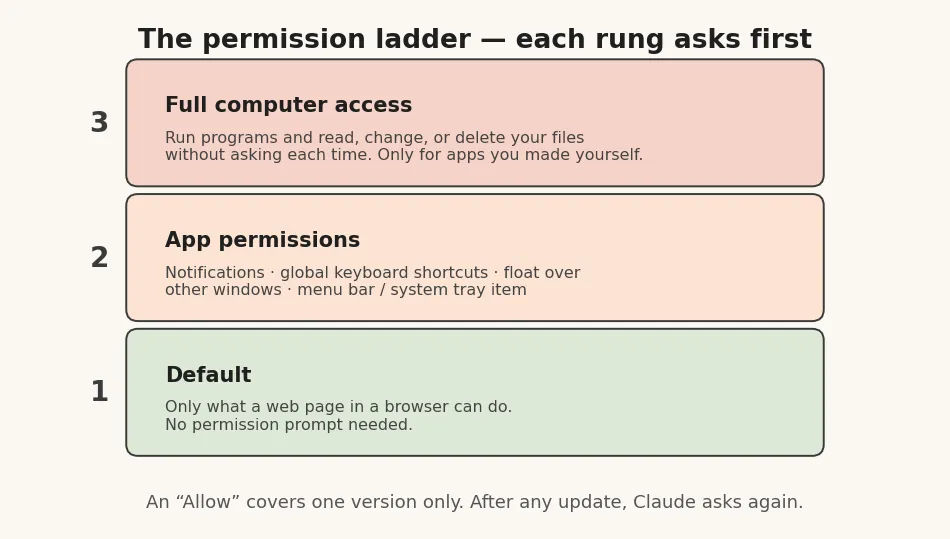
Three rules govern the whole system, and they are worth memorizing before you click "Allow" on anything:
- An "Allow" covers one version of the app. After any update — including your own edits — Claude asks again. A "Don't allow" stays until you change it.
- Full access is a trust decision, not a convenience. You can only give full access to apps you made, or — on Team and Enterprise — apps made by people in your organization. Anthropic does not review apps before you install them. If an app comes from outside your organization, or Claude cannot tell who made it, the request shows a warning.
- External code is a hole in the model. If an app loads code from another site, that code can change without a new permission request. An app you vetted on Monday can behave differently on Friday if it pulls in a remote script.
To change or take back a permission later, use the Permissions menu for the app. One warning from Anthropic's documentation: turning off full access can reload or close the app, so save your work first. It stops the programs the app started — except any that separated themselves from it — and it does not undo changes the app already made.
6. Share it#
An installed app is shareable because the artifact underneath it is. Share the artifact with a teammate the way you would share any artifact, and they can install it on their own machine from the same Share menu. Two things to tell them before they do:
- Their permissions are theirs. Each person answers the permission prompts on their own machine. Your "Allow" for notifications does not travel with the app.
- Full access does not travel either. They can only grant full access to apps they made themselves, or apps made by someone in the same organization on Team and Enterprise. If your app genuinely needs full access — ours does not — a teammate outside your organization cannot grant it, by design.
If you lose access to an app — for example, because its owner stops sharing it with you — the programs it started stop too. Anthropic says this can take up to about 20 minutes, and longer while Claude cannot check, such as when it is offline, signed out, or using another organization.
7. Iterate: the app updates itself#
This is the part that makes installed artifacts practical as living tools rather than frozen downloads. Go back to the chat, ask Claude to change the artifact — a 50-minute focus option, a weekly task summary, a quieter color scheme — and the installed app updates automatically. There is no rebuild, no re-download, no new version to distribute to everyone you shared it with.
The price of that convenience is the permission rule from step 5: after any update, Claude asks again for every permission. Expect the prompts. They are not a bug; they are the mechanism that stops an app you approved as a timer from silently becoming something else after an edit. If you find yourself re-allowing the same permissions every day because you iterate constantly, batch your edits: make all the changes, test the artifact, then let the installed app pick up one new version instead of five.
8. Uninstall it#
Uninstalling is deliberately boring:
- On macOS, the app moves to the Trash. If you kept it in the Dock, remove it there too.
- On Windows, its shortcuts are removed. If you pinned it to the taskbar or Start, remove it there too.
Uninstalling removes the permissions you allowed. It does not delete the artifact — the app's source still exists in your Claude chats, and you can reinstall it from there any time. And if the artifact itself is deleted, taken down, or no longer shared with you, Claude usually offers to uninstall the app when you open it.
Which approach should you use?#
Install as app adds a fourth option to a decision developers and knowledge workers already make constantly. The right choice depends on who uses the tool, what it needs to touch, and how long it needs to live:
| Approach | Best for | Costs | Watch out for |
|---|---|---|---|
| Artifact in a chat | One-off tools, things you open twice and forget | Nothing to install | Buried in a conversation; no notifications, no menu bar |
| Installed app | Daily tools for yourself or a small team: timers, trackers, dashboards, meeting prep | Needs Claude Desktop, online, signed in | Usage limits meter Claude requests; permissions re-asked after every update; not offline |
| Electron / Tauri app | Software you distribute widely, need offline, or need deep OS integration for | Real engineering: packaging, signing, updates, distribution | Weeks of work for what an artifact does in an afternoon |
| Web app | Tools anyone should open in a browser, on any device | Hosting, auth, a backend if it stores data | No desktop presence at all — no notifications, no menu bar, no global shortcuts |
The heuristic that falls out of this table: if the tool's users all have Claude, and the tool's job fits in one artifact, install it — the cost of shipping is near zero and the cost of changing it later is one chat message. If the tool must work for people without Claude, or offline, or on a phone, build the web app or the real desktop app. Anthropic's own staff examples sit squarely in the installed-app column: a layered image editor, a file manager, a folder-rules organizer, a terminal with Claude beside it, a menu-bar performance monitor — tools their makers wanted for themselves, not products for the public.
Limits and gotchas#
- Not every artifact can be installed. Claude Docs, Slides, and Sheets cannot, and Anthropic says some other kinds can't either. If "Install as app" is missing for one artifact but present for another, the artifact type is the likely reason — not your client.
- It is a beta. Behavior, availability, and the permission surface can change. Treat anything you install as a tool you can live without for a day, not as load-bearing infrastructure.
- Usage limits apply twice over. Building the app counts toward your plan's limits, and any requests the installed app makes to Claude count too. A shared app that leans on Claude for every interaction can eat into the allowance of whoever runs it.
- Enterprise and regulated environments differ. On Enterprise the feature is off until an owner turns it on; HIPAA-ready organizations and hybrid deployments cannot use it at all. If you work in one of those, the Share menu will simply not offer the option.
- A menu-bar app keeps running. An app with a menu bar item or system tray icon keeps running after you close its window. Quit it properly — Dock or Cmd+Q on macOS, "Exit" in the tray menu on Windows — or it will keep its permissions and its timers alive in the background.
- Report bad actors. If an installed app misbehaves, "Report Artifact" sits in the same menu as "Permissions," where available.
The takeaway#
Install as app does not turn Claude into an app store. It turns the artifacts you already build into tools that open like the rest of your apps — and that is a narrower, more useful promise. The workflow that works is the one in this tutorial: build something small and genuinely daily, test it hard as an artifact, install it, grant the minimum permissions it needs, and iterate in the chat while the installed copy updates itself. The permission ladder is the feature's real design: Default for almost everything, App permissions for the handful of desktop behaviors a good tool actually needs, Full access almost never — and only for apps you made yourself. Get those three decisions right and the beta earns its place on your desktop; get them wrong and you have given a chat transcript the keys to your computer.