Stop re-explaining your feature to your coding agent: hands-on with OpenSpec 2.0
OpenSpec 2.2.0 turns a feature idea into a reviewable plan — proposal, testable specs, design, and a task checklist — before your coding agent writes a line. The full loop, verified end to end on a real project, including the archive step that writes the specs for you.
- OpenSpec (Fission-AI/OpenSpec): created August 5, 2025; 75,697 stars, 5,179 forks, 1,068 commits, 62 releases; MIT; 2.2.0 released November 24, 2026, two weeks after the 2.0 rewrite. On GitHub’s TypeScript daily trending board on November 25, 2026.
- Measured on the sandbox run:
openspec initcreated 7 skills and theopenspec/structure; the add-dark-mode change validated clean under normal and--strictchecks; the jsdom harness passed 12/12 checks including thergb(18, 18, 18)dark background; archive added 3 requirements toopenspec/specs/theme/spec.md. - What needs a key: nothing in the CLI loop — it runs locally on Markdown files. Only your own coding agent needs its model access, which you already have.

Every developer who works with a coding agent knows the moment: you describe a feature, the agent writes three hundred lines, and somewhere around line forty it quietly builds the wrong thing. Not because the model is weak, but because the requirement lived only in chat history, phrased once, never written down, and never agreed on. The fix is not a better prompt. It is a written plan the agent has to follow — and that is exactly what OpenSpec adds.
OpenSpec is a spec-driven development framework for AI coding assistants: a CLI plus a set of agent skills that turn a feature idea into four plain-Markdown artifacts — a proposal, testable specs, a design doc, and a task checklist — before any code exists. You review the plan while it is still words. The agent implements from it. Archiving folds what shipped back into your project's specs. Version 2.2.0 landed on November 24, 2026, two weeks after the 2.0 rewrite, and the project is on GitHub's TypeScript daily trending board today with 75,697 stars. What follows is the full loop, run end to end on a real project: install, init, propose, apply, archive — with the validation output and the test results, not the marketing version.
Why OpenSpec is blowing up now#
The numbers first. OpenSpec (Fission-AI/OpenSpec, MIT) was created in August 2025 and now holds 75,697 stars and 5,179 forks across 1,068 commits and 62 releases. The recent movement is a release train, not a single launch: 2.0.0 shipped November 11, 2026, 2.1.0 on November 17, 2.1.1 on November 19, and 2.2.0 on November 24 — the day before this tutorial. The 2.0 release renamed the whole command surface (the old 1.x /opsx:* commands are gone) and reworked how skills install across tools. That is why it is trending now: a mature project, a breaking major release, and a fresh minor version the same week.
The timing also matters for a different reason. Coding agents are now good enough that the bottleneck is no longer code generation — it is agreement. A senior developer can review a plan in five minutes and catch a wrong assumption that would cost an afternoon of generated code. OpenSpec's bet is that the highest-leverage artifact in an AI-assisted workflow is not the code, it is the spec the code is checked against.
What OpenSpec actually is#
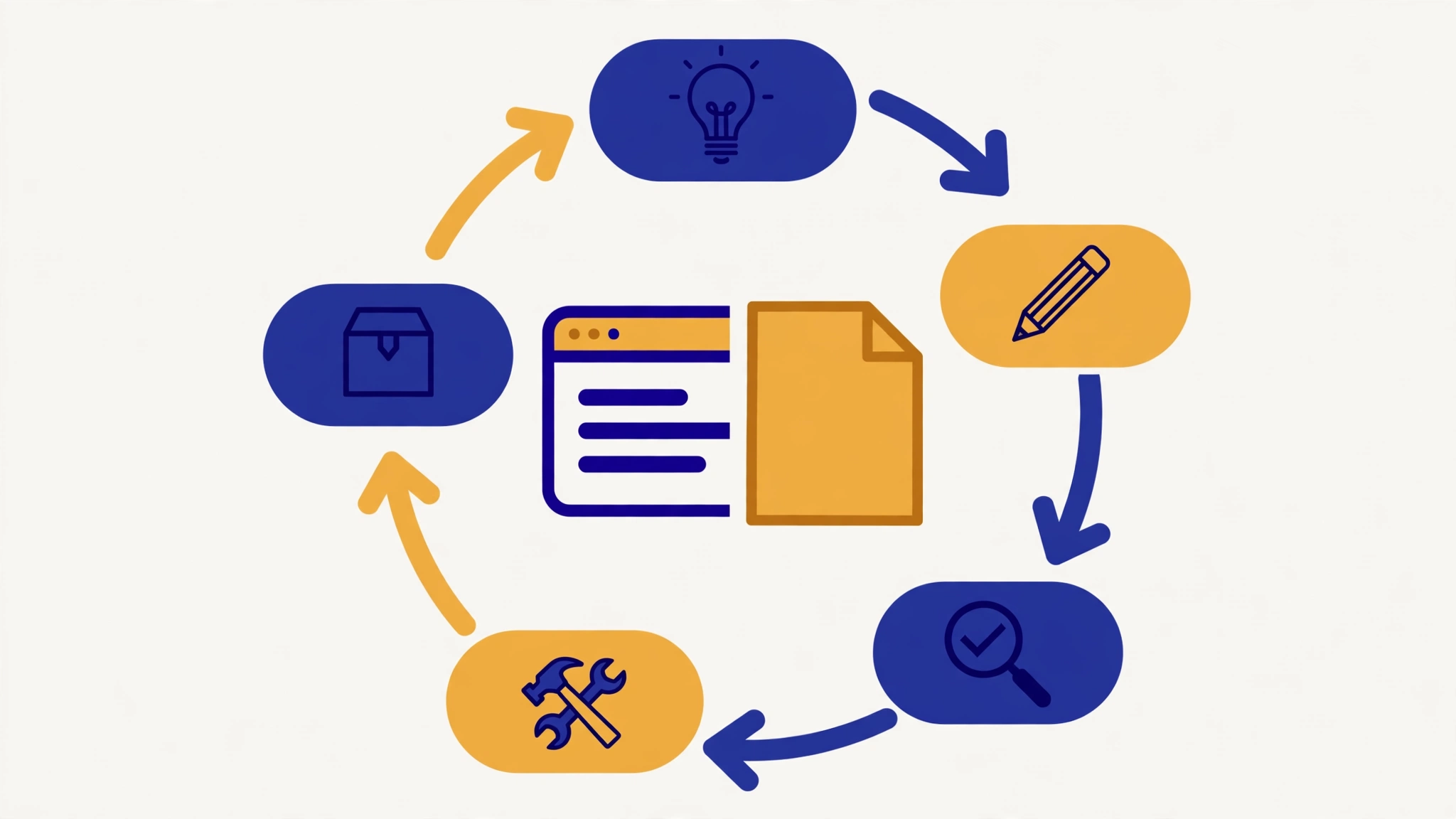
OpenSpec has two parts. The CLI (openspec) manages the artifacts: it creates change folders, validates them, shows status, and archives finished changes into your project's specs. The skills are the workflow: seven Markdown skill files that teach your coding agent the five-step loop — explore, propose, review, apply, archive. The skills work with 30+ tools (Claude Code, Codex, Cursor, Copilot, and the rest); the CLI is the same everywhere.
Every change moves through the same five steps. Explore is a thinking mode: the agent investigates your codebase, asks questions, and sketches options without writing code. Propose turns the idea into a reviewable plan in a change folder. Review is your job: read the proposal, the specs, and the tasks, and fix them while they are still words. Apply is the agent working through tasks.md, checking boxes off as each lands. Archive moves the change folder into openspec/changes/archive/ and merges its requirements into your main specs — so the spec file becomes the record of what the system does, not a document that rots beside the code.
The unit of work is the change folder. One feature, one folder:
openspec/changes/add-dark-mode/
├── proposal.md    why, and what changes
├── specs/         what "done" means, as testable requirements
├── design.md      technical decisions (only when the change needs one)
└── tasks.md       the implementation checklist
Specs are delta specs: they describe only what this change adds or changes, in ADDED / MODIFIED / REMOVED requirement blocks, each with WHEN/THEN scenarios. The main spec under openspec/specs/ only gains the new requirements at archive time. That separation is the whole design: plans are cheap to throw away, specs are the durable record.
What you'll need#
- Node.js 22.20.0 or newer — check with
node --version. The sandbox run used Node v24.22.1 and npm 10.9.4. Homebrew and Nix installs bring their own Node. - A coding agent — Claude Code, Codex, Cursor, Copilot, or any of the 30+ supported tools. The slash commands (
/openspec-proposein Claude Code,$openspec-proposein Codex) live inside your agent, not in the shell. - A project — any folder with code. OpenSpec is explicitly built for brownfield projects, not just greenfield ones.
- No model key, no account, no server. The CLI and the whole loop run locally on plain Markdown files. The only thing that needs a model is your own coding agent, which you already have.
- Telemetry note: OpenSpec collects anonymous usage stats (command names and version only — no arguments, paths, content, or personal data). Turn it off with
openspec config set telemetry.enabled false, or setOPENSPEC_TELEMETRY=0orDO_NOT_TRACK=1. The sandbox runs in this tutorial usedOPENSPEC_TELEMETRY=0.
Step 1: Install the CLI#
Pin the version you verified against. This tutorial uses 2.2.0, the current release:
npm install -g @fission-ai/[email protected]
openspec --version2.2.0Two other install paths exist, and the docs are explicit about their trade-offs. The standalone binary needs no Node at all: curl -fsSL https://openspec.dev/cli/install.sh | sh (macOS/Linux) or the PowerShell equivalent on Windows, and openspec install switches an npm install over to it. Homebrew users can run brew install openspec — the formula is in homebrew-core, no tap needed. Whichever you pick, openspec update handles later upgrades and refreshes the skills, which never update on their own.
Verify the install the way the docs suggest: openspec version prints the version and the install kind. On this run it printed OpenSpec 2.2.0 — the npm copy, no (standalone) suffix.
Step 2: Initialize it in a project#
The demo project for this tutorial is deliberately boring: a three-file static task tracker (index.html, styles.css, app.js), no build step, no framework — the kind of small brownfield codebase most readers actually have. Initialize OpenSpec in the project folder:
cd task-tracker
openspec init --tools claude,codex --scope project --no-animation
- Creating OpenSpec structure...
▌ OpenSpec structure created
- Setting up Claude Code...
✔ Setup complete for Claude Code
- Setting up Codex...
✔ Setup complete for Codex
OpenSpec Setup Complete
Created: Claude Code, Codex
7 skills in .agents/skills/ (also in .claude/skills/)
Config: openspec/config.yaml (schema: spec-driven)
Getting started:
Start your first change: /openspec-propose "your idea" (Claude Code)
Start your first change: $openspec-propose "your idea" (Codex CLI or IDE); in the Codex desktop app, select openspec-propose from Skills in the sidebar (Codex)
Note: 6 more workflows are available (new, continue, ff, bulk-archive, verify, onboard).
Add them with `openspec config profile`.The --tools flag takes all, none, or a comma-separated list of tool IDs; --scope project keeps the skills in the repo (the alternative, global, installs them once per machine). If you run init with no flags it prompts interactively. What it creates:
openspec/
├── config.yaml            # schema: spec-driven
├── specs/                 # main specs (empty until your first archive)
└── changes/archive/       # finished changes land here
.agents/skills/            # 7 skills: openspec, openspec-propose, openspec-explore,
                           # openspec-apply-change, openspec-archive-change,
                           # openspec-sync-specs, openspec-update-change
.claude/skills/            # same skills, linked for Claude Code
The config.yaml is minimal — one line, schema: spec-driven — with commented-out slots for project context and per-artifact rules. That context field is worth knowing about: constraints you put there ("designs and tasks must cover Windows, macOS, and Linux") guide every artifact the agent writes, and the agent is instructed to treat it as a constraint, never to copy it into the artifacts.
Step 3: Propose a change — the plan before the code#
One transparency note before this step: the /openspec-propose slash commands run inside your coding agent, not in a shell, so there is no shell command that performs the propose step. In the sandbox I authored the four artifacts by hand, following the exact templates the CLI prints when you ask it for instructions (openspec instructions proposal --change <name> --json and the same for specs, design, and tasks). Everything below is validated by the CLI itself, not by my word.
Create the change folder first:
openspec new change add-dark-mode --description "Add a dark-mode toggle that follows the system preference"- Creating change 'add-dark-mode' with schema 'spec-driven'...
Created change 'add-dark-mode' at openspec/changes/add-dark-mode/
Schema: spec-driven
Next: openspec status --change add-dark-modeThe scaffold is two files: .openspec.yaml (schema: spec-driven, created: 2026-11-25) and a README.md with the change name and description. Check the plan's shape at any point:
openspec status --change add-dark-mode --jsonStatus reports the four artifacts, their dependency edges (specs and design depend on the proposal; tasks depend on specs and design), and applyRequires: ["tasks"] — the gate for implementation. The change for this tutorial is a dark-mode toggle for the tracker. The proposal names one new capability, theme, and states the scope in plain language:
# Proposal

## Why

The task tracker ships in light mode only. Readers who work at night
or prefer dark interfaces get a bright page with no way to change it,
and the operating system's dark preference is ignored entirely.

## What Changes

- A theme toggle button in the page header that switches between
  light and dark.
- The chosen theme persists across reloads in `localStorage`.
- With no saved choice, the page follows the operating system's
  `prefers-color-scheme` setting.
- Theme colours are defined once as CSS custom properties; the dark
  theme overrides them under a `data-theme="dark"` attribute on `<html>`.

## Capabilities

### New Capabilities

- `theme`: theme selection, persistence, and system-preference
  detection for the tracker UI.
The delta spec is the highest-value artifact. Three requirements, each with WHEN/THEN scenarios, each written as observable behaviour — no class names, no library choices:
# Spec Delta

## Purpose

Lets users choose a light or dark appearance for the tracker, remembers
the choice, and respects the operating system's preference when no
choice has been saved.

## ADDED Requirements

### Requirement: Theme toggle switches appearance
The system SHALL provide a toggle control that switches the page
between light and dark themes immediately, without a reload.

#### Scenario: User switches to dark mode
- **WHEN** the user clicks the theme toggle while the page is in light mode
- **THEN** the page renders with the dark colour scheme

### Requirement: Theme choice persists across reloads
The system SHALL save the user's selected theme in `localStorage` under
the key `task-tracker-theme` and restore it on page load.

#### Scenario: Saved dark theme restored
- **WHEN** the user previously selected dark mode and reloads the page
- **THEN** the page renders in dark mode without any interaction

### Requirement: System preference is the default
The system SHALL default to the operating system's
`prefers-color-scheme` setting when no theme has been saved.

#### Scenario: No saved theme, dark system preference
- **WHEN** the page loads with no saved theme and the OS prefers dark
- **THEN** the page renders in dark mode
Two format rules in the spec template are easy to get wrong, and the validator enforces them: scenarios must use exactly four hashtags (#### Scenario:), and every scenario needs a WHEN/GIVEN step and a THEN step — a scenario with only prose is a warning in normal validation and a failure under --strict. Requirement descriptions are also capped at 500 characters under ADDED requirements. The design doc records the decisions (a data-theme attribute on <html> over a body class; one CSS-variable override block over a second stylesheet; localStorage over a cookie) with the alternatives considered and the risks — including the honest one that a first paint can flash the wrong theme before the script runs. Tasks are grouped checkboxes, each carrying its own verification:
# Tasks

## 1. Theme styles

- [ ] 1.1 Add a `[data-theme="dark"]` override block in `styles.css`
  redefining `--bg`, `--fg`, `--muted`, `--accent`, and `--border`;
  verify by loading the page with `data-theme="dark"` set and
  confirming the computed background is dark.
- [ ] 1.2 Style the toggle button in the page header so it is visible
  and usable in both themes; verify visually in both themes.

## 2. Toggle control and logic

- [ ] 2.1 Add a `<button id="theme-toggle">` to `index.html` with an
  `aria-label` and initial text; verify the button renders and is
  focusable.
- [ ] 2.2 Implement theme init in `app.js`: read `localStorage` key
  `task-tracker-theme`, fall back to `matchMedia(
  '(prefers-color-scheme: dark)')`, set
  `document.documentElement.dataset.theme`, and update the button
  label; verify with a jsdom test that a saved `dark` value renders
  dark on load and a saved `light` value renders light.
- [ ] 2.3 Implement the click handler in `app.js`: toggle `data-theme`,
  write the new value to `localStorage`, and update the button label;
  verify with a jsdom test that one click flips light to dark and
  writes `dark` to storage, and a second click flips back.

## 3. Integration check

- [ ] 3.1 Serve the app over HTTP and confirm `index.html`,
  `styles.css`, and `app.js` all return 200 and the page has no
  console errors; verify with `curl` and the jsdom run.
- [ ] 3.2 Run `openspec validate add-dark-mode` and confirm it passes;
  fix any findings before archiving.
Now validate the plan. The command takes the change name as a positional argument — openspec validate add-dark-mode, not --change (that flag does not exist; the CLI tells you so, and this tutorial's own first draft of task 3.2 had it wrong before validation caught it):
openspec status --change add-dark-mode
openspec validate add-dark-mode
openspec validate add-dark-mode --strict
Change: add-dark-mode
Schema: spec-driven
Change root: .../openspec/changes/add-dark-mode
Progress: 4/4 artifacts complete
[x] proposal
[x] specs
[x] design
[x] tasks
All planning artifacts complete!
Change 'add-dark-mode' is valid
Change 'add-dark-mode' is validBoth normal and strict validation pass. The plan is ready for review — and review is the step that matters. Read the specs first: would you accept those three requirements as "done"? Then the tasks: do they cover the specs and nothing more? Fix the files by hand or tell your agent what is wrong; either way, the plan is plain Markdown.
Step 4: Apply the change — the agent works the checklist#
In a real session you start a fresh chat — the docs recommend a clean context window for implementation — and ask the agent to apply the change. It reads the change folder and works through tasks.md, checking each box off as it lands. Interrupted or out of context, you open a new session and ask again; it resumes at the first unchecked task. Progress lives in the checkboxes. There is no hidden state.
In the sandbox I executed the same seven tasks myself, following the checklist exactly as the agent would, because the agent in this loop is your own coding tool and the sandbox has no subscription to spend. The work is small and exact. First the styles — one override block, five variables:
[data-theme="dark"] {
  --bg: #121212;
  --fg: #e8e8e8;
  --muted: #9a9a9a;
  --accent: #7aa2f0;
  --border: #333333;
}
Then the button in the page header, and the theme logic in app.js:
<header>
  <h1>Task Tracker</h1>
  <button id="theme-toggle" type="button" aria-label="Toggle dark mode">Dark mode</button>
</header>
const THEME_KEY = 'task-tracker-theme';
const toggle = document.getElementById('theme-toggle');
function readSavedTheme() {
try {
return localStorage.getItem(THEME_KEY);
} catch {
return null;
}
}
function systemPrefersDark() {
return window.matchMedia('(prefers-color-scheme: dark)').matches;
}
function applyTheme(theme) {
document.documentElement.dataset.theme = theme;
toggle.textContent = theme === 'dark' ? 'Light mode' : 'Dark mode';
}
function initTheme() {
const saved = readSavedTheme();
applyTheme(saved === 'dark' || saved === 'light' ? saved : (systemPrefersDark() ? 'dark' : 'light'));
}
toggle.addEventListener('click', () => {
const next = document.documentElement.dataset.theme === 'dark' ? 'light' : 'dark';
try {
localStorage.setItem(THEME_KEY, next);
} catch {
// Storage unavailable (private mode, disabled storage): theme still
// switches for this session, it just won't persist.
}
applyTheme(next);
});
initTheme();The try/catch around storage is deliberate, and it is in the design doc's risk list: localStorage can throw in private mode or when storage is disabled, and a theme toggle must never crash the page over that. The saved value wins over the system preference; an unexpected stored value falls through to the system check.
Verification, as the tasks demand. A jsdom 31.0.1 harness loads the real index.html, styles.css, and app.js, stubs matchMedia (jsdom has none), and checks every scenario in the spec plus the regression that adding tasks still works. All twelve checks passed:
PASS  no saved theme + dark OS -> dark
PASS  no saved theme + light OS -> light
PASS  saved light + dark OS -> light
PASS  toggle button exists with label (label=Dark mode)
PASS  click 1 -> dark
PASS  click 1 -> stored dark
PASS  click 1 -> label Light mode
PASS  click 2 -> light
PASS  click 2 -> stored light
PASS  saved dark + light OS -> dark
PASS  task added to list (items=1)
PASS  dark theme body background is dark (got rgb(18, 18, 18))

12/12 checks passed
And the integration check — the app served over plain HTTP, all three files returning 200:
python3 -m http.server 8123
curl -s -o /dev/null -w "%{http_code}\n" http://127.0.0.1:8123/index.html
curl -s -o /dev/null -w "%{http_code}\n" http://127.0.0.1:8123/styles.css
curl -s -o /dev/null -w "%{http_code}\n" http://127.0.0.1:8123/app.js
200
200
200With the tasks done, all seven boxes in tasks.md are checked — including the corrected 3.2, which now reads openspec validate add-dark-mode.
Step 5: Archive — the specs write themselves#
Archiving does two things at once: it updates your main specs with the change's requirements, and it moves the change folder into the archive. Run it when every box in tasks.md is checked:
openspec archive add-dark-mode -y --json{
"archive": {
"change": "add-dark-mode",
"archivedAs": "2026-11-25-add-dark-mode",
"path": ".../openspec/changes/archive/2026-11-25-add-dark-mode",
"specsUpdated": true,
"totals": {
"added": 3,
"modified": 0,
"removed": 0,
"renamed": 0
}
}
}The -y skips the confirmation prompt; without it the CLI asks first. The result: the change folder now lives at openspec/changes/archive/2026-11-25-add-dark-mode/, and a new main spec exists at openspec/specs/theme/spec.md with the three requirements, each with its scenarios, under a ## Purpose copied from the delta. The delta's ## Purpose matters here — without it, archive leaves a TBD ... Update Purpose after archive placeholder in the new main spec for you to fill in by hand. Verify the new state of the world:
openspec list --specs
openspec list
openspec validate --specs
Specs:
theme requirements 3
No active changes found.
✓ spec/theme
Totals: 1 passed, 0 failed (1 items)That is the payoff the earlier steps were buying: the project's spec file now says, in testable language, that the tracker has a theme toggle, that the choice persists, and that the system preference is the default. The next change that touches the theme starts from that spec instead of from a chat message nobody can find. Commit the change folder with the code — the docs treat Git as a separate concern, and the archive folder is the record.
The dashboard and Stores#
Two more surfaces are worth knowing, even though the core loop above is the daily workflow. openspec view opens an interactive dashboard of your specs and changes in the terminal. openspec doctor reports the health of the resolved OpenSpec root — on the demo project it printed the root location and OpenSpec root: ok with no references declared.
Stores are the team-scale feature, and they are in beta. A store is a standalone OpenSpec repo you register on your machine — planning in a repo of its own, shared by git push like anything else, so a platform team can own the specs and product teams can reference them read-only. The commands are openspec store setup (create and register a local store), openspec store register (register an existing one), openspec store list, and openspec store doctor. Commands that read or write specs and changes take a --store <id> flag when one is selected. For a solo project you will never touch this; for a team spanning several repos, it is the reason the change folders are plain files instead of a database.
When to use OpenSpec vs the alternatives#
| Approach | Use it when | Watch out for |
|---|---|---|
| OpenSpec | You want the lightest possible spec layer: one change folder, plain Markdown, no phase gates, any of 30+ coding tools. Brownfield work where the plan must live in the repo. | The agent-side steps (propose, apply) depend on your model's discipline; the CLI validates the artifacts, not the thinking. |
| GitHub Spec Kit | You want a thorough, opinionated constitution-driven workflow with rigid phase gates and lots of structure — and you are willing to pay for it in ceremony. | Heavier: Python setup, more Markdown, stricter gates. The project's own comparison calls it "thorough but heavyweight". |
| Kiro | You live in the Kiro IDE and want specs built into the editor. | You are locked into one IDE and, per the project's comparison, limited to Claude models. |
| Plain prompting | A one-off fix with no future reader, or a change so small the plan would be longer than the diff. | Nothing is written down, so nothing is reviewable, reusable, or checkable after the chat scrolls away. |
The comparison with Spec Kit and Kiro above is the project's own framing from its README, and it is fair: OpenSpec's pitch is not that it is more powerful, it is that it is lighter and lets you iterate freely. The blog's own hands-on with Spec Kit is linked below if you want the heavier workflow compared directly.
Gotchas, found the hard way#
validatetakes a positional name.openspec validate add-dark-modeworks;openspec validate --change add-dark-modefails witherror: unknown option '--change'. The flag exists on other commands (status --change), which is exactly why the mistake is easy.- Scenarios need exactly
####. Three hashtags or a bullet list will fail silently — the requirement looks written but the validator does not count it as a scenario. design.mdis conditional. The instructions say to create it only when the change needs one (cross-cutting, new dependency, security or migration complexity). A trivial change can skip it; a change with no spec-level behaviour at all must setskip_specs: truein.openspec.yamlinstead of inventing a requirement.- Write the
## Purposein a new capability's delta spec. Archive copies it into the main spec; without it you get aTBDplaceholder to fill in by hand. - Model choice matters. The README recommends high-reasoning models for planning and implementation, naming Codex 5.5 and Opus 4.7. A weak model will write weak specs, and the CLI cannot tell the difference — validation checks format, not judgement.
- Start apply in a fresh chat. Implementation goes better on a clean context window, and the docs say so explicitly. If you get interrupted, re-ask and the agent resumes at the first unchecked task.
- The first paint can flash the wrong theme. The init script runs at the end of
<body>; on a tiny page that is before first paint in practice, but a fully flash-free load needs an inline script in<head>. The design doc records this as a known limitation, not a bug to chase in this change.
The takeaway#
OpenSpec does one thing: it moves the agreement about what to build out of chat history and into files that can be reviewed, validated, and kept. The CLI is small — install, init, new change, status, validate, archive — and the whole loop runs locally on Markdown with no keys and no server. The value is not in the commands, it is in the review step they force: five minutes reading three requirements before the agent writes a line, instead of an afternoon untangling what it built from a vague prompt. Version 2.2.0 is the one to install; the 2.0 command renames mean tutorials written for 1.x will send you to commands that no longer exist. Start with one small change on a real project — a toggle, a flag, a single endpoint — archive it, and read the spec file it leaves behind. If that file reads like documentation you would trust, the workflow has earned its place.
Sources: Fission-AI/OpenSpec on GitHub; OpenSpec installation docs; OpenSpec quickstart; @fission-ai/openspec on npm. All repo figures and release dates were read from those pages on November 25, 2026; every command and test result in this tutorial was run on a plain Linux VM the same day.
Frequently asked questions
Do I need a model key or account to try OpenSpec?
No. The CLI, the skills, and the whole propose-review-apply-archive loop run locally on plain Markdown files. The only model involved is your own coding agent’s.
How is OpenSpec different from GitHub Spec Kit?
Spec Kit is a thorough, constitution-driven workflow with rigid phase gates and Python setup; OpenSpec is lighter — one change folder of Markdown, no phase gates — and it works with 30+ coding tools instead of one workflow.
What happens to my specs when a change is archived?
Archiving merges the change’s delta requirements into the main specs under openspec/specs/ and moves the change folder into openspec/changes/archive/ dated with the archive date. The main spec becomes the record of what the system does.