Scans, photos, and PDFs into structured text: hands-on with PaddleOCR 3.7
PaddleOCR 3.7 turns scans, photos, and PDFs into text, tables, and Markdown — entirely on your CPU, no API key, no uploads. I ran its new PP-OCRv6 models on a small VM: 4/4 lines exact at 0.996+ confidence, a 15-cell table rebuilt perfectly, and a full PDF converted to Markdown in about 25 seconds.
- What it is: PaddleOCR 3.7.0, from Baidu’s PaddlePaddle team — Apache-2.0, 93,134 GitHub stars — with two pipelines: general OCR on the new PP-OCRv6 models, and PP-StructureV3 for whole documents to Markdown, JSON, or Word.
- Cost: $0. Two pip installs plus model downloads (the default OCR pair is 133 MB). No account, no API key, no GPU, and no network after the downloads.
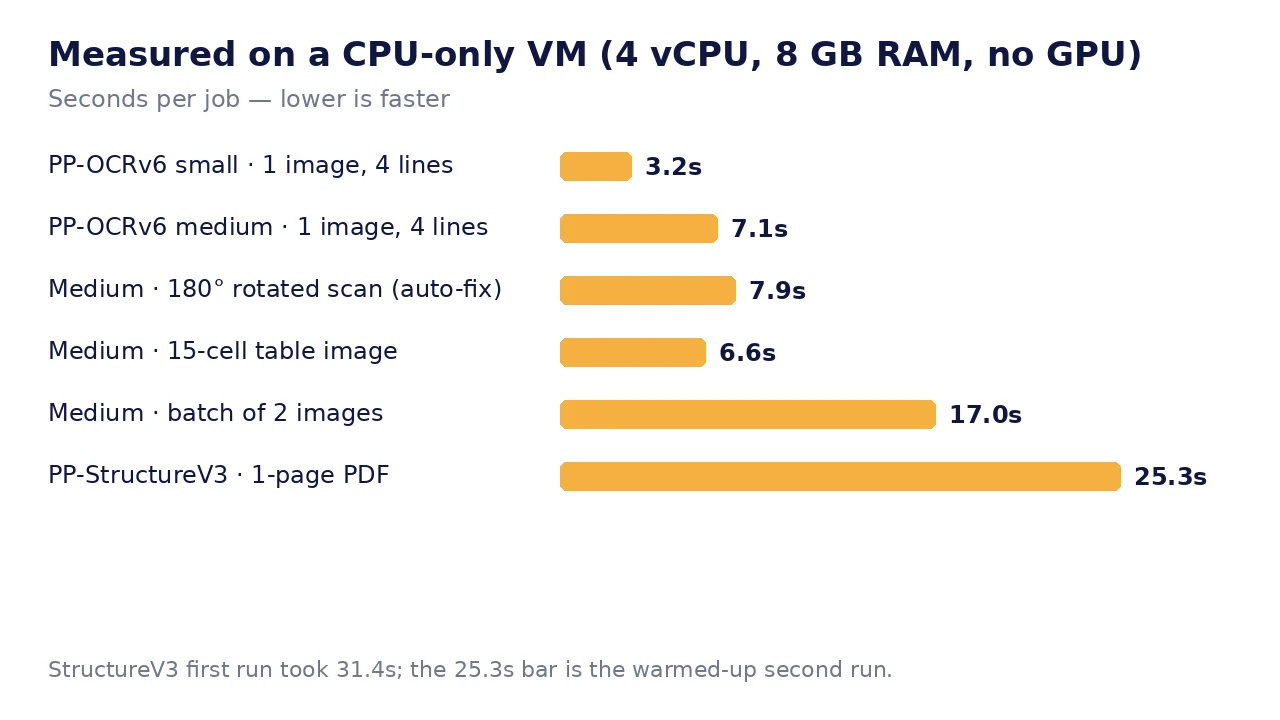
- Measured OCR: PP-OCRv6_medium read a 4-line test image exactly at 0.996–1.0 confidence in 7.1s, and a 15-cell table image cell-perfect in 6.6s. The small tier did the same 4 lines in 3.3s at 0.98+ confidence.
- Measured documents: A 180°-rotated scan was auto-corrected and read exactly in 7.9s; a one-page PDF became Markdown in 25–31s; the table rebuilt from bounding boxes matched ground truth exactly as a 5×3 Markdown table.
- The gotcha: PP-StructureV3 needs the
paddlex[ocr]extra installed first — without it, creating the pipeline fails with a dependency error. Install it alongside the toolkit.
Every RAG pipeline, every document search tool, every invoice-processing workflow starts in the same place: getting text out of a scan, a photo, or a PDF. The usual answer is a cloud OCR API — you upload the document, you pay per page, and you trust a vendor with whatever is in it. That is a bad deal when the documents are contracts, medical records, or anything else you would rather not upload.
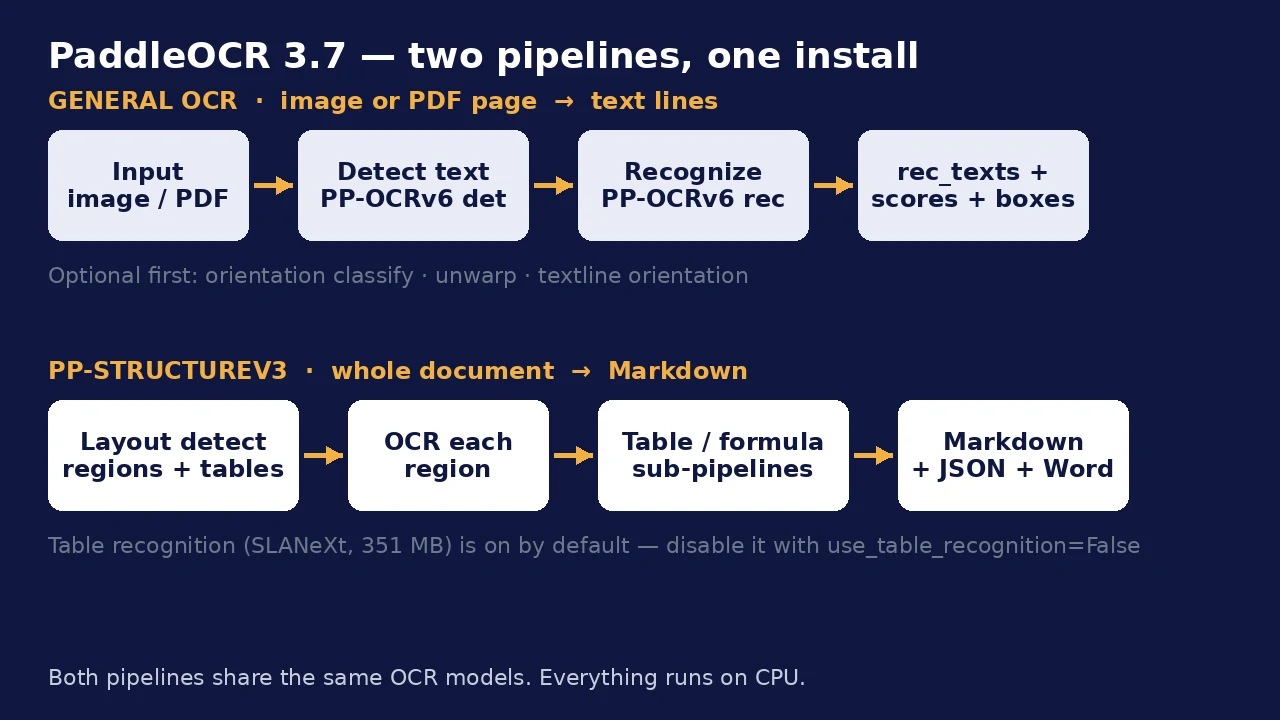
PaddleOCR is the local alternative, and version 3.7 is the one to learn now. It is Baidu’s open-source OCR toolkit (Apache-2.0, over 93,000 GitHub stars), and the 3.7 release ships a new default model family, PP-OCRv6, plus a document pipeline, PP-StructureV3, that turns whole PDFs into Markdown. Everything runs on your CPU: no account, no API key, no GPU, no uploads.
I ran it end to end on a small virtual machine with 4 vCPUs, 8 GB of RAM, and no GPU — the weakest hardware a tutorial can honestly claim. The default model read a test image’s four lines exactly, at 0.996 confidence or better. A 15-cell table came back cell-perfect. A page rotated 180° was auto-corrected and read exactly. A one-page PDF became Markdown in about 25 seconds. Every number in this tutorial is measured, not quoted.
What you’ll need#
- Python 3.10 or newer. I used Python 3.12.3. No GPU, no CUDA, no Docker.
- About 1 GB of disk for the framework, the OCR models, and the layout models below. The OCR models themselves are small — the medium pair is 133 MB — but the PaddlePaddle runtime is the bulk of it.
- No accounts, no API keys, no network after the downloads. The total cost is $0, and the models run offline: once the files are on disk, you can unplug the network and everything still works.
- About 20 minutes, most of it downloads and first-run model loading.
One honest caveat up front: the test documents in this tutorial are clean, rendered text — the kind OCR is best at. Phone photos of crumpled paper, faint faxes, and handwriting will all cost you accuracy, and the smallest models feel that first. I will show you exactly where the quality knobs are.
Step 1: Install PaddleOCR#
PaddleOCR is two installs, not one. The toolkit itself is a normal PyPI package, but it runs on the PaddlePaddle deep-learning framework, which you install first from Paddle’s own CPU package index. Pin both versions: PaddleOCR moves fast, and unpinned installs are how tutorials silently break six months later.
python3 -m venv .venv && source .venv/bin/activate
python -m pip install paddlepaddle==3.2.0 -i https://www.paddlepaddle.org.cn/packages/stable/cpu/
python -m pip install paddleocr==3.7.0
Verify the install before going further:
python -c "import paddle, paddleocr; print('paddle', paddle.__version__, '| paddleocr', paddleocr.__version__)"On my machine this printed:
paddle 3.2.0 | paddleocr 3.7.0If you plan to use the document pipeline in step 5, install one more extra now — the paddlex[ocr] package set, which carries the layout, table, and formula dependencies. Without it, creating a PPStructureV3 pipeline fails with a dependency error telling you to install exactly this:
python -m pip install "paddlex[ocr]==3.7.2"That error is the single most common first-run failure with PaddleOCR 3.7, and it is easy to miss because the plain OCR pipeline in the next step works fine without the extra. Install it now and forget about it.
Step 2: Your first OCR — four lines, zero errors#
The general OCR pipeline is one class, PaddleOCR, and one call, predict(). By default it uses the PP-OCRv6_medium models — a detector (59.4 MB) and a recognizer (73.3 MB) built on a new unified backbone, PPLCNetV4. One model covers 50 languages, including English, Chinese, Japanese, and 46 Latin-script languages. The three use_* flags switch off the optional preprocessing modules (orientation classification, unwarping, text-line orientation) so the first run downloads only the two models it needs:
from paddleocr import PaddleOCR

ocr = PaddleOCR(
    use_doc_orientation_classify=False,
    use_doc_unwarping=False,
    use_textline_orientation=False,
)
result = ocr.predict("test_ocr.png")
for res in result:
    d = res.json["res"]
    print(d["rec_texts"])
    print([round(float(s), 3) for s in d["rec_scores"]])
My test image has four lines of known text, including an invoice line with a dollar amount and a date. The output was:
['PaddleOCR 3.7 turns scans into text',
 'PP-OCRv6 reads 50 languages in one model',
 'Invoice total: $1,248.50 Date: 2026-11-24',
 'The quick brown fox jumps over 13 lazy dogs.']
[1.0, 0.997, 0.998, 0.996]
Four out of four lines exact, at 0.996 confidence or better, in 7.1 seconds on this VM — including model warm-up on the first call. The only deviation from the ground truth is invisible in the printout: my image had two spaces between $1,248.50 and Date, and the recognizer collapsed them to one. That is normal OCR whitespace normalization, not an error, but it is the kind of thing that matters if you are diffing OCR output against a known original: normalize whitespace on both sides before comparing.
The result object is worth understanding, because every later step reads from it. res.json is a dictionary with a single "res" key, and inside it:
| Field | What it holds |
|---|---|
rec_texts | One string per detected text line, in reading order |
rec_scores | One confidence float per line, 0 to 1 |
rec_polys | Four corner points per line, as a polygon |
rec_boxes | One axis-aligned box per line: [x_min, y_min, x_max, y_max] |
input_path, page_index | Which file (and which PDF page) the result came from |
Two convenience methods live on the same result object: res.save_to_img("output") writes a copy of the input with the detected boxes drawn on it, and res.save_to_json("output") writes the whole result dict to disk. Use the image output whenever a result looks wrong — seeing the boxes tells you in seconds whether the problem is detection (the box is missing or wrong) or recognition (the box is right, the text is wrong).
Step 3: Batch a folder, and trust only the confident lines#
One image proves the pipeline works; a folder is what you actually have. predict() accepts a list of paths (or a directory of images), and returns one result per input, in order. It also accepts a PDF path directly — each page becomes one result. For very large sets there is predict_iter(), a generator with the same parameters that yields results one at a time instead of holding them all in memory.
results = ocr.predict(["scan_001.png", "scan_002.png", "report.pdf"])
for res in results:
    d = res.json["res"]
    for text, score in zip(d["rec_texts"], d["rec_scores"]):
        if float(score) < 0.9:
            print(f"LOW CONFIDENCE ({float(score):.2f}): {text}")
        else:
            print(text)
I ran a two-image batch — the four-line test image plus a 15-cell table image — in 17.0 seconds total. The confidence filter is the habit that matters most in production OCR: scores are calibrated well enough that a 0.9 threshold catches the genuinely uncertain lines without throwing away good text. On my clean test images every line scored 0.993 or better, so nothing was flagged; on a real archive, the flagged lines are your review queue. You can also set the threshold inside the pipeline with text_rec_score_thresh=0.9 at construction time, which drops low-confidence lines from the result entirely — but filtering in your own code keeps the rejected lines visible, and visible rejections are easier to debug.
Step 4: Tables — rebuild them from the bounding boxes#
Plain OCR gives you lines, not tables. The 15-cell table image from step 3 came back as fifteen separate strings — every cell exact, but with no record of which cell belongs to which row or column. That structure lives in rec_boxes: each box knows exactly where its text sits on the page. Rebuilding a table is a small clustering problem — group boxes into rows by their vertical centre, sort each row left to right — and it is worth doing yourself once, because it teaches you what the boxes mean and it works with any OCR engine:
result = ocr.predict("table.png")
res = result[0].json["res"]
items = [
    {"text": t, "x0": int(b[0]), "yc": (int(b[1]) + int(b[3])) / 2}
    for t, b in zip(res["rec_texts"], res["rec_boxes"])
]
items.sort(key=lambda b: b["yc"])
rows, cur, cur_yc = [], [], None
for b in items:
    if cur_yc is None or abs(b["yc"] - cur_yc) <= 25:
        cur.append(b)
        cur_yc = sum(c["yc"] for c in cur) / len(cur)
    else:
        rows.append(sorted(cur, key=lambda c: c["x0"]))
        cur, cur_yc = [b], b["yc"]
if cur:
    rows.append(sorted(cur, key=lambda c: c["x0"]))

lines = []
for i, row in enumerate(rows):
    lines.append("| " + " | ".join(c["text"] for c in row) + " |")
    if i == 0:
        lines.append("| " + " | ".join("---" for _ in row) + " |")
print("\n".join(lines))
The output is a clean Markdown table, and it matched the ground truth exactly — all five rows, all three columns, every dollar figure and percentage intact:
| Quarter | Revenue | Growth |
| --- | --- | --- |
| Q1 2026 | $12.4M | +8.2% |
| Q2 2026 | $14.1M | +13.7% |
| Q3 2026 | $15.8M | +12.1% |
| Q4 2026 | $17.3M | +9.5% |
The 25 in the row-grouping test is a pixel tolerance, and it is the one number you will tune: it must be larger than the vertical jitter between cells in the same row and smaller than the gap between rows. On a 1200-pixel-wide render of a normal table, 25 pixels is a safe middle. If your tables have very tight row spacing, lower it; if a single logical row is split across two detected lines, raise it. The failure mode is visible immediately — a row with the wrong number of cells — so tune it on one page and then trust it.
Step 5: A whole PDF to Markdown with PP-StructureV3#
Rebuilding tables by hand is instructive; doing it for a hundred-page PDF is not. That is what PP-StructureV3 is for: it runs layout detection first (titles, paragraphs, tables, figures, formulas), OCRs each region, and emits structured output — Markdown, JSON, or Word — with the reading order recovered. It is the same install, a different class:
from paddleocr import PPStructureV3

pipeline = PPStructureV3(
    layout_detection_model_name="PP-DocLayout-M",
    text_detection_model_name="PP-OCRv6_medium_det",
    text_recognition_model_name="PP-OCRv6_medium_rec",
    use_table_recognition=False,   # see note below
    use_formula_recognition=False,
    use_seal_recognition=False,
    use_chart_recognition=False,
)
output = pipeline.predict("report.pdf")
for res in output:
    res.save_to_markdown(save_path="output")
I ran it on a one-page test PDF — a title, a subtitle, three paragraph lines, and the same quarterly table from step 4. Initialization took about 14–20 seconds (five models loading), and the page took 25–31 seconds across two runs. The Markdown output:
## Quarterly Sales Report

Prepared by the Data Team - November2026

Regional sales grew for the fourth straight quarter.
North America led with $17.3M in Q4 2026.
All figures are in US dollars.

<div style="text-align: center;"><img src="imgs/img_in_table_box_66_531_1143_944.jpg" alt="Image" width="90%" /></div>
Three things to notice. First, the layout model correctly identified the title as a heading (##) and kept the reading order — that is the whole point of the pipeline, and plain OCR cannot do it. Second, the one recognition slip: November2026, a missing space. The subtitle in my PDF renders the date close to the preceding word, and the recognizer merged them. Small, visible, and exactly the kind of error a confidence filter does not catch, because the line’s score was high — proofread the output, don’t just filter it. Third, the table came out as an image, not a table. That is the consequence of use_table_recognition=False in my call, and it deserves a straight explanation.
By default, table recognition is on, and it is powered by a dedicated structure model, SLANeXt — a 351 MB download. On a normal machine it downloads automatically the first time a table is found, and the table comes out as a real Markdown table. I switched it off here because this sandbox’s scratch disks could not hold the full default model set, and rebuilt the table from bounding boxes in step 4 instead. On your machine, leave the flag at its default and the table in that Markdown block becomes a table; the layout model already found the region precisely (its box, 66, 531, 1143, 944, matches the drawn table). The same logic applies to the other sub-pipelines: formula recognition, seal recognition, and chart parsing are separate models you enable with a flag and pay for with disk, not with code changes.
For a multi-page PDF, collect each page’s Markdown and join them. concatenate_markdown_pages does the joining, and the result is subscriptable by "markdown_texts":
from pathlib import Path
from paddleocr import PPStructureV3

pipeline = PPStructureV3()  # defaults: layout + OCR + table + formula
output = pipeline.predict("report.pdf")
pages = [res.markdown for res in output]
joined = pipeline.concatenate_markdown_pages(pages)
Path("report.md").write_text(joined["markdown_texts"])
print(f"wrote report.md ({len(joined['markdown_texts'])} chars, {len(pages)} pages)")
That script — the capstone of this tutorial — is a complete document-ingestion tool: a PDF goes in, a Markdown file comes out, and the file is ready to be chunked into a retriever, indexed by a search engine, or handed to a language model. Which is the point: OCR is rarely the product. It is the first stage of a pipeline, and PaddleOCR 3.7 is the stage you can run yourself.
Step 6: When OCR struggles — the knobs that actually help#
Clean renders are the easy case. The failures you will actually meet are crooked scans, phone photos, and tiny text, and PaddleOCR has a specific module for the first two. The document-orientation classifier detects a page that was scanned upside down or sideways and rotates it before recognition; the unwarping module (UVDoc) flattens a photographed page. Both are off in the minimal setup from step 2 — switch them on per job, not globally, because each one loads another model.
I tested the orientation classifier on the hardest simple case: the four-line test image rotated a full 180°. With use_doc_orientation_classify=True, all four lines came back exact, at 0.991–1.0 confidence, in 7.9 seconds — the classifier fixed the rotation and the recognizer never saw the problem:
ocr = PaddleOCR(
    use_doc_orientation_classify=True,  # fix rotated / upside-down scans
    use_doc_unwarping=False,
    use_textline_orientation=False,
)
result = ocr.predict("scan_upside_down.png")
The model tiers are the other knob, and they are a real choice rather than a ladder. PP-OCRv6 ships in three sizes, and the official figures plus my measured times line up the same way:
| Tier | Detection + recognition size | Docs’ accuracy | My time, 4-line image | Use it when… |
|---|---|---|---|---|
| tiny | 1.9 + 4.4 MB | Lowest of the three | Not measured | Edge / IoT devices, or thousands of pages where speed is everything |
| small | 9.6 + 20.4 MB | Between tiny and medium | 3.3s, 4/4 exact | Bulk jobs on clean scans — twice as fast as medium, same result here |
| medium (default) | 59.4 + 73.3 MB | Highest; +5.1% recognition over PP-OCRv5 server | 7.1s, 4/4 exact | Messy real-world scans, handwriting, mixed languages |
Switch tiers with two parameters — text_detection_model_name="PP-OCRv6_small_det" and text_recognition_model_name="PP-OCRv6_small_rec" — and the rest of your code stays identical. My rule of thumb from these runs: start with the small tier for bulk work on clean documents and step up to medium only when your own samples prove small is missing text. The older PP-OCRv5 family is still selectable with ocr_version="PP-OCRv5" if you have a workflow tuned to it, but for new work there is no reason to: PP-OCRv6 is more accurate, faster, and covers more languages with a single model.
Which approach should you use?#
OCR is a crowded field, and the right tool depends on what the document is and where it is allowed to go:
| Approach | Best for | Cost | Watch out for |
|---|---|---|---|
| PaddleOCR general OCR | Images and single pages; anything where you want text + boxes + scores | $0, CPU-only | You rebuild tables and reading order yourself |
| PaddleOCR PP-StructureV3 | Whole documents to Markdown; reports, papers, invoices with layout | $0, CPU-only; ~675 MB of models at defaults | First run downloads several large models; table model alone is 351 MB |
| Vision-language OCR | Handwriting, wild layouts, reasoning about a page | $0 local (GPU helps a lot) | Slower, heavier, needs a GPU for sane throughput |
| Cloud OCR APIs | One-off jobs, handwriting at scale, no setup | Per page, forever | Your documents leave your machine; the bill never stops |
For the document-ingestion job most readers actually have — turning a folder of PDFs into clean text for search or retrieval — PaddleOCR is the default answer: it is free, it runs anywhere, and the PP-OCRv6 models are accurate enough that the review queue, not the error rate, is the bottleneck. Reach for a vision-language model when the layout itself is the problem (dense handwriting, diagrams with embedded text), and for a cloud API only when you cannot run anything locally at all.
The takeaway#
Document AI starts with a boring, essential step: getting the words out of the page. PaddleOCR 3.7 does that step locally, for free, and — on the evidence of this run — accurately: exact transcripts at 0.996+ confidence, a 15-cell table rebuilt perfectly from bounding boxes, an upside-down scan auto-corrected, and a whole PDF converted to Markdown in about 25 seconds, all on a small CPU-only VM with no API key. Install it with the two pinned commands, remember the paddlex[ocr] extra before you touch PP-StructureV3, start with the small model tier for bulk work, and let your own documents tell you when to step up. The text was in your files all along — now it is in your pipeline.