Pinky: let your AI agent use your phone — hands-on with the MCP bridge for iPhone and Android
Pinky 2026.1115.4 is the open-source MCP server that lets Claude Code, Codex, and Cursor operate a real iPhone or Android phone, with approvals enforced by its own gateway. This guide installs it, verifies the checksum, runs the full agent loop against the scripted demo phones, and wires up a real agent and a real phone.
- What: Pinky 2026.1115.4: open-source MCP server (Apache-2.0) that lets agents operate iPhones and Android phones — 26 tools, an approval gateway, per-phone safety rules, and scripted demo phones.
- Versions: Pinky 2026.1115.4 (released November 15, 2026). Linux x86_64 glibc 2.29+ and GTK 3; macOS 13+; Windows 10/11. No Node, Python, or GPU needed for the verified steps.
- Verified: November 15, 2026: tarball SHA256 match; pinkyctl version 2026.1115.4; devices --fake lists a Pixel 9 and an iPhone 17; MCP handshake + tools/list (26 tools); connect/tap/observe/release all settled on the fake Pixel 9; the Messages tap showed a masked verification code; a blocked app's card stayed hidden.
- Requirement: About 35 MB of download and a few minutes. No account, no API key, no GPU, no phone for Steps 1–3. A real phone (Android 10–17 or iPhone iOS 17.4+) is needed for Step 5; an agent account for Step 4 (both documented, not run here).
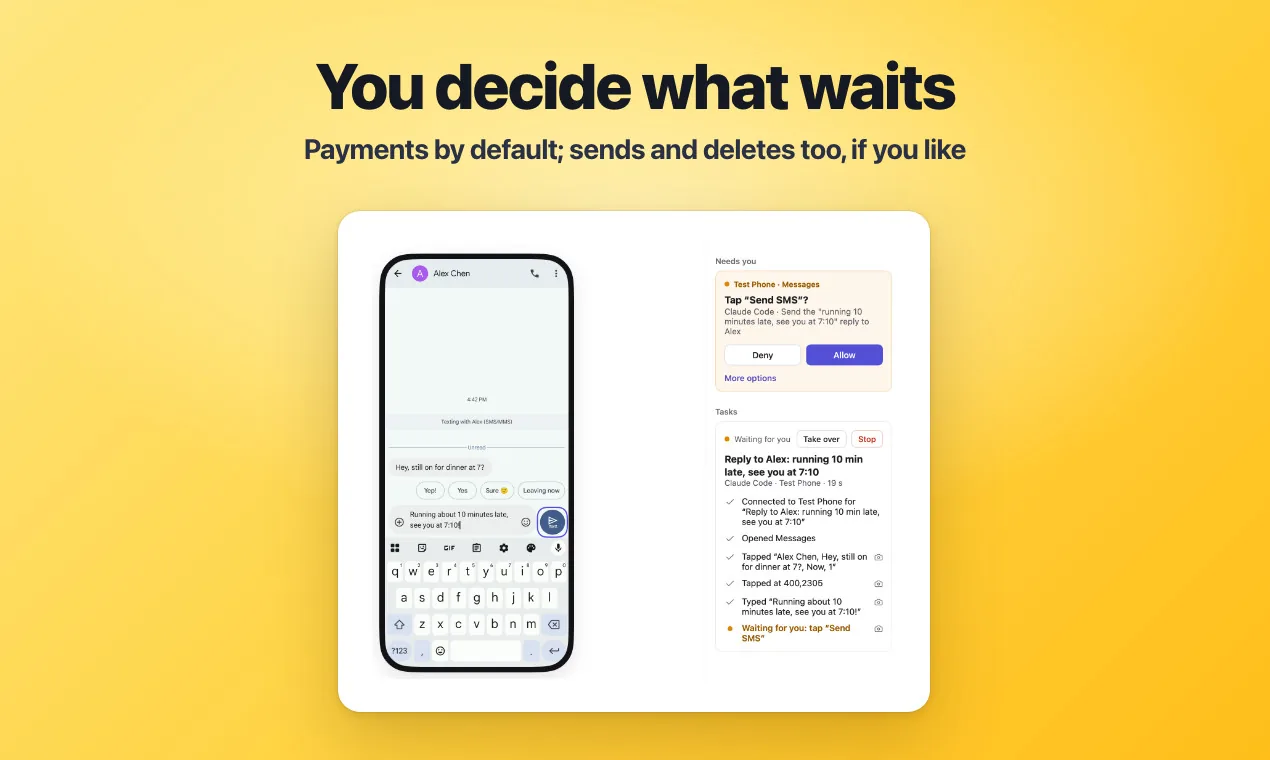
Pinky is nine days old. DIYgod/pinky (Apache-2.0) was created on November 6, 2026, and by the morning of November 15 it had 2,158 stars, 235 forks, 1,352 commits, and 151 releases — a rolling release every few hours, the latest v2026.1115.4 published at 02:38 UTC today. It comes from DIYgod, who authors and maintains RSSHub, the open-source feed generator. The idea is simple and, until now, missing: let any agent that speaks MCP — Claude Code, Codex, Cursor, Claude Desktop, VS Code, Copilot CLI, Windsurf, Gemini CLI — operate a real iPhone or Android phone, while you watch, approve the risky steps, and can take over at any moment.
What makes it worth your time is not the phone control. Screen mirroring and remote control have existed for years. It is the approval model. The rules that decide what waits for your click run in Pinky's gateway, not in the agent's instructions, so an agent cannot approve itself — not even when text on the screen tries to talk it into it. Banking, wallet, and password-manager apps are invisible to agents by default, agents cannot type into password or one-time-code fields, and every run is recorded with screenshots and a screen recording you can export as an HTML report. That is the difference between a demo that drives a phone and a tool you would let near your own.
Two honest caveats before the steps. First, Pinky calls itself pre-alpha, and the README says so plainly: some of it still waits for a person to try it, and docs/ACCEPTANCE.md in the repo lists what works today and how to try it. Second, this guide is split by what could actually be run. Steps 1–3 were run on November 15, 2026, on a 2-core virtual machine with no GPU and no phone: the install, the checksum, the version, and the full agent loop against Pinky's scripted demo phones, over the real MCP protocol. Steps 4 and 5 — registering a real agent and pairing a real phone — are documented from the README and marked as not run here, because the sandbox has no Anthropic account and no physical phone. Nothing below is written from memory.
What you'll need
Linux x86_64 with glibc 2.29 or later and GTK 3 (the steps below use the Linux tarball; the same release offers a .deb), or macOS 13 or later, or Windows 10/11 64-bit. A phone is optional for this guide: Pinky ships a --fake mode with two scripted demo phones, and Steps 1–3 use only that. A real phone — Android 10 to 17, or an iPhone on iOS 17.4 or later — is needed for Step 5, and an MCP-capable agent for Step 4. No account, no API key, no GPU, and no model bill for anything verified here. The version pinned in this guide is Pinky 2026.1115.4, released November 15, 2026.
Step 1 — Install Pinky 2026.1115.4
Download the Linux tarball from the v2026.1115.4 release, verify its checksum against the hash the release publishes, and extract it:
curl -sL -o pinky-2026.1115.4-linux-amd64.tar.gz \
  https://github.com/DIYgod/pinky/releases/download/v2026.1115.4/pinky-2026.1115.4-linux-amd64.tar.gz
sha256sum pinky-2026.1115.4-linux-amd64.tar.gz
# 9722fa8f476706a23a6e007e543eecf45f77d006be9a0383ab82a77b71668f5e
tar -xzf pinky-2026.1115.4-linux-amd64.tar.gz
The tarball is 34,646,871 bytes; the checksum above is the one published in the release's SHA256SUMS, and it matched exactly. The archive is self-contained: the pinky binary, a bundled adb for Android, FFmpeg libraries, the Pinky Android app (pinky-android.apk), and a desktop file. On Debian and Ubuntu the same release offers a .deb (sudo apt install ./pinky_2026.1115.4_amd64.deb); on a Mac it is a .dmg or brew install --cask diygod/tap/pinky; on Windows an installer or a zip. Confirm the install:
./pinkyctl version
# pinky 2026.1115.4
Two details in that command are worth keeping. First, the command is pinkyctl, not pinky: many computers already have another program named pinky, and the Linux packages and Homebrew cask install the CLI as pinkyctl — the tarball's own executable takes the same commands, so a symlink or the .deb both give you pinkyctl. Second, pinkyctl --help shows the whole surface: app (the desktop app and gateway), daemon (gateway without UI), mcp (the MCP server on stdio), devices, task (hand Ask Pinky a task from a shell), companion install, helper install, token, quit, update, and version — plus a --fake flag and a PINKY_HOME environment variable that keeps config, data, and the socket under one folder. The steps below set PINKY_HOME so nothing scatters.
Step 2 — Your first working example: the fake phones
Pinky's answer to "no phone at hand" is a flag: pinkyctl --fake starts it with two scripted demo phones — a payment to approve, a blocked banking app, a password field — so you can learn the whole loop without hardware. List them:
export PINKY_HOME="$PWD/pinky-home"
./pinkyctl devices --fake
# NAME              ID              PLATFORM  CONNECTION  STATUS
# Pixel 9 (fake)    fake-pixel-9    android   usb         Idle
# iPhone 17 (fake)  fake-iphone-17  ios       usb         Idle
Both demo phones report as online and idle. The agent-facing surface is the MCP server, pinkyctl mcp, which speaks JSON-RPC 2.0 over stdio — one message per line. I verified it directly, without any agent or API key, by speaking the protocol to it from a small Python client. The handshake, with the -fake flag so the server starts its own gateway with the demo phones:
→ {"jsonrpc": "2.0", "id": 1, "method": "initialize",
   "params": {"protocolVersion": "2024-11-05", "capabilities": {},
              "clientInfo": {"name": "verify", "version": "0.1"}}}
← {"id": 1, "jsonrpc": "2.0",
   "result": {"capabilities": {"tools": {"listChanged": true}},
              "instructions": "Pinky lets you operate the person's real
              phone, while they watch, approve risky steps and can take
              over.
Start a task with phone_connect ...", ...}}
Then the tool list. The server in 2026.1115.4 exposes 26 tools, all prefixed phone_: phone_app, phone_apps, phone_batch, phone_connect, phone_device, phone_drag, phone_files, phone_handoff, phone_key, phone_launch, phone_logs, phone_observe, phone_pinch, phone_read_list, phone_release, phone_request_approval, phone_swipe, phone_tap, phone_task_cancel, phone_task_list, phone_task_run, phone_task_status, phone_task_steer, phone_task_wait, phone_type, and phone_wait_for. The instructions the server returns with the handshake are the agent's operating manual: start with phone_connect, act on refs like [12] from the latest screen, never approve anything yourself, never type passwords or one-time codes (call phone_handoff instead), and end with phone_release.
Step 3 — Run the agent loop: connect, tap, observe, release
This is the whole loop in miniature, run against the fake Pixel 9. Connect leases the phone to your session and returns its first screen:
→ {"jsonrpc": "2.0", "id": 2, "method": "tools/call",
   "params": {"name": "phone_connect",
              "arguments": {"task": "AFP probe - read the home screen",
                            "device": "fake-pixel-9"}}}
← {"content": [{"text": "settled · Pixel 9 (fake)
Connected to Pixel 9
   (fake) for “AFP probe - read the home screen”.
device: fake-pixel-9

screen 1080x2400 · app: Pixel Launcher
   (com.google.android.apps.nexuslauncher) · portrait · keyboard hidden

[1] text \"9:41\" @100,52
[2] button \"Dinely\" @540,280

[3] button \"Chatter\" @540,464
[4] button \"Calculator\" @540,648

[5] button \"Settings\" @540,832
[6] button \"Messages\" @540,1016

[7] other \"Hidden by Pinky: a blocked app's card\" @540,1200"}], ...}
Read that screen carefully, because two safety behaviours are already visible in it. Element [7] is a blocked app's card, and Pinky hides it from the agent entirely — the agent sees only that something was hidden, never the app's name or contents. The screen is a structured list, one element per line as [ref] role "label" @x,y, which is what the agent acts on: tap by ref, not by guessing coordinates. Now tap Messages, ref [6]:
→ {"jsonrpc": "2.0", "id": 3, "method": "tools/call",
   "params": {"name": "phone_tap",
              "arguments": {"device": "fake-pixel-9", "ref": 6,
                            "intent": "Open Messages to read the conversation list"}}}
← {"content": [{"text": "settled · Pixel 9 (fake)
screen 1080x2400 ·
   app: Messages (com.google.android.apps.messaging) · portrait ·
   keyboard hidden
[1] text \"9:41\" @100,52
[8] text \"Dinely: Your
   Dinely code is ••••••\" @540,260"}], ...}
The tap settled, the screen changed to the Messages app, and the message list shows one item: a Dinely verification code — masked, as six dots. The agent can see that a code arrived, and which service sent it, but never the code itself. That is the design working as documented: codes are covered on the screen, in recordings, and in reports. Finish the loop by observing the screen once more (phone_observe, no arguments — it returns the same Messages screen) and releasing the phone:
→ {"jsonrpc": "2.0", "id": 5, "method": "tools/call",
   "params": {"name": "phone_release",
              "arguments": {"device": "fake-pixel-9", "outcome": "done",
                            "summary": "probe complete"}}}
← {"content": [{"text": "settled · Pixel 9 (fake)
Released Pixel 9
   (fake)."}], ...}
Every call in this step returned settled, and the MCP server exited cleanly. In the headless fake run the first connection settled at once; in the desktop app, the README says the first connection of a new agent waits for your approval, and payments wait for your click by default. The fake phones exist precisely so you can rehearse this loop — including the approval and blocked-app paths — before any real phone is involved.
Step 4 — Hand your phone to a real agent
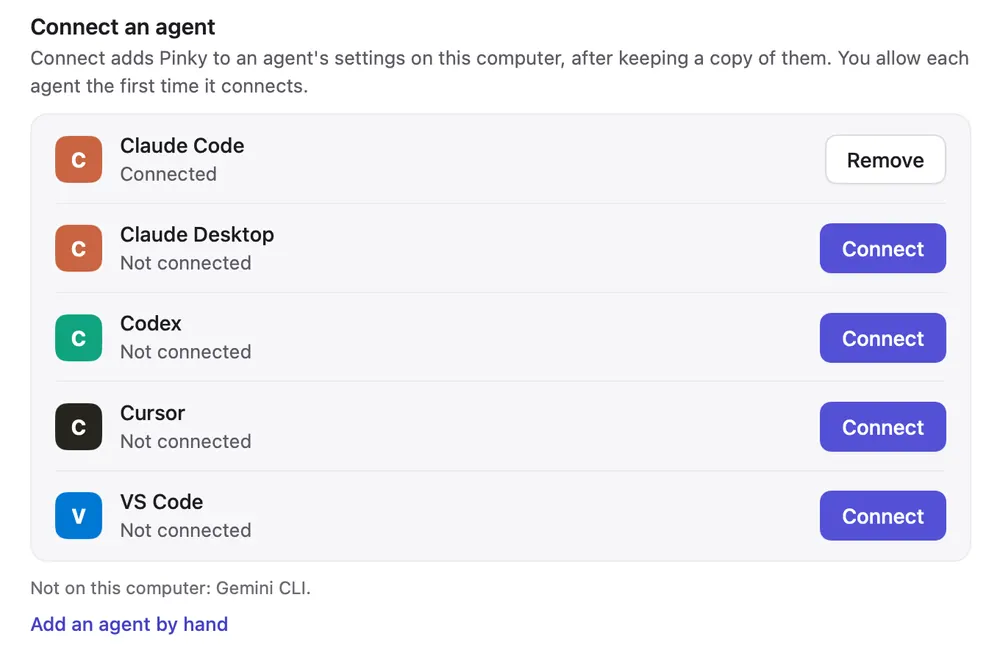
The MCP server you just spoke to by hand is what an agent connects to. In Pinky, open Settings › Agents and click Connect next to your agent. Pinky finds Claude Code, Claude Desktop, Codex, Cursor, VS Code, Copilot CLI, Windsurf (Devin Desktop), and Gemini CLI on your computer and adds itself to the agent's MCP servers — using the agent's own command where it has one, or editing its settings file, which Pinky copies first and changes only in Pinky's entry. It also installs Pinky's agent guide, SKILL.md, where the agent reads skills, and keeps it current when Pinky updates. Claude Code reads it from ~/.claude/skills/pinky/SKILL.md; most other agents from ~/.agents/skills/pinky/SKILL.md.
If you prefer to wire it by hand, the README gives the config and the command. In a JSON config, with the Homebrew cask or a Linux package:
{ "mcpServers": { "pinky": { "command": "pinkyctl", "args": ["mcp"] } } }Claude Code in a terminal:
claude mcp add --scope user pinky -- pinkyctl mcpAn agent on another computer, or in a container, can connect over HTTP instead of stdio; the daemon serves MCP over HTTP with pinkyctl daemon --http 127.0.0.1:7465, and agents connecting that way send the agent token (pinkyctl token prints it). Then ask the agent to do something on your phone — the README's example is "Open Messages on my phone and tell Sam I'm running late" — and watch it work in Pinky's window. This step is documented from the README and was not run here: Claude Code needs an Anthropic account, and this sandbox has none. What was run here is the protocol underneath it — the same 26 tools, the same handshake, the same connect-tap-observe-release loop — so the registration above connects an agent to a server already proven to answer.
Step 5 — Connect a real phone
Open Pinky and choose Add phone. A phone that is ready shows up in Pinky's window; when something is missing, the phone's page says what. This step is documented from the README and was not run here — the sandbox has no physical phone — but the steps are exact, and the failure modes are Pinky's own words.
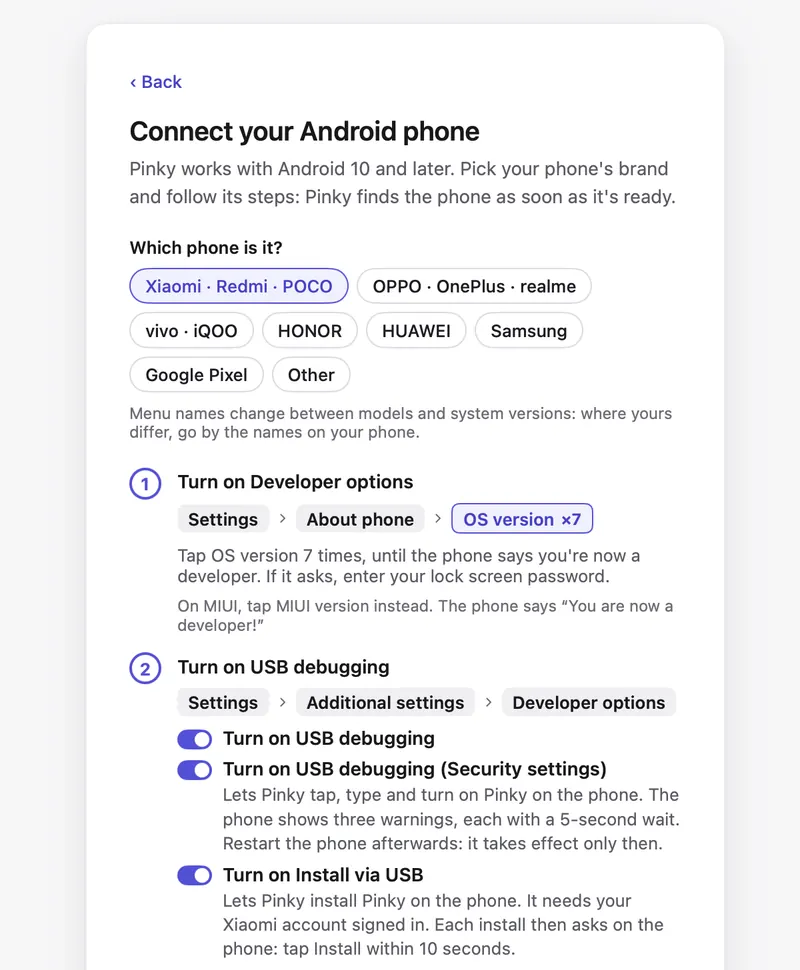
Android. Turn on USB debugging (Settings › About phone, tap Build number 7 times, then enable it in Developer options), plug the phone in, and tap Allow when it asks. Pinky brings its own adb, built from Android's source, so nothing else needs installing; if Android Studio or Homebrew platform tools are already there, Pinky uses those and shares their adb server. Pinky then offers to install its Android app, Pinky on the phone, which reads the screen in about 70 ms instead of 2 s and types in any language without the clipboard. On Android 13 and later, agents work on a background display, so the phone's own screen can stay off and locked. On Android 11 and later you can pair over Wi-Fi instead of the cable; Android 10 moves to Wi-Fi from the cable with adb tcpip on port 5555.
iPhone. Plug it in, unlock it, tap Trust, and turn on Developer Mode in Settings › Privacy & Security — Pinky makes the switch appear there; the phone restarts once. Pinky then mounts Apple's developer disk image on the phone and lists it as ready. The image comes with Xcode (install it once on a Mac and open it; Pinky uses the image it installs), or, on Windows and Linux, by copying it from such a Mac; without either, Add phone offers to download it from a third-party mirror, github.com/doronz88/DeveloperDiskImage, only when you click Download, and Pinky checks every file against the checksum it expects. What Pinky can then do depends on the iOS version:
| iOS | How | What works |
|---|---|---|
| 27 and later | Xcode's Device Hub protocol; nothing installed on the phone | Everything but pinching |
| 17.4 and later, with Pinky on the iPhone | Pinky's app with WebDriverAgent in it, installed once from a Mac with Xcode, signed with your Apple ID | Everything; the phone shares no screen, so banking apps that refuse screen sharing keep working |
| 17.4 to 26, without it | The developer services alone; nothing installed | Watching, reading the screen, opening apps and links. No tapping, swiping, typing, or Home |
| 17.3 and earlier | — | Not supported |
With a free Apple ID, the app's signature lasts 7 days and Pinky reminds you two days before it runs out; with a paid developer account, a year. Virtual phones work too: Add phone › Virtual phone lists the iOS Simulators and Android emulators on the computer — Start starts one, and once it runs it shows up as a phone, marked Simulator or Emulator. Pinky creates no simulators or emulators and downloads no system images; create them in Xcode or Android Studio's Device Manager first. And if no phone is at hand at all, pinkyctl --fake on Linux (or the equivalent on Mac and Windows) starts the two scripted demo phones from Step 2.
When to use this vs alternatives
Pinky is the right tool when the task is "an agent I already use should do something on my phone, with me watching." The two use cases the README keeps returning to are personal automation — read a message, send a reply, check an app — and app testing: an agent can install a build you made, open it, drive it, read its logs and crash reports, save screenshots for a bug report, and put the phone's settings back when the task ends. The approval model is the reason to pick it over the alternatives: payments wait for your click by default, sends and deletions can be made to wait, and the rules are enforced by the gateway, so prompt injection on the screen cannot approve itself.
The closest-looking alternative is the opposite direction. T3 Code puts a server on the machine where your agents live so you can drive them from your phone; Pinky puts a server on the machine where your phone lives so your agents can drive the phone. If the phone is the thing being operated, Pinky is the tool; if the agents are the thing being operated, T3 Code is. Appium and raw WebDriverAgent are the test-automation alternative: powerful, scriptable, and the same stack Pinky builds on for older iPhones — but they have no agent loop, no approvals, and no human-in-the-loop by design; you write the test, it runs. scrcpy mirrors and controls an Android screen, and macOS iPhone Mirroring does the same for iPhones, but neither speaks MCP, so neither lets an agent do the driving. And the computer-use CLIs that drive desktops — agent-browser for the browser, for example — operate a different device class entirely.
Do not use Pinky yet where the README itself says not to. It is pre-alpha, nine days old, and moving at several releases a day: the ground under it shifts, some features still wait for a person to try them, and the iPhone paths below iOS 27 are the least-tried parts. Do not use it as a device farm, do not point it at a phone you do not own, and do not expect it to reach into banking apps — that refusal is the point. For one phone, your own, with you in the loop, it is already usable; for anything unattended, wait.
The takeaway
Pinky is the missing bridge between the agents you already run and the phone you already carry. In about ten minutes you can install 2026.1115.4, verify its checksum, list two demo phones, shake hands with a 26-tool MCP server, and run the whole agent loop — connect, tap, observe, release — against a scripted Pixel 9, watching the safety model work in the output itself: a blocked app hidden, a verification code masked. The install is a 35 MB download, the server needs no account and no key, and the phone steps are documented to the level of which switch to tap on which brand. The project is nine days old and pre-alpha, so treat it as a sharp tool for your own phone rather than infrastructure. But the direction is the story: agents that operate the devices people actually live on, with the person — not the prompt — holding the approvals. Start with --fake, run the loop, and decide from the output, not the pitch.
Sources
- DIYgod/pinky on GitHub — repository, README, stars, and install instructions
- Pinky 2026.1115.4 release — release notes, asset list, and SHA256SUMS
- Pinky and AI agents (docs/mcp.md) — MCP server, agent registration, and HTTP connections
- Acceptance (docs/ACCEPTANCE.md) — what works today and how to try it
- DIYgod/RSSHub on GitHub — DIYgod as author and maintainer of RSSHub