Orca: run Claude Code, Codex, and every other CLI agent in parallel git worktrees — hands-on
Orca (stablyai/orca) is the MIT-licensed agent development environment that puts a fleet of coding agents into isolated git worktrees — 81,000+ GitHub stars and a real CLI. We installed v1.4.216 on Linux, ran it headless, and drove the whole loop: repo add, parallel worktrees, terminals, output streaming, and cleanup. Every command verified.
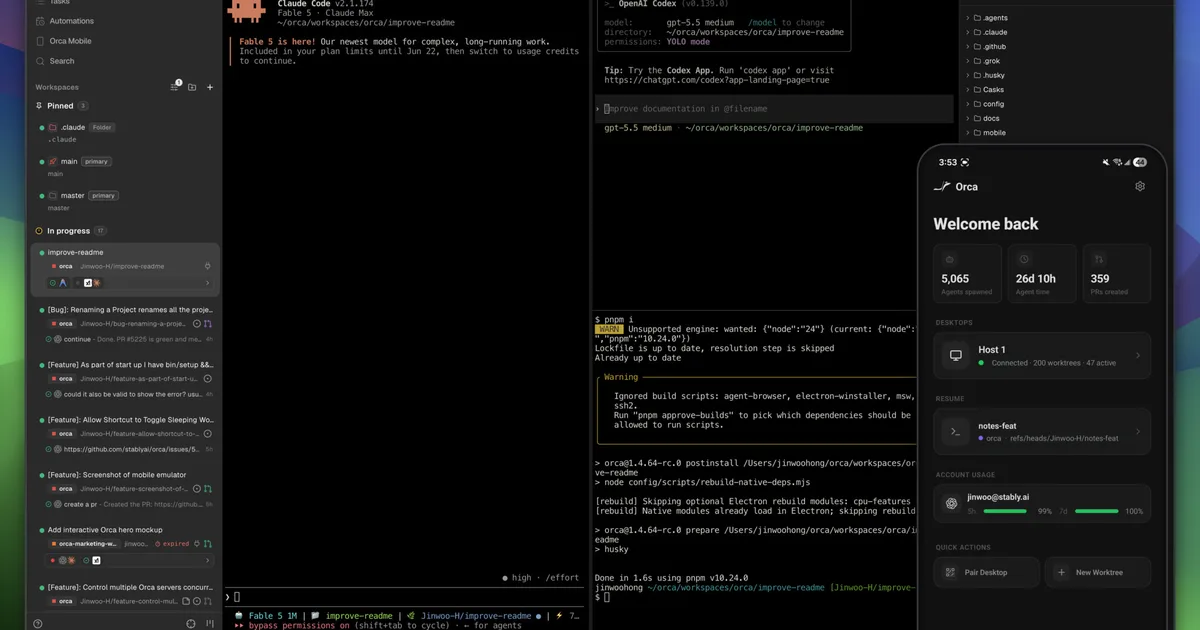
Some GitHub numbers make you do a double take. Orca (stablyai/orca) reported 81,123 stars when we queried the GitHub API on September 29, 2026 — up from roughly 65,900 in a third-party survey eighteen days earlier. That is about 15,000 new stars in under three weeks, for a project created in March 2026. It calls itself an "ADE" — an agent development environment — for "working with a fleet of parallel agents," it is MIT-licensed, and its own description says the quiet part out loud: "Run any coding agent with your own subscription." Its topic list reads like a who's-who of CLI coding agents: claude-code, codex, opencode, cursor-agent.
The pitch is simple: instead of juggling terminal tabs and git worktree commands by hand, Orca gives every task its own isolated git worktree, every worktree its own terminal (or agent), and a JSON CLI to drive the whole fleet. We downloaded the official Linux build of the latest release (v1.4.216, published September 28, 2026), ran it headless on a plain Linux VM, registered a repo, created two parallel worktrees, ran workers in both, streamed their output back, proved the isolation on disk, and cleaned everything up. Every command below ran on September 29, 2026 — no agent subscription, no API keys, no GPU.
What you'll need #
- Linux x86-64 (this tutorial), or macOS/Windows for the desktop app. Orca ships a desktop app for all three; the headless path below is for servers and VMs.
- About 10 minutes and ~206 MB of download for the AppImage. No build step, no dependencies beyond what the AppImage carries.
- No accounts, no API keys, no GPU. The workers in this tutorial are plain shell commands standing in for agents. To launch real Claude Code / Codex agents you need your own subscription for that agent — Orca is bring-your-own-agent.
Step 1 — Download and pin the version #
Orca's releases page publishes per-platform builds. Pin the exact release — this tutorial uses v1.4.216 (published 2026-09-28):
$ curl -L -o orca.AppImage \
    https://github.com/stablyai/orca/releases/download/v1.4.216/orca-linux.AppImage
$ chmod +x orca.AppImage
$ ./orca.AppImage --appimage-extract   # optional: run without FUSE
$ cd squashfs-root
$ ./orca-ide --no-sandbox --version
1.4.216
Two notes. First, --no-sandbox is needed when running as root — stock Electron refuses to start otherwise. Second, the version string matches the release tag exactly, which is how you confirm you are testing the thing you think you are testing.
Step 2 — Start the headless runtime #
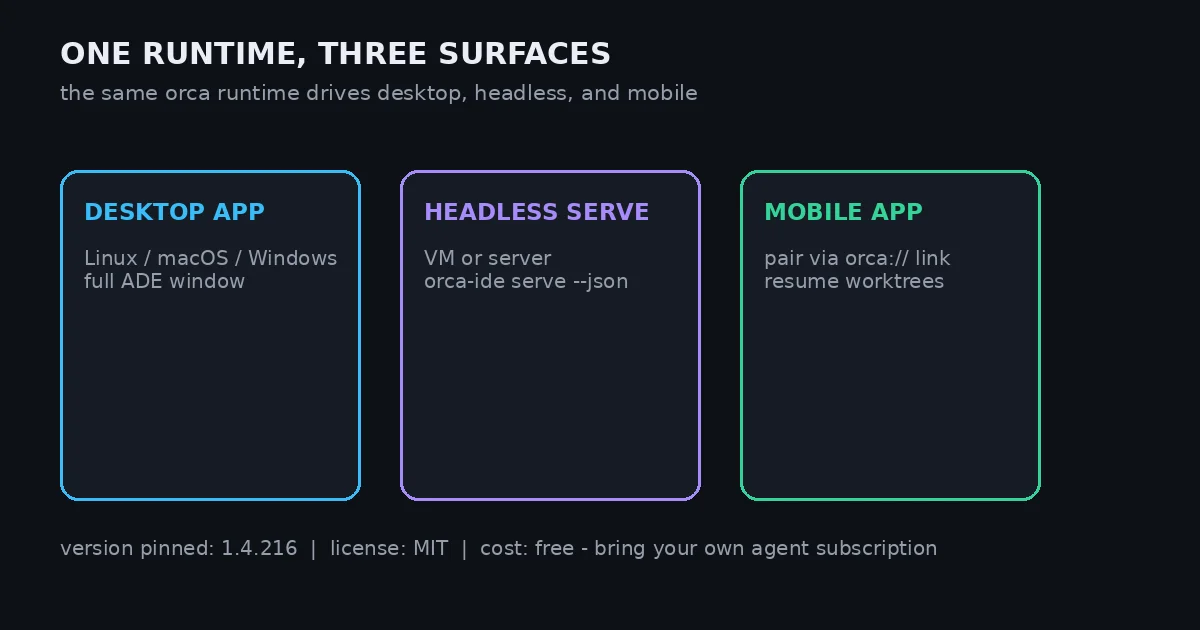
Orca is one runtime with three surfaces (see above): the desktop app, a headless server, and a mobile app that pairs to either. On a server or VM, start it headless:
$ ./orca-ide --no-sandbox serve --port 6768 --jsonIt runs in the foreground and prints a machine-readable contract — a JSON object with "type": "orca_server_ready", the bound endpoint (ws://0.0.0.0:6768, advertised as ws://127.0.0.1:6768), and pairing information. The pairing payload includes an orca://pair URL carrying a device token: treat it like a password and don't paste it anywhere. The serve step also installs the orca CLI dispatcher into ~/.local/bin/orca — make sure ~/.local/bin is on your PATH.
Check the runtime is actually reachable:
$ export PATH="$HOME/.local/bin:$PATH"
$ orca status --json
{
"ok": true,
"result": {
"app": { "running": true, "pid": 2258, "desktopWindowStatus": "openable" },
"runtime": {
"state": "ready",
"reachable": true,
"connectionState": "connected",
"appVersion": "1.4.216"
}
}
}state: "ready" plus reachable: true is the green light. One environment quirk worth knowing: on a server with no desktop keyring, Orca warns that the OS keyring is unavailable and secrets are stored unencrypted. On a normal desktop that warning doesn't appear; on a headless box, don't store anything precious until you've set up gnome-keyring or kwallet.
Step 3 — Register a repo #
Orca manages worktrees per registered repository. Make a tiny demo repo — any git repo works:
$ mkdir orca-demo-repo && cd orca-demo-repo
$ git init -q -b main
$ echo "# demo tasks" > README.md && mkdir src
$ echo "console.log('hello orca');" > src/index.js
$ git add -A && git commit -qm "Initial commit"
Register it:
$ orca repo add --path ~/orca-demo-repo --json{
"ok": true,
"result": {
"repo": {
"id": "fef0e2be-9c10-422b-b7b9-36c5c12004c6",
"path": "/home/hatch/orca-demo-repo",
"displayName": "orca-demo-repo",
"kind": "git"
}
}
}Save that repo id — every later command addresses the repo through it. (The --repo flag also accepts id:, name:, and path: selector forms; a bare id worked in our run.)
Step 4 — Create two isolated worktrees #
$ orca worktree create \
    --repo fef0e2be-9c10-422b-b7b9-36c5c12004c6 \
    --name demo-task-a --json
{
"ok": true,
"result": {
"worktree": {
"id": "fef0e2be-9c10-422b-b7b9-36c5c12004c6::/home/hatch/orca/workspaces/orca-demo-repo/demo-task-a",
"path": "/home/hatch/orca/workspaces/orca-demo-repo/demo-task-a",
"branch": "refs/heads/demo-task-a",
"isMainWorktree": false
}
}
}Two things to notice. First, the worktree id is the full <repo-id>::<path> value — long, but unambiguous, and it's what the terminal and remove commands want. Second, Orca puts worktrees under ~/orca/workspaces/<repo>/, leaving your original checkout untouched. Create a second one the same way (--name demo-task-b).
Are these real git worktrees or a proprietary imitation? Check:
$ git -C ~/orca/workspaces/orca-demo-repo/demo-task-a worktree list
/home/hatch/orca-demo-repo                                1a22654 [main]
/home/hatch/orca/workspaces/orca-demo-repo/demo-task-a   1a22654 [demo-task-a]
Real worktrees, real branches (demo-task-a, demo-task-b), both starting at the repo's HEAD. Everything git knows how to do — diff, merge, push — works on them outside Orca too.
Step 5 — Run parallel workers and read their output #
Each worktree gets its own terminal. Create one per worktree (shown for worktree B; repeat for A):
$ WT_B="fef0e2be-9c10-422b-b7b9-36c5c12004c6::/home/hatch/orca/workspaces/orca-demo-repo/demo-task-b"
$ orca terminal create --worktree "$WT_B" --json
{ "ok": true,
"result": { "terminal": {
"handle": "term_89026116-a2d5-4e2b-9b64-9edb9cc52a75",
"worktreeId": "fef0e2be-9c10-422b-b7b9-36c5c12004c6::/home/hatch/orca/workspaces/orca-demo-repo/demo-task-b",
"hostPlatform": "linux", "surface": "background" } } }The terminal's working directory is the worktree root automatically — no cd needed. Send it work with terminal send:
$ orca terminal send --terminal term_89026116-a2d5-4e2b-9b64-9edb9cc52a75 \
    --text 'echo "worker-b says hi" > checklist.md && git status --short && pwd' \
    --enter --json
{ "ok": true }
Then read back what happened:
$ orca terminal read --terminal term_89026116-a2d5-4e2b-9b64-9edb9cc52a75 \
    --limit 30 --json
{ "ok": true,
"result": { "terminal": {
"handle": "term_89026116-a2d5-4e2b-9b64-9edb9cc52a75",
"tail": ["", "?? checklist.md",
"/home/hatch/orca/workspaces/orca-demo-repo/demo-task-b",
"htch-runtime#"],
"source": "stream" } } }The output streams back as tail with source: "stream". To wait deterministically for a command to finish, end the command with exit and wait on the exit condition:
$ orca terminal send --terminal term_89026116-a2d5-4e2b-9b64-9edb9cc52a75 \
    --text 'exit' --enter
$ orca terminal wait --terminal term_89026116-a2d5-4e2b-9b64-9edb9cc52a75 \
    --for exit --timeout-ms 10000 --json
{ "ok": true,
"result": { "wait": { "condition": "exit", "satisfied": true,
"status": "exited", "exitCode": 0 } } }Three gotchas we hit so you don't have to. First, the flag names differ from what the online docs suggest: terminal send takes --text plus --enter (not --command), and terminal wait takes --timeout-ms (not --timeout) — the CLI's own --help is the authority. Second, if the sent command doesn't end with exit, the shell just returns to its prompt and --for exit waits out the full timeout; always terminate scripted commands with exit when you plan to wait on them. Third, an exited terminal's stream buffer reads back empty — do your terminal read before exiting, not after.
Step 6 — Prove the isolation #
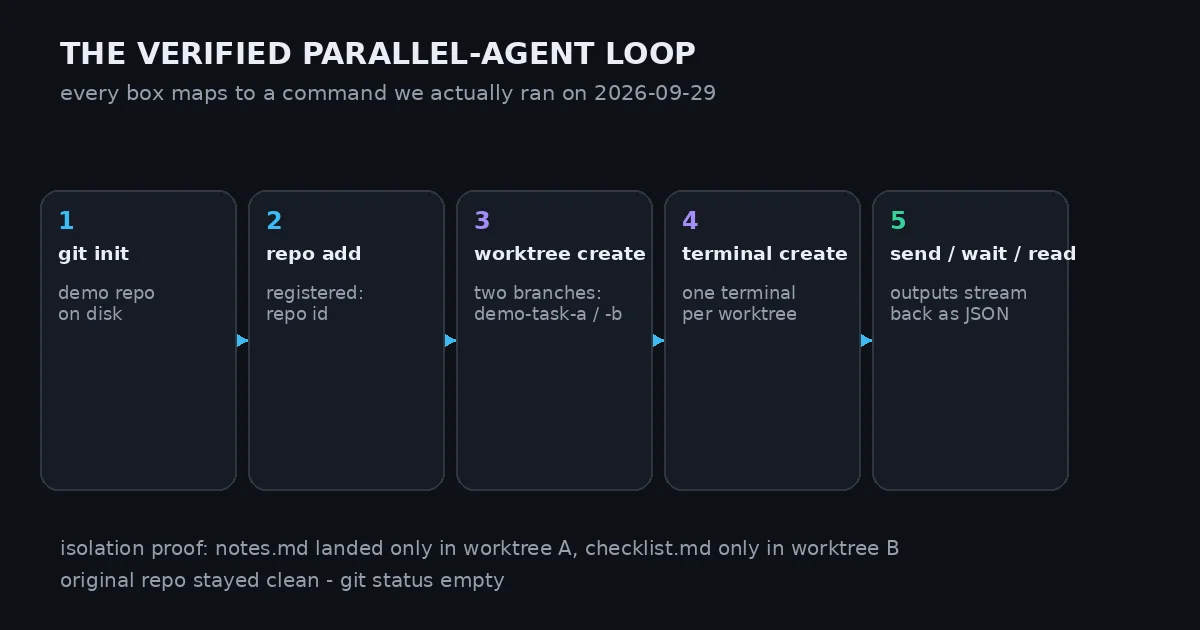
Worker A wrote notes.md; worker B wrote checklist.md. On disk:
$ cat ~/orca/workspaces/orca-demo-repo/demo-task-a/notes.md
worker-a says hi
$ cat ~/orca/workspaces/orca-demo-repo/demo-task-b/checklist.md
worker-b says hi
$ git -C ~/orca-demo-repo status --short
$   # empty — the original checkout is untouched
Each worktree saw only its own files; the original repo stayed clean. That's the whole point of the ADE model: parallel agents that can't step on each other's checkouts.
For fleet management, label worktrees and list them:
$ orca worktree set --worktree "$WT_A" --comment "Implement feature X" --json
{ "ok": true }
$ orca worktree ps --json
- demo-task-b |  | refs/heads/demo-task-b | status: active
- demo-task-a | Implement feature X | refs/heads/demo-task-a | status: active
- main |  | refs/heads/main | status: inactive
worktree ps is your fleet dashboard: every worktree, its comment, branch, and status, as JSON you can pipe into scripts.
Step 7 — The real-agent path: --agent and --prompt #
So far our "agents" were shell one-liners. The real thing looks like this — documented, not executed in our run, because it needs an agent account:
$ orca worktree create --repo id:<repoId> --name agent-task \
    --agent codex --prompt "Add input validation to src/index.js" --json
--agent launches a known TUI agent (codex, claude, opencode, …) in the worktree's first terminal, and --prompt sends it the initial task. The catch: the agent runs under your subscription — add it first with orca account add (Claude or Codex). Orca itself is free and MIT-licensed; the model bills go to whoever you already pay. We deliberately did not test this path: our sandbox has no Claude or Codex account, and launching a billed agent session to write a tutorial would be spending money for curiosity. The flags above come from the CLI's own help text, verified present in v1.4.216.
For a fresh agent inside an existing worktree instead of a new one: orca terminal create --worktree active --command "codex".
Cleanup #
Remove the worktrees when the tasks are done:
$ orca worktree rm --worktree "$WT_A" --force --json
{ "ok": true }
$ orca worktree rm --worktree "$WT_B" --force --json
{ "ok": true }
$ orca worktree ps --json
- main | status: inactive
Both worktrees and their branches are gone; the workspaces directory is removed; the original repo still has its single main checkout. Stop the server with Ctrl+C (or kill the orca-ide serve process). If you extracted the AppImage, delete the squashfs-root directory and the 206 MB AppImage to reclaim the space.
When to use Orca vs the alternatives #
- You just need isolated checkouts. Plain
git worktree addplus tmux is free, zero-install, and scriptable today. Orca earns its keep when the number of parallel tasks — and agents — grows past what tabs can hold. - You want to manage agent configuration. ECC installs skills, rules, and agents into your harness and scans the config for security issues; Orca orchestrates the runtime — worktrees, terminals, agents. They complement each other.
- You want spec-driven development. GitHub's Spec Kit enforces the spec-first workflow inside one checkout; Orca parallelizes checkouts. Different layers.
- You run agents on a server and check in from your phone. This is Orca's home turf: headless
serveon the box,orca://pairing, a mobile app to watch the fleet. Nothing in the plain-git-tooling world does that. - You don't want another Electron app. Fair — the runtime is Electron-based (~206 MB download). The headless JSON CLI surface means you can drive it without ever opening the window, which is exactly what this tutorial did.
On cost: Orca is free under the MIT license. The agents are not — bring your own Claude, Codex, or other CLI-agent subscription, which is precisely what "Run any coding agent with your own subscription" means.
The takeaway #
Orca's star count is doing a lot of marketing work, but the substance held up in testing: a real headless runtime with a documented orca_server_ready contract, a JSON CLI that registered a repo, created genuine git worktrees on real branches, ran isolated workers in parallel, streamed their output back, and removed everything cleanly. The rough edges are the honest kind — flag names that drifted from the docs (--text, --timeout-ms), an exited terminal's empty read buffer, a keyring warning on headless boxes — all discoverable in minutes, all worked around. If your workflow is "several agents, several tasks, one repo," install v1.4.216, run it headless, and let worktree ps be your fleet dashboard. Just remember to end scripted commands with exit.